Hello friends. It’s me again. Welcome back to the Basic Excel Series for beginners. With today’s post, I will show you how to name ranges in Excel
| Join the channel Telegram of the AnonyViet 👉 Link 👈 |
Name the interval
Step 1: Select the range to name
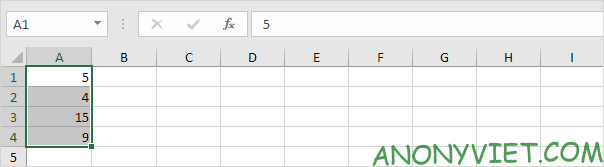
Step 2: In the Formulas section, select Define Name
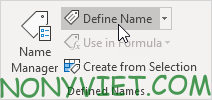
Step 3: Enter a name and press OK
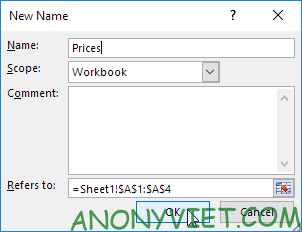
Or you can use the following way
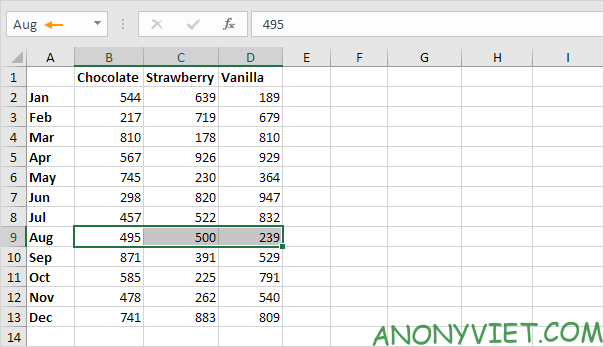
Step 1: Select the range to name
Step 2: Enter the name to put in the box as shown below and press Enter
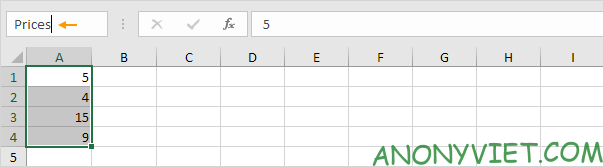
Benefits of naming intervals
1. Use functions and calculations. Example: =Sum(prices)
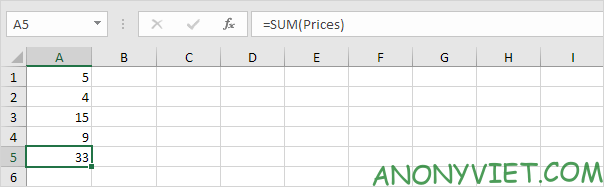
2. Create a variable to use
Step 1: In the Formulas section, select Define Name
Step 2: Enter a name and enter a value
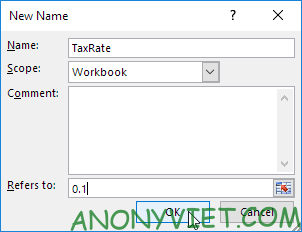
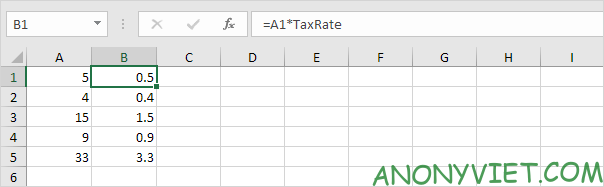
Example usage of variable
Manage named intervals
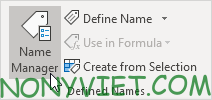
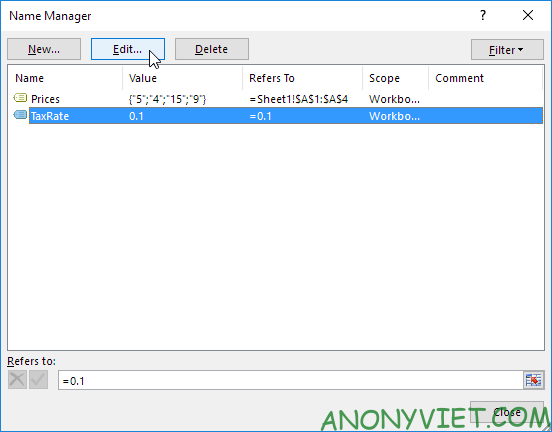
Step 1: In the Formulas section, select Name Manager
Step 2: Name Manager dialog box will appear
Set column and row names based on tables
Step 1: Select the range to name
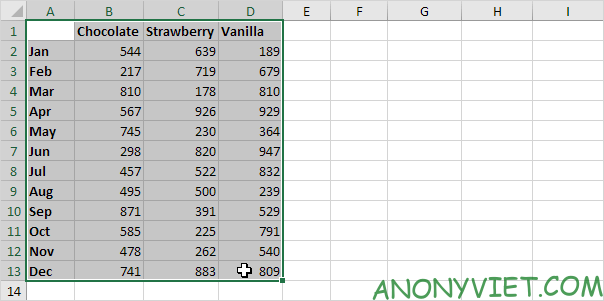
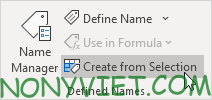
Step 2: In the Formulas section, Select Create from selection
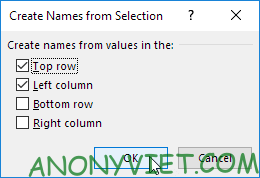
Step 3: Tick the 2 boxes Top row and Left column and then click OK
Result
So I just finished the tutorial on naming ranges in Excel. If you have any questions, please leave a comment to let me know