• Home
  • News
  • Software
  • Knowledge
  • MMO
  • Tips
  • Security
  • Network
  • Office
AnonyViet - English Version
  • Home
  • News
  • Software
  • Knowledge
  • MMO
  • Tips
  • Security
  • Network
  • Office
No Result
View All Result
  • Home
  • News
  • Software
  • Knowledge
  • MMO
  • Tips
  • Security
  • Network
  • Office
No Result
View All Result
AnonyViet - English Version
No Result
View All Result

Instructions to automatically color Excel cells according to conditions

AnonyViet by AnonyViet
January 28, 2023
in Tips
0

Color scales represent all sorts of things like temperature, speed, age, and even population. If you want to apply this auto-coloring to Excel cells with the available condition, use the Color Scale feature according to the instructions below.

Join the channel Telegram of the AnonyViet 👉 Link 👈

Instructions to automatically color Excel cells according to conditions

With conditional formatting, you can apply a gradient color scale in just a few minutes. Excel provides a two- and three-color color scale that you can choose from, along with other options for customizing your color scale.

Automatically color Excel cells with conditional formatting

Microsoft Excel provides you with several color scale templates to automatically colorize Excel cells for quick application. These include six two-color scales and six three-color scales.

Select the cells that you want to apply. Then go to section Styles of the Home tab.

Click on “Conditional Formatting” and select “Color Scales.“. You will see all 12 color scale options available.
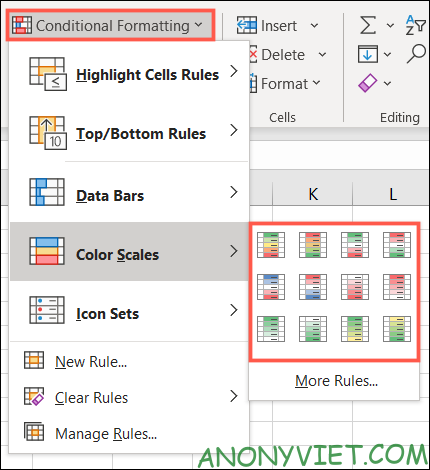
Quickly apply conditional formatting color scale

As you hover over each one, you’ll see the cells you selected change as well. Thanks to that, you can easily choose the most suitable color scale for your Excel table.
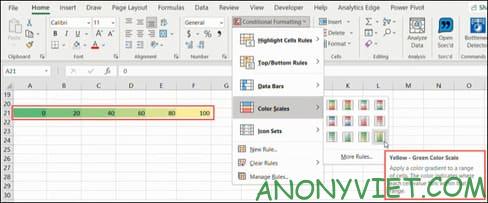
use excel color scale

Customize conditional formatting color scale

If you don’t like Excel’s built-in color scale templates, you can still easily create your own color scale.

Select the cells you want, go to the Home tab and select “New Rule” under “Conditional Formatting”.
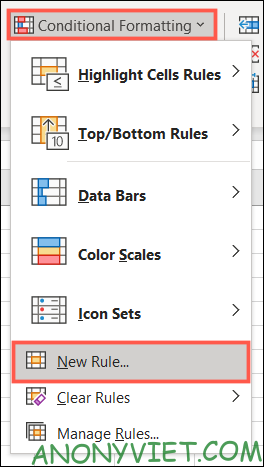
Customize conditional formatting color scale

When the new New Formatting Rule window opens, select “Format All Cells Based on Their Values” at top.
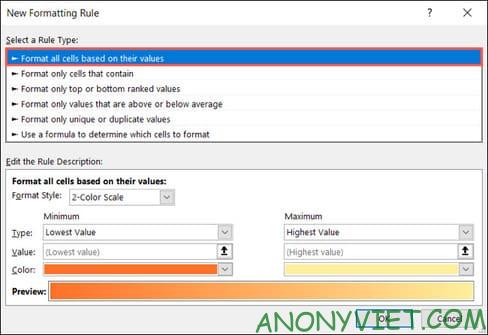
Format All Cells Based on Their Values

Part Edit the Rule Description At the bottom of the window is where you’ll spend time customizing the color scale rule. Start by choosing 2-Color Scale or 3-Color Scale (2 or 3 color scale).

The main difference between the two is that the tricolor scale has a midpoint, while the two color scale has only minimum and maximum values.
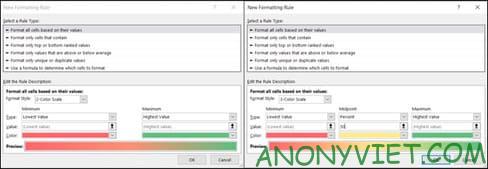
Edit the Rule Description

After choosing the color scale style, select Minimum, Maximum and Midpoint under Types. You can also choose from Lowest/Highest Value, Number, Percent, Formula, or Percentile.

The Lowest Value and Highest Value types are based on the data in the selected cell range, so you don’t need to enter anything. Excel will automatically color the cells according to the condition.
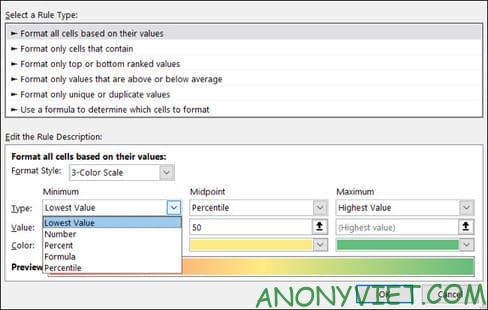
Lowest Value and Highest Value

Finally, click Color to choose the color you want. If you want to customize the colors, select “More Colors” to use RGB or Hex color codes.
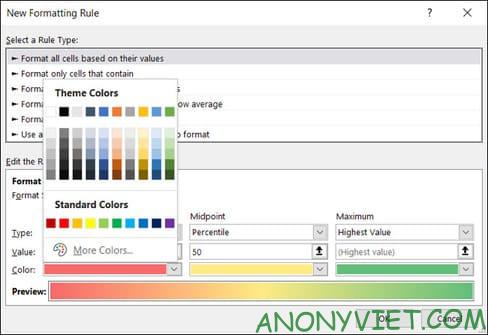
More Colors

You will then see a preview of your color scale at the bottom of the window. If you are satisfied with the results, press “OK” to apply the formatting.
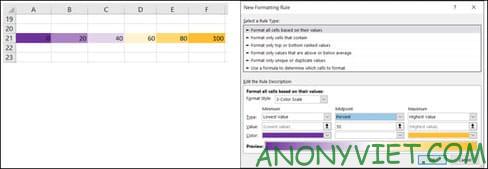
auto color excel according to condition

If you edit your data, the color scale will automatically update to accommodate the change.
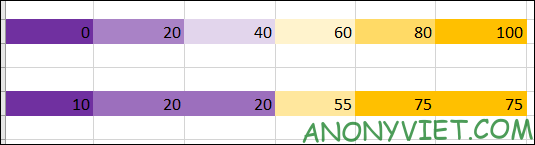
color scale excel trickSo you have successfully applied the color scale in Microsoft Excel. In addition, you can also learn Excel quickly with these 8 tips.


The article achieved: 5/5 – (100 votes)

Tags: AutomaticallycellscolorconditionsExcelInstructions
Previous Post

Download SMS BomBer – Tool Spam SMS Troll Friends

Next Post

Check which apps are using iPhone’s Camera and Microphone

AnonyViet

AnonyViet

Related Posts

How to record reaction videos with Android phones, no app needed
Tips

How to record reaction videos with Android phones, no app needed

June 1, 2026
Instructions on how to get Google AI Pro 1 year for free for new accounts
Tips

Instructions on how to get Google AI Pro 1 year for free for new accounts

June 1, 2026
Top free AI tools to help write, test and optimize content
Tips

Top free AI tools to help write, test and optimize content

June 1, 2026
Instructions for receiving Lovable Pro 12 months for free
Tips

Instructions for receiving Lovable Pro 12 months for free

May 29, 2026
Instructions for receiving 1 month of ElevenLabs Creator for free worth
Tips

Instructions for receiving 1 month of ElevenLabs Creator for free worth $22

May 25, 2026
How to create beautiful studio-like preschool graduation photos for your child
Tips

How to create beautiful studio-like preschool graduation photos for your child

May 21, 2026
Next Post
Check which apps are using iPhone’s Camera and Microphone

Check which apps are using iPhone's Camera and Microphone

0 0 votes
Article Rating
Subscribe
Login
Notify of
guest

guest

0 Comments
Oldest
Newest Most Voted
Inline Feedbacks
View all comments

Recent News

How to check network speed on Apple TV when the image is jerky or lagging

How to check network speed on Apple TV when the image is jerky or lagging

June 3, 2026
Instructions on how to prevent acquaintances from seeing your Tiktok

Instructions on how to prevent acquaintances from seeing your Tiktok

June 2, 2026
How to record reaction videos with Android phones, no app needed

How to record reaction videos with Android phones, no app needed

June 1, 2026
Instructions on how to get Google AI Pro 1 year for free for new accounts

Instructions on how to get Google AI Pro 1 year for free for new accounts

June 1, 2026
How to check network speed on Apple TV when the image is jerky or lagging

How to check network speed on Apple TV when the image is jerky or lagging

June 3, 2026
Instructions on how to prevent acquaintances from seeing your Tiktok

Instructions on how to prevent acquaintances from seeing your Tiktok

June 2, 2026
How to record reaction videos with Android phones, no app needed

How to record reaction videos with Android phones, no app needed

June 1, 2026
AnonyViet - English Version

AnonyViet

AnonyViet is a website share knowledge that you have never learned in school!

We are ready to welcome your comments, as well as your articles sent to AnonyViet.

Follow Us

Contact:

Email: anonyviet.com[@]gmail.com

Main Website: https://anonyviet.com

Recent News

How to check network speed on Apple TV when the image is jerky or lagging

How to check network speed on Apple TV when the image is jerky or lagging

June 3, 2026
Instructions on how to prevent acquaintances from seeing your Tiktok

Instructions on how to prevent acquaintances from seeing your Tiktok

June 2, 2026
No Result
View All Result
  • Home
  • News
  • Software
  • Knowledge
  • MMO
  • Tips
  • Security
  • Network
  • Office

wpDiscuz
0
0
Would love your thoughts, please comment.x
()
x
| Reply