• Home
  • News
  • Software
  • Knowledge
  • MMO
  • Tips
  • Security
  • Network
  • Office
AnonyViet - English Version
  • Home
  • News
  • Software
  • Knowledge
  • MMO
  • Tips
  • Security
  • Network
  • Office
No Result
View All Result
  • Home
  • News
  • Software
  • Knowledge
  • MMO
  • Tips
  • Security
  • Network
  • Office
No Result
View All Result
AnonyViet - English Version
No Result
View All Result

Instructions on how to completely turn off Cortana on Windows 10

AnonyViet by AnonyViet
February 1, 2024
in Tips
0

Windows 10 is getting smarter with AI processing functions. Artificial intelligence is currently a technology development trend. Cortana robot software is one of the outstanding products of artificial intelligence. Microsoft has used Cortana as an AI (Artificial Intelligence) research product.

Join the channel Telegram belong to AnonyViet 👉 Link 👈

However, for mid-range or low-RAM computers, Cortana is very heavy. This smart Robo will take up a large portion of computer resources while running in the background. That's why many people want to turn off Cortana because they don't use it. That will help the computer save a large amount of resources.

Instructions to turn off Cortana on Windows 10

I will guide you to turn off this annoying robot. However, you can still reopen it when necessary. When you don't need it, turn it off to save device resources and increase battery life. To turn off Cortana, follow the instructions below.

In Windows 10 Home and higher versions, there will be different shortcuts. I will divide into 02 instructions for the Home version and the remaining versions.

For Windows 10 Home

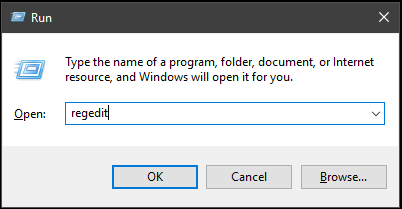
Group Policy Editor is not integrated on Windows 10 Home so we have to turn it off another way. We will use it Editor Registry To turn off Cortana by pressing a key combination Windows + R to open the dialog box Run. Then enter the keyword “regedit” then press Enter to enter the Regestry interface.
Instructions on how to completely turn off Cortana on Windows 10 9

Next, you access the following link one by one:

HKEY_LOCAL_MACHINE / SOFTWARE / Policies / Microsoft / Windows / Windows Search

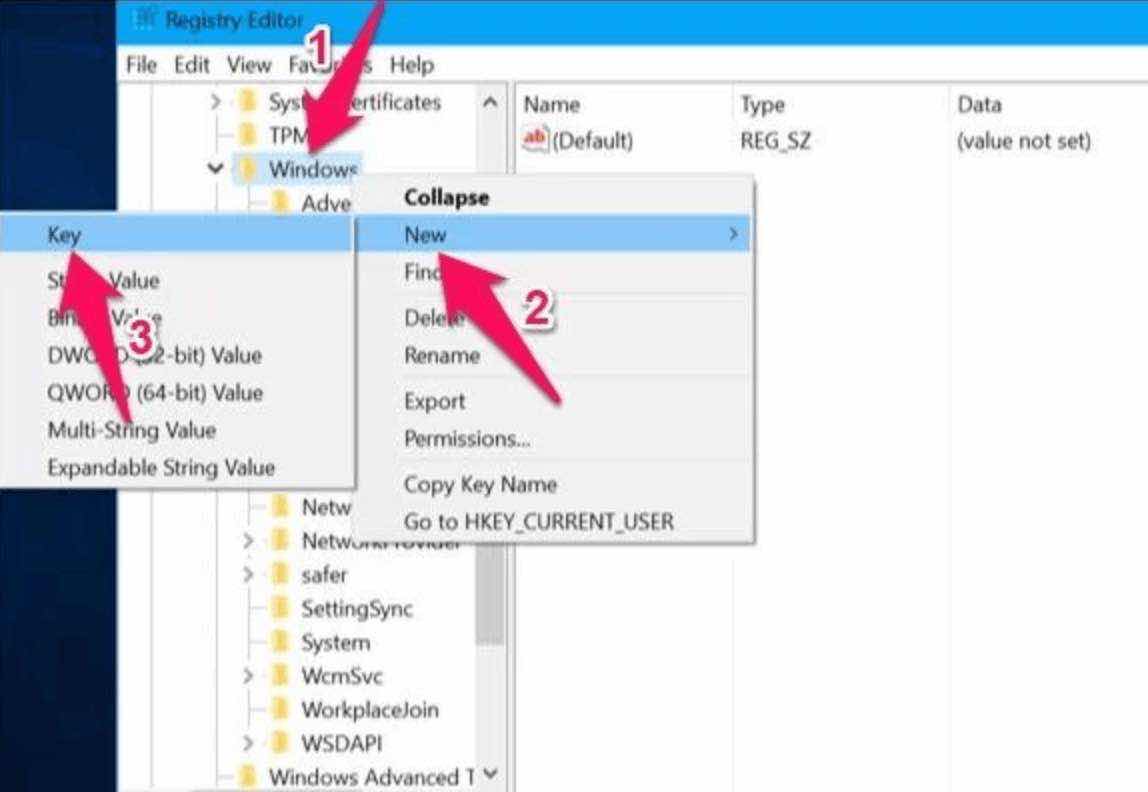
If you don't see the Windows Search folder, right-click on the Windows item. Then choose New -> Key to create a new KEY and name it Windows Search.
Instructions on how to completely turn off Cortana on Windows 10

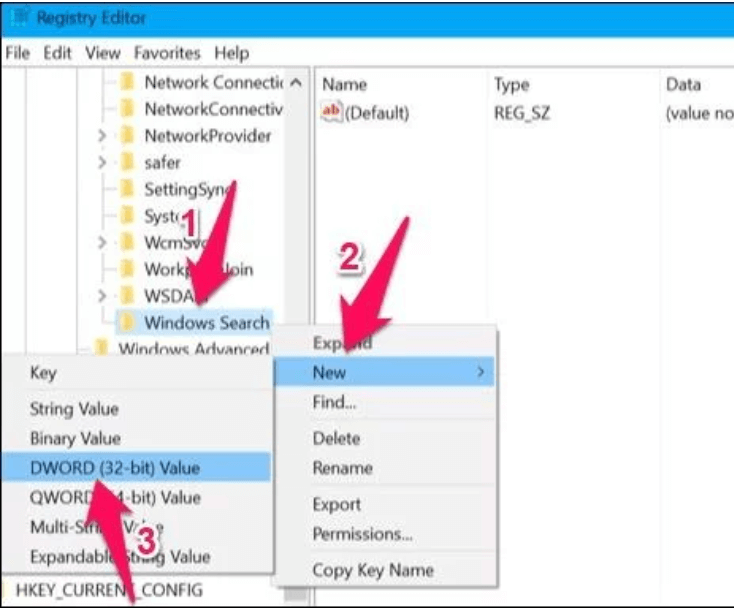
Continue to right-click on the Windows Search folder and select New to create a new key. Select the DWORD (32-bit) Value key and name it AllowCortana.
Instructions on how to completely turn off Cortana on Windows 10 11

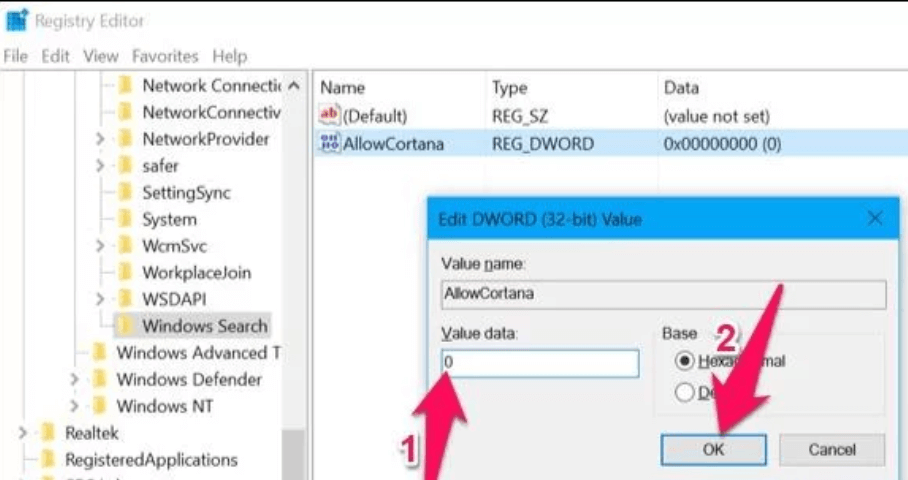
Next, double click on the File AllowCortana just created above and change the Value value to 0 to disable. Finally press OK to apply the settings.
Instructions on how to completely turn off Cortana on Windows 10

Now turn off the computer and turn it back on so that it applies the newly changed system settings. To turn Cortana back on, change the Value value in the key AllowCortana it becomes 1 again.

For Windows Pro and higher versions

Similar to the above method, but this time we will use it Group Policy Editor. Press the Windows + R key combination to open the dialog box Run and fill gpedit.msc

Instructions on how to completely turn off Cortana on Windows 10 12

  • Then open the Search folder according to the following path:
  • Computer Configuration > Administrative Templates > Windows Components > Search
  • Click Search to see the item AllowCortana appears in the right window.
  • Double click on it and select Disable to disable Cortana.

Instructions on how to completely turn off Cortana on Windows 10 13

Now you just need to reboot your computer to apply system changes. To re-enable Cortana, you just need to Enable the item again AllowCortana is to be.


The article scored: 5/5 – (100 votes)

Previous Post

How to create a search bar on Windows similar to macOS's Spotlight Search

Next Post

How to watch YouTube videos without black space on both sides of the screen

AnonyViet

AnonyViet

Related Posts

Instructions on how to create POV product review videos using Flow
Tips

Instructions on how to create POV product review videos using Flow

July 13, 2026
How to fix “This PC can’t run Windows 11” error This PC doesn’t meet the minimum system requirements
Tips

How to fix “This PC can’t run Windows 11” error This PC doesn’t meet the minimum system requirements

July 13, 2026
How to fix Windows 11 error of not being able to install .Net Framework 3.5
Tips

How to fix Windows 11 error of not being able to install .Net Framework 3.5

July 11, 2026
How to encrypt messages with GenZ’s smiley face icon
Tips

How to encrypt messages with GenZ’s smiley face icon

July 10, 2026
Download the Copyright-Free Music app for Cafes now
Tips

Download the Copyright-Free Music app for Cafes now

July 9, 2026
Multcloud – Manage, copy, and move data between Cloud Drives
Tips

Multcloud – Manage, copy, and move data between Cloud Drives

July 9, 2026
Next Post
How to watch YouTube videos without black space on both sides of the screen

How to watch YouTube videos without black space on both sides of the screen

0 0 votes
Article Rating
Subscribe
Login
Notify of
guest

guest

0 Comments
Oldest
Newest Most Voted

Recent News

Instructions on how to create POV product review videos using Flow

Instructions on how to create POV product review videos using Flow

July 13, 2026
How to fix “This PC can’t run Windows 11” error This PC doesn’t meet the minimum system requirements

How to fix “This PC can’t run Windows 11” error This PC doesn’t meet the minimum system requirements

July 13, 2026
Compact design, durable battery, excellent camera: Review of OPPO Reno 16 Pro 5G

Compact design, durable battery, excellent camera: Review of OPPO Reno 16 Pro 5G

July 12, 2026
Download the free 3D Pinball Space Cadet game on the App Store now

Download the free 3D Pinball Space Cadet game on the App Store now

July 12, 2026
Instructions on how to create POV product review videos using Flow

Instructions on how to create POV product review videos using Flow

July 13, 2026
How to fix “This PC can’t run Windows 11” error This PC doesn’t meet the minimum system requirements

How to fix “This PC can’t run Windows 11” error This PC doesn’t meet the minimum system requirements

July 13, 2026
Compact design, durable battery, excellent camera: Review of OPPO Reno 16 Pro 5G

Compact design, durable battery, excellent camera: Review of OPPO Reno 16 Pro 5G

July 12, 2026
AnonyViet - English Version

AnonyViet

AnonyViet is a website share knowledge that you have never learned in school!

We are ready to welcome your comments, as well as your articles sent to AnonyViet.

Follow Us

Contact:

Email: anonyviet.com[@]gmail.com

Main Website: https://anonyviet.com

Recent News

Instructions on how to create POV product review videos using Flow

Instructions on how to create POV product review videos using Flow

July 13, 2026
How to fix “This PC can’t run Windows 11” error This PC doesn’t meet the minimum system requirements

How to fix “This PC can’t run Windows 11” error This PC doesn’t meet the minimum system requirements

July 13, 2026
  • Home
  • Home 2
  • Home 3
  • Home 4
  • Home 5
  • Home 6
  • Next Dest Page
  • Sample Page

say88 tỷ lệ kèo nhà cái kèo nhà cái 5 febet

No Result
View All Result
  • Home
  • News
  • Software
  • Knowledge
  • MMO
  • Tips
  • Security
  • Network
  • Office

say88 tỷ lệ kèo nhà cái kèo nhà cái 5 febet

wpDiscuz
0
0
Would love your thoughts, please comment.x
()
x
| Reply