• Home
  • News
  • Software
  • Knowledge
  • MMO
  • Tips
  • Security
  • Network
  • Office
AnonyViet - English Version
  • Home
  • News
  • Software
  • Knowledge
  • MMO
  • Tips
  • Security
  • Network
  • Office
No Result
View All Result
  • Home
  • News
  • Software
  • Knowledge
  • MMO
  • Tips
  • Security
  • Network
  • Office
No Result
View All Result
AnonyViet - English Version
No Result
View All Result

How to create a search bar on Windows similar to macOS's Spotlight Search

AnonyViet by AnonyViet
February 1, 2024
in Tips
0

Way Create a search bar on Windows like Spotlight is one of the cool tips you should know if you are a Windows user. This way, you'll have quick and easy access to what you need, without having to open multiple windows or browse through multiple folders.

Join the channel Telegram belong to AnonyViet 👉 Link 👈

What is the Spotlight search bar?

Spotlight is a famous search feature on the operating system macOS Apple's. It allows users to quickly and efficiently search for files, applications, information online and more. However, if you are using a Windows computer, you can also experience this smart search bar thanks to a free tool called Flow Launcher.

What is Flow Launcher?

Flow Launcher is an open source application for Windows, inspired by Spotlight on macOS. It provides a versatile search bar that can search and process information from many different sources, such as system files, applications, browser history, calculations, weather, sports information, music, videos and more.

You just need to press a key combination to activate the search bar and enter a keyword, Flow Launcher will return results immediately.

How to install and use Flow Launcher

To install and use Flow Launcher on a Windows computer, you need to follow these steps:

Step 1: You access the Flow Launcher homepage here.

Step 2: Select Download > Installer to download the installation file.
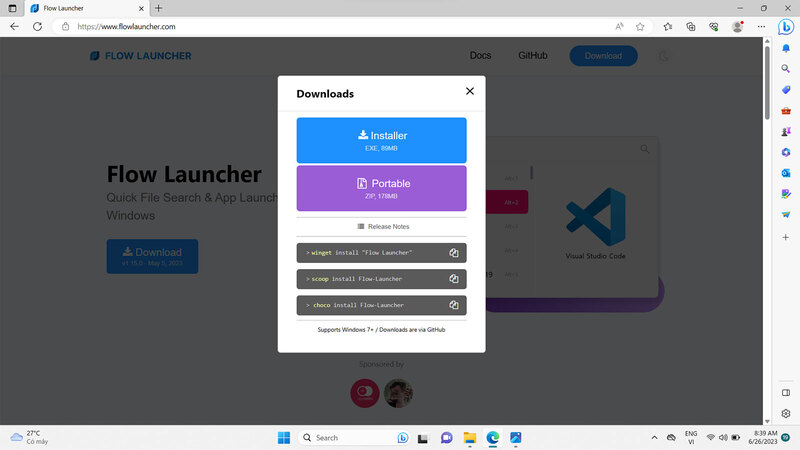
Create a search bar on Windows like Spotlight
Select Download > Installer

Step 3: Open the installation file and follow the on-screen instructions. You need to pay attention to two important options:

  • Flow Launcher Hotkey: This is the key combination to activate the Flow Launcher search bar. You can change the key combination to your liking. In this article, I will choose the combination Ctrl + Space.
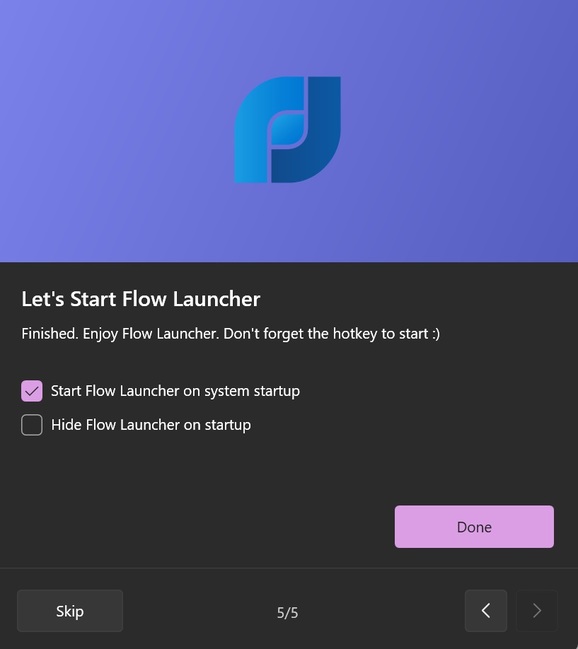
  • Start Flow Launcher on system startup: This is the option to let Flow Launcher automatically run when you start your computer. You should select this option for ease of use.
Create a search bar on Windows like Spotlight
Check Start Flow Launcher on system startup

After installation is complete, you need to restart your computer to complete the process.

Step 4: After restarting the computer, press the key combination you chose in the step above to activate Flow Launcher's search bar.

Step 5: In the search bar, type “Settings” and select Tweak Flow Launcher's settings to open the application's settings window.

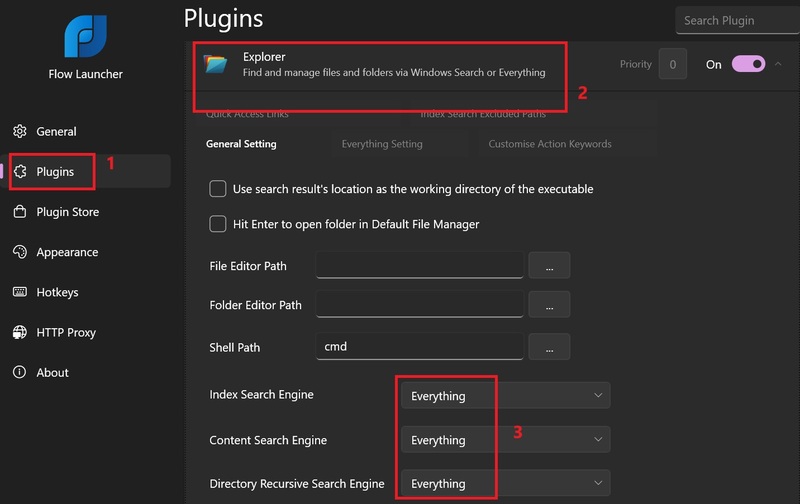
Step 6: In the Plugin section, select Explorer. This is a plugin that allows you to search files and folders on your computer.

Step 7: In the drop-down list, you respectively adjust the Index Search Engine, Content Search Engine and Directory Recursive Search Engine items to “Everything”.
Create a search bar on Windows like Spotlight
In the Plugin section, select Explorer

How to integrate other plugins

You can also use third-party plugins to extend Flow Launcher's search capabilities. These plugins allow you to search for music on Spotify, look up videos on YouTube, translate text with Google Translate, chat with ChatGPT, etc. How to integrate is as follows:

Step 1: Go to Tweak Flow Launcher's settings.

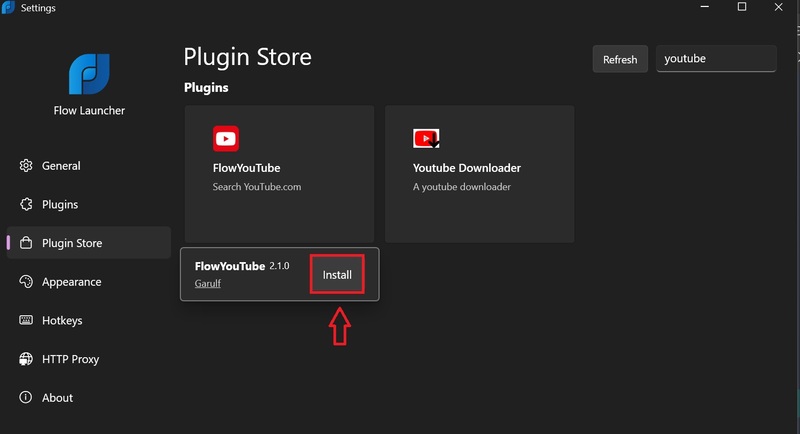
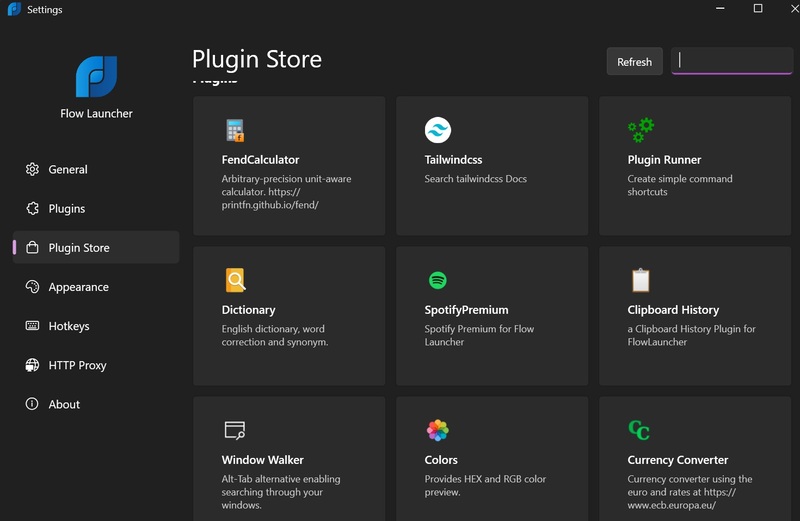
Step 2: In the Plugins Store section, select the plugin you want to download and click Install.
Create a search bar on Windows like Spotlight
Plugins Store section
Create a search bar on Windows like Spotlight
Click Install. to install

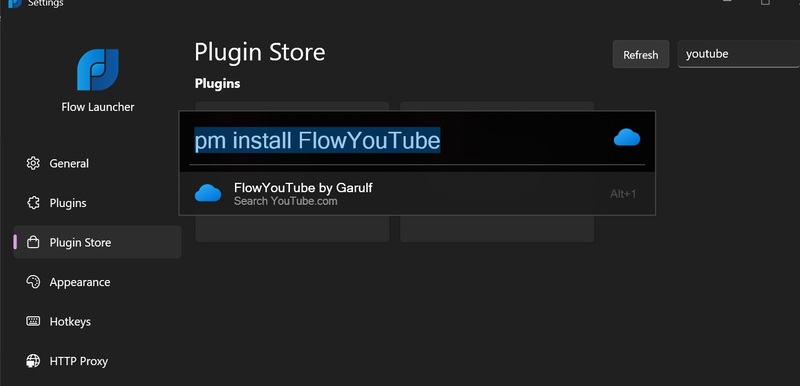
Step 3: Press Enter

Create a search bar on Windows like Spotlight
Press Enter

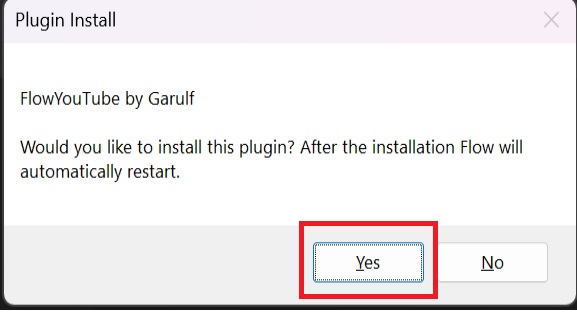
Step 4: Click Yes, Flow Launcher will automatically install them, then restart.
Create a search bar on Windows like Spotlight
Click Yes

Step 5: When searching on Flow Launcher, you need to add keywords at the beginning to use the above plugins.

For example, to find a video on YouTube, you type:

yt
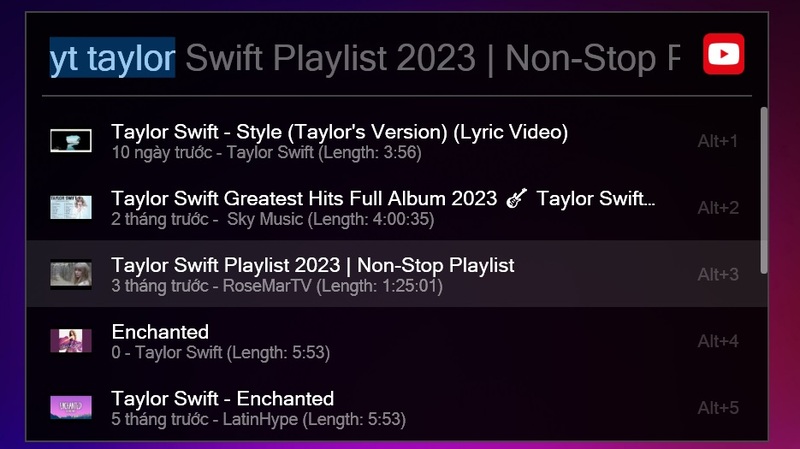
Create a search bar on Windows like Spotlight
You type yt
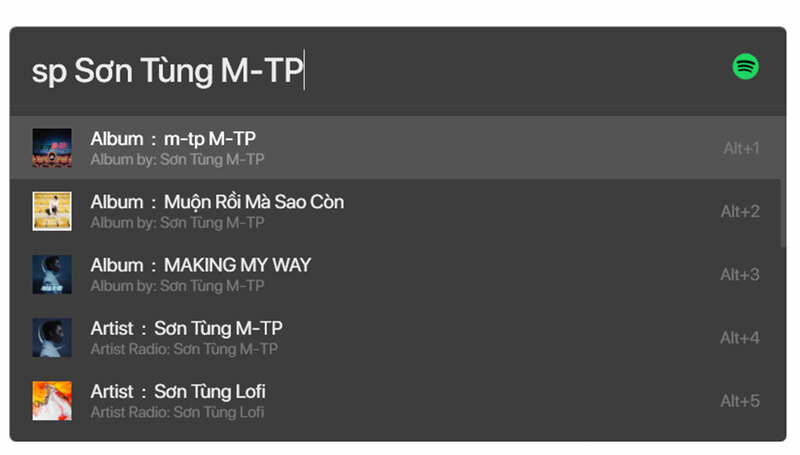
  • Or to find music on Spotify, type:

sp

Create a search bar on Windows like Spotlight
Find music on Spotify
  • Or to translate a text on Google Translate, type:

tr :
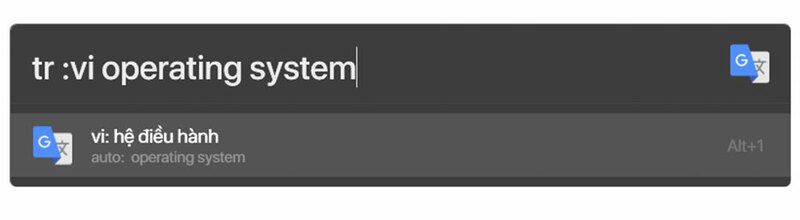
Create a search bar on Windows like Spotlight
Translate a text on Google Translate

Epilogue

By Create a search bar on Windows like Spotlight, you will be able to search for anything quickly and conveniently, without having to spend a lot of time or effort, without having to open multiple applications or browsers. Good luck!


The article scored: 5/5 – (100 votes)

Tags: barcreatemacOS39ssearchsimilarSpotlightWindows
Previous Post

How to schedule automatic emptying of the Recycle Bin to increase hard drive capacity

Next Post

Instructions on how to completely turn off Cortana on Windows 10

AnonyViet

AnonyViet

Related Posts

Instructions for Logo Design in just a few clicks with Logaster
Tips

Instructions for Logo Design in just a few clicks with Logaster

July 20, 2026
3 coolest ways to turn off your computer
Tips

3 coolest ways to turn off your computer

July 19, 2026
Instructions for checking Windows copyright using Powershell to avoid penalties
Tips

Instructions for checking Windows copyright using Powershell to avoid penalties

July 19, 2026
Who leaked Windows 11?
Tips

Who leaked Windows 11?

July 18, 2026
Instructions for Getting Netflix 30 Days Free to Watch Movies
Tips

Instructions for Getting Netflix 30 Days Free to Watch Movies

July 18, 2026
How to create a website introducing yourself using Bio Link for free
Tips

How to create a website introducing yourself using Bio Link for free

July 17, 2026
Next Post
Instructions on how to completely turn off Cortana on Windows 10

Instructions on how to completely turn off Cortana on Windows 10

0 0 votes
Article Rating
Subscribe
Login
Notify of
guest

guest

0 Comments
Oldest
Newest Most Voted

Recent News

Instructions for Logo Design in just a few clicks with Logaster

Instructions for Logo Design in just a few clicks with Logaster

July 20, 2026
Clean Tam – Accompanying the green space of every Vietnamese family

Clean Tam – Accompanying the green space of every Vietnamese family

July 20, 2026
3 coolest ways to turn off your computer

3 coolest ways to turn off your computer

July 19, 2026
Instructions on how to get Norton 360 Deluxe for 1 year for free

Instructions on how to get Norton 360 Deluxe for 1 year for free

July 19, 2026
Instructions for Logo Design in just a few clicks with Logaster

Instructions for Logo Design in just a few clicks with Logaster

July 20, 2026
Clean Tam – Accompanying the green space of every Vietnamese family

Clean Tam – Accompanying the green space of every Vietnamese family

July 20, 2026
3 coolest ways to turn off your computer

3 coolest ways to turn off your computer

July 19, 2026
AnonyViet - English Version

AnonyViet

AnonyViet is a website share knowledge that you have never learned in school!

We are ready to welcome your comments, as well as your articles sent to AnonyViet.

Follow Us

Contact:

Email: anonyviet.com[@]gmail.com

Main Website: https://anonyviet.com

Recent News

Instructions for Logo Design in just a few clicks with Logaster

Instructions for Logo Design in just a few clicks with Logaster

July 20, 2026
Clean Tam – Accompanying the green space of every Vietnamese family

Clean Tam – Accompanying the green space of every Vietnamese family

July 20, 2026
  • Home
  • Home 2
  • Home 3
  • Home 4
  • Home 5
  • Home 6
  • Next Dest Page
  • Sample Page

say88 tỷ lệ kèo nhà cái kèo nhà cái 5 febet

No Result
View All Result
  • Home
  • News
  • Software
  • Knowledge
  • MMO
  • Tips
  • Security
  • Network
  • Office

say88 tỷ lệ kèo nhà cái kèo nhà cái 5 febet

wpDiscuz
0
0
Would love your thoughts, please comment.x
()
x
| Reply