• Home
  • News
  • Software
  • Knowledge
  • MMO
  • Tips
  • Security
  • Network
  • Office
AnonyViet - English Version
  • Home
  • News
  • Software
  • Knowledge
  • MMO
  • Tips
  • Security
  • Network
  • Office
No Result
View All Result
  • Home
  • News
  • Software
  • Knowledge
  • MMO
  • Tips
  • Security
  • Network
  • Office
No Result
View All Result
AnonyViet - English Version
No Result
View All Result

Instructions for using Winstall to quickly install software on Windows 10

AnonyViet by AnonyViet
January 31, 2023
in Tips
0

Winstall is a new product from Microsoft that helps you quickly install your favorite software using the command line. Winstall provides a list of software that you can use to install on your favorite Windows quickly and easily with just a few clicks.

Join the channel Telegram of the AnonyViet 👉 Link 👈

Instructions for using Winstall to quickly install software on Windows 10

How winstall and winget work

Microsoft’s Windows package manager, also known as “winget”, allows you to quickly download and install one or more applications with a single command. It is very similar to the Linux package manager. As of early November 2020, Windows Package Manager will still be in preview and has not been included in Windows 10. However, it will one day be stable and be integrated into Windows 10 soon.

That’s good news, but most people don’t want to use commands, they prefer to install their application using graphical interface. That’s what winstall can do, a third party app, created by Mehedi Hassan, winstall is a web based interface that allows you to install your favorite apps in the browser. The website will then provide you with command lines that automatically install the selected applications with winget. Therefore, you don’t need to know how winget works or write the commands yourself.

It is very similar to Ninite, but it uses the Windows Package Manager.

Here’s one reason winstall is great: You don’t need to install any extra software. The site automatically provides command lines that work with the Windows Package Manager. You can see exactly what it is doing on your computer.

In the future, most likely, we will have other graphical interfaces for Windows Package Manager. Winstall is just the first pioneering example.

How to install your favorite apps using winstall

First you need install winget from Microsoft. Without winget installed, winstall won’t work. In the future, winget will be part of Windows 10 and you’ll be able to use a tool like winstall on any PC with no setup required.

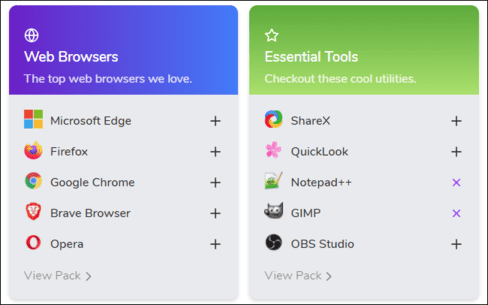
After installing winget, go to the winstall website. Use the search bar or browse through the popular and featured apps, just add any app you want to your install script.
How to install your favorite apps using winstall

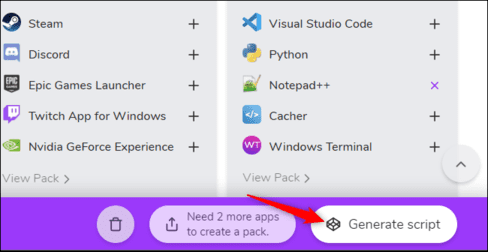
Once you have selected all your favorite apps on the site, click the “Generate Script” button at the bottom of the page.
Instructions for using Winstall to quickly install software on Windows 10

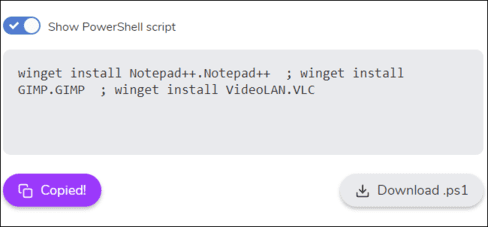
The winstall website will show you the commands to run to install your application. You can see a full list of those apps at the bottom of this page. Or you can also delete any items you don’t want.
Instructions for using Winstall to quickly install software on Windows 10

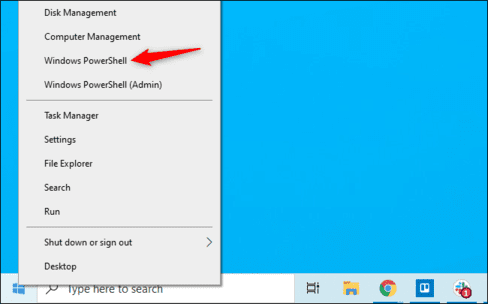
To install these applications, open a Windows Terminal, Command Prompt, or PowerShell window. For example, you can right-click the Start button or press Windows + X and select “Windows PowerShell” to open a PowerShell window. You may not need to launch it as Administrator.
Instructions for using Winstall to quickly install software on Windows 10

Copy-paste the command from the website into powershell and press Enter. (If you are using PowerShell, be sure to select “Show PowerShell script” on the winstall website.)

You can also download the file .bat or .ps1 if you want. This is a script file that automatically runs the winstall web command when you double-click it.
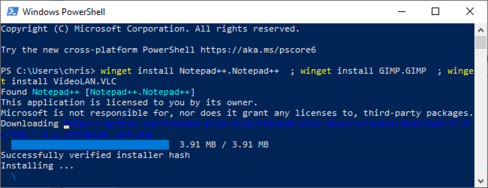
automatically run commands on web winstall

That’s it — Windows package manager automatically installs selected applications in the terminal (collectively). You can uninstall them just like any other app from Control Panel or Settings.


The article achieved: 5/5 – (100 votes)

Tags: installInstructionsQuicklysoftwareWindowsWinstall
Previous Post

Instructions for creating a Windows 7/8/10 Pass-breaking USB

Next Post

The easiest way to get back lost items in the Adorabe Home Game

AnonyViet

AnonyViet

Related Posts

How to record reaction videos with Android phones, no app needed
Tips

How to record reaction videos with Android phones, no app needed

June 1, 2026
Instructions on how to get Google AI Pro 1 year for free for new accounts
Tips

Instructions on how to get Google AI Pro 1 year for free for new accounts

June 1, 2026
Top free AI tools to help write, test and optimize content
Tips

Top free AI tools to help write, test and optimize content

June 1, 2026
Instructions for receiving Lovable Pro 12 months for free
Tips

Instructions for receiving Lovable Pro 12 months for free

May 29, 2026
Instructions for receiving 1 month of ElevenLabs Creator for free worth
Tips

Instructions for receiving 1 month of ElevenLabs Creator for free worth $22

May 25, 2026
How to create beautiful studio-like preschool graduation photos for your child
Tips

How to create beautiful studio-like preschool graduation photos for your child

May 21, 2026
Next Post
The easiest way to get back lost items in the Adorabe Home Game

The easiest way to get back lost items in the Adorabe Home Game

0 0 votes
Article Rating
Subscribe
Login
Notify of
guest

guest

0 Comments
Oldest
Newest Most Voted
Inline Feedbacks
View all comments

Recent News

How to record reaction videos with Android phones, no app needed

How to record reaction videos with Android phones, no app needed

June 1, 2026
Instructions on how to get Google AI Pro 1 year for free for new accounts

Instructions on how to get Google AI Pro 1 year for free for new accounts

June 1, 2026
Top free AI tools to help write, test and optimize content

Top free AI tools to help write, test and optimize content

June 1, 2026
TruyenDrive: Turn Google Drive into a professional manga reader

TruyenDrive: Turn Google Drive into a professional manga reader

May 31, 2026
How to record reaction videos with Android phones, no app needed

How to record reaction videos with Android phones, no app needed

June 1, 2026
Instructions on how to get Google AI Pro 1 year for free for new accounts

Instructions on how to get Google AI Pro 1 year for free for new accounts

June 1, 2026
Top free AI tools to help write, test and optimize content

Top free AI tools to help write, test and optimize content

June 1, 2026
AnonyViet - English Version

AnonyViet

AnonyViet is a website share knowledge that you have never learned in school!

We are ready to welcome your comments, as well as your articles sent to AnonyViet.

Follow Us

Contact:

Email: anonyviet.com[@]gmail.com

Main Website: https://anonyviet.com

Recent News

How to record reaction videos with Android phones, no app needed

How to record reaction videos with Android phones, no app needed

June 1, 2026
Instructions on how to get Google AI Pro 1 year for free for new accounts

Instructions on how to get Google AI Pro 1 year for free for new accounts

June 1, 2026
No Result
View All Result
  • Home
  • News
  • Software
  • Knowledge
  • MMO
  • Tips
  • Security
  • Network
  • Office

wpDiscuz
0
0
Would love your thoughts, please comment.x
()
x
| Reply