Install CapCut Pro for iPhone is the desire of many users to be able to freely create with a full range of advanced video editing tools. One of the widely shared methods today is to use iMazing software on the computer to activate the Pro version. This article AnonyViet will provide detailed step-by-step instructions, along with important notes so you can do it in the safest and most effective way.
| Join the channel Telegram belong to AnonyViet 👉 Link 👈 |
Things to prepare before starting
For the installation process to go smoothly, you need to make sure you have the following necessary tools and files available:
- A personal computer running Windows or macOS operating system.
- Your iPhone with a Lightning or USB-C cable to connect to your computer.
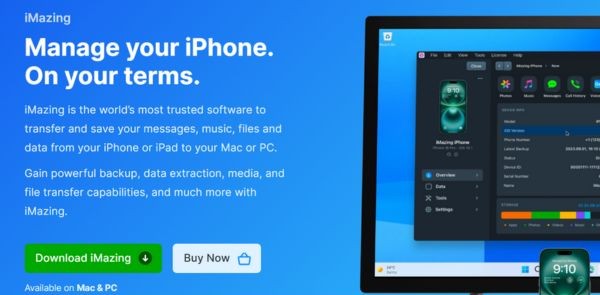
- iMazing software is pre-installed on your computer, you can download the latest version from the official homepage HERE.
- CapCut Pro data file is in .imazing format, this is a file containing data that has Pro features enabled HERE.
Instructions for installing CapCut Pro for iPhone for free
Please follow each step below carefully to ensure the highest success rate.
Step 1: Temporarily disable the find iPhone feature
This is a mandatory step because of the “Find My iPhone” will prevent any interference with system and application data. You need to Settings > [Tên của bạn] > Find > Find iPhone and turn it off.
Note: Do not log in to the application CapCut installed from the App Store before performing these steps.
Step 2: Connect iPhone and install iMazing
Please download iMazing software from the homepage imazing.com and install it on your computer. Once done, open the software and use the cable to connect your iPhone to the computer.
Step 3: Set up encrypted backup for the device
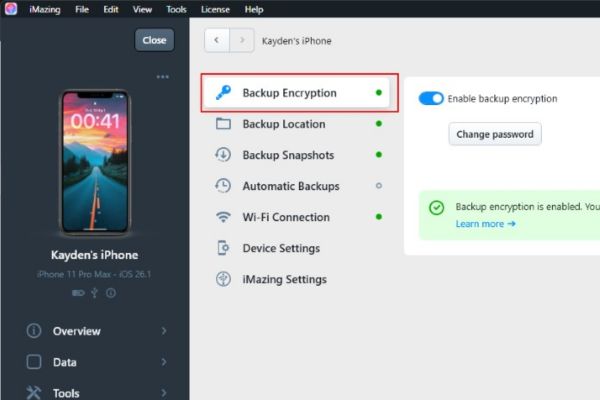
In the iMazing interface, select your iPhone device. Next, find the item Settings and enable the feature Backup Encryption. The software will ask you to set a password, set a password that is easy to remember and save it carefully because it is very important for the following steps.
Step 4: Access the application management section
After you have enabled backup encryption, return to the main interface and navigate to the section Tools > Manage Apps.
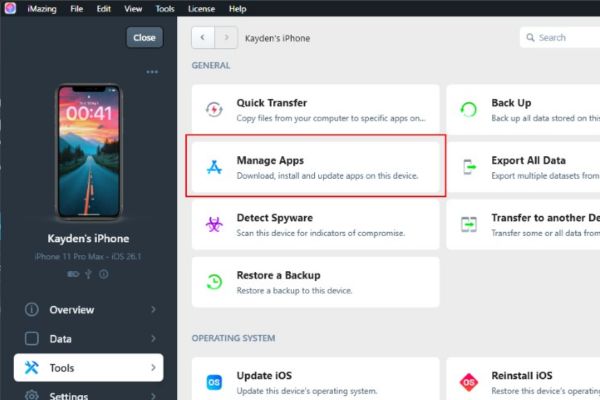 Go to Tools > Manage Apps
Step 5: Perform data recovery for CapCut
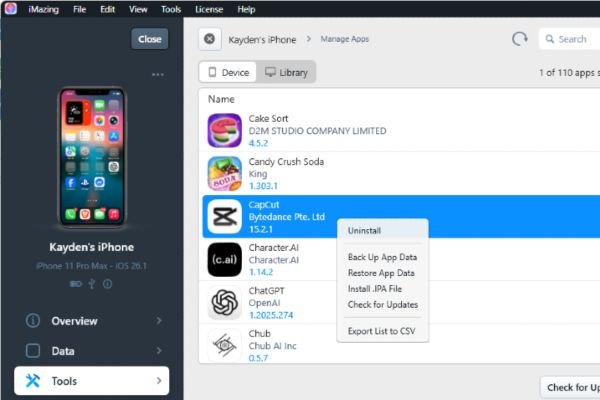
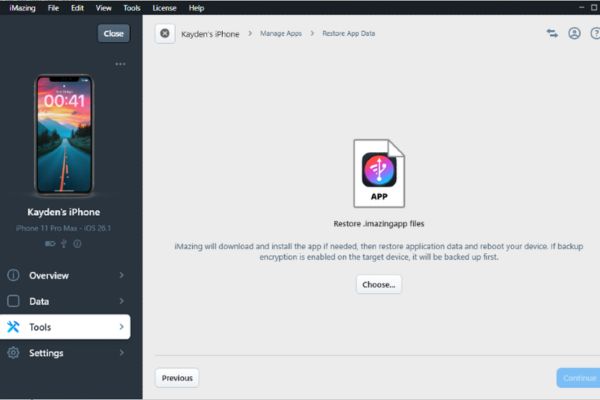
In the list of applications that appears, find the CapCut application. Right click on it and select Restore App Data (Restore application data). A new window will appear, click the button Choose and navigate to the file .imaging of CapCut Pro that you downloaded earlier.
Step 6: Confirm and start the process
Once the correct file has been selected, iMazing will display a notification panel. You just need to press Continue and then it is Proceed to confirm and allow the software to begin the data recovery process.
Step 7: Wait for the process to complete
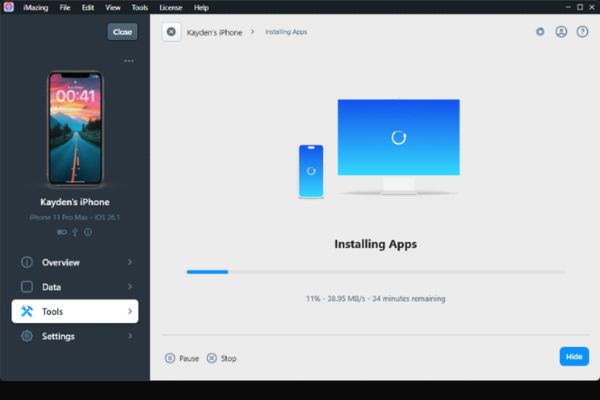
iMazing will automatically back up your current data before restoring, so this process can take quite a while, especially if this is your first time backing up. Please wait patiently until the successful installation notification appears and click OK.
Extremely important note after installation
- Once the process is complete, your iPhone will reboot and may display the message “iPhone is partially reconstituted“. At this point, you are REQUIRED to choose the second line.”Continue setting up the part“. If you mistakenly select the “Erase and start again” line, all data on the device will be erased.
- .imazing files you download from unofficial sources may contain malicious code or spyware, posing a potential risk of personal information being stolen. Be very careful with your download source.
- Once installed this way, you won’t be able to update CapCut directly from the App Store because that would lose the Pro version.
Conclusion
With the 7 simple steps above, you’re done Install CapCut Pro for iPhone using iMazing. Now you can explore and enjoy all the professional video editing features without any barriers. Wish you success!