• Home
  • News
  • Software
  • Knowledge
  • MMO
  • Tips
  • Security
  • Network
  • Office
AnonyViet - English Version
  • Home
  • News
  • Software
  • Knowledge
  • MMO
  • Tips
  • Security
  • Network
  • Office
No Result
View All Result
  • Home
  • News
  • Software
  • Knowledge
  • MMO
  • Tips
  • Security
  • Network
  • Office
No Result
View All Result
AnonyViet - English Version
No Result
View All Result

Instructions for inserting photos into the Hot Trend Facebook column frame

AnonyViet by AnonyViet
October 18, 2024
in Tips
0

A new hot trend in photo editing groups is a set of photos with a layout divided into 4 or 5 boxes and then inserting photos into those frames. Looking at it, you might think you need complicated photo editing programs to combine like that, but the method is quite simple. Today AnonyViet will guide you how to insert photos into the Hot column frame on Facebook.

Join the channel Telegram belong to AnonyViet 👉 Link 👈

Instructions for inserting photos into the Hot Trend Facebook column frame

The photo above is the result of the photo you will create, requiring only a Smart Phone and no need to use complicated Photoshop. Believe it or not, inserting a photo into a frame with the above layout only takes 2 minutes. Please follow the instructions in this article.

Instructions for inserting photos into the Hot Trend Facebook column frame using Snapseed

First, you need to download App Snapseed about the phone Android or iOS. If you use other applications, you can still insert images into the column frame. Because I already have Snapseed on my phone, I'll show you the instructions, partly because PicsArt only gives it free for 7 days, so use Snapseed.

Next you need a sample frame, AnonyViet has one column frame collection so you can insert images.

Download image insertion frame

Now, open the photo editing App. This is the main interface of the software Snapseed.Snapseed

Click on the plus sign to add a layout image. You can choose the layout you like, there are photo frame models such as: heart, 4 vertical bars, 5 horizontal bars… for you to be as creative as you like.
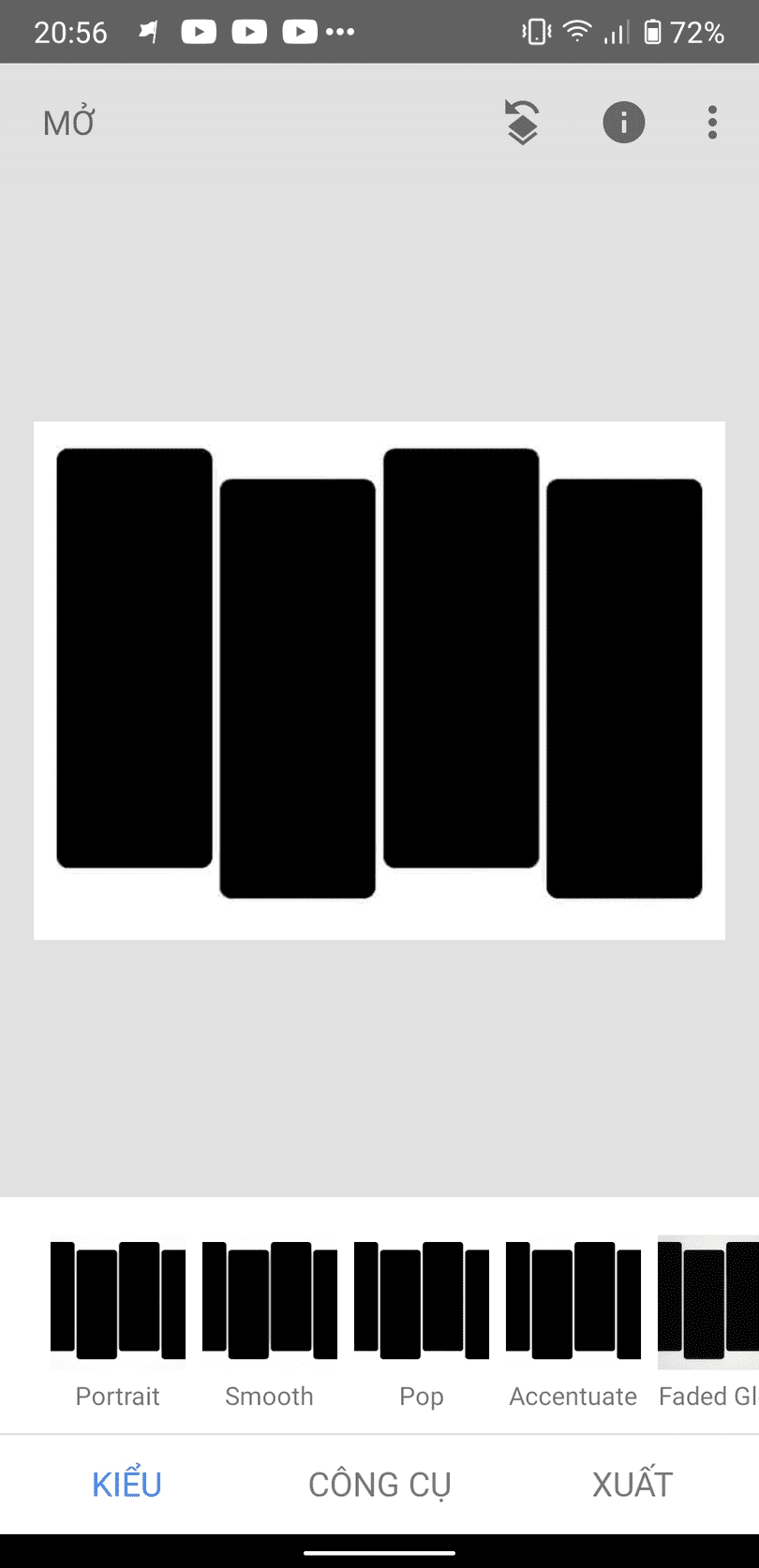
Add layout photo

Next, click on the word “tool”. Snapseed's tools will appear for you to choose from. Here, you choose “Double exposure”.

double exposure

Next, you add the photo you want to insert into the frame. You can choose your personal photo or natural photo of your choice to insert in the middle of the frame as below.

You can download the image in the example here. After adding the photo, edit it to make it beautiful and then click the tick button in the bottom right corner of the screen to complete.Instructions for creating images to insert into a 4-column frame
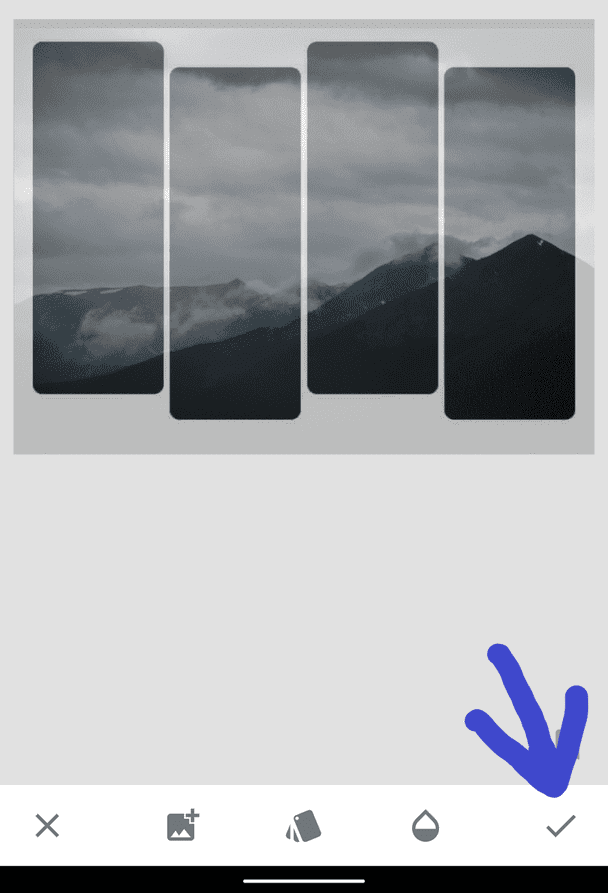
Next, you save the photo by clicking the button “Export“.Add photos to 4 columns on your phone
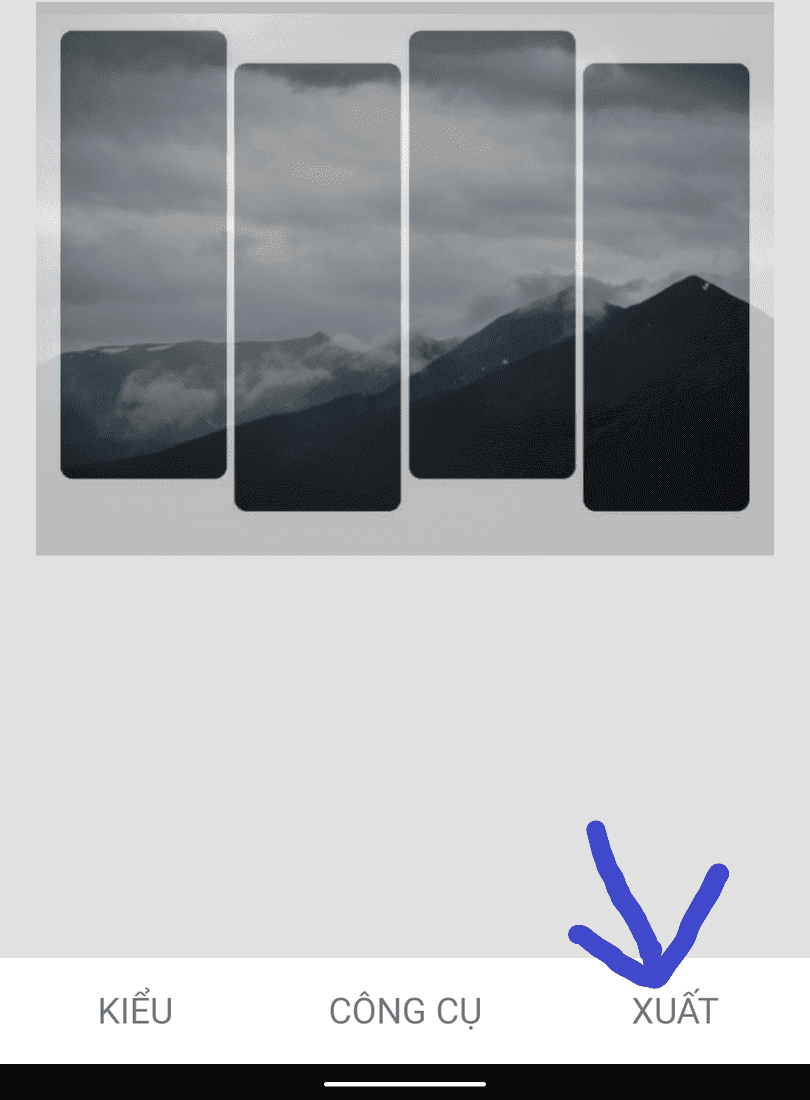
That's it, you can freely live virtual life with the trend of adding photos to this frame. Below are some more results for your reference.

If you want to add text, insert more words Font Typo Come in to make the photo more romantic.

photo layout trend

Instructions for inserting photos into the Hot Trend Facebook column frameHow to insert images into column frames

Above is a very hot photo editing trend tutorial on Anonyviet. You can also take a look at other hot trends, such as: How to comment to create 7-color lines okay.

Instructions for inserting photos into the Hot Trend Facebook column frame using PicsArt

Because when creating photos with Snapseed, the background still remains, so I will guide you how to do it on PicsArt.

First, you download PicsArt above Android or iOS. Open the section and select the image you want to make, you can download the image in this example here.Instructions for inserting photos into the Hot Trend Facebook column frame
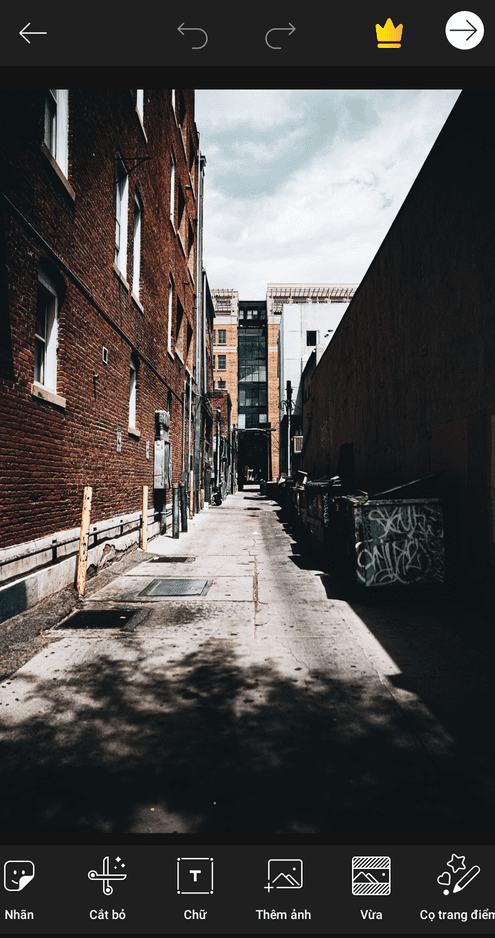
Next, click on the word “add photo” below the toolbar (if you don't see it, scroll the toolbar to the left) and select the photo frame you want. Instructions for inserting photos into the Hot Trend Facebook column frame
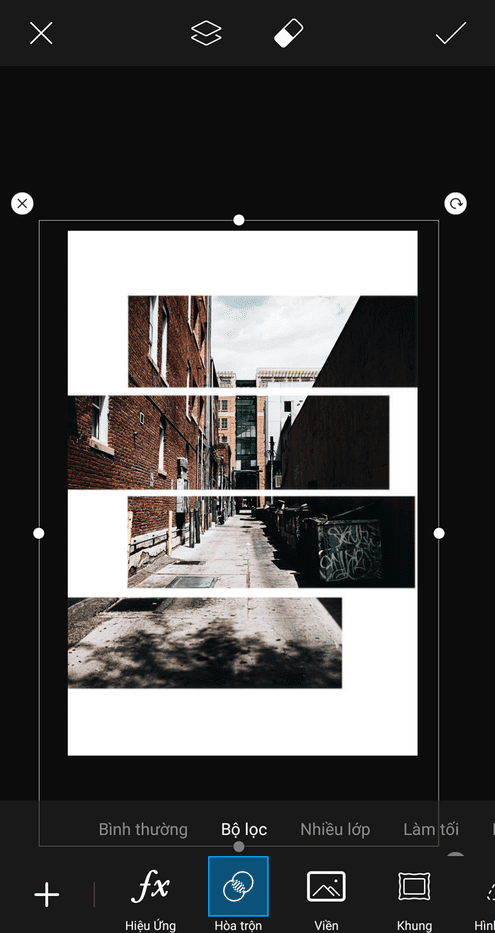
You enlarge the frame to fit the newly added photo in the first step. Then drag the toolbar and select “Mix”next select “Filter”. You can also choose other options to get the best photo. Finally press the white check mark at the top right.

Next, click on the arrow next to the colored crown in the top right to save the image.Instructions for inserting photos into the Hot Trend Facebook column frame
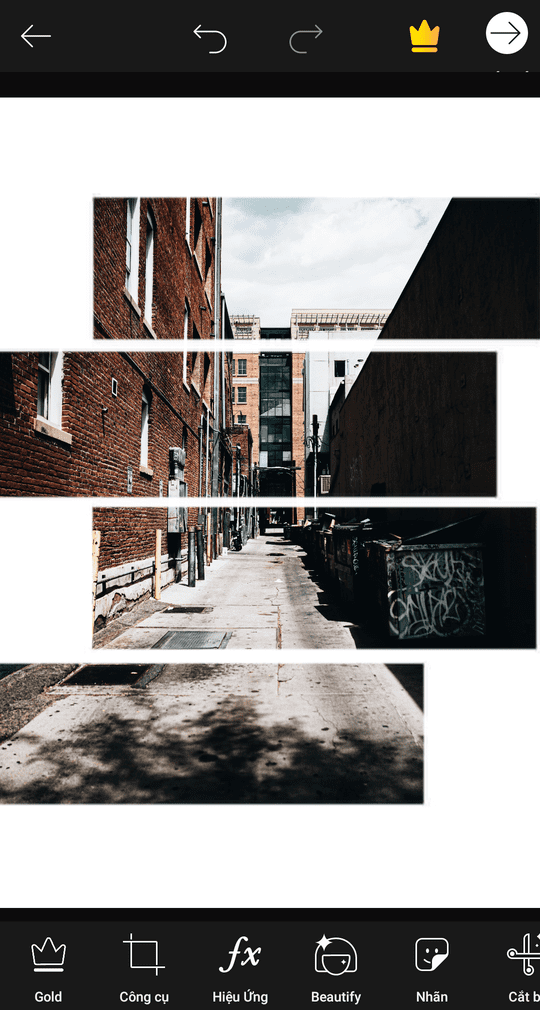
Finally, choose “Library” to save it on your device. You can also share to other platforms through PicsArt options.


Instructions for inserting photos into the Hot Trend Facebook column frame

Previous Post

The most detailed instructions on how to play MU online for beginners

Next Post

X360CE – 'Lifesaver' when the PC does not recognize cheap controllers

AnonyViet

AnonyViet

Related Posts

Instructions to receive Claude Fable 5 for free for 30 days
Tips

Instructions to receive Claude Fable 5 for free for 30 days

June 15, 2026
Delete all Event Logs on Windows to remove traces of activity
Tips

Delete all Event Logs on Windows to remove traces of activity

June 15, 2026
Instructions for creating Minecraft-style food photos
Tips

Instructions for creating Minecraft-style food photos

June 9, 2026
Get free Cambridge courses to prepare for IELTS, Starters, Movers
Tips

Get free Cambridge courses to prepare for IELTS, Starters, Movers

June 4, 2026
How to record reaction videos with Android phones, no app needed
Tips

How to record reaction videos with Android phones, no app needed

June 1, 2026
Instructions on how to get Google AI Pro 1 year for free for new accounts
Tips

Instructions on how to get Google AI Pro 1 year for free for new accounts

June 1, 2026
Next Post
X360CE – 'Lifesaver' when the PC does not recognize cheap controllers

X360CE - 'Lifesaver' when the PC does not recognize cheap controllers

0 0 votes
Article Rating
Subscribe
Login
Notify of
guest

guest

0 Comments
Oldest
Newest Most Voted
Inline Feedbacks
View all comments

Recent News

Instructions to receive Claude Fable 5 for free for 30 days

Instructions to receive Claude Fable 5 for free for 30 days

June 15, 2026
Instructions on how to activate the new Siri on iOS 27

Instructions on how to activate the new Siri on iOS 27

June 15, 2026
Delete all Event Logs on Windows to remove traces of activity

Delete all Event Logs on Windows to remove traces of activity

June 15, 2026
Instructions on how to get the latest 200GB MultCloud for free in 2026

Instructions on how to get the latest 200GB MultCloud for free in 2026

June 14, 2026
Instructions to receive Claude Fable 5 for free for 30 days

Instructions to receive Claude Fable 5 for free for 30 days

June 15, 2026
Instructions on how to activate the new Siri on iOS 27

Instructions on how to activate the new Siri on iOS 27

June 15, 2026
Delete all Event Logs on Windows to remove traces of activity

Delete all Event Logs on Windows to remove traces of activity

June 15, 2026
AnonyViet - English Version

AnonyViet

AnonyViet is a website share knowledge that you have never learned in school!

We are ready to welcome your comments, as well as your articles sent to AnonyViet.

Follow Us

Contact:

Email: anonyviet.com[@]gmail.com

Main Website: https://anonyviet.com

Recent News

Instructions to receive Claude Fable 5 for free for 30 days

Instructions to receive Claude Fable 5 for free for 30 days

June 15, 2026
Instructions on how to activate the new Siri on iOS 27

Instructions on how to activate the new Siri on iOS 27

June 15, 2026
  • Home
  • Home 2
  • Home 3
  • Home 4
  • Home 5
  • Home 6
  • Next Dest Page
  • Sample Page

6789 kv999

No Result
View All Result
  • Home
  • News
  • Software
  • Knowledge
  • MMO
  • Tips
  • Security
  • Network
  • Office

6789 kv999

wpDiscuz
0
0
Would love your thoughts, please comment.x
()
x
| Reply