• Home
  • News
  • Software
  • Knowledge
  • MMO
  • Tips
  • Security
  • Network
  • Office
AnonyViet - English Version
  • Home
  • News
  • Software
  • Knowledge
  • MMO
  • Tips
  • Security
  • Network
  • Office
No Result
View All Result
  • Home
  • News
  • Software
  • Knowledge
  • MMO
  • Tips
  • Security
  • Network
  • Office
No Result
View All Result
AnonyViet - English Version
No Result
View All Result

Instructions for editing photos on Google Photos by voice

AnonyViet by AnonyViet
November 23, 2025
in Software
0

Job Edit photos on Google Photos by voice Now it is no longer a fantasy thanks to the breakthrough of artificial intelligence Gemini. Google has equipped its application with a smart AI assistant, you just need to give a command and the photo will automatically be edited as desired. Let’s go together AnonyViet See how this cool feature works!

Join the channel Telegram belong to AnonyViet 👉 Link 👈

How does voice photo editing work?

Imagine having an obedient photo editing assistant right in your phone. That’s exactly what AI is Gemini brings Google Photos. Instead of having to drag sliders or search for tools, now you can just chat with the app.
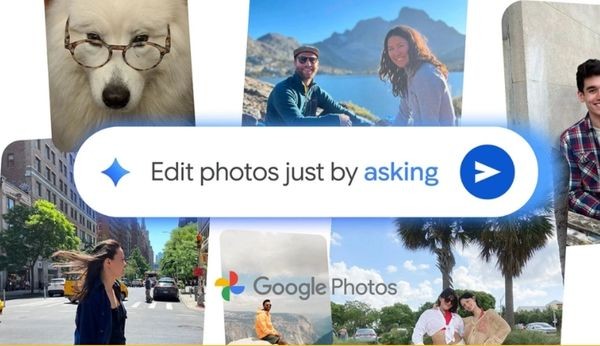
How does voice photo editing work?

You can make very specific requests, such as “remove the person walking behind you” or “make the sky in the sunset photo brighter.”

If you don’t know what to adjust to look beautiful, just say a simple sentence like “make this photo more beautiful”, AI will automatically analyze and suggest changes such as brightening, adjusting color or blurring the background. You can completely edit step by step. After AI blurs the background, you can ask to “increase the contrast a little” to make the photo perfect to your liking.

AI will automatically analyze and suggest changes

So how to use this feature?

To start, you just need to make sure Google Photos app has been updated to the latest version. Then, follow these super simple steps:

Step 1: Open Google Photos and select a photo you want to edit.

Step 2: Click the button “Edit” and find the option called “Edit by asking” (edit by asking).

Step 3: Now you just need to speak or type your request. For example: “make the photo brighter” or “remove the shadow under your feet”.

Step 4: Watch AI perform magic in an instant. Once you’re satisfied, just click save and you’re done!
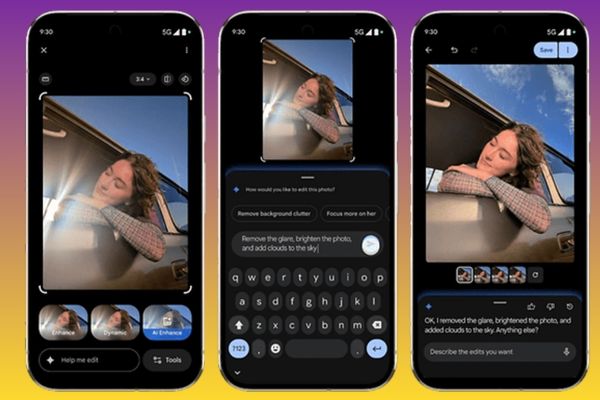
Instructions for editing photos on Google Photos by voice

How to know if a photo has been edited with AI?

This is a very good point from Google. To make things transparent, Google has integrated a technology called C2PA Content Credentials. You can simply understand it as a “birth certificate” for the photo, it will record information about the origin and editing history of the photo.

This makes it easier for people to know whether a photo is original or has been tampered with, especially with AI technology, helping to increase trust.

How to know if a photo has been edited with AI?

When can iPhone users experience this feature?

The good news for Apple ecosystem users is that you won’t have to wait too long. Although the “edit by asking” feature is currently being rolled out to users in advance Pixel 10 in the USGoogle has confirmed that it will be available on the app soon Google Photos for iOS.

According to the announcement, the update is expected to be released in the coming weeks. So, check the App Store regularly so you don’t miss the opportunity to experience this groundbreaking photo editing technology!

When can iPhone users experience this feature?

Conclusion

Features Edit photos on Google Photos by voice Truly makes editing simpler and more enjoyable than ever. No more complicated operations, now anyone can create beautiful, sparkling photos with just a few words. Get ready to experience this amazing technology as soon as it’s available on your phone!


Tags: editingGoogleInstructionsphotosvoice
Previous Post

Instructions for sending a help signal using Zalo when stuck in a flood area

Next Post

Experience in buying Laptops for Students and Office Workers

AnonyViet

AnonyViet

Related Posts

How to authenticate the owner’s SIM on VNeID from April 15
Software

How to authenticate the owner’s SIM on VNeID from April 15

April 15, 2026
Review of Galaxy A57 and A37: Some are eight ounces, some are half a pound
Software

Review of Galaxy A57 and A37: Some are eight ounces, some are half a pound

April 14, 2026
JOPDF: Versatile PDF editing software for Windows and Mac
Software

JOPDF: Versatile PDF editing software for Windows and Mac

April 10, 2026
MyVehicle: Convenient and secure motorcycle maintenance reminder app
Software

MyVehicle: Convenient and secure motorcycle maintenance reminder app

April 10, 2026
How to turn off AI on Gmail to absolutely protect personal data
Software

How to turn off AI on Gmail to absolutely protect personal data

April 8, 2026
How to add Settings to Control Center using Shortcuts
Software

How to add Settings to Control Center using Shortcuts

April 7, 2026
Next Post
Experience in buying Laptops for Students and Office Workers

Experience in buying Laptops for Students and Office Workers

0 0 votes
Article Rating
Subscribe
Login
Notify of
guest

guest

0 Comments
Oldest
Newest Most Voted
Inline Feedbacks
View all comments

Recent News

How to intercept traffic using Burp Suite to analyze HTTP/HTTPS

How to intercept traffic using Burp Suite to analyze HTTP/HTTPS

April 18, 2026
How to avoid Adblock detection on Youtube with 4 good tips

How to avoid Adblock detection on Youtube with 4 good tips

April 17, 2026
How to transfer ChatGPT data to Claude is extremely simple

How to transfer ChatGPT data to Claude is extremely simple

April 16, 2026
How to authenticate the owner’s SIM on VNeID from April 15

How to authenticate the owner’s SIM on VNeID from April 15

April 15, 2026
How to intercept traffic using Burp Suite to analyze HTTP/HTTPS

How to intercept traffic using Burp Suite to analyze HTTP/HTTPS

April 18, 2026
How to avoid Adblock detection on Youtube with 4 good tips

How to avoid Adblock detection on Youtube with 4 good tips

April 17, 2026
How to transfer ChatGPT data to Claude is extremely simple

How to transfer ChatGPT data to Claude is extremely simple

April 16, 2026
AnonyViet - English Version

AnonyViet

AnonyViet is a website share knowledge that you have never learned in school!

We are ready to welcome your comments, as well as your articles sent to AnonyViet.

Follow Us

Contact:

Email: anonyviet.com[@]gmail.com

Main Website: https://anonyviet.com

Recent News

How to intercept traffic using Burp Suite to analyze HTTP/HTTPS

How to intercept traffic using Burp Suite to analyze HTTP/HTTPS

April 18, 2026
How to avoid Adblock detection on Youtube with 4 good tips

How to avoid Adblock detection on Youtube with 4 good tips

April 17, 2026
No Result
View All Result
  • Home
  • News
  • Software
  • Knowledge
  • MMO
  • Tips
  • Security
  • Network
  • Office

wpDiscuz
0
0
Would love your thoughts, please comment.x
()
x
| Reply