Continuing the series OpenClaw configuration instructionsafter successfully connecting to Telegram, today I will show you how to connect OpenClaw to WhatsApp. Using WhatsApp helps you command your computer to perform tasks (take screenshots, run scripts, shutdown…) right from the world’s most popular messaging application, securely and quickly. The purpose is to use Whatsapp to text and command OpenClaw to perform tasks on your computer.
| Join the channel Telegram belong to AnonyViet 👉 Link 👈 |
Why connect OpenClaw with WhatsApp?
Before going into details, let’s review some of the benefits of using “virtual assistant” OpenClaw via WhatsApp:
- Mobility: Command your PC from anywhere with just a text message.
- Security: Uses WhatsApp’s end-to-end encryption protocol.
- Speed: Response is almost instantaneous compared to using heavy remote desktop software.
Instructions for connecting OpenClaw with Whatsapp
Step 1: Open a CMD (Command Prompt) window and type the command: openclaw channels add
Step 2: A list of channels will appear. You choose Yesthen find the line WhatsApp (QR link) (not configured).
Step 3: In the configuration selection section, select Default and press Enter. When the screen asks WhatsApp now (QR)?please choose Yes then press Enter.
The CMD screen will now display a QR code to link the device
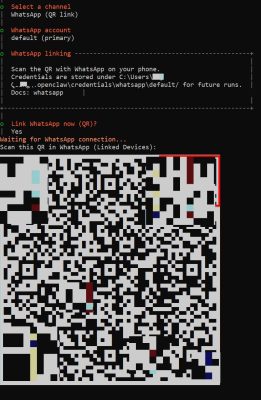
- On phone: Open WhatsApp App -> Setting -> Linking devices -> Device link.
- Raise your phone camera to scan the QR code displayed on the CMD.
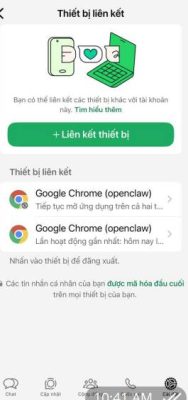
Step 5: After a successful scan (wait about 30 seconds), return to the CMD screen:
- Select: This is my personal phone number -> Press Enter.
- Enter your WhatsApp phone number in international format: +84xxxxxxxxxx (For example:
+84912555689).
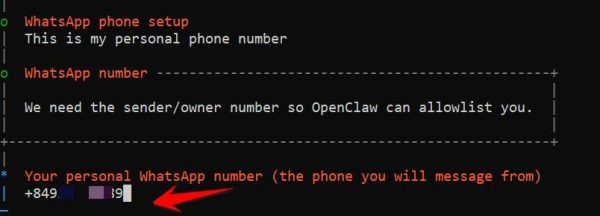
Step 6: (Important): Return to Menu selection Channelscroll down to the last select Finished. Note: If you do not select Finished, your configuration will not be saved.
Test Whatsapp connection with OpenClaw
Once completed under CMD, you need to start Gateway to manage on the web interface. Type the command: openclaw gateway --port 18789 --verbose
Access the link: http://127.0.0.1:18789/?token=xxxx (Tip: If you forget your Token code, open the file C:\Users\ See line 24).
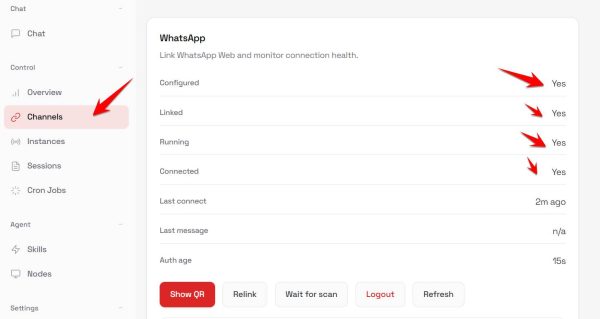
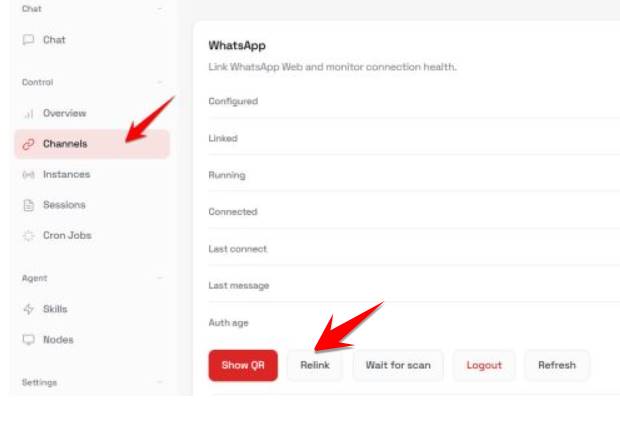
At section Channelsif you see the WhatsApp status displayed Yes Everything as shown below is successful.
How to fix if Whatsapp cannot be connected to OpenClaw
In case Dashboard reports No or scan the QR code but do not receive it, please perform the following “Reset” steps:
- Press the button Relinkthen select Show QR to get new code.
- Use WhatsApp to scan this code again.
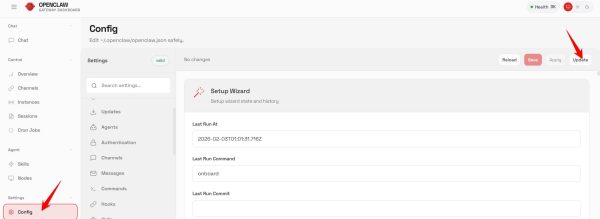
- Go to Menu Configpress the button Update in the right corner of the screen to resynchronize the system.
- Come back Channels and press Refresh.
Click Relink, Show QR to create another QR code
Go to Menu Configpress the button Update in the right corner
Return to Menu Channels -> Resfresh
Command Whatsapp to control the computer
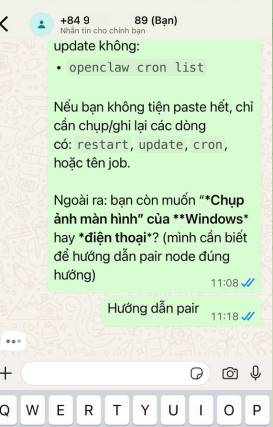
Now on the Whatsapp App on your phone, you chat with the phone number where you configured OpenClaw, and command OpenClaw to perform the task on your computer.
Some frequently asked questions (FAQ)
Question: Can I use another phone number to control? Answer: Only phone numbers configured in the “Authorized” list (Personal phone number you entered in step 5) have the right to issue commands to OpenClaw. This ensures the safety of your computer.
Q: Does OpenClaw need to run in the background for WhatsApp to work? Answer: Yes, command openclaw gateway must be running for the connection between WhatsApp and the computer to be maintained.
Connecting OpenClaw to WhatsApp opens up a lot of exciting automation possibilities. If you have difficulty scanning the QR code or configuring the phone number, please leave a comment below for support! Wishing you success.