OpenClaw is a powerful open source AI Assistant platform that allows you to build your own personal assistant that works seamlessly on your own server. Instead of installing on a personal PC that is resource-consuming and disruptive, deployment OpenClaw on VPS helps the system stay online 24/7, stable and easily expandable.
| Join the channel Telegram belong to AnonyViet 👉 Link 👈 |
In this article, I will show you how to do it in detail Install and configure OpenClaw on Ubuntu VPS 2.5GB RAM. This is a VPS configuration that is very suitable for beginners with an extremely cheap cost, only approx $18.66/year (equivalent to more than $1 a month).
What is OpenClaw? Why Should You Run on VPS?
OpenClaw is a personalized AI Assistant that empowers you to perform tasks like:
- Create your own AI chatbot: Train the data as desired.
- Cross-platform connection: AI API integration (OpenAI, Claude, or Local Models).
- Automation: Attach the plugin, the workflow processes the work automatically.
- Highly personalized: Customize your Bot’s behavior, personality, and conversation scripts.
When running OpenClaw on VPS (Virtual Private Server)you will receive superior benefits compared to running on a personal computer:
- ✅ Operating 24/7: Bot is always ready to respond day or night.
- ✅ Device independence: Does not depend on resources or on/off status of PC/Laptop.
- ✅ Powerful integration: Easily connect Webhooks, Telegram Bot, Discord Bot and other APIs.
Sign up for a cheap 2.5GB RAM VPS ($18.66/year)
To run OpenClaw smoothly at optimal cost, I recommend using VPS from RackNerd. Currently, they still keep the Black Friday 2025 promotion with very good prices.
👉 You access THIS PROMOTION LINK to register.
⚠️ Important note: In the operating system (OS) selection section, select Ubuntu 22.04. This version is stable and has good support for the libraries needed for OpenClaw.
Recommended Ubuntu 2.5GB RAM VPS package specifications:
- CPU: 2x vCPU Cores
- Hard drive: 45GB PURE SSD RAID-10 (High Speed)
- RAM: 2.5GB (Enough to run basic OpenClaw and Docker)
- Bandwidth: 3000GB Monthly Premium Bandwidth
- Network: 1Gbps Public Network Port
- Admin rights: Full Root Admin Access
- IP: 1 Dedicated IPv4 Address
This configuration is completely sufficient to run OpenClaw, Telegram Bot, Web Dashboard management and intermediate AI APIs.
After successful payment, you will receive an Email containing login information (IP, Root Password) from the supplier.
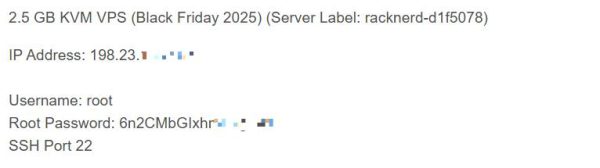
Instructions for Installing OpenClaw on Ubuntu VPS
Step 1: Connect to VPS
You open the software MobaXterm (or Putty/Terminal) to SSH into the VPS. I recommend using MobaXterm because we will need the feature later Tunneling its to access Dashboard.
(The steps to install OpenClaw on Linux are similar to the previous tutorial: Instructions for installing OpenClaw on Windows computers).
Step 2: Run the installation command
At the VPS command line window, run the following commands one after another:
1. Download and install OpenClaw via Script:
curl -fsSL https://openclaw.ai/install.sh | bash -s -- --install-method git2. Initialize configuration and Daemon:
openclaw onboard --install-daemon- Select Yes (Agree to terms/risks).
- Select QuickStart and press Enter.
You press Enter Continuously follow the instructions on the screen. When it comes to the OpenAI/LLM authentication step, the terminal will display a link (for example: http://localhost:xxxx/auth...). Because VPS does not have a browser, you do the following:
- Highlight the link in MobaXterm, keep it Ctrl + Right mouse select Copy.
- Paste the link into your personal computer’s browser and log in to your OpenAI account.
- After logging in, the browser will redirect to the link
http://localhost...with authentication code. Copy this entire link. - Return to the MobaXterm window, press Ctrl + Right mouse select Paste to paste the authentication link and press Enter.
Step 3: Connect Telegram and Pair VPS
Next, you do it create Telegram bots and bot authentication Similar to the old tutorial.
Finally, run the following command to enable OpenClaw node:
npm i -g openclaw
openclaw node run --host localhost --port 18789 --display-name "My VPS Bot"
At this point, you can chat with the Telegram Bot and command it to perform tasks directly on the VPS.
How to access OpenClaw Dashboard from computer (Tunneling)
By default, OpenClaw’s Dashboard runs at localhost on VPS so you cannot access it directly via public IP for security reasons. We will use the feature SSH Tunneling.
1. Get login Token:
On VPS, you use the command cat /root/.openclaw/openclaw.json Or open the file to view. Find the line containing the token code (usually line 24).
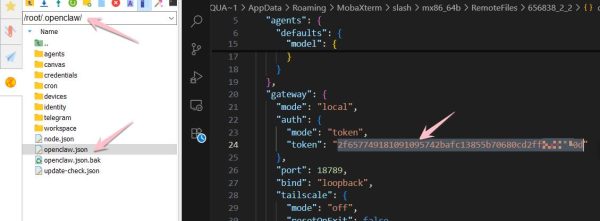
The full access link will be in the form: http://127.0.0.1:18789/?token=YOUR_TOKEN_HERE
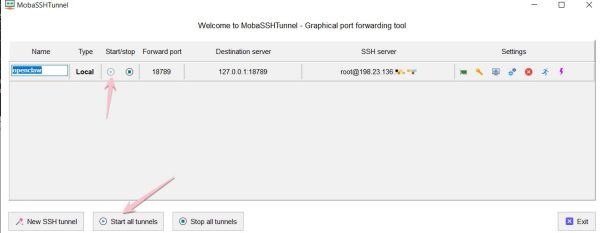
2. Configure Tunnel on MobaXterm:
At the MobaXterm interface, select the icon Tunneling on the toolbar.
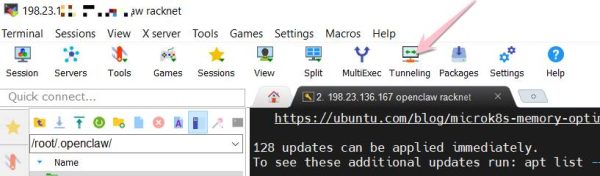
- Press the button New SSH tunnel.
- Select check in Local port forwarding.
- Fill in the information as follows:
- Forwarded port:
18789 - SSH server: Fill in your VPS IP.
- SSH login:
root(or the user you use). - SSH port:
22 - Remote server:
127.0.0.1 - Remote port:
18789
- Forwarded port:
- Click Save.
- Press the button Play (Start) (triangle) to start running Tunnel.
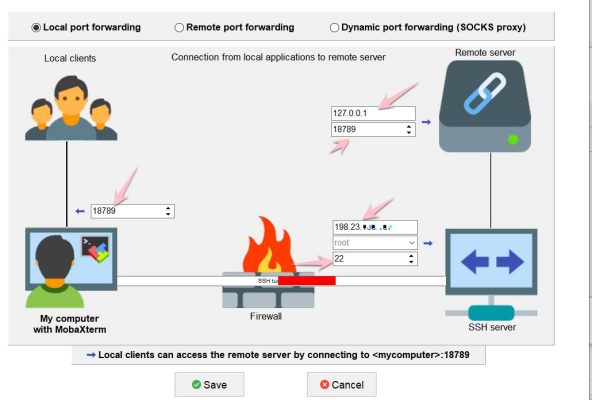
When the Tunnel icon turns green, the connection is successful.
3. Open Dashboard:
Now, open the browser on your Windows computer and visit the link:
http://127.0.0.1:18789/?token=MÃ_TOKEN_CỦA_BẠN
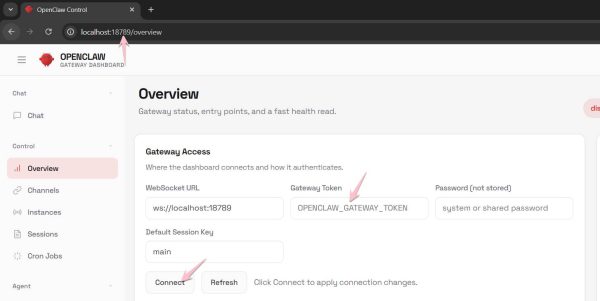
If you just visit http://127.0.0.1:18789the interface will ask to enter Gateway Token. You just need to copy the token, paste it and click Connect that’s it.
Openclaw is installed as a service on Ubuntu, so when you turn off MobaXterm, Openclaw will still work on the VPS. When you reboot the server, Openclaw will automatically restart, so you can rest assured.