
• Home
  • News
  • Software
  • Knowledge
  • MMO
  • Tips
  • Security
  • Network
  • Office
AnonyViet - English Version
  • Home
  • News
  • Software
  • Knowledge
  • MMO
  • Tips
  • Security
  • Network
  • Office
No Result
View All Result
  • Home
  • News
  • Software
  • Knowledge
  • MMO
  • Tips
  • Security
  • Network
  • Office
No Result
View All Result
AnonyViet - English Version
No Result
View All Result

How to prioritize 5G Wifi reception on Laptop and PC

AnonyViet by AnonyViet
February 5, 2026
in Tips
0

How to prioritize 5G Wifi reception is a great trick to help you make the most of the Internet speed that a dual-band router provides. Although the 5GHz band is significantly faster, many Windows laptops default to connecting to the familiar 2.4GHz band. Don’t worry! AnonyViet will guide you in detail on the steps to “force” your laptop to always prioritize connecting to the powerful 5G band, helping to significantly improve your work and entertainment experience.

Join the channel Telegram belong to AnonyViet 👉 Link 👈

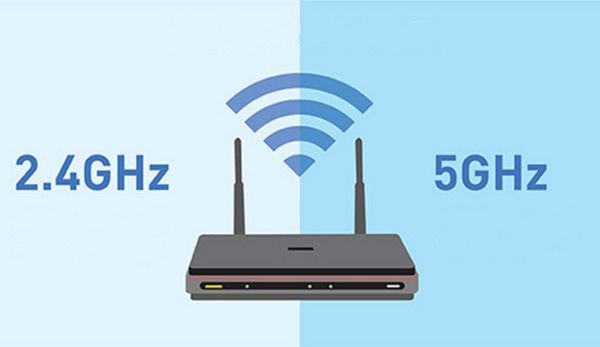
Why should you prioritize the 5GHz Wifi band?

In the world of wireless connectivity, the two most popular frequency bands are 2.4GHz and 5GHz. Each type has its own advantages and disadvantages, understanding them will help you make the best choice.

2.4GHz band It is likened to a busy highway. It has a longer range and is better able to penetrate walls and obstacles. However, because there are so many devices (wireless mice, bluetooth speakers, microwaves, etc.) using this band, it is susceptible to interference, leading to unstable and slower connection speeds, usually only reaching a maximum of about 450-600Mbps.

5GHz band It’s like a modern highway, with less traffic. It provides outstanding data transfer speeds, up to 1300Mbps or higher, and at the same time less susceptible to interference. Its only weakness is that the coverage range is narrower and the signal is easily weakened by obstacles.

If your laptop supports the 5GHz band, setting priority will help you enjoy the highest speed when in coverage area.
Why should you prioritize the 5GHz Wifi band?

Instructions on how to prioritize 5G Wifi reception on Windows

Let your laptop always prioritize connection WiFi network 5GHz, you just need to follow these 3 simple steps.

Step 1: First, press the key Windows On the keyboard, type in the keyword search box Device Manager and press Enter.

When the new window appears, find the section called Network Adapters and click on it to see a list of network cards installed on the machine.
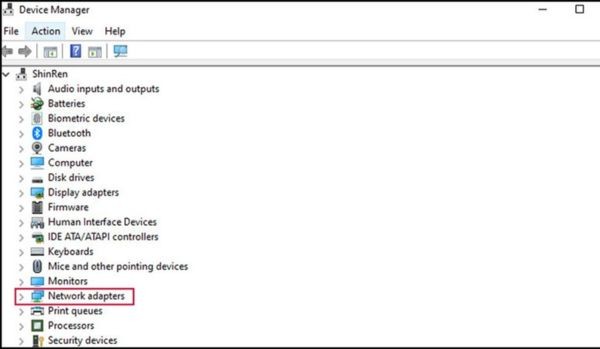
Find the section called Network Adapters

Step 2: In the newly expanded list, determine the correct Wifi card that your computer is using. Next, right-click on the name of that Wifi card and select the item Properties from the context menu.
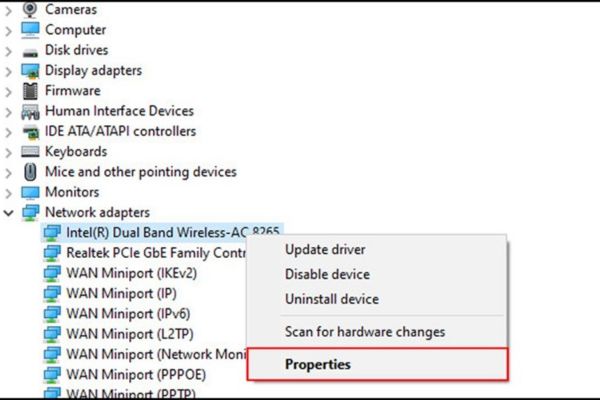
Select Properties
Select Properties

Step 3: A new window will appear, here you select the tab Advanced. In the list Property On the left, find an item called Preferred Band or Band.

Finally, you look at the box Value on the right, click the drop-down menu and select options Prefer 5GHz bandthen press OK to save changes.
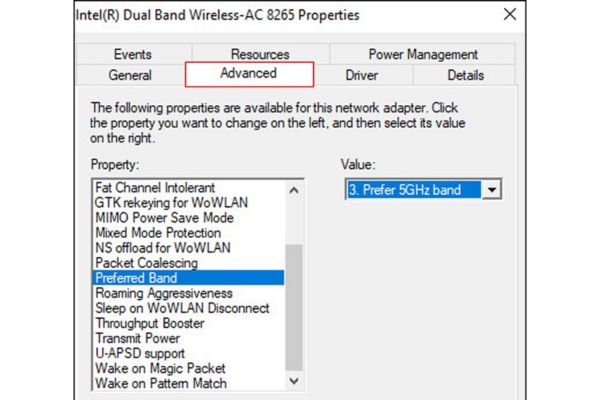
Select the Prefer 5GHz band option

After clicking OK, the Wifi connection may be disconnected for a moment and automatically reconnected. From now on, your computer will always prioritize finding and connecting to the 5GHz band whenever available.

Conclusion

With just a few simple steps, you’re done How to prioritize 5G Wifi reception so that your laptop always connects to the fastest band. This will significantly improve your web surfing, watching movies or playing games experience, making everything smoother and uninterrupted. Wish you success and enjoy outstanding Internet speed!


Tags: LaptopprioritizereceptionWiFi
Previous Post

Instructions for Configuring OpenClaw on Ubuntu VPS 2.5G RAM (only $18/year)

Next Post

Instructions on how to hide formulas in Excel to secure data

AnonyViet

AnonyViet

Related Posts

How to change the default font on Windows 10
Tips

How to change the default font on Windows 10

April 13, 2026
5 tips for using a Browser to replace an App (helps save RAM, time and money)
Tips

5 tips for using a Browser to replace an App (helps save RAM, time and money)

April 13, 2026
How to make funny MeMe photos without Photoshop within 10 seconds
Tips

How to make funny MeMe photos without Photoshop within 10 seconds

April 11, 2026
How to quickly design your own Logo without Photoshop
Tips

How to quickly design your own Logo without Photoshop

April 10, 2026
How to convert Website into App on Windows
Tips

How to convert Website into App on Windows

April 9, 2026
Instructions for getting 3 months of Adobe Express Pro for free
Tips

Instructions for getting 3 months of Adobe Express Pro for free

April 9, 2026
Next Post
Instructions on how to hide formulas in Excel to secure data

Instructions on how to hide formulas in Excel to secure data

0 0 votes
Article Rating
Subscribe
Login
Notify of
guest

guest

0 Comments
Oldest
Newest Most Voted
Inline Feedbacks
View all comments

Recent News

How to add Watermark to Google Docs to protect copyright

How to add Watermark to Google Docs to protect copyright

April 19, 2026
How to intercept traffic using Burp Suite to analyze HTTP/HTTPS

How to intercept traffic using Burp Suite to analyze HTTP/HTTPS

April 18, 2026
How to avoid Adblock detection on Youtube with 4 good tips

How to avoid Adblock detection on Youtube with 4 good tips

April 17, 2026
How to transfer ChatGPT data to Claude is extremely simple

How to transfer ChatGPT data to Claude is extremely simple

April 16, 2026
How to add Watermark to Google Docs to protect copyright

How to add Watermark to Google Docs to protect copyright

April 19, 2026
How to intercept traffic using Burp Suite to analyze HTTP/HTTPS

How to intercept traffic using Burp Suite to analyze HTTP/HTTPS

April 18, 2026
How to avoid Adblock detection on Youtube with 4 good tips

How to avoid Adblock detection on Youtube with 4 good tips

April 17, 2026
AnonyViet - English Version

AnonyViet

AnonyViet is a website share knowledge that you have never learned in school!

We are ready to welcome your comments, as well as your articles sent to AnonyViet.

Follow Us

Contact:

Email: anonyviet.com[@]gmail.com

Main Website: https://anonyviet.com

Recent News

How to add Watermark to Google Docs to protect copyright

How to add Watermark to Google Docs to protect copyright

April 19, 2026
How to intercept traffic using Burp Suite to analyze HTTP/HTTPS

How to intercept traffic using Burp Suite to analyze HTTP/HTTPS

April 18, 2026
No Result
View All Result
  • Home
  • News
  • Software
  • Knowledge
  • MMO
  • Tips
  • Security
  • Network
  • Office

wpDiscuz
0
0
Would love your thoughts, please comment.x
()
x
| Reply





