• Home
  • News
  • Software
  • Knowledge
  • MMO
  • Tips
  • Security
  • Network
  • Office
AnonyViet - English Version
  • Home
  • News
  • Software
  • Knowledge
  • MMO
  • Tips
  • Security
  • Network
  • Office
No Result
View All Result
  • Home
  • News
  • Software
  • Knowledge
  • MMO
  • Tips
  • Security
  • Network
  • Office
No Result
View All Result
AnonyViet - English Version
No Result
View All Result

Instructions for automatically locking your Windows 10 computer when logged in without permission

AnonyViet by AnonyViet
February 8, 2024
in Tips
0

I will give this trick to those who want to protect their computers from strangers. This measure applies to computers running the Windows 10 operating system. You will be protected against people who want to discover your computer lock password.

Join the channel Telegram belong to AnonyViet 👉 Link 👈

Entering the wrong password on Windows 10

By default, Windows 10 does not limit the number of times the screen unlock password is entered incorrectly. Therefore, people will be able to guess your computer password as many times as they want. If you want more security for your computer, check out the solutions in this article.

This function is actually available on Windows 10 but has not been activated. If you enable it, your computer will become much more secure. When someone intentionally discovers your computer screen unlock password, this function will put the computer into a completely locked state.

Below, I share with you 2 ways to activate this security function.

Method 1 – Securely lock your Windows 10 computer with PowerShell

This method only applies to people using Windows 10 versions Home never mind. If you use a higher version, refer to method 2 below. Now, right click on the icon Windows and choose Windows PowerShell and run with permissions Administrator.
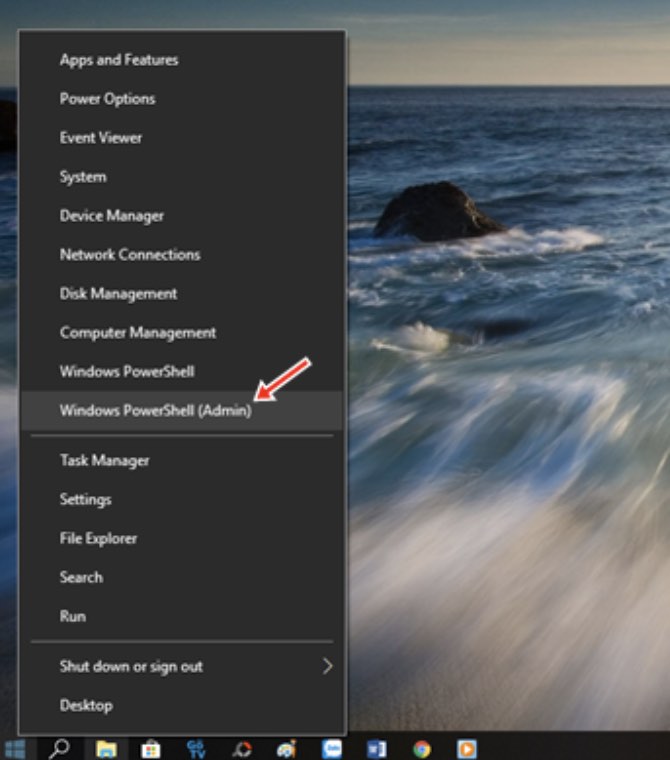
Instructions for automatically locking Windows 10 computer when logged in illegally 14

Type the command net accounts and press ENTER to run.
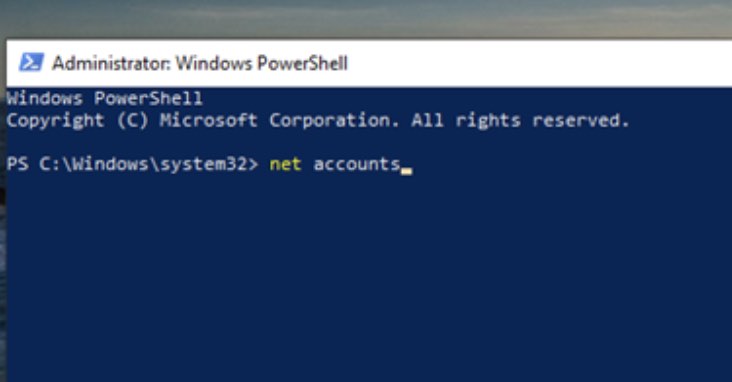
Instructions for automatically locking Windows 10 computer when illegally logged in 15

By default, Windows 10 will not limit the number of incorrect password attempts when unlocking the screen. Hence in line Lockout threshold you will see the text Never (i.e. never limited). So our job now is to set it a certain limit.
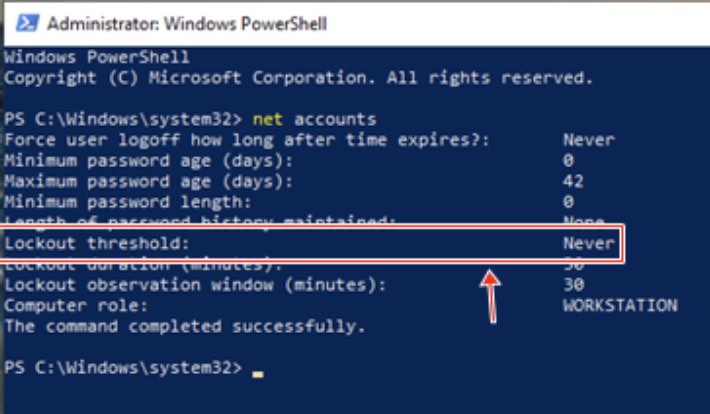
Instructions for automatically locking Windows 10 computer when illegally logged in 16

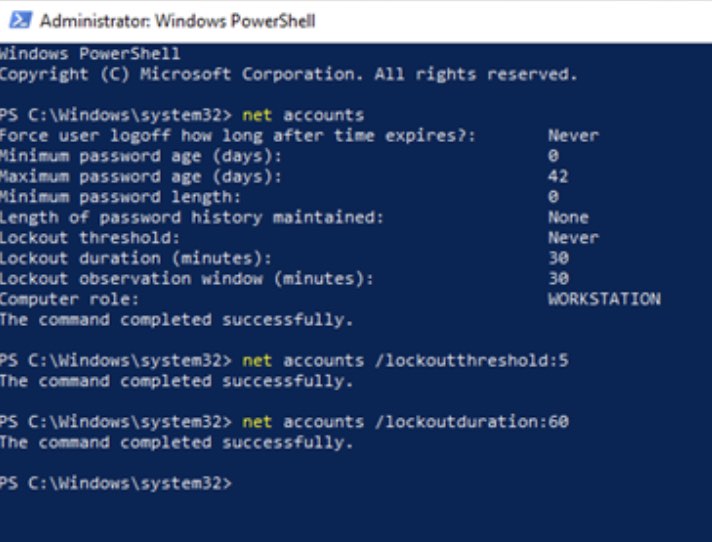
Now type the command net accounts /lockoutthreshold:number_of_incorrect_inputs. Customize the number of times you can enter the wrong password as you want. Here I will change to 5 times so I will enter as net accounts /lockoutthreshold:5

Press ENTER to run the command and the result will be as shown below!!
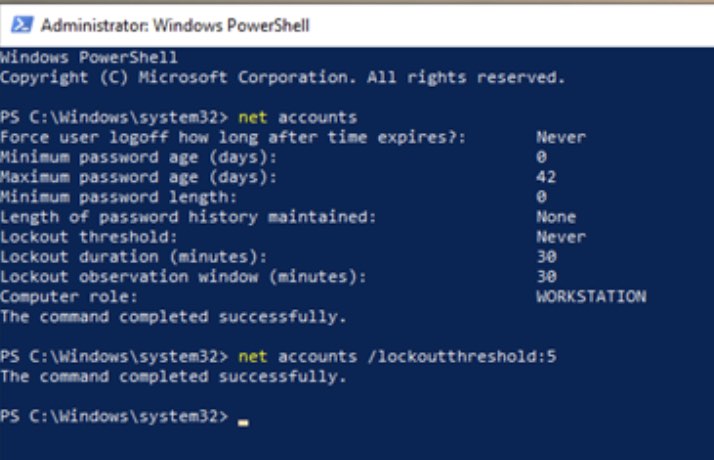
Instructions for automatically locking Windows 10 computer when illegally logged in 17

After running the command you will see the message: The command completed successfully. This means the command has been executed successfully. Continuing, we will set up the runtime to lock the machine with the following command:

net accounts /lockoutduration:số_phút

For example, here I want to automatically lock the computer after 60 minutes when entering the wrong password 5 times, then I will type and run the command: net accounts /lockoutduration:60
Instructions for automatically locking Windows 10 computer when illegally logged in 18

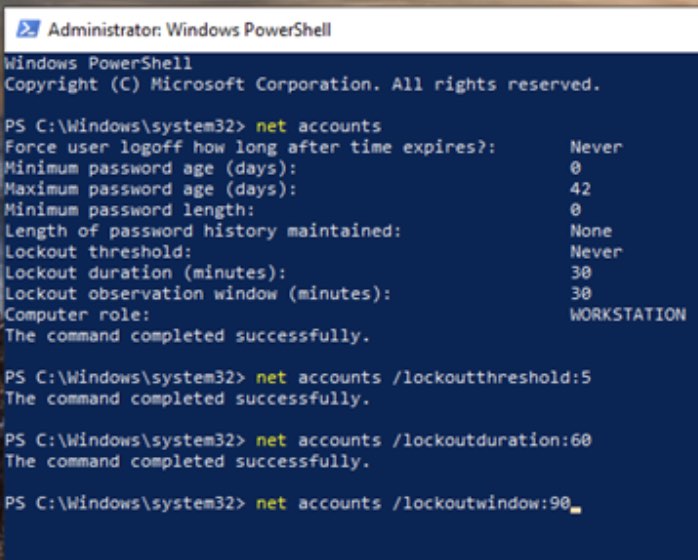
Next, you need to set the time when the lock screen appears again. This means that after automatically locking the computer, after this set time, the screen will automatically reopen. To do this, we use the following command:

net accounts /lockoutwindow:số_phút

The word position number of minutes in the command to the number of minutes you want to set (like the example above).
Instructions for automatically locking Windows 10 computer when illegally logged in 19

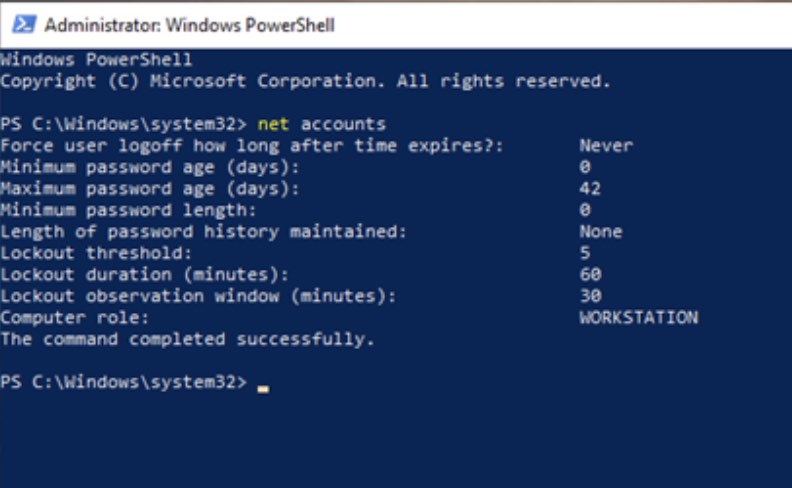
Finally type the command net accounts to double check your settings.
Instructions for automatically locking Windows 10 computer when logged in illegally 20

If you want disable If this feature is available by default, type the command: net accounts /lockoutthreshold:0

Method 2 – Use Windows Local Group Policy Editor

Method 01 is only applicable Windows 10 Home never mind. If you use Windows 10 Pro, Education, Enterprise… then follow this guide.

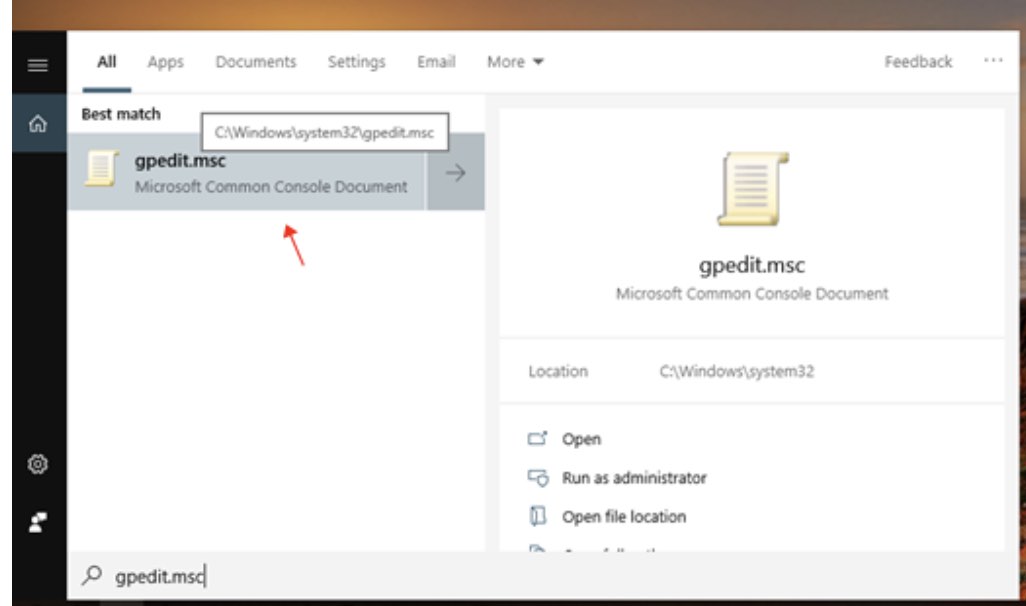
Please press the key combination Windows + S and type in keywords gpedit.msc and press ENTER.
Instructions for automatically locking Windows 10 computer when illegally logged in 21

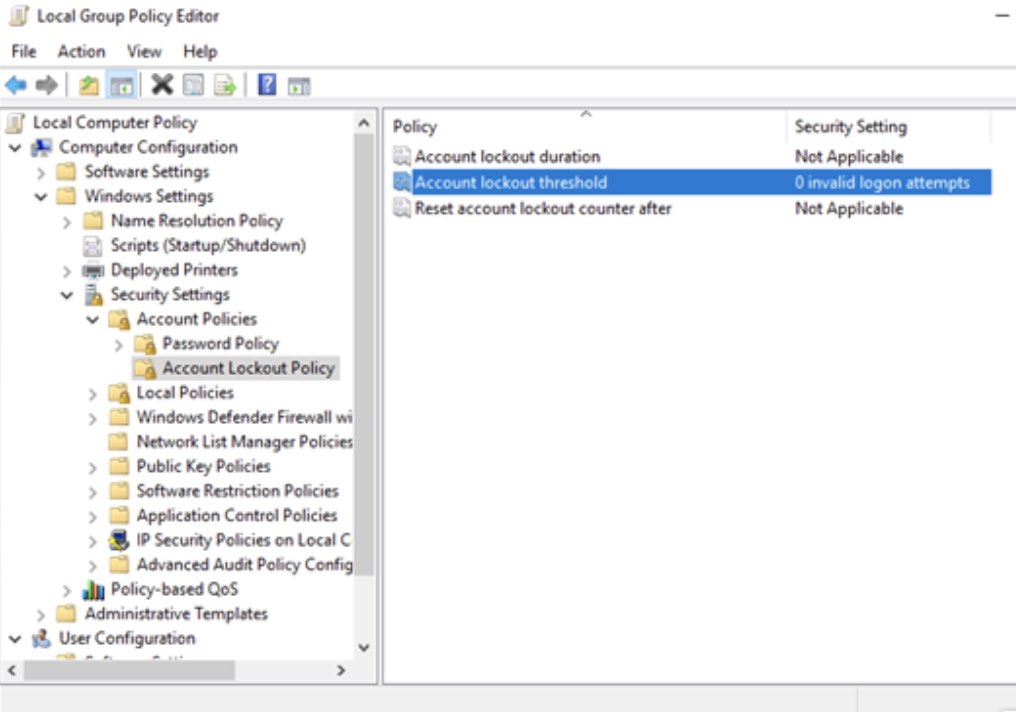
  • After opening Windows Local Group Policy Editor, access it in the following order:
  • Computer Configuration > Windows Settings > Security Settings > Account Policies > Account Lockout Policy.
  • Then open the item Account lockout threshol.
Instructions for automatically locking Windows 10 computer when illegally logged in 22

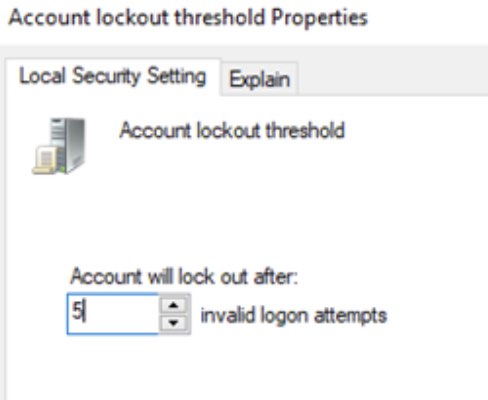
In the Account Lockout Threshold window, enter the number of times you want to allow incorrect password entries.
Instructions for automatically locking Windows 10 computer when illegally logged in 23

In this photo, I limited it to 5 times.

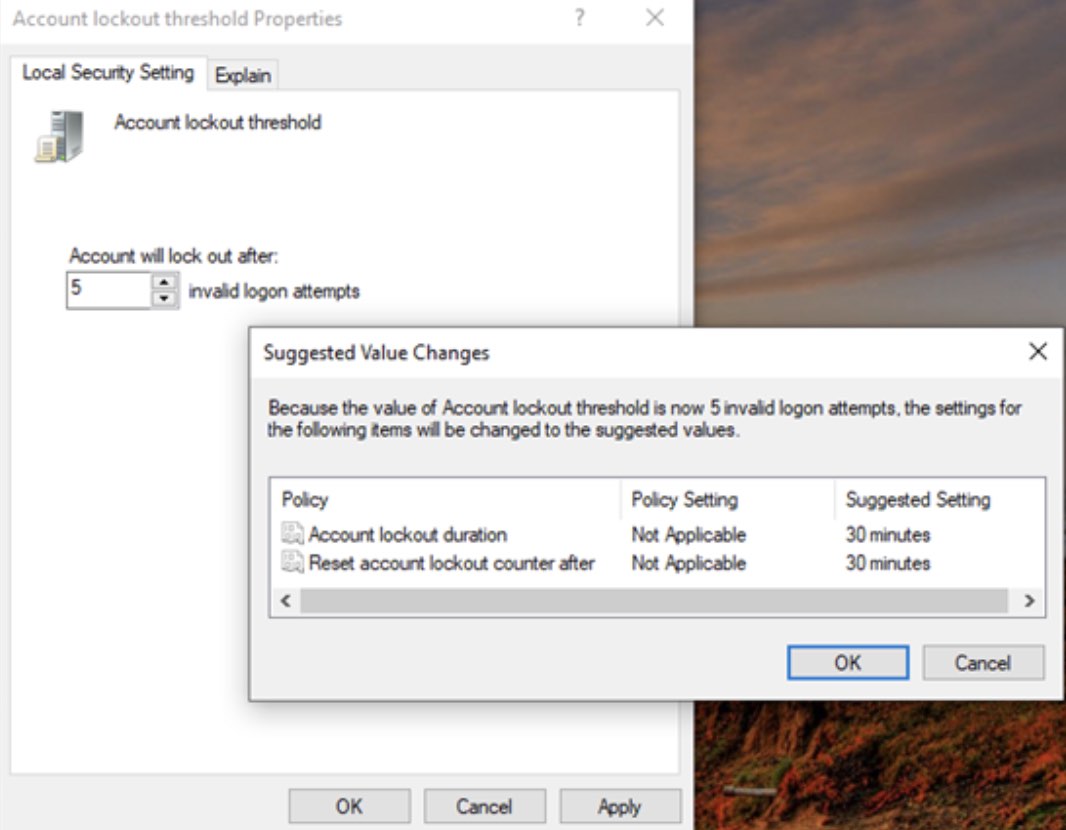
After entering, press OK to save. Now a confirmation dialog box will appear with setting the time to automatically lock the computer and automatically unlock (default is 30 minutes for both). You can customize it again if you want.
Automatically lock Windows 10 computer when logging in too many times

Press OK to confirm setup is complete. If you want to disable this function, just change it Account Lockout Threshold Returning to 0 is fine.


The article scored: 5/5 – (100 votes)

Previous Post

How to turn on notification light borders on Samsung so you don't miss important messages

Next Post

How to hide Messenger message content on phone lock screen

AnonyViet

AnonyViet

Related Posts

7 other features of USB you may not know
Tips

7 other features of USB you may not know

February 14, 2026
Instructions for creating a photo holding a QR code to receive super cute lucky money for Tet
Tips

Instructions for creating a photo holding a QR code to receive super cute lucky money for Tet

February 14, 2026
How to overclock RAM – Overlock RAM helps speed up faster
Tips

How to overclock RAM – Overlock RAM helps speed up faster

February 13, 2026
Suggestions on how to name a good Facebook name – unique and impressive
Tips

Suggestions on how to name a good Facebook name – unique and impressive

February 13, 2026
Increase Laptop PIN usage time using Eco Mode on Windows 10
Tips

Increase Laptop PIN usage time using Eco Mode on Windows 10

February 12, 2026
How to create beautiful Tet photos with AI like professional studio photos
Tips

How to create beautiful Tet photos with AI like professional studio photos

February 12, 2026
Next Post
How to hide Messenger message content on phone lock screen

How to hide Messenger message content on phone lock screen

0 0 votes
Article Rating
Subscribe
Login
Notify of
guest

guest

0 Comments
Oldest
Newest Most Voted
Inline Feedbacks
View all comments

Recent News

7 other features of USB you may not know

7 other features of USB you may not know

February 14, 2026
Instructions for creating a photo holding a QR code to receive super cute lucky money for Tet

Instructions for creating a photo holding a QR code to receive super cute lucky money for Tet

February 14, 2026
How to see the package Viettel is using to avoid losing money unfairly

How to see the package Viettel is using to avoid losing money unfairly

February 14, 2026
How to overclock RAM – Overlock RAM helps speed up faster

How to overclock RAM – Overlock RAM helps speed up faster

February 13, 2026
7 other features of USB you may not know

7 other features of USB you may not know

February 14, 2026
Instructions for creating a photo holding a QR code to receive super cute lucky money for Tet

Instructions for creating a photo holding a QR code to receive super cute lucky money for Tet

February 14, 2026
How to see the package Viettel is using to avoid losing money unfairly

How to see the package Viettel is using to avoid losing money unfairly

February 14, 2026
AnonyViet - English Version

AnonyViet

AnonyViet is a website share knowledge that you have never learned in school!

We are ready to welcome your comments, as well as your articles sent to AnonyViet.

Follow Us

Contact:

Email: anonyviet.com[@]gmail.com

Main Website: https://anonyviet.com

Recent News

7 other features of USB you may not know

7 other features of USB you may not know

February 14, 2026
Instructions for creating a photo holding a QR code to receive super cute lucky money for Tet

Instructions for creating a photo holding a QR code to receive super cute lucky money for Tet

February 14, 2026
  • Home
  • Home 2
  • Home 3
  • Home 4
  • Home 5
  • Home 6
  • Next Dest Page
  • Sample Page

https://sun52.network

No Result
View All Result
  • Home
  • News
  • Software
  • Knowledge
  • MMO
  • Tips
  • Security
  • Network
  • Office

https://sun52.network

wpDiscuz
0
0
Would love your thoughts, please comment.x
()
x
| Reply