• Home
  • News
  • Software
  • Knowledge
  • MMO
  • Tips
  • Security
  • Network
  • Office
AnonyViet - English Version
  • Home
  • News
  • Software
  • Knowledge
  • MMO
  • Tips
  • Security
  • Network
  • Office
No Result
View All Result
  • Home
  • News
  • Software
  • Knowledge
  • MMO
  • Tips
  • Security
  • Network
  • Office
No Result
View All Result
AnonyViet - English Version
No Result
View All Result

How to View Multiple Time Zones on Windows 10 Using Taskbar and Start

AnonyViet by AnonyViet
August 29, 2024
in Tips
0

Your crush is in the US, Japan, China, you want to ask if he/she has eaten yet but it takes too much time to check all of them at once. Don't worry, Windows allows you to add multiple time zone clocks to the taskbar.

Join the channel Telegram belong to AnonyViet 👉 Link 👈

This is much more convenient than looking up the time zone on “time in [city]“. But what if you don’t have Internet? This article will guide you to display the time of the countries you want to see on Windows.
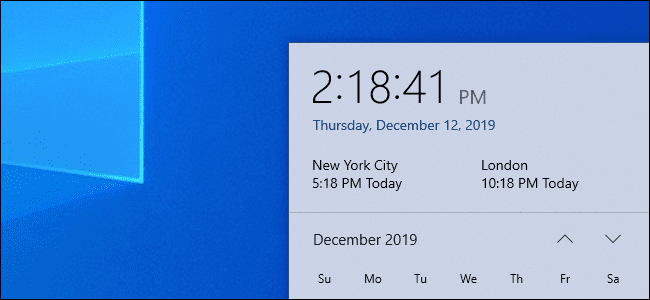
How to View Multiple Time Zones on Windows 10 Taskbar

To do this, right-click on the clock on the taskbar and select “Adjust date/time”. You can also find it at Settings > Time & Language > Date & Time.
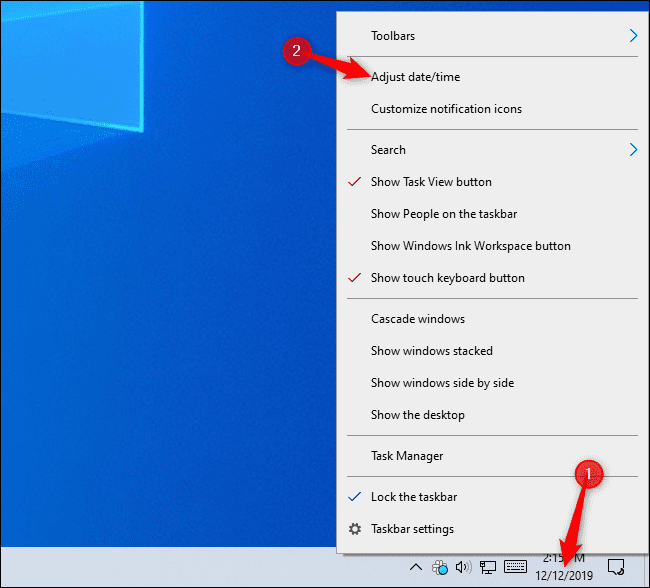
Adjust date/time

Scroll down to select “Add clocks for different time zones” under the place Related Settings.
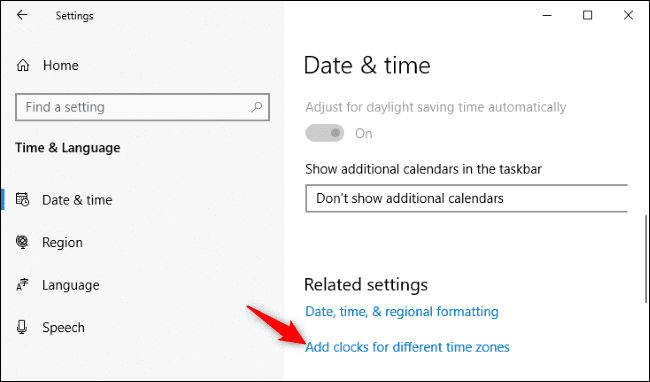
Add clocks for different time zones

To add another clock, select “Show this clock”select a time zone and enter a clock name. You can add up to 2 time zones. When done, press “Ok”.

Show this clock

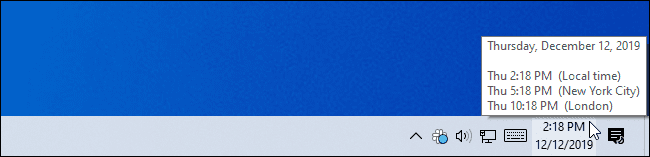
To see the clock, just hover your mouse over the clock on the taskbar. You will see the time you want to see.
How to View Multiple Time Zones on Windows 10 Using Taskbar and Start

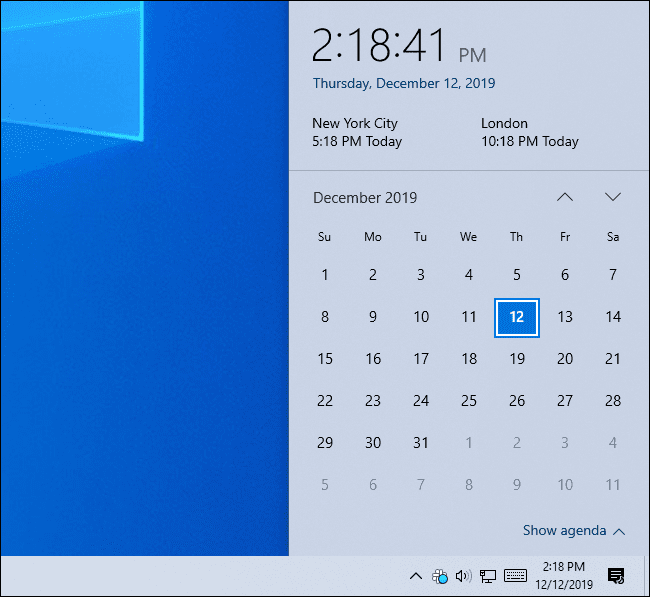
You can also click the clock on the taskbar to see the selected time.
How to View Multiple Time Zones on Windows 10 Using Taskbar and Start

If you want more useful things on the clock window, add your calendar. You can sync Windows 10 with online calendars like Google Calendar, iCloud Calendar. Or decorate with How to make taskbar transparent for more vivid

How to view multiple time zones around the world on Windows 10

While Windows 10 provides a quick and easy way to view multiple time zones, you're still limited to three clocks. If you want to keep track of more time zones, you can easily do so using the Alarms & Clock on Windows 10.

To track more time zones, do the following:

  • Open the app Alarms & Clock
  • Click on World Clock
  • Click on the mark + in the lower right corner
  • In the upper left, you will see a search box. Type in the location you want to see the current time and click on the result to add it to the map.

How to view multiple world time zones on Windows 10

To quickly see the time zone of the countries you are interested in, right-click on that time zone and select Pin to Start. Now just click on the Start button and you will see the current time of the countries you want to see.


How to View Multiple Time Zones on Windows 10 Using Taskbar and Start

Previous Post

How to adjust the width of the iPhone flashlight beam iOS 18

Next Post

How to Erase Objects on Windows Photos with Generative Eraser

AnonyViet

AnonyViet

Related Posts

How to change the default font on Windows 10
Tips

How to change the default font on Windows 10

April 13, 2026
5 tips for using a Browser to replace an App (helps save RAM, time and money)
Tips

5 tips for using a Browser to replace an App (helps save RAM, time and money)

April 13, 2026
How to make funny MeMe photos without Photoshop within 10 seconds
Tips

How to make funny MeMe photos without Photoshop within 10 seconds

April 11, 2026
How to quickly design your own Logo without Photoshop
Tips

How to quickly design your own Logo without Photoshop

April 10, 2026
How to convert Website into App on Windows
Tips

How to convert Website into App on Windows

April 9, 2026
Instructions for getting 3 months of Adobe Express Pro for free
Tips

Instructions for getting 3 months of Adobe Express Pro for free

April 9, 2026
Next Post
How to Erase Objects on Windows Photos with Generative Eraser

How to Erase Objects on Windows Photos with Generative Eraser

0 0 votes
Article Rating
Subscribe
Login
Notify of
guest

guest

0 Comments
Oldest
Newest Most Voted
Inline Feedbacks
View all comments

Recent News

How to add Watermark to Google Docs to protect copyright

How to add Watermark to Google Docs to protect copyright

April 19, 2026
How to intercept traffic using Burp Suite to analyze HTTP/HTTPS

How to intercept traffic using Burp Suite to analyze HTTP/HTTPS

April 18, 2026
How to avoid Adblock detection on Youtube with 4 good tips

How to avoid Adblock detection on Youtube with 4 good tips

April 17, 2026
How to transfer ChatGPT data to Claude is extremely simple

How to transfer ChatGPT data to Claude is extremely simple

April 16, 2026
How to add Watermark to Google Docs to protect copyright

How to add Watermark to Google Docs to protect copyright

April 19, 2026
How to intercept traffic using Burp Suite to analyze HTTP/HTTPS

How to intercept traffic using Burp Suite to analyze HTTP/HTTPS

April 18, 2026
How to avoid Adblock detection on Youtube with 4 good tips

How to avoid Adblock detection on Youtube with 4 good tips

April 17, 2026
AnonyViet - English Version

AnonyViet

AnonyViet is a website share knowledge that you have never learned in school!

We are ready to welcome your comments, as well as your articles sent to AnonyViet.

Follow Us

Contact:

Email: anonyviet.com[@]gmail.com

Main Website: https://anonyviet.com

Recent News

How to add Watermark to Google Docs to protect copyright

How to add Watermark to Google Docs to protect copyright

April 19, 2026
How to intercept traffic using Burp Suite to analyze HTTP/HTTPS

How to intercept traffic using Burp Suite to analyze HTTP/HTTPS

April 18, 2026
No Result
View All Result
  • Home
  • News
  • Software
  • Knowledge
  • MMO
  • Tips
  • Security
  • Network
  • Office

wpDiscuz
0
0
Would love your thoughts, please comment.x
()
x
| Reply