• Home
  • News
  • Software
  • Knowledge
  • MMO
  • Tips
  • Security
  • Network
  • Office
AnonyViet - English Version
  • Home
  • News
  • Software
  • Knowledge
  • MMO
  • Tips
  • Security
  • Network
  • Office
No Result
View All Result
  • Home
  • News
  • Software
  • Knowledge
  • MMO
  • Tips
  • Security
  • Network
  • Office
No Result
View All Result
AnonyViet - English Version
No Result
View All Result

How to view and delete activity history on Windows 10/Windows 11

AnonyViet by AnonyViet
January 26, 2023
in Tips
0

Windows 10 collects and saves a history of your computer and cloud activity, from browsing history to location information. Fortunately, Microsoft also makes it easy to view all of your stored data and allows you to delete activity history on your computer.How to view and delete activity history on Windows 10/Windows 11

Join the channel Telegram of the AnonyViet 👉 Link 👈

What data does Windows 10 track?

The data that Windows collects includes:

  • Browsing history
  • Bing search history
  • Location data (if location is enabled)
  • Voice when giving commands Cortana
  • Timeline feature

If you use a Microsoft HealthVault device or a Microsoft Band, all your activity will be collected through that service and it will also be stored. Microsoft says it collects this data to provide you with more relevant results and useful content for your search needs.

How to delete activity history on Windows 10

You can see what data Microsoft stores and how to delete it. There are two ways you can delete your recent activity on Windows 10:

  • From Settings
  • From a Microsoft cloud account.

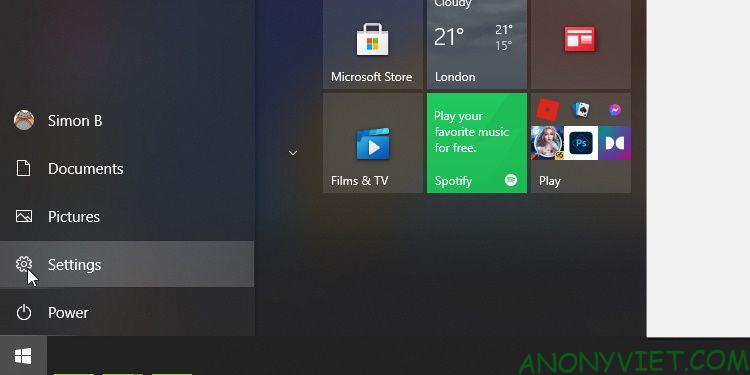
To do it on your computer, click the . button Settings on the Start menu.How to view and delete activity history on Windows 10/Windows 11 8
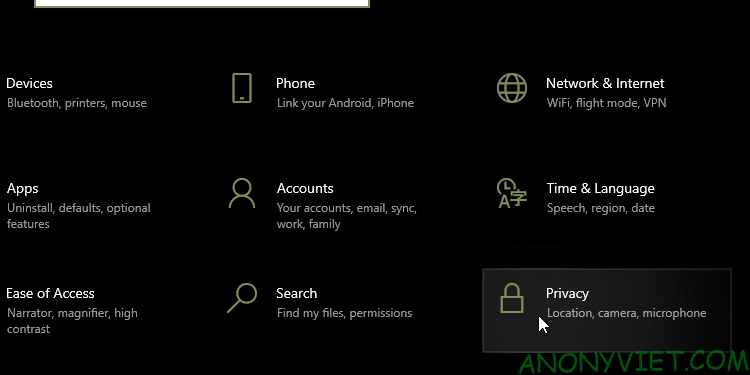
Then press Privacy.

How to view and delete activity history on Windows 10/Windows 11 9

In the menu on the left, select Activity History.
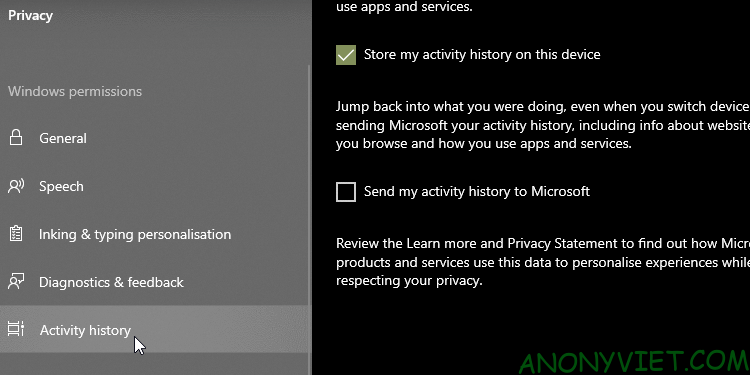
How to view and delete activity history on Windows 10/Windows 11 10

This will completely delete the activity history of the currently used account.

How to turn off activity tracking in Windows 10 timeline

Back in 2018, Microsoft added the feature Timeline track all your recent activities on Windows 10. You can view Timeline by pressing the key combination ALT + WindowS. You’ll see all currently open windows, as well as all the files you’ve opened so far.

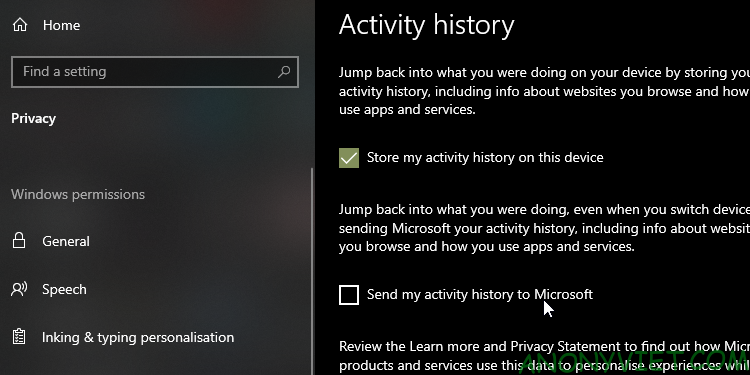
To disable this feature, visit the page Activity History as you did above. From here, uncheck Store my activity history on this device. This prevents Windows from remembering what you’ve accessed, done on Timeline mine.

Then uncheck Send my activity history to Microsoft to prevent your data from being sent to Microsoft servers. Now that both settings are unchecked, your activities will not be tracked in the future.
How to view and delete activity history on Windows 10/Windows 11 11

How to see all activity history on Windows 10

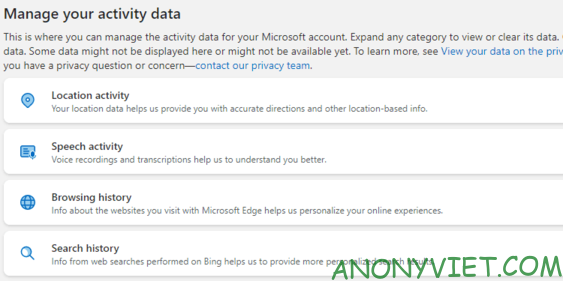
If you want to see all activity history on Windows 10, you can do it on Microsoft account security site. When you visit the site and log in, you’ll see a bunch of categories. Each category will take you to a page that shows all the information Microsoft has stored about you.

There’s a lot to learn on this page, but here’s a brief summary of the categories you should check out.

Activity history categories on Windows 10
How to view and delete activity history on Windows 10/Windows 11 12

Browsing history process the data you have stored through Microsoft’s Edge browser. As such, if you only use Edge to download Firefox or Chrome, there probably won’t be much data there. If Edge is your primary browser, see what data is stored here.

Search History only useful if you use Bing. When you use a search engine like Google, they tend to “Remember” what you searched for to improve your experience. Microsoft uses your search data to better tailor search results, and improves Cortana for future search results and suggestions.

Location Activity including times you’ve allowed your Windows device to access your location. You should double check this to see if Windows is storing your location.

Speech Activity should come first if you’ve used Cortana before. Here you’ll find audio files saved when you voice search with Cortana, which is used by Microsoft for better speech recognition.

Media Activity is where Microsoft keeps track of what you like to see to add to your recommendations. If you’re getting weird recommendations because of something other people have seen, you should check back.

Apps and services including how you use Microsoft products. This list is divided into two parts; Activity for the actions you have taken and performance for system log.

You can also click the tab Activity History to see a complete list of all data such as: voice, search, browsing history and location information. Microsoft also makes it easy to filter by category by clicking on it.

Keep your data safe in Windows 10/11

Windows 10 won’t protect your privacy by default, but you can monitor your data and adjust your privacy settings to suit your needs.

Now that your data in Windows 10 is secure, it’s time to ensure that all programs and settings on your PC are equally stable. There are many things you can do to improve the security of your computer, such as uninstalling Flash and creating a restore point.


The article achieved: 5/5 – (100 votes)

Tags: 10WindowsactivitydeletehistoryviewWindows
Previous Post

R MobileTrader: Multi-Platform Online Trading App

Next Post

Hacker attacks to take over your account

AnonyViet

AnonyViet

Related Posts

3 OCR Tools Extract Text from Images without Retyping
Tips

3 OCR Tools Extract Text from Images without Retyping

November 8, 2025
Ways hackers use to hack your Facebook and how to fix it
Tips

Ways hackers use to hack your Facebook and how to fix it

November 7, 2025
Create your own Font using your Handwriting
Tips

Create your own Font using your Handwriting

November 6, 2025
Share White Hat Hacker Course – The Complete Ethical Hacking Course
Tips

Share White Hat Hacker Course – The Complete Ethical Hacking Course

November 5, 2025
Instructions on how to get 1 year of ChatGPT Go for free
Tips

Instructions on how to get 1 year of ChatGPT Go for free

November 4, 2025
Instructions for creating your own Chrome Extension using Scratch
Tips

Instructions for creating your own Chrome Extension using Scratch

November 4, 2025
Next Post
Hacker attacks to take over your account

Hacker attacks to take over your account

0 0 votes
Article Rating
Subscribe
Login
Notify of
guest

guest

0 Comments
Oldest
Newest Most Voted
Inline Feedbacks
View all comments

Recent News

Instructions for downloading Anh Hai’s Pho Shop game on Android

Instructions for downloading Anh Hai’s Pho Shop game on Android

November 8, 2025
Download training materials on Applying AI in teaching and learning in 2025

Download training materials on Applying AI in teaching and learning in 2025

November 8, 2025
How to pay health insurance on Momo online right at home

How to pay health insurance on Momo online right at home

November 8, 2025
How to create Flycam videos from photos to sell real estate

How to create Flycam videos from photos to sell real estate

November 8, 2025
Instructions for downloading Anh Hai’s Pho Shop game on Android

Instructions for downloading Anh Hai’s Pho Shop game on Android

November 8, 2025
Download training materials on Applying AI in teaching and learning in 2025

Download training materials on Applying AI in teaching and learning in 2025

November 8, 2025
How to pay health insurance on Momo online right at home

How to pay health insurance on Momo online right at home

November 8, 2025
AnonyViet - English Version

AnonyViet

AnonyViet is a website share knowledge that you have never learned in school!

We are ready to welcome your comments, as well as your articles sent to AnonyViet.

Follow Us

Contact:

Email: anonyviet.com[@]gmail.com

Main Website: https://anonyviet.com

Recent News

Instructions for downloading Anh Hai’s Pho Shop game on Android

Instructions for downloading Anh Hai’s Pho Shop game on Android

November 8, 2025
Download training materials on Applying AI in teaching and learning in 2025

Download training materials on Applying AI in teaching and learning in 2025

November 8, 2025
  • Home
  • Home 2
  • Home 3
  • Home 4
  • Home 5
  • Home 6
  • Next Dest Page
  • Sample Page

new88 trang chủ shbet trang chủ f168 trang chủ qq88 nhà cái 78win

No Result
View All Result
  • Home
  • News
  • Software
  • Knowledge
  • MMO
  • Tips
  • Security
  • Network
  • Office

new88 trang chủ shbet trang chủ f168 trang chủ qq88 nhà cái 78win

wpDiscuz
0
0
Would love your thoughts, please comment.x
()
x
| Reply