• Home
  • News
  • Software
  • Knowledge
  • MMO
  • Tips
  • Security
  • Network
  • Office
AnonyViet - English Version
  • Home
  • News
  • Software
  • Knowledge
  • MMO
  • Tips
  • Security
  • Network
  • Office
No Result
View All Result
  • Home
  • News
  • Software
  • Knowledge
  • MMO
  • Tips
  • Security
  • Network
  • Office
No Result
View All Result
AnonyViet - English Version
No Result
View All Result

How to use your phone as a Webcam on Windows and macOS

AnonyViet by AnonyViet
January 29, 2023
in Software
0

No one can deny that nowadays webcams have become a necessity. People require webcams if they want to join online meetings or have friendly video chats with friends far away. Using your phone as a Webcam will help you immediately have a Webcam to video chat with people.

Join the channel Telegram of the AnonyViet 👉 Link 👈

However, many Desktops and laptops like the one I’m using don’t come with a webcam. So you are left with two options. You can spend some money to buy a new webcam or use your phone as a webcam on Windows. I would recommend the second option because you will save a small amount of money.

Most people don’t know how to use their Android or iOS phone as a webcam. Don’t sweat because, in this article, I will walk you through everything.

How to use your phone as a Webcam on Windows and macOS

Use your phone as a Webcam on Windows or Linux

First thing first, before you follow the steps below to use your phone as a webcam, make sure that your smartphone and Windows PC are using the same WiFi connection. However, you can also use a USB cable to connect your phone to your Windows PC.

If one of the above is checked, go ahead and follow the steps:

  1. Download the app Droidcam Wireless Webcam on your smartphone.
    Note: Requires Android 5.0 or later.
  2. Now download and install client application Droidcam for your Windows PC.
    Note: The application is also available for Linux, but not for Mac OS.

Launch the app Droidcam on PC your and you will see that it will ask for the device IP. So it’s time to launch the app Droidcam on smartphone.
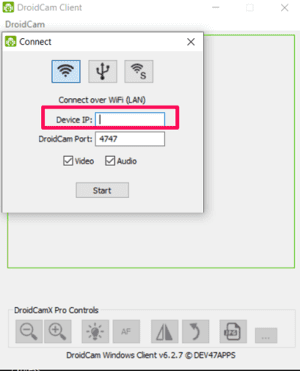
Use your phone as a Webcam on Windows or Linux

Note: The client is set on WiFi settings by default. However, you can also choose to connect via USB.

When you launch the app, skip everything to get to the page where you see your device IP.create a webcam with an old smartphone
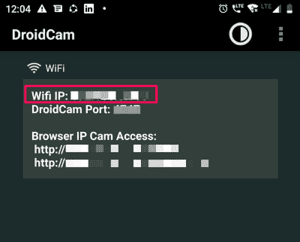
Now enter that same device IP on the client on your PC.

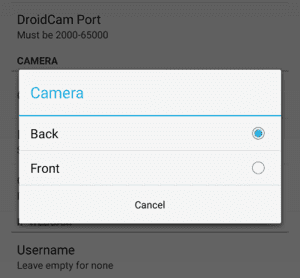
Note: To choose between the front and back cameras, click the ellipsis icon > Settings > Select Camera. I recommend using the rear camera as it will give better video quality.Droidcam
In the PC app, check both video and audio options. If the audio option is not selected, your microphone will not receive any sound.

Finally, click start to see if you have success using your Android phone as a webcam.

If everything works fine, launch the video conferencing application you normally use and select Droidcam as your camera. And now you know how to use your Android phone as a webcam.

Note: The DroidCam app is also available for iPhone and works exactly like the Android version. However, DroidCam’s PC client is only available for Windows and Linux. So, if you want to use your Android or iOS smartphone as a webcam on macOS, read more below.

Use your old phone as a Webcam on MacOS

To use your phone as a webcam on MacOS, you must follow the same process as with Android. However, this time, the wireless webcam application you will use is EpocCam has a PC app for Windows and macOS. In addition, this application can be used for Android and iOS smartphones.

Use your old phone as a Webcam on MacOS

Note: To use your mobile phone as a webcam, make sure that your macOS system and your smartphone are connected to the same WiFi.

The best thing about EpocCam webcam software is that you don’t have to do extra things like you did with DroidCam. If you are connected to the same WiFi, launch the EpocCam app on your smartphone and then launch the app on your PC.

If you’re getting an app-to-app video feed on your PC, go ahead and select EpocCam as the camera in your preferred video conferencing application.

The only bad thing about EpocCam is that it’s not completely free. The free version comes with a lot of limitations. For example, your video resolution is limited to 640 × 480. Also, in the free version, you cannot use your iPhone’s microphone. So, if you want to use the free version, make sure you have a headset with a good quality mic.

However, you can get rid of all these limitations by downloading the Pro version of EpocCam. For iPhone you can upgrade to EpocCam Pro by paying $7.99 and for Android you have to pay $5.49 to upgrade.

So, these are the methods through which you can use your iPhone or Android smartphone as a webcam. I hope you can follow the steps without any problems. Good luck!


The article achieved: 5/5 – (100 votes)

Tags: MACOSphoneWebcamWindows
Previous Post

How to prevent the family’s security camera from being hacked

Next Post

How to turn normal music into 8D music with Audioalter

AnonyViet

AnonyViet

Related Posts

Share Key Active Visual Studio 2026
Software

Share Key Active Visual Studio 2026

November 15, 2025
Instructions for using the online number-to-word conversion tool for accountants and offices
Software

Instructions for using the online number-to-word conversion tool for accountants and offices

November 15, 2025
2 applications to monitor flooding situation in Ho Chi Minh City
Software

2 applications to monitor flooding situation in Ho Chi Minh City

November 14, 2025
How to get 2000 free Manus credits in just 3 steps
Software

How to get 2000 free Manus credits in just 3 steps

November 14, 2025
Detailed instructions on how to submit red books on VNeID right at home
Software

Detailed instructions on how to submit red books on VNeID right at home

November 13, 2025
How to install Anh Hai’s Pho Shop on MacBook is super easy
Software

How to install Anh Hai’s Pho Shop on MacBook is super easy

November 11, 2025
Next Post
How to turn normal music into 8D music with Audioalter

How to turn normal music into 8D music with Audioalter

0 0 votes
Article Rating
Subscribe
Login
Notify of
guest

guest

0 Comments
Oldest
Newest Most Voted
Inline Feedbacks
View all comments

Recent News

Instructions on how to edit Facebook scheduled posts

Instructions on how to edit Facebook scheduled posts

November 16, 2025
Suggested AI command to create a rustic and charming image of a Ban Lien girl

Suggested AI command to create a rustic and charming image of a Ban Lien girl

November 16, 2025
Windows 10 will have a new, simpler interface

Windows 10 will have a new, simpler interface

November 16, 2025
Share Key Active Visual Studio 2026

Share Key Active Visual Studio 2026

November 15, 2025
Instructions on how to edit Facebook scheduled posts

Instructions on how to edit Facebook scheduled posts

November 16, 2025
Suggested AI command to create a rustic and charming image of a Ban Lien girl

Suggested AI command to create a rustic and charming image of a Ban Lien girl

November 16, 2025
Windows 10 will have a new, simpler interface

Windows 10 will have a new, simpler interface

November 16, 2025
AnonyViet - English Version

AnonyViet

AnonyViet is a website share knowledge that you have never learned in school!

We are ready to welcome your comments, as well as your articles sent to AnonyViet.

Follow Us

Contact:

Email: anonyviet.com[@]gmail.com

Main Website: https://anonyviet.com

Recent News

Instructions on how to edit Facebook scheduled posts

Instructions on how to edit Facebook scheduled posts

November 16, 2025
Suggested AI command to create a rustic and charming image of a Ban Lien girl

Suggested AI command to create a rustic and charming image of a Ban Lien girl

November 16, 2025
  • Home
  • Home 2
  • Home 3
  • Home 4
  • Home 5
  • Home 6
  • Next Dest Page
  • Sample Page

new88 trang chủ shbet trang chủ f168 trang chủ qq88 nhà cái 78win

No Result
View All Result
  • Home
  • News
  • Software
  • Knowledge
  • MMO
  • Tips
  • Security
  • Network
  • Office

new88 trang chủ shbet trang chủ f168 trang chủ qq88 nhà cái 78win

wpDiscuz
0
0
Would love your thoughts, please comment.x
()
x
| Reply