Microsoft has built-in antivirus software with Windows Defender, but in Windows 10 version 2004, the product was renamed Microsoft Defender. On Windows 10, Microsoft Defender always scan files before you open them, unless you open them while installing a third-party antivirus program. You can also quickly scan any file or folder even if you don’t want to open them.
| Join the channel Telegram of the AnonyViet 👉 Link 👈 |
But Microsoft Defender also boasts a number of advantages. This is a lightweight antivirus application that detects many types of malicious code and does not cause discomfort to users. Microsoft Defender is also more compatible with web browsers and other applications and ensures your privacy than most other antivirus applications.

Background scan mode
Like other virus scanning applications, Microsoft Defender automatically runs in the background, scanning files as they are downloaded, transferred from external drives, and before you open them.
You really don’t have to think about Microsoft Defender. It will just pop up to notify you when it finds malware. It won’t even ask what you want to do with the malware it finds, the software automatically cleans everything up and automatically quarantines the malicious files.
Occasionally you will see a notification popup to let you know when the scan is done, and you can usually see the details of the last scan by opening Action Center in Windows 10.

How to manually scan for viruses with Microsoft Defender
Optional manual scan
You can also let Microsoft Defender run a quick manual scan by clicking the button Quick Scan. Normally, you won’t need to worry about this because Microsoft Defender provides real-time protection and also performs regular automatic scans. You should regularly Update Windows to include an Update of virus samples for Microsoft Defender.

You can also click Advanced scan on that screen to run three different types of scans:

- Full scan: Fast only scans your memory and common locations. Full scan checks all running files and programs. It can easily take an hour or more, so it’s best to do this when you don’t plan on using your PC much.
- Custom scans: Custom allows you to select a specific folder to scan. You can also do this by right-clicking on any folder on your PC and selecting Scan with Microsoft Defender.
- Microsoft Defender Offline scans: Some malware is difficult to remove while Windows is running. When you choose Offline scanning, Windows will restart and run the scan before Windows loads on the PC.
Quickly scan individual files
First, find the file or folder you want to scan. It can be in File Explorer or on your Desktop. Next, right click on that file or folder,
In the right-click menu, select “Scan With Microsoft Defender”.
Note: On previous versions May 2020 updatethis option is named “Say With Microsoft Defender”.
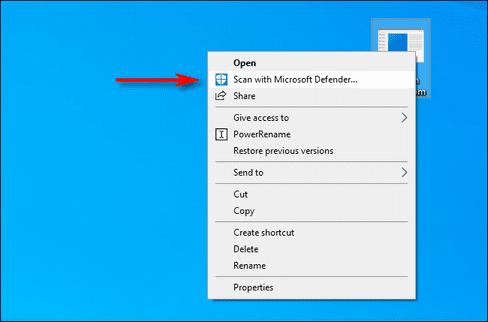
The Windows Security window will pop up and the scan results will be displayed in the “Scan Options” section. If everything is fine, you should see “No Current Threats.”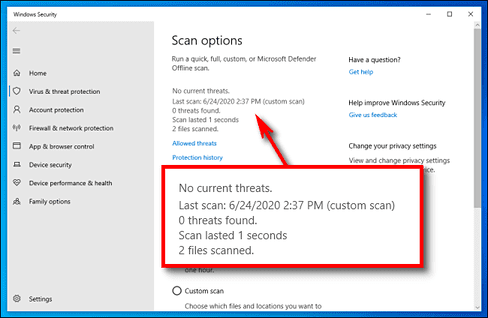
Otherwise, if malware is detected, Microsoft Defender will notify you with the words “Threats Found”, and Defender will list the infected files or folders.
To remove the threat, simply press the “Start Actions” button.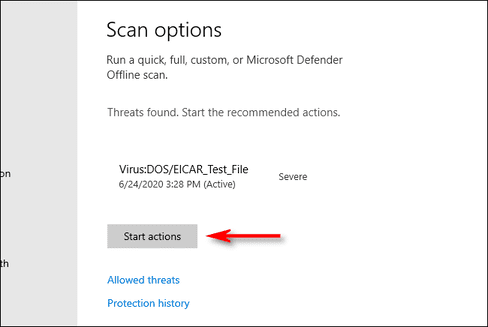
After clicking the “Start Actions” button, Microsoft Defender will automatically remove the threat and everything will be back to normal, now you can rest in peace. If you are not sleepy yet, you can get more detailed information about the threats that have been disabled, click “Protection History” to see more information, it is located right below the scan results.
And if you don’t trust Microsoft Defender, you can put the suspicious file on online virus scanning websites like VirusTotal.
What if you install another Antivirus?
AnonyViet also shares a lot Copyrighted anti-virus software 3rd party. You can choose an alternative to Microsoft Defender
Windows 10 automatically disables Microsoft Defender if you install another antivirus application. When another Virus scanning application is installed, Microsoft Defender will not continue to perform real-time scanning, so it will not interfere with the 3rd party virus scanning application installed by you. Even so, you can still use Microsoft Defender to perform manual scans using or offline scans of files you suspect are malicious.
If you uninstall other antivirus software, Microsoft Defender will automatically re-enable protection and resume its antivirus.
However, please note that certain anti-malware applications, such as Malwarebytes, can be installed alongside Microsoft Defender and both will provide real-time protection for free.