
• Home
  • News
  • Software
  • Knowledge
  • MMO
  • Tips
  • Security
  • Network
  • Office
AnonyViet - English Version
  • Home
  • News
  • Software
  • Knowledge
  • MMO
  • Tips
  • Security
  • Network
  • Office
No Result
View All Result
  • Home
  • News
  • Software
  • Knowledge
  • MMO
  • Tips
  • Security
  • Network
  • Office
No Result
View All Result
AnonyViet - English Version
No Result
View All Result

How to Use Circle to Search on iPhone

AnonyViet by AnonyViet
August 8, 2024
in Software
0

Apple users can now experience the feature Circle to Search on iPhoneThe article below will guide you in detail on how to set up this feature by effectively utilizing the Google Lens image search tool.

Join the channel Telegram belong to AnonyViet 👉 Link 👈

What is the Circle to Search feature?

As the name suggests, 'Circle to Search' gives users the ability to circle or highlight a piece of information (whether text or image) on the screen, and then instantly search for relevant information via Google.
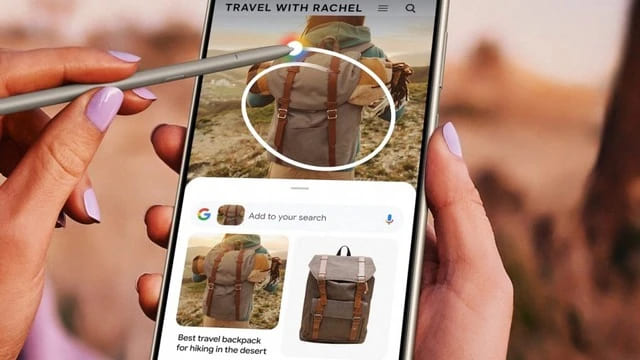
You can use Circle to Search on iPhone
What is the Circle to Search feature?

In early 2024, Google introduced Circle to Search on the Galaxy S24 and Pixel 8 models, making it easier to find information on the screen. Google and Samsung soon expanded the feature to more devices such as the Pixel 7, Pixel 6, Galaxy S23, and Galaxy S22.

Although Google only provides Circle to Search For Samsung devices but not yet iPhone or other Android lines, iPhone users can still experience this feature through a new shortcut from the Google application.

This shortcut will automatically take a screenshot of your iPhone and send the image to Google Lens, helping you search for information, copy text, translate languages, or check your homework easily.

How to Use Circle to Search on iPhone

For iPhone with Action Button

For iPhones with Action Buttons like iPhone 15 Pro, do the following:

Step 1: You click on the link THE FOLLOWING and download the shortcut to your computer

Step 2: Go to Settings > select 'Action Button'

Step 3: Drag to Shortcuts > Tap 'Choose a shortcut' > Select the 'Search your screenshot' shortcut you just added.
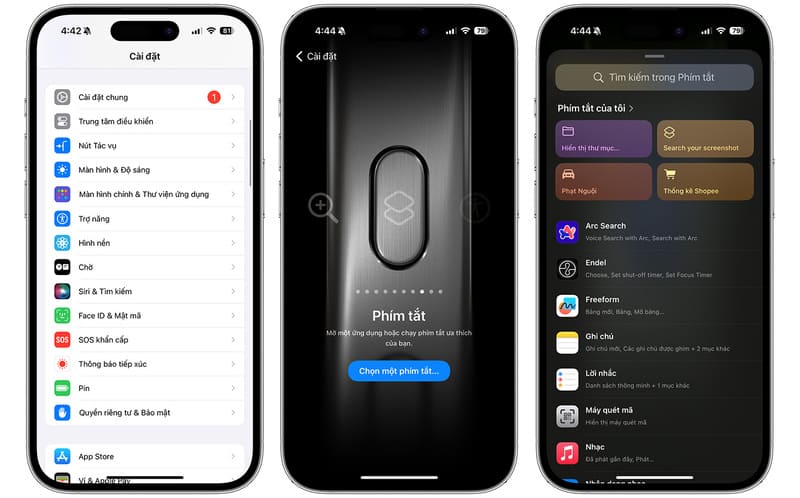
How to Use Circle to Search on iPhone with Shortcuts

Once you have set up a shortcut for the Action Button, simply holding down the button will trigger your iPhone to take a screenshot and automatically send the image to Google Lens. You can then adjust and edit the image as you like.

For iPhone without action button

Despite the lack of an Action button, older iPhone models still let you quickly access Shortcuts via the Back Tap feature, by gently tapping the back of the phone. Here's how:

Step 1: Download the shortcut as above > Open Settings > Select 'Accessibility'

Step 2: Go to 'Touch' > Select 'Touch on back' > Tap Double or Triple Tap as desired.
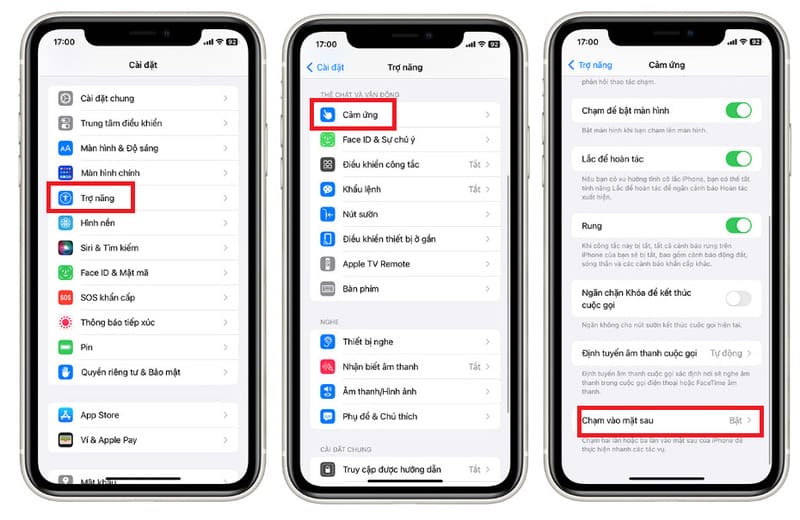
How to Use Circle to Search for iPhone Without Action Button

Step 3: Scroll down > Tap the 'Search your screenshot' shortcut to assign this shortcut to tapping on the back of your iPhone.
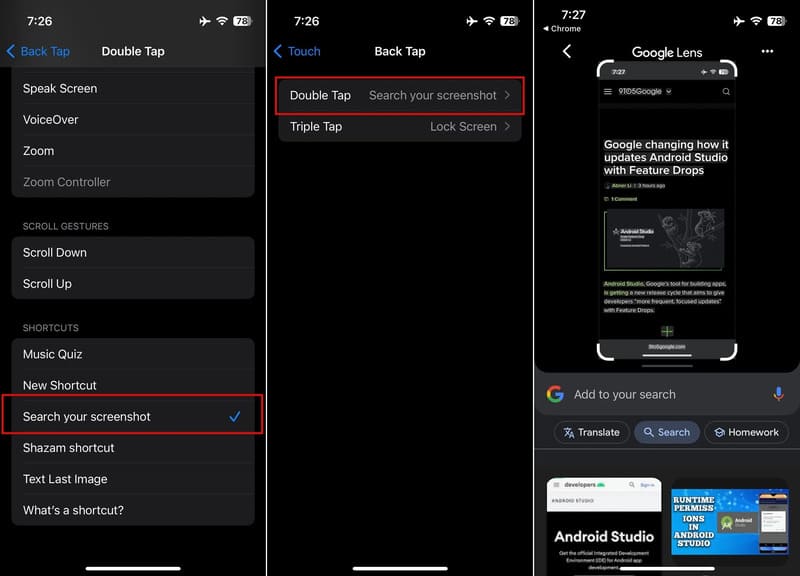
Click the 'Search your screenshot' shortcut

Epilogue

With Circle to Search on iPhonesearching for information on the web through screenshots becomes quick and easy. For products of unclear origin or content written in a strange language, this feature will help you find the necessary information quickly. You just need to select the information you want to look up in the photo and Google Lens will take care of the rest. Good luck!


Tags: CircleiPhonesearch
Previous Post

Instructions for changing colors continuously on Messenger VinaHouse style

Next Post

How to create Instagram Card from available photos and information

AnonyViet

AnonyViet

Related Posts

4K Video Downloader Plus – Tool to download YouTube videos on macOS
Software

4K Video Downloader Plus – Tool to download YouTube videos on macOS

April 20, 2026
How to authenticate the owner’s SIM on VNeID from April 15
Software

How to authenticate the owner’s SIM on VNeID from April 15

April 15, 2026
Review of Galaxy A57 and A37: Some are eight ounces, some are half a pound
Software

Review of Galaxy A57 and A37: Some are eight ounces, some are half a pound

April 14, 2026
JOPDF: Versatile PDF editing software for Windows and Mac
Software

JOPDF: Versatile PDF editing software for Windows and Mac

April 10, 2026
MyVehicle: Convenient and secure motorcycle maintenance reminder app
Software

MyVehicle: Convenient and secure motorcycle maintenance reminder app

April 10, 2026
How to turn off AI on Gmail to absolutely protect personal data
Software

How to turn off AI on Gmail to absolutely protect personal data

April 8, 2026
Next Post
How to create Instagram Card from available photos and information

How to create Instagram Card from available photos and information

0 0 votes
Article Rating
Subscribe
Login
Notify of
guest

guest

0 Comments
Oldest
Newest Most Voted
Inline Feedbacks
View all comments

Recent News

Japanese Watch Week: Choose the color that suits your destiny, start the new year well at Mobile World

Japanese Watch Week: Choose the color that suits your destiny, start the new year well at Mobile World

April 20, 2026
4K Video Downloader Plus – Tool to download YouTube videos on macOS

4K Video Downloader Plus – Tool to download YouTube videos on macOS

April 20, 2026
How to add Watermark to Google Docs to protect copyright

How to add Watermark to Google Docs to protect copyright

April 19, 2026
How to intercept traffic using Burp Suite to analyze HTTP/HTTPS

How to intercept traffic using Burp Suite to analyze HTTP/HTTPS

April 18, 2026
Japanese Watch Week: Choose the color that suits your destiny, start the new year well at Mobile World

Japanese Watch Week: Choose the color that suits your destiny, start the new year well at Mobile World

April 20, 2026
4K Video Downloader Plus – Tool to download YouTube videos on macOS

4K Video Downloader Plus – Tool to download YouTube videos on macOS

April 20, 2026
How to add Watermark to Google Docs to protect copyright

How to add Watermark to Google Docs to protect copyright

April 19, 2026
AnonyViet - English Version

AnonyViet

AnonyViet is a website share knowledge that you have never learned in school!

We are ready to welcome your comments, as well as your articles sent to AnonyViet.

Follow Us

Contact:

Email: anonyviet.com[@]gmail.com

Main Website: https://anonyviet.com

Recent News

Japanese Watch Week: Choose the color that suits your destiny, start the new year well at Mobile World

Japanese Watch Week: Choose the color that suits your destiny, start the new year well at Mobile World

April 20, 2026
4K Video Downloader Plus – Tool to download YouTube videos on macOS

4K Video Downloader Plus – Tool to download YouTube videos on macOS

April 20, 2026
No Result
View All Result
  • Home
  • News
  • Software
  • Knowledge
  • MMO
  • Tips
  • Security
  • Network
  • Office

wpDiscuz
0
0
Would love your thoughts, please comment.x
()
x
| Reply







