• Home
  • News
  • Software
  • Knowledge
  • MMO
  • Tips
  • Security
  • Network
  • Office
AnonyViet - English Version
  • Home
  • News
  • Software
  • Knowledge
  • MMO
  • Tips
  • Security
  • Network
  • Office
No Result
View All Result
  • Home
  • News
  • Software
  • Knowledge
  • MMO
  • Tips
  • Security
  • Network
  • Office
No Result
View All Result
AnonyViet - English Version
No Result
View All Result

How to Use Alarm Clock in Windows 10

AnonyViet by AnonyViet
January 25, 2023
in Tips
0

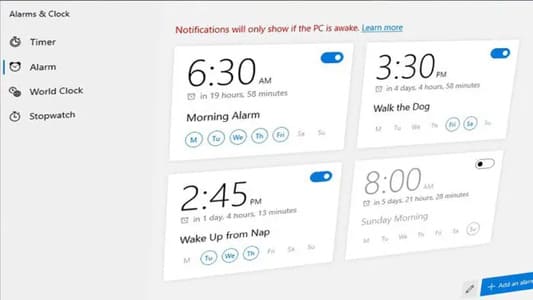
Most people these days use their phones to set their alarms in the morning. Since phones are usually placed on the nightstand, they are easier to reach when you need to turn off the alarm. However, Windows 10 gives us a series of very useful Alarm clock features. Why don’t we use it?

Join the channel Telegram of the AnonyViet 👉 Link 👈

How to Use Alarm Clock in Windows 10

As mobility increases, many Windows devices, especially tablets, can be used as an alternative to phone alarms because they consume less power and can last for days. In addition, the larger screen makes it easier to manage multiple alarms.

In this article, I will show you how to set an alarm on your device Windows 10, whether it’s a PC, laptop or tablet. In addition to alarms, the Arlam feature also helps remind you so you don’t forget or miss important events.

How to set an alarm in Windows 10

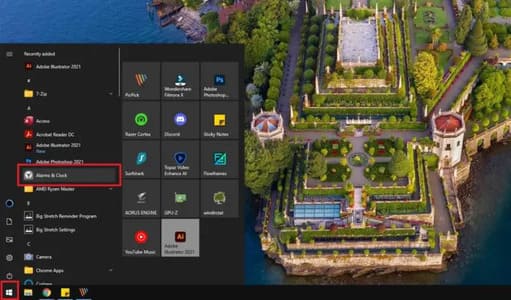
1. Press Start And find Alarms & Clocks from the application list. You can also find it via the search section.
How to Use Alarm Clock in Windows 10 16

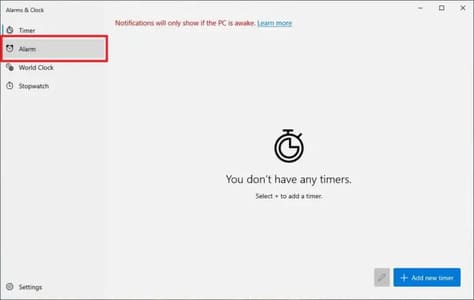
2. Then navigate to alarm.

How to Use Alarm Clock in Windows 10 17

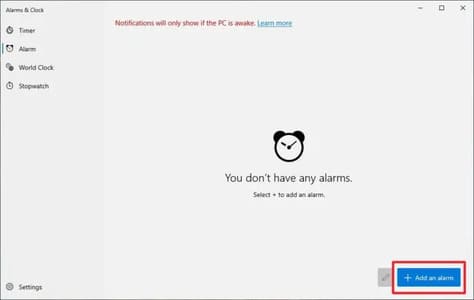
3. Click Add an alarm.

How to Use Alarm Clock in Windows 10 18

4. Set the alarm’s time, name, schedule, ringtone and snooze time.
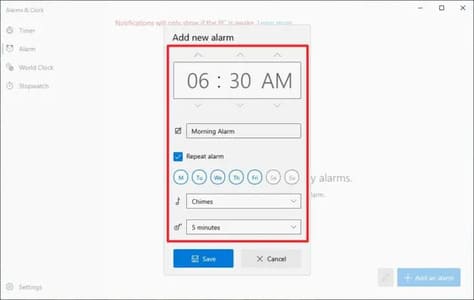
How to Use Alarm Clock in Windows 10 19

5. If everything is fine, click Save.
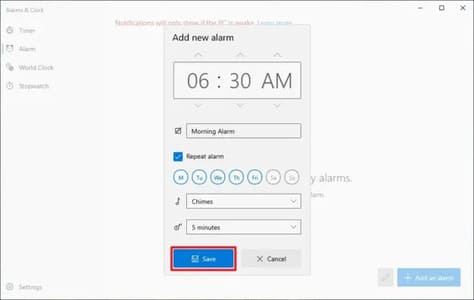
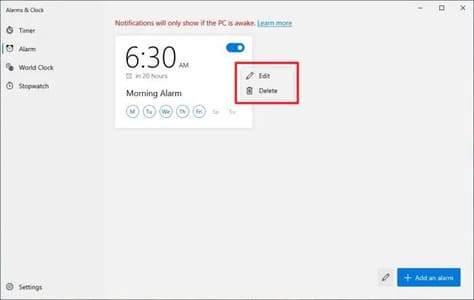
How to Use Alarm Clock in Windows 10 206. You have successfully created an alarm on Windows 10. If you need to modify it, just right click on the alarm to bring up more options.
How to Use Alarm Clock in Windows 10 21

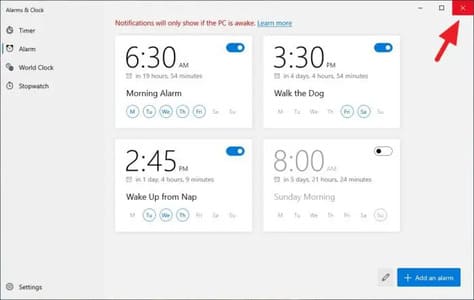
7. You can add as many alarms as you need. The app also doesn’t have to run all the time. You can close it as it will remember your settings in the background.
How to Use Alarm Clock in Windows 10 22

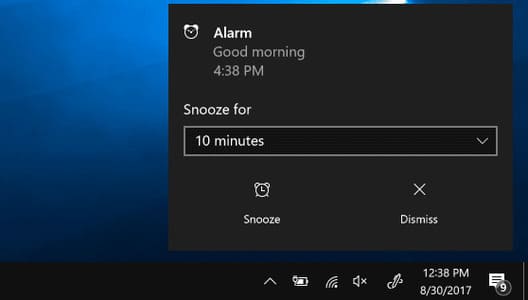
8. When the alarm goes off, you will have the Snooze options (Snooze) or Skip (Dismiss) to stop.
How to Use Alarm Clock in Windows 10 23

How to make sure alarms ring

One note is that the alarm needs device is always on. Furthermore, you need to go over a few things to make sure that the alarm goes off when it arrives on time.

1. Do not put the computer in Sleep mode

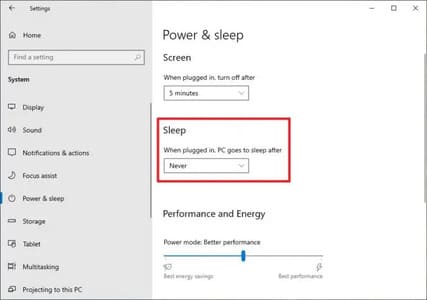
To save energy, Windows will put the computer to sleep (Sleep) when not in use for a certain period of time. If the computer is asleep, the alarm clock function will not work.
How to Use Alarm Clock in Windows 10 24

To prevent the device from going into Sleep mode, go to Start > Settings > System > Power & sleep. On the ‘Sleep’ section, set it to Never. Otherwise, ‘Screen’ can be turned off without affecting the alarm.

2. Make sure alarm notifications are turned on

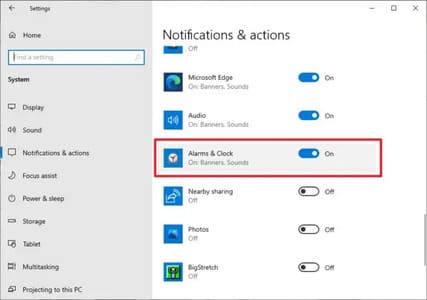
By default, nearly all applications on Windows can show you notifications when they are deemed important. But in case you have ever modified the settings, you can check if the alarm is muted.
How to Use Alarm Clock in Windows 10 25

To view alarm notification settings, go to Start > Settings > System > Notifications & actions. Find Alarms & Clocks and make sure it is On.

3. Set the volume loud enough
How to Use Alarm Clock in Windows 10 26

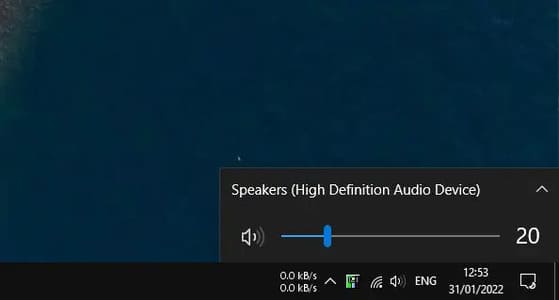
The alarm volume depends on the device’s default speaker volume. Please increase the volume to a level that can wake you up from a deep sleep.

If the built-in speakers are not loud enough, consider using an external speaker with a stronger output power. No need to invest in an expensive speaker setup, a few Quality Bluetooth speaker at an affordable price enough to meet your needs.

4. If necessary, continue to plug in the battery

As shown earlier, alarms on Windows 10 can only work if the device is powered on. If it is in hibernation, sleeping, or shutting down due to lack of battery, the app responsible for scheduling alarms will not work.

If you’re not confident your device can last through the night, plug it in and keep it that way until you wake up.

Sure, that might not be a healthy habit for a battery as prolonged battery charging will increase the input voltage and decrease its actual capacity over time. But doing it just once won’t do much harm.


The article achieved: 5/5 – (100 votes)

Tags: alarmClockWindows
Previous Post

Lesson 203: Count by OR condition in Excel

Next Post

Lesson 222: Unique Values ​​in Excel

AnonyViet

AnonyViet

Related Posts

5+ prompts to create sparkling Christmas photos for mothers and babies at home
Tips

5+ prompts to create sparkling Christmas photos for mothers and babies at home

December 17, 2025
How to Clean Up Your Computer to Speed ​​Up Windows Faster
Tips

How to Clean Up Your Computer to Speed ​​Up Windows Faster

December 16, 2025
Share Snowfall Code for Website to celebrate Christmas
Tips

Share Snowfall Code for Website to celebrate Christmas

December 16, 2025
How to build web applications in just minutes with Youware
Tips

How to build web applications in just minutes with Youware

December 15, 2025
5 Free Adobe Illustrator Alternatives on Linux
Tips

5 Free Adobe Illustrator Alternatives on Linux

December 15, 2025
Review of Chongluadao utility – HieuPC’s new anti-fraud utility
Tips

Review of Chongluadao utility – HieuPC’s new anti-fraud utility

December 14, 2025
Next Post
Lesson 222: Unique Values ​​in Excel

Lesson 222: Unique Values ​​in Excel

0 0 votes
Article Rating
Subscribe
Login
Notify of
guest

guest

0 Comments
Oldest
Newest Most Voted
Inline Feedbacks
View all comments

Recent News

5+ prompts to create sparkling Christmas photos for mothers and babies at home

5+ prompts to create sparkling Christmas photos for mothers and babies at home

December 17, 2025
How to Clean Up Your Computer to Speed ​​Up Windows Faster

How to Clean Up Your Computer to Speed ​​Up Windows Faster

December 16, 2025
Share Snowfall Code for Website to celebrate Christmas

Share Snowfall Code for Website to celebrate Christmas

December 16, 2025
How to build web applications in just minutes with Youware

How to build web applications in just minutes with Youware

December 15, 2025
5+ prompts to create sparkling Christmas photos for mothers and babies at home

5+ prompts to create sparkling Christmas photos for mothers and babies at home

December 17, 2025
How to Clean Up Your Computer to Speed ​​Up Windows Faster

How to Clean Up Your Computer to Speed ​​Up Windows Faster

December 16, 2025
Share Snowfall Code for Website to celebrate Christmas

Share Snowfall Code for Website to celebrate Christmas

December 16, 2025
AnonyViet - English Version

AnonyViet

AnonyViet is a website share knowledge that you have never learned in school!

We are ready to welcome your comments, as well as your articles sent to AnonyViet.

Follow Us

Contact:

Email: anonyviet.com[@]gmail.com

Main Website: https://anonyviet.com

Recent News

5+ prompts to create sparkling Christmas photos for mothers and babies at home

5+ prompts to create sparkling Christmas photos for mothers and babies at home

December 17, 2025
How to Clean Up Your Computer to Speed ​​Up Windows Faster

How to Clean Up Your Computer to Speed ​​Up Windows Faster

December 16, 2025
  • Home
  • Home 2
  • Home 3
  • Home 4
  • Home 5
  • Home 6
  • Next Dest Page
  • Sample Page

trang chủ f168 nhà cái 78win https://www.qq8827.com/ https://go99.ae.org/ https://nohu90.bid/

No Result
View All Result
  • Home
  • News
  • Software
  • Knowledge
  • MMO
  • Tips
  • Security
  • Network
  • Office

trang chủ f168 nhà cái 78win https://www.qq8827.com/ https://go99.ae.org/ https://nohu90.bid/

wpDiscuz
0
0
Would love your thoughts, please comment.x
()
x
| Reply