• Home
  • News
  • Software
  • Knowledge
  • MMO
  • Tips
  • Security
  • Network
  • Office
AnonyViet - English Version
  • Home
  • News
  • Software
  • Knowledge
  • MMO
  • Tips
  • Security
  • Network
  • Office
No Result
View All Result
  • Home
  • News
  • Software
  • Knowledge
  • MMO
  • Tips
  • Security
  • Network
  • Office
No Result
View All Result
AnonyViet - English Version
No Result
View All Result

How to turn on the Do Not Track feature – Do not track on the browser

AnonyViet by AnonyViet
October 22, 2024
in Tips
0

Protecting your privacy when surfing the web is becoming increasingly important. One of the simple ways to increase privacy is to enable the “Do Not Track” (DNT) feature available on most popular browsers such as Microsoft Edge and Google Chrome. This article will show you how to enable the feature Do not track on the browser to limit tracking and data collection when you visit websites.

Join the channel Telegram belong to AnonyViet 👉 Link 👈

How is Do Not Track (DNT) a feature?

Do Not Track (DNT) is a setting in your web browser that sends a signal to the websites you visit that you do not want your online activities tracked for advertising or data analysis purposes. .

How is Do Not Track (DNT) a feature?

See more: How Check for cold penalties Online cars and motorbikes are extremely useful

The effectiveness of the do not track feature on browsers

While the DNT feature is a positive step forward in protecting privacy, not all websites comply with this requirement. Many websites continue to track users to serve ads and collect data, regardless of your DNT settings.

However, turning on the DNT feature is still a useful measure because it demonstrates your desire to protect your privacy and can partially limit tracking by some websites. This is an extra layer of protection for your privacy, helping to reduce the amount of targeted advertising.
The effectiveness of the do not track feature on browsers

How to enable the do not track feature on your browser

Below are detailed instructions on how to enable the do not track feature on Microsoft Edge and Google Chrome browsers on Windows 11 and 10.

On Microsoft Edge

Step 1: Open Microsoft Edge browser > Click the three-dot icon in the upper right corner to open the “Settings and more” menu.

Step 2: Select “Settings”.

Step 3: Click “Privacy, search, and services”.

Step 4: Turn on the “Send “Do Not Track” requests” option in the “Privacy” section.

After completing the above steps, Microsoft Edge will send a “Do Not Track” request every time you visit a new website.
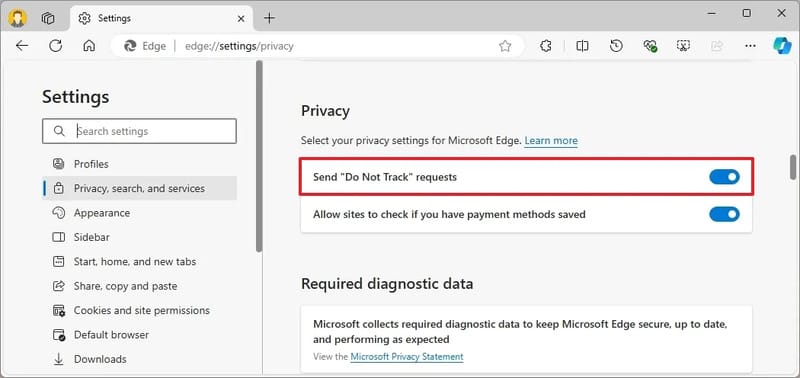
Turn on the option "Send “Do Not Track” requests”
Turn on the option “Send “Do Not Track” requests”

On Google Chrome

Step 1: Open browser Google Chrome > Click the three-dot icon in the upper right corner to open the “Customize and control Google Chrome” menu.

Step 2: Select Settings > Click “Privacy and security”.

Step 3: Click 'Third-party cookies'
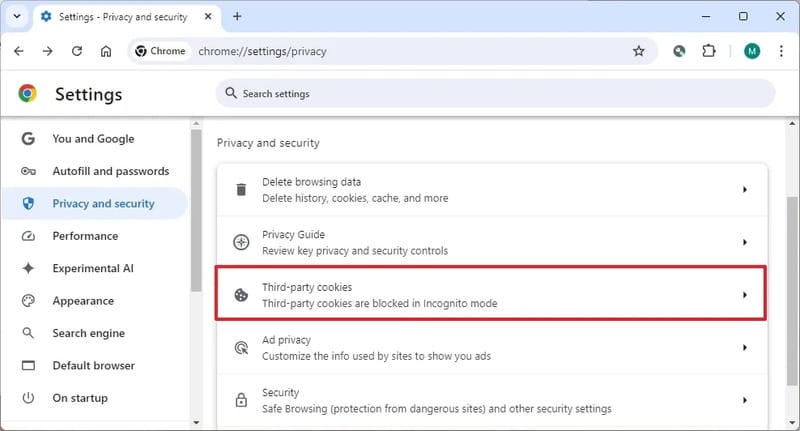
Click 'Third-party cookies'

Step 4: Turn on “Do Not Track requests with your browsing traffic”

Step 5: Click the “Confirm” button.

From now on, Chrome will send DNT requests to the websites you visit.
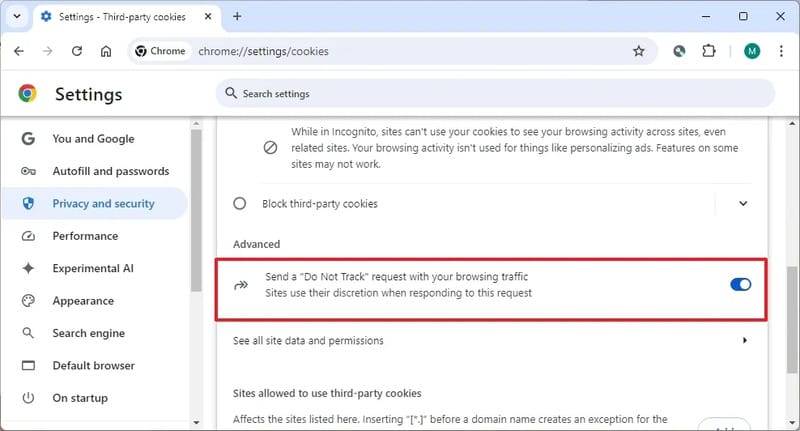
Turn on "Do Not Track requests with your browsing traffic"
Turn on “Do Not Track requests with your browsing traffic”

Tips to protect your privacy when surfing the web

In addition to enabling DNT, you should also consider using other privacy protections such as:

  • Use a privacy-focused web browser like Brave or Tor.
  • Use ad and tracking blocking extensions.
  • Regularly remove cookies and browsing data.
  • Be cautious when providing personal information online.

By combining these measures, you can more effectively protect your privacy while surfing the web.
Tips to protect your privacy when surfing the web

See more: Puma Browser: Smart web browser integrated with AI

Conclusion

Enabling the feature Do not track on the browser is a simple but important step to protect your privacy while surfing the web. Although not all websites comply with this requirement, it is still a useful additional layer of protection. Take the simple steps above to increase your privacy today!


Tags: browserfeaturetrackturn
Previous Post

Instructions for clearing cache on Windows 10 to free up space

Next Post

ZaloMove: How to change the drive to save files on Zalo to reduce C drive space

AnonyViet

AnonyViet

Related Posts

Windows 7/8.1/10 users will be upgraded to Windows 11 for free
Tips

Windows 7/8.1/10 users will be upgraded to Windows 11 for free

July 30, 2026
Instructions for receiving ChatGPT Plus for 1 month for free in 2026
Tips

Instructions for receiving ChatGPT Plus for 1 month for free in 2026

July 28, 2026
Some reasons I don’t like Windows 11
Tips

Some reasons I don’t like Windows 11

July 27, 2026
Instructions on how to get free Facebook white ticks
Tips

Instructions on how to get free Facebook white ticks

July 27, 2026
Collection of Windows 11 wallpapers for computers and phones
Tips

Collection of Windows 11 wallpapers for computers and phones

July 26, 2026
Don’t install leaked Windows 11
Tips

Don’t install leaked Windows 11

July 25, 2026
Next Post
ZaloMove: How to change the drive to save files on Zalo to reduce C drive space

ZaloMove: How to change the drive to save files on Zalo to reduce C drive space

0 0 votes
Article Rating
Subscribe
Login
Notify of
guest

guest

0 Comments
Oldest
Newest Most Voted

Recent News

Windows 7/8.1/10 users will be upgraded to Windows 11 for free

Windows 7/8.1/10 users will be upgraded to Windows 11 for free

July 30, 2026
Instructions for receiving the free Certified LLM Security Expert certificate

Instructions for receiving the free Certified LLM Security Expert certificate

July 30, 2026
MSI laptops are not just for gamers: Which line is suitable for students, office workers and creative people?

MSI laptops are not just for gamers: Which line is suitable for students, office workers and creative people?

July 29, 2026
What is quantum resistant cryptography? Why must the Internet change?

What is quantum resistant cryptography? Why must the Internet change?

July 29, 2026
Windows 7/8.1/10 users will be upgraded to Windows 11 for free

Windows 7/8.1/10 users will be upgraded to Windows 11 for free

July 30, 2026
Instructions for receiving the free Certified LLM Security Expert certificate

Instructions for receiving the free Certified LLM Security Expert certificate

July 30, 2026
MSI laptops are not just for gamers: Which line is suitable for students, office workers and creative people?

MSI laptops are not just for gamers: Which line is suitable for students, office workers and creative people?

July 29, 2026
AnonyViet - English Version

AnonyViet

AnonyViet is a website share knowledge that you have never learned in school!

We are ready to welcome your comments, as well as your articles sent to AnonyViet.

Follow Us

Contact:

Email: anonyviet.com[@]gmail.com

Main Website: https://anonyviet.com

Recent News

Windows 7/8.1/10 users will be upgraded to Windows 11 for free

Windows 7/8.1/10 users will be upgraded to Windows 11 for free

July 30, 2026
Instructions for receiving the free Certified LLM Security Expert certificate

Instructions for receiving the free Certified LLM Security Expert certificate

July 30, 2026
  • Home
  • Home 2
  • Home 3
  • Home 4
  • Home 5
  • Home 6
  • Next Dest Page
  • Sample Page

say88 tỷ lệ kèo nhà cái kèo nhà cái 5 febet

No Result
View All Result
  • Home
  • News
  • Software
  • Knowledge
  • MMO
  • Tips
  • Security
  • Network
  • Office

say88 tỷ lệ kèo nhà cái kèo nhà cái 5 febet

wpDiscuz
0
0
Would love your thoughts, please comment.x
()
x
| Reply