• Home
  • News
  • Software
  • Knowledge
  • MMO
  • Tips
  • Security
  • Network
  • Office
AnonyViet - English Version
  • Home
  • News
  • Software
  • Knowledge
  • MMO
  • Tips
  • Security
  • Network
  • Office
No Result
View All Result
  • Home
  • News
  • Software
  • Knowledge
  • MMO
  • Tips
  • Security
  • Network
  • Office
No Result
View All Result
AnonyViet - English Version
No Result
View All Result

How to Turn on BitLocker to Encrypt Windows 11 Hard Drive

AnonyViet by AnonyViet
September 15, 2024
in Tips
0

How to turn on BitLocker Encrypting Windows 11 hard drive is an important operation to keep your data safe from unauthorized access. In today's digital age, securing personal and business data is extremely necessary. This article AnonyViet will guide you step by step in detail on how to enable BitLocker on Windows 11, helping you feel more secure about the safety of your data.

Join the channel Telegram belong to AnonyViet 👉 Link 👈

What is BitLocker?

BitLocker is a data encryption utility built into the Windows operating system that allows users to encrypt their entire hard drive to prevent unauthorized access. This tool provides a high level of protection by encrypting information stored on the hard drive, preventing data from being accessed without the appropriate password or encryption key.
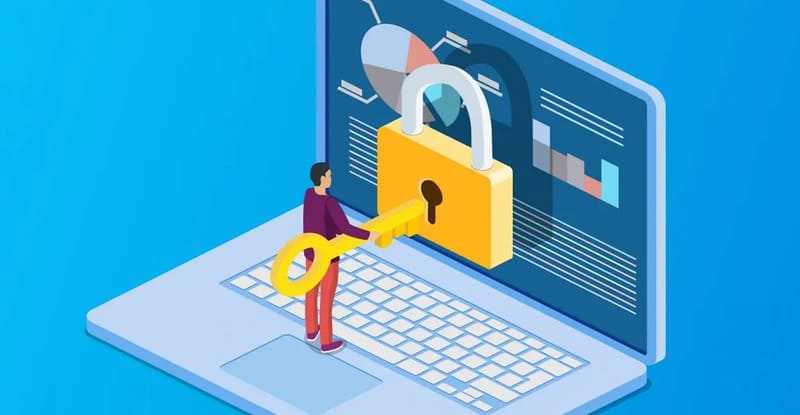
What is BitLocker?
What is BitLocker?

BitLocker uses the advanced AES (Advanced Encryption Standard) algorithm to encrypt your data, making it unreadable without a valid decryption key. This encryption protects your data even if someone gains physical access to your device or steals your removable drive.

BitLocker Encryption Types

There are two main types of BitLocker encryption offered on Windows 11:

  • BitLocker: Designed to encrypt and secure the operating system drive and fixed data drives on your computer.
  • BitLocker To Go: Ideal for encrypting removable drives such as USB flash drives, ensuring their data is protected even when accessed on other devices.

When should I enable BitLocker?

When you enable BitLocker encryption, you protect your device and the data stored on your hard drive. The encrypted information and decryption key are automatically saved in your Microsoft account, helping to protect your data from outside attacks. In the event of a computer failure, you will need a new decryption key to access your saved data.

For example, when you want to reinstall Windows, erase all data on the hard drive or want to access data when connecting to another computer, you will not be able to do these operations without the login password or “Key”.
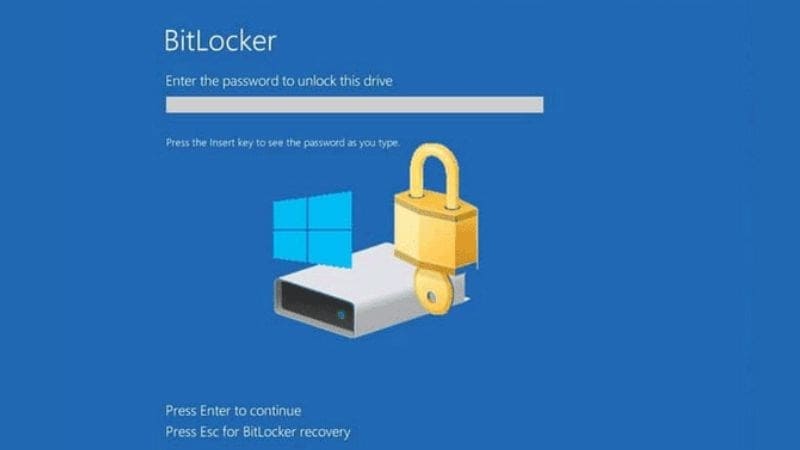
When do you need to know how to turn on BitLocker?

See also: Explore 3 interesting hidden features on Windows 11 that not everyone knows

How to enable BitLocker to encrypt data on Windows 11 drives

Step 1: Go to Settings > System > Storage
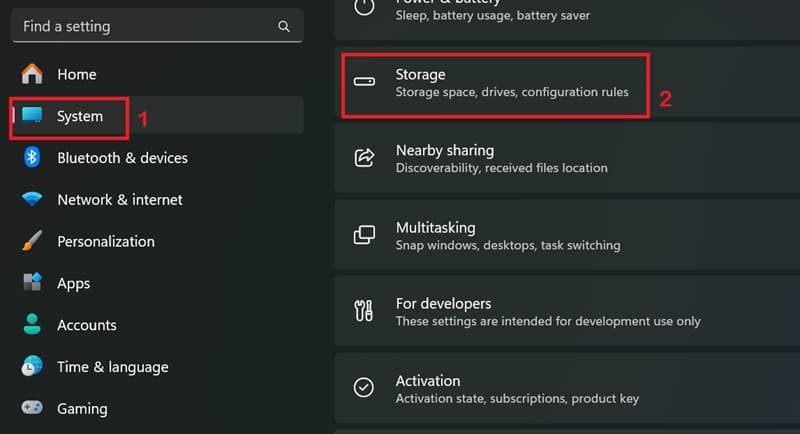
Go to Settings > System > Storage” width=”800″ height=”434″ srcset=”https://anonyviet.com/wp-content/uploads/2024/06/cach-bat-bitlocker-3.jpg 800w, https://anonyviet.com/wp-content/uploads/2024/06/cach-bat-bitlocker-3-300×163.jpg 300w, https://anonyviet.com/wp-content/uploads/2024/06/cach-bat-bitlocker-3-768×417.jpg 768w, https://anonyviet.com/wp-content/uploads/2024/06/cach-bat-bitlocker-3-750×407.jpg 750w” sizes=”(max-width: 800px) 100vw, 800px”/><figcaption id=Go to Settings > System > Storage

Step 2: Select Advanced storage settings > Click 'Disks & volumes'
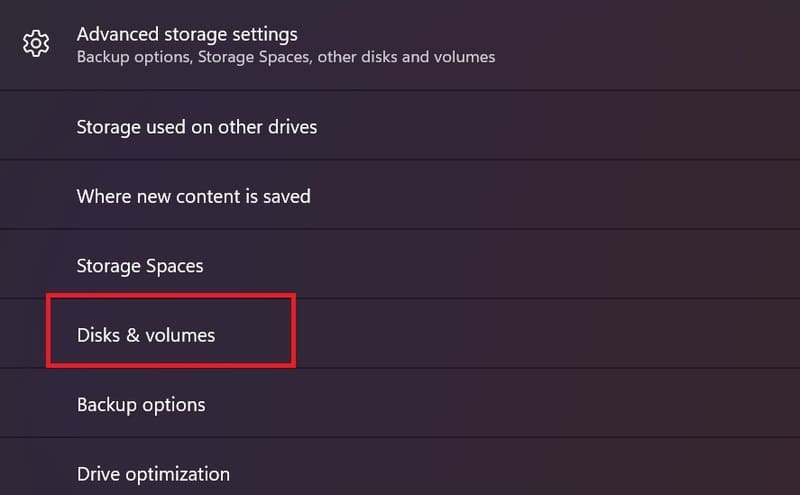
Click 'Disks & volumes'

Step 3: Select the drive to encrypt

Step 4: Select the volume to enable BitLocker encryption and click the 'Properties' button
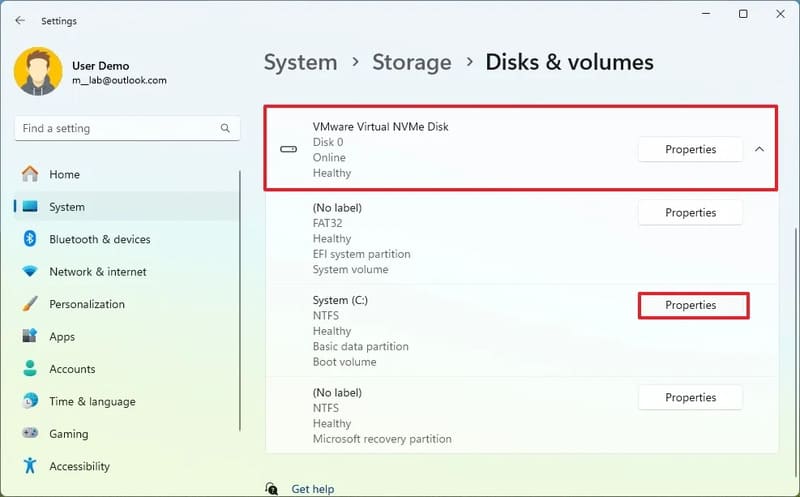
Select volume to enable encryption

Step 5: Click the Turn on BitLocker button
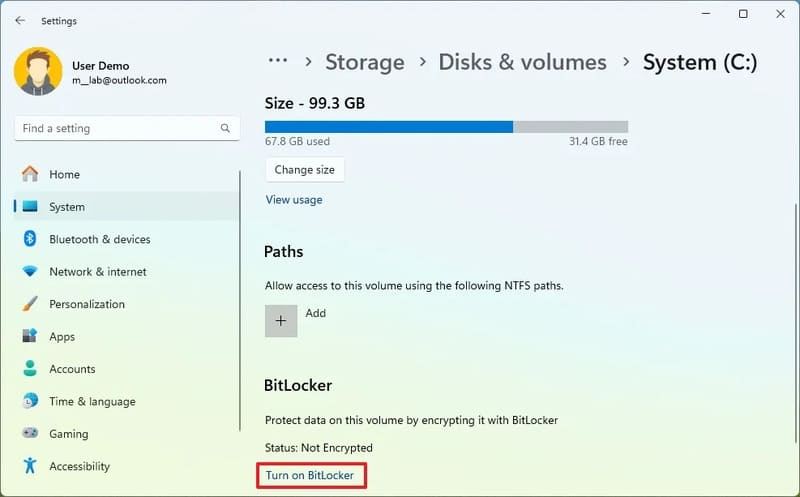
Click the Turn on BitLocker button

Step 6: Select 'Turn on BitLocker'

Step 7: Click the option to backup the recovery key. For example, you can use 'Save to your Microsoft account' > Click Next
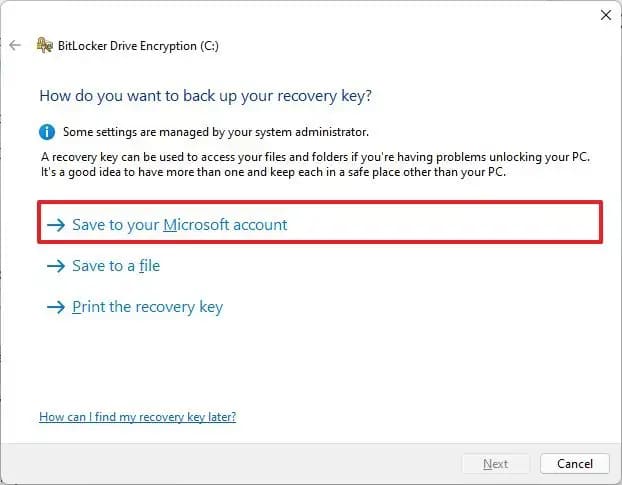
Click 'Save to your Microsoft account'

Step 8: Select 'Encrypt used disk space only' > Next

Select 'Encrypt used disk space only'

Step 9: Select 'New encryption mode' > Next

If you want to encrypt a removable drive (like a USB drive), select Compatible mode.
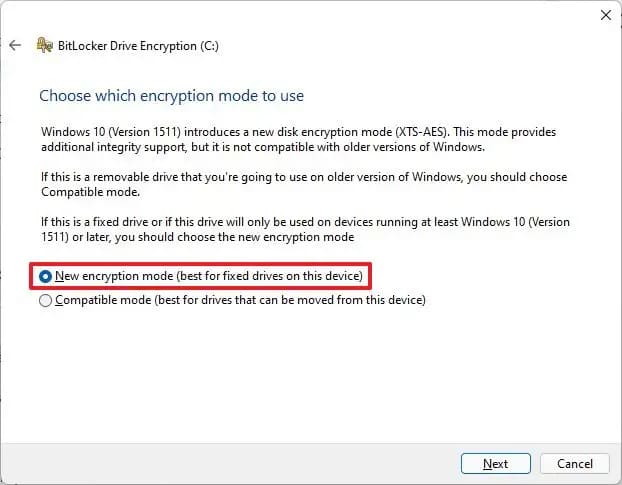
Select 'New encryption mode'

Step 10: Check the box 'Run BitLocker system check'

Step 11: Click the Restart now button to begin the reboot.

After you complete the steps above, your computer will restart to enable BitLocker. However, depending on the data available on the drive, BitLocker will continue to encrypt the used space in the background. If you have chosen to use a Microsoft account to store your BitLocker recovery keys, you can find them later in the Device BitLocker Recovery Keys section of your account.

See also: How Show Desktop button on taskbar Windows 11

Conclusion

So, we have learned How to enable BitLocker to encrypt your Windows 11 hard drive. By following the detailed instructions in this article, you can protect your data from unauthorized access, giving you peace of mind when using your computer. Remember to back up your data regularly to ensure the safety of your important information.


Tags: BitlockerdriveencrypthardturnWindows
Previous Post

Business Card Designer 5 – Professional Business Card Design Software

Next Post

How to Enable Phishing Detection on Google Chrome

AnonyViet

AnonyViet

Related Posts

Instructions to Hide Secret Documents in Any Song
Tips

Instructions to Hide Secret Documents in Any Song

February 10, 2026
How to block Update to Windows 10 21H1 to avoid errors
Tips

How to block Update to Windows 10 21H1 to avoid errors

February 9, 2026
How to prioritize 5G Wifi reception on Laptop and PC
Tips

How to prioritize 5G Wifi reception on Laptop and PC

February 5, 2026
How to Get Grok AI for Free 7 Days
Tips

How to Get Grok AI for Free 7 Days

February 3, 2026
What are special characters? Learn from A to Z about hot trends of Gen Z and Gamers
Tips

What are special characters? Learn from A to Z about hot trends of Gen Z and Gamers

February 2, 2026
5 AI tools to make AI model videos – Create beautiful AI Tiktok female characters
Tips

5 AI tools to make AI model videos – Create beautiful AI Tiktok female characters

February 1, 2026
Next Post
How to Enable Phishing Detection on Google Chrome

How to Enable Phishing Detection on Google Chrome

0 0 votes
Article Rating
Subscribe
Login
Notify of
guest

guest

0 Comments
Oldest
Newest Most Voted
Inline Feedbacks
View all comments

Recent News

How to set up a private voice on iPhone that few people know

How to set up a private voice on iPhone that few people know

February 11, 2026
Instructions to Hide Secret Documents in Any Song

Instructions to Hide Secret Documents in Any Song

February 10, 2026
How to blur photos on iPhone after taking them is extremely simple

How to blur photos on iPhone after taking them is extremely simple

February 10, 2026
Dell SE2426: A “lifesaver” solution for office workers’ eyes.

Dell SE2426: A “lifesaver” solution for office workers’ eyes.

February 9, 2026
How to set up a private voice on iPhone that few people know

How to set up a private voice on iPhone that few people know

February 11, 2026
Instructions to Hide Secret Documents in Any Song

Instructions to Hide Secret Documents in Any Song

February 10, 2026
How to blur photos on iPhone after taking them is extremely simple

How to blur photos on iPhone after taking them is extremely simple

February 10, 2026
AnonyViet - English Version

AnonyViet

AnonyViet is a website share knowledge that you have never learned in school!

We are ready to welcome your comments, as well as your articles sent to AnonyViet.

Follow Us

Contact:

Email: anonyviet.com[@]gmail.com

Main Website: https://anonyviet.com

Recent News

How to set up a private voice on iPhone that few people know

How to set up a private voice on iPhone that few people know

February 11, 2026
Instructions to Hide Secret Documents in Any Song

Instructions to Hide Secret Documents in Any Song

February 10, 2026
  • Home
  • Home 2
  • Home 3
  • Home 4
  • Home 5
  • Home 6
  • Next Dest Page
  • Sample Page

https://sun52.network

No Result
View All Result
  • Home
  • News
  • Software
  • Knowledge
  • MMO
  • Tips
  • Security
  • Network
  • Office

https://sun52.network

wpDiscuz
0
0
Would love your thoughts, please comment.x
()
x
| Reply