• Home
  • News
  • Software
  • Knowledge
  • MMO
  • Tips
  • Security
  • Network
  • Office
AnonyViet - English Version
  • Home
  • News
  • Software
  • Knowledge
  • MMO
  • Tips
  • Security
  • Network
  • Office
No Result
View All Result
  • Home
  • News
  • Software
  • Knowledge
  • MMO
  • Tips
  • Security
  • Network
  • Office
No Result
View All Result
AnonyViet - English Version
No Result
View All Result

How to turn off your Android phone when you get home

AnonyViet by AnonyViet
January 27, 2023
in Software
0

When you get home you just want to rest and not be bothered by phone calls. There is a simple way that you can automatically turn off your phone when you get home. Just give a command or when connected to wifi at home, the phone will turn on silent mode. Please follow the steps below

Join the channel Telegram of the AnonyViet 👉 Link 👈

How to turn off your Android phone when you get home

Turn off your phone at home with Google Assistant

With Google Assistant, you can simply use your voice to silence your phone. This is useful if you have a Google Nest speaker because you can enter your own home address and simply say: “OK Google, I’m home“.

To get started, run Google Assistant on Android phones yours by accessing the app and saying “OK Google” or you can swipe from the bottom left or right corner of the phone.
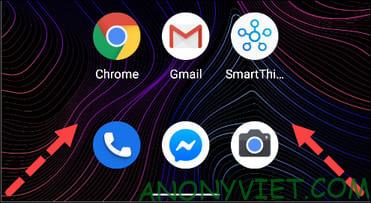
Turn off your phone at home with Google Assistant

Now, tap the Snapshot icon in the bottom left corner. The user interface may be slightly different depending on your phone.
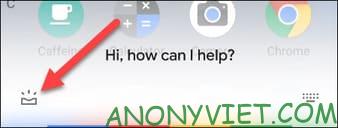
Snapshot icon

Select your profile picture in the top right corner to open the menu Assistant Settings.

Assistant Settings

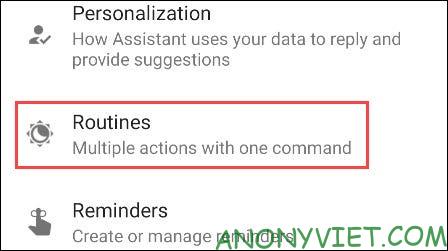
Select “Routines” (Procedure).

Routines

Click the option “I’m Home“. Note: this is not a Google Home “Home & Away” automation process.
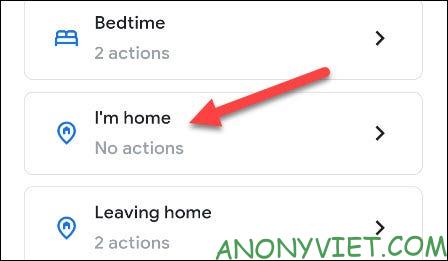
I'm Home

By default, the voice command to start the process is “I’m Home” or “I’m Back”. You can tap commands to add your own.
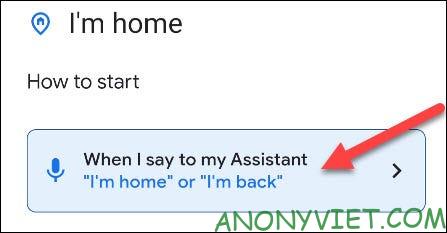
“I'm Back

To go through the process of turning off your phone, tap “Add Action”.

Add Action

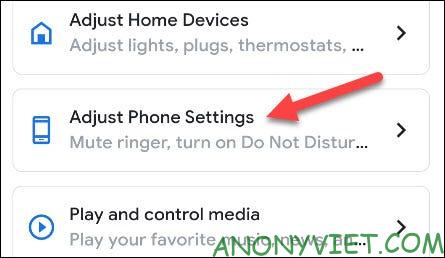
Select “Adjust Phone Settings”.

Adjust phone settings

Select “Set Phone Volume to Zero”. This will mute your device’s ringer and notification sound.
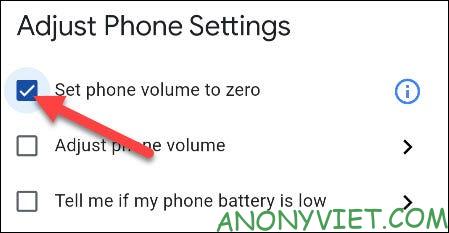
set Phone Volume to Zero

Also, if you have set up “Do Not Disturb” mode on your device, you can also enable it.
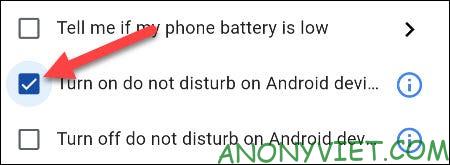
Do Not Disturb

Press “Done” when the setup is complete.

Done

If everything is fine, press “Save” to complete the process.
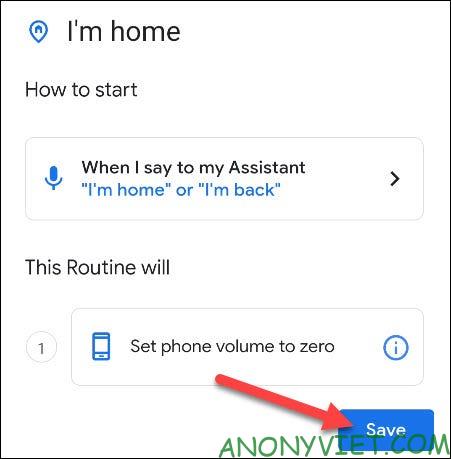
Save

That’s it, just say the voice command you set up and the phone will be put on silent or do not disturb mode.

Turn off your phone at home with Pixel Rules

If you use the phone Google Pixels, you can use a built-in feature called “Rules” to automate this process. Your phone will mute when you enter a certain location or connect to a specific Wi-Fi network.

First, swipe down from the top of the screen twice and tap the gear icon to open the Settings menu.
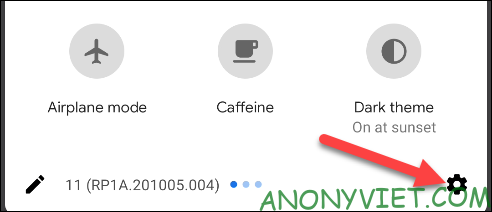
Turn off your phone at home with Pixel Rules

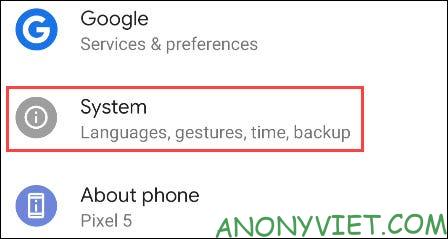
Scroll down and select “System”.

System

Expand the “Advanced” section and click “Rules”.
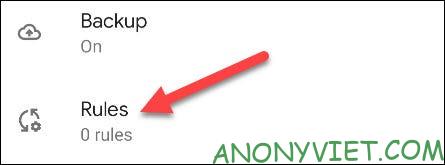
Advanced

Select “Add Rule”.

Add Rule

Select “Add Wi-Fi Network or Location”.
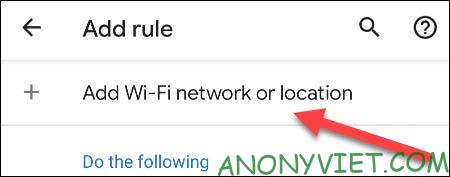
Add Wi-Fi Network or Location

You can choose “Wi-Fi Network” or “Location”.
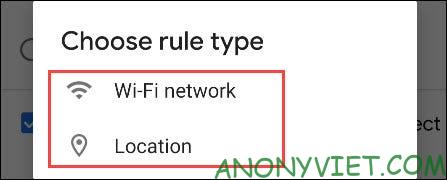
Wi-Fi Network

Select your home Wi-Fi network or enter your own home address. I recommend using a Wi-Fi network.
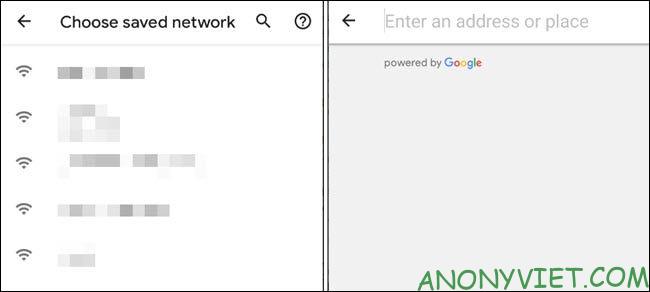
Select a Wi-Fi network

Next, select “Set Phone to Silent” or “Turn on Do Not Disturb” if you have it set up.
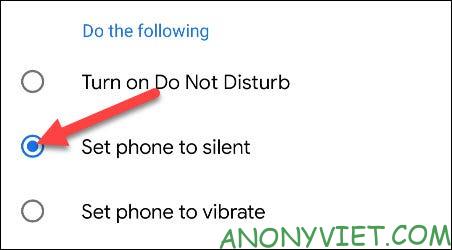
Set Phone to Silent

Tap “Add” at the bottom of the screen when done.

Add

Next, you need to allow the feature to run in the background. Click “Next” to continue.
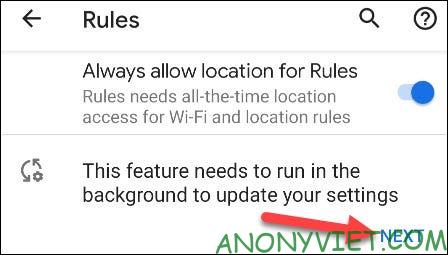
next

Select “Allow” to allow the service to always run in the background.
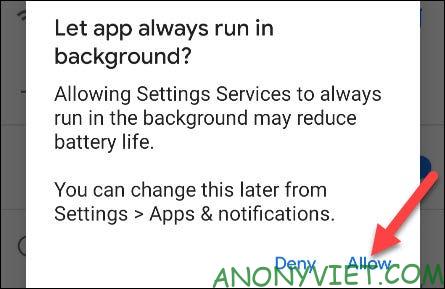
Allow

That’s it, when you connect to the network or enter the set home location, your phone will be muted or put on “Do not bother“. In addition, you can also use Google Assistant to send messages.


The article achieved: 5/5 – (100 votes)

Tags: Androidhomephoneturn
Previous Post

Tips to use Cloudflare more effectively – Part 2

Next Post

How to hide the likes of a post on Instagram

AnonyViet

AnonyViet

Related Posts

Instructions for looking up prescriptions on VNeID instead of paper medical books
Software

Instructions for looking up prescriptions on VNeID instead of paper medical books

April 26, 2026
Compare Poco X8 Pro and Poco X7 Pro: A new step for the “king” of mid-range performance
Software

Compare Poco X8 Pro and Poco X7 Pro: A new step for the “king” of mid-range performance

April 24, 2026
Top 5 apps to view good days 2026 for free on iOS and Android
Software

Top 5 apps to view good days 2026 for free on iOS and Android

April 23, 2026
Top 5+ utilities to install for Gmail to speed up work processing
Software

Top 5+ utilities to install for Gmail to speed up work processing

April 22, 2026
Decoding the problem of 4GB RAM and processing performance
Software

Decoding the problem of 4GB RAM and processing performance

April 21, 2026
4K Video Downloader Plus – Tool to download YouTube videos on macOS
Software

4K Video Downloader Plus – Tool to download YouTube videos on macOS

April 20, 2026
Next Post
How to hide the likes of a post on Instagram

How to hide the likes of a post on Instagram

0 0 votes
Article Rating
Subscribe
Login
Notify of
guest

guest

0 Comments
Oldest
Newest Most Voted
Inline Feedbacks
View all comments

Recent News

How to turn off password suggestions on iPhone: Prevent Safari from auto-filling passwords

How to turn off password suggestions on iPhone: Prevent Safari from auto-filling passwords

April 27, 2026
Instructions for looking up prescriptions on VNeID instead of paper medical books

Instructions for looking up prescriptions on VNeID instead of paper medical books

April 26, 2026
Tips to completely turn off CAPTCHA codes on iPhone and Mac are super simple

Tips to completely turn off CAPTCHA codes on iPhone and Mac are super simple

April 25, 2026
Compare Poco X8 Pro and Poco X7 Pro: A new step for the “king” of mid-range performance

Compare Poco X8 Pro and Poco X7 Pro: A new step for the “king” of mid-range performance

April 24, 2026
How to turn off password suggestions on iPhone: Prevent Safari from auto-filling passwords

How to turn off password suggestions on iPhone: Prevent Safari from auto-filling passwords

April 27, 2026
Instructions for looking up prescriptions on VNeID instead of paper medical books

Instructions for looking up prescriptions on VNeID instead of paper medical books

April 26, 2026
Tips to completely turn off CAPTCHA codes on iPhone and Mac are super simple

Tips to completely turn off CAPTCHA codes on iPhone and Mac are super simple

April 25, 2026
AnonyViet - English Version

AnonyViet

AnonyViet is a website share knowledge that you have never learned in school!

We are ready to welcome your comments, as well as your articles sent to AnonyViet.

Follow Us

Contact:

Email: anonyviet.com[@]gmail.com

Main Website: https://anonyviet.com

Recent News

How to turn off password suggestions on iPhone: Prevent Safari from auto-filling passwords

How to turn off password suggestions on iPhone: Prevent Safari from auto-filling passwords

April 27, 2026
Instructions for looking up prescriptions on VNeID instead of paper medical books

Instructions for looking up prescriptions on VNeID instead of paper medical books

April 26, 2026
No Result
View All Result
  • Home
  • News
  • Software
  • Knowledge
  • MMO
  • Tips
  • Security
  • Network
  • Office

wpDiscuz
0
0
Would love your thoughts, please comment.x
()
x
| Reply