• Home
  • News
  • Software
  • Knowledge
  • MMO
  • Tips
  • Security
  • Network
  • Office
AnonyViet - English Version
  • Home
  • News
  • Software
  • Knowledge
  • MMO
  • Tips
  • Security
  • Network
  • Office
No Result
View All Result
  • Home
  • News
  • Software
  • Knowledge
  • MMO
  • Tips
  • Security
  • Network
  • Office
No Result
View All Result
AnonyViet - English Version
No Result
View All Result

How to turn off Auto Update on Windows 11 and Windows 10

AnonyViet by AnonyViet
January 27, 2023
in Tips
0

Microsoft released Windows 11, where you can experience a fresh graphical interface. Although Microsoft has said that you need to update Windows 11 to get the latest features and security patches, for whatever reason you can disable Windows updates.

Join the channel Telegram of the AnonyViet 👉 Link 👈

How to turn off Auto Update on Windows 11

Microsoft has made it clear that Windows 11 updates will not be forced on Windows 10 users. If you want to check for Windows 11 updates, you need to go to “Settings > Update & Security > Windows Update“.

But some users have accidentally enabled Windows’ automatic update feature, they want to block this feature to free up disk space in Windows 11. So I thought I would guide you to turn off Auto Update on Windows 11.
Note: Normally, disabling Windows 11 updates will not cause data loss. But if you lose data due to improper operation, stop using the drive immediately and use professional Windows 11 data recovery software to recover lost data.

Method 1: Turn off Windows update service in Windows 11

One of the best methods to turn off Windows updates using a computer is to turn off the Windows update services.

Step 1. Press “Window + R” to open the Run window.

Step 2. Open “Services Window” by typing services.msc and press the “Enter” key.
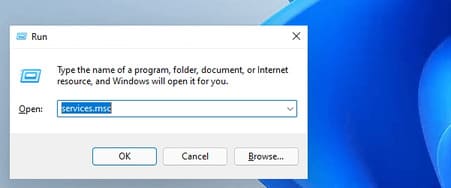
How to turn off Auto Update on Windows 11 and Windows 10 14
Step 3. Select “Windows Update” from the “Services” list, then click the “Stop” button.
Step 4. Change “Startup Type” to “Disabled” by clicking on the “General” tab.
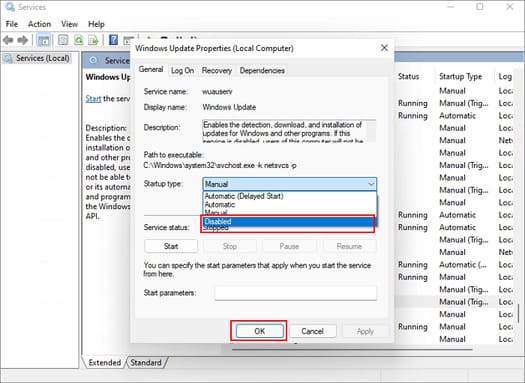
How to turn off Auto Update on Windows 11 and Windows 10 15

Method 2: Block Windows 11 updates with Group Policy Editor

If you don’t mind delaying the installation of Windows 11, you can disable Windows 11 updates using the Group Policy Editor.

Step 1: Press Win + R. Type gpedit.msc to enable Group Policy Editor.
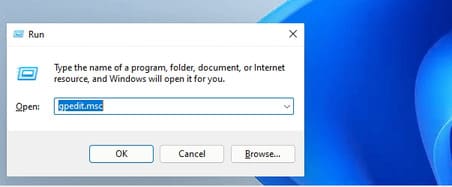
How to turn off Auto Update on Windows 11 and Windows 10 16

Step 2. Go to “Local Computer Policy > Computer Configuration > Administrative Templates > Windows Components > Windows Update > Windows Update for Business”.
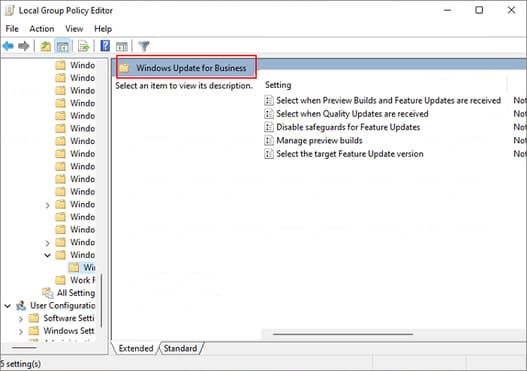
How to turn off Auto Update on Windows 11 and Windows 10 17

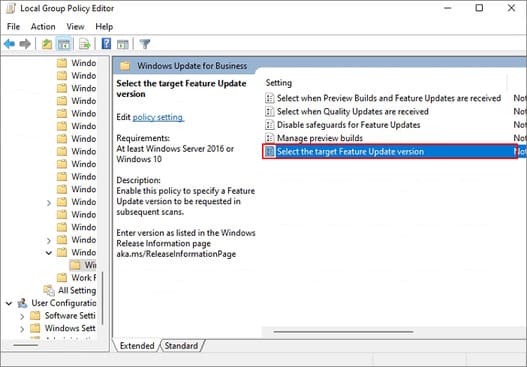
Step 3. Double click on “Select the target feature update version”.
How to turn off Auto Update on Windows 11 and Windows 10 18

Step 4. Set the policy to “Enabled”, enter 21H1 and close the Group Policy Editor.

Method 3: Pause weekly Windows 11 updates

Another way to turn off Windows 11 updates is to pause weekly updates. To pause Windows 11 computer updates, follow the steps below.

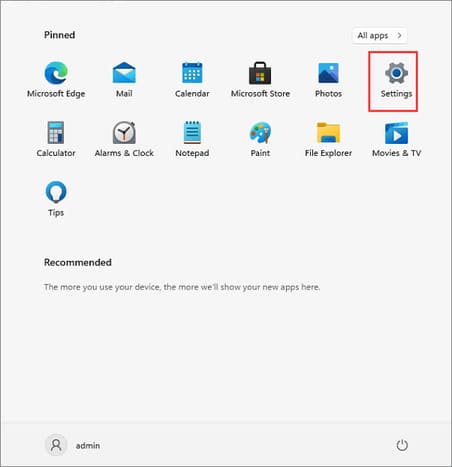
Step 1. Click on the Start icon and select “Settings”.
How to turn off Auto Update on Windows 11 and Windows 10 19

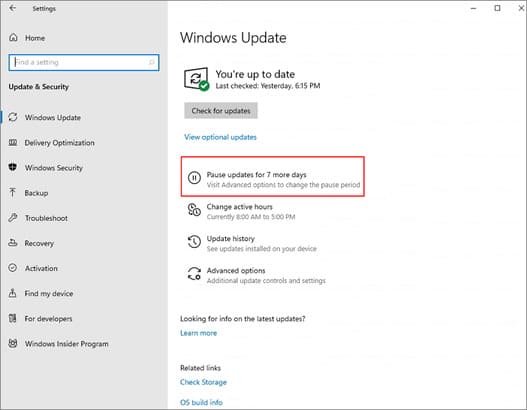
Step 2. Select “Update & Security” and click “Pause updates for 7 days”.
How to turn off Auto Update on Windows 11 and Windows 10 20

Method 4. Stop updating Windows 11 with Registry Editor

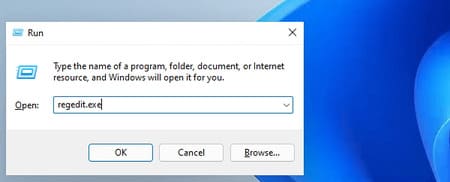
Step 1. Press Win + R and type regedit.exe to open the Registry Editor.
How to turn off Auto Update on Windows 11 and Windows 10 21

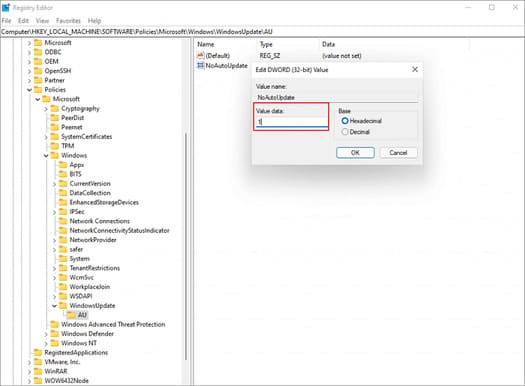
Step 2. Into the “HKEY_LOCAL_MACHINE\SOFTWARE\Policies\Microsoft\Windows\WindowsUpdate“.

Step 3. Set the “DWORD (32-bit)” value to 1.
How to turn off Auto Update on Windows 11 and Windows 10 22

If the value does not exist, right-click Windows Update and select New > Dword (32-bit) Value. Then set the value of TargetReleaseVersionInfo to 21H1.

Method 5. Turn off Windows 11 Updates Using Third Party Tools

If you are looking for an easy way to stop Windows 11 updates, you can run a third-party software – EaseUS Clean Genius. With this tool, you can turn off windows 11 automatic update permanently without taking much of your time.

Step 1. Load EaseUS CleanGenius and install it on your computer.

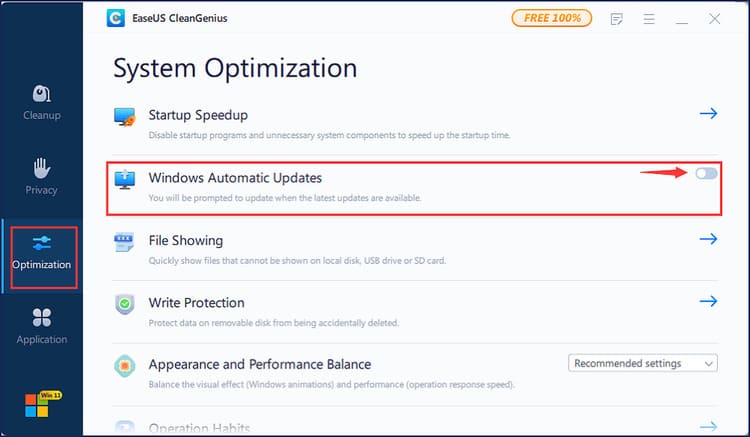
Step 2. Launch EaseUS CleanGenius and go to “Optimization”.

Step 3. The tool will automatically detect the status of the Windows Update service. If Windows Update is currently enabled, click the switch to stop the service.
How to turn off Auto Update on Windows 11

Step 4. If you want to check if you have turned off the automatic update service, go to Start > type “Services” > right click on “Services” and select “Run as administrator”.

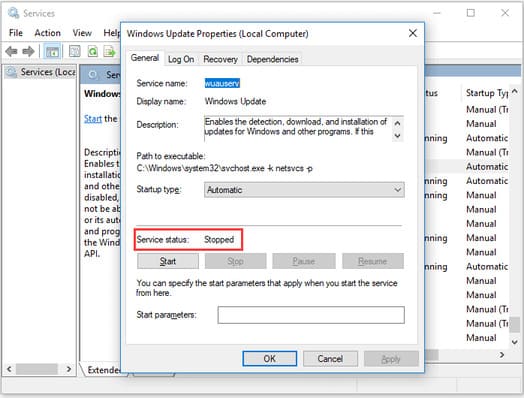
Step 5. In the list of services, find and right-click Windows Update > Properties. In the “Service status” section, you will see the service has been stopped.
How to turn off Auto Update on Windows 11 and Windows 10 23Conclusion

Personally, I want to update all my devices and activate Windows 11 to enjoy the latest features of Windows 11. But Windows updates can sometimes cause errors. So if there is a new update, you should wait 12 weeks to see user feedback.


The article achieved: 5/5 – (100 votes)

Tags: AutoturnUpdateWindows
Previous Post

How to use Seeker to locate others by GPS

Next Post

Basics of lightning protection for Server System

AnonyViet

AnonyViet

Related Posts

Windows 7/8.1/10 users will be upgraded to Windows 11 for free
Tips

Windows 7/8.1/10 users will be upgraded to Windows 11 for free

July 30, 2026
Instructions for receiving ChatGPT Plus for 1 month for free in 2026
Tips

Instructions for receiving ChatGPT Plus for 1 month for free in 2026

July 28, 2026
Some reasons I don’t like Windows 11
Tips

Some reasons I don’t like Windows 11

July 27, 2026
Instructions on how to get free Facebook white ticks
Tips

Instructions on how to get free Facebook white ticks

July 27, 2026
Collection of Windows 11 wallpapers for computers and phones
Tips

Collection of Windows 11 wallpapers for computers and phones

July 26, 2026
Don’t install leaked Windows 11
Tips

Don’t install leaked Windows 11

July 25, 2026
Next Post
Basics of lightning protection for Server System

Basics of lightning protection for Server System

0 0 votes
Article Rating
Subscribe
Login
Notify of
guest

guest

0 Comments
Oldest
Newest Most Voted

Recent News

Windows 7/8.1/10 users will be upgraded to Windows 11 for free

Windows 7/8.1/10 users will be upgraded to Windows 11 for free

July 30, 2026
Instructions for receiving the free Certified LLM Security Expert certificate

Instructions for receiving the free Certified LLM Security Expert certificate

July 30, 2026
MSI laptops are not just for gamers: Which line is suitable for students, office workers and creative people?

MSI laptops are not just for gamers: Which line is suitable for students, office workers and creative people?

July 29, 2026
What is quantum resistant cryptography? Why must the Internet change?

What is quantum resistant cryptography? Why must the Internet change?

July 29, 2026
Windows 7/8.1/10 users will be upgraded to Windows 11 for free

Windows 7/8.1/10 users will be upgraded to Windows 11 for free

July 30, 2026
Instructions for receiving the free Certified LLM Security Expert certificate

Instructions for receiving the free Certified LLM Security Expert certificate

July 30, 2026
MSI laptops are not just for gamers: Which line is suitable for students, office workers and creative people?

MSI laptops are not just for gamers: Which line is suitable for students, office workers and creative people?

July 29, 2026
AnonyViet - English Version

AnonyViet

AnonyViet is a website share knowledge that you have never learned in school!

We are ready to welcome your comments, as well as your articles sent to AnonyViet.

Follow Us

Contact:

Email: anonyviet.com[@]gmail.com

Main Website: https://anonyviet.com

Recent News

Windows 7/8.1/10 users will be upgraded to Windows 11 for free

Windows 7/8.1/10 users will be upgraded to Windows 11 for free

July 30, 2026
Instructions for receiving the free Certified LLM Security Expert certificate

Instructions for receiving the free Certified LLM Security Expert certificate

July 30, 2026
  • Home
  • Home 2
  • Home 3
  • Home 4
  • Home 5
  • Home 6
  • Next Dest Page
  • Sample Page

say88 tỷ lệ kèo nhà cái kèo nhà cái 5 febet

No Result
View All Result
  • Home
  • News
  • Software
  • Knowledge
  • MMO
  • Tips
  • Security
  • Network
  • Office

say88 tỷ lệ kèo nhà cái kèo nhà cái 5 febet

wpDiscuz
0
0
Would love your thoughts, please comment.x
()
x
| Reply