
• Home
  • News
  • Software
  • Knowledge
  • MMO
  • Tips
  • Security
  • Network
  • Office
AnonyViet - English Version
  • Home
  • News
  • Software
  • Knowledge
  • MMO
  • Tips
  • Security
  • Network
  • Office
No Result
View All Result
  • Home
  • News
  • Software
  • Knowledge
  • MMO
  • Tips
  • Security
  • Network
  • Office
No Result
View All Result
AnonyViet - English Version
No Result
View All Result

How to turn iPad into a secondary display for Mac

AnonyViet by AnonyViet
June 24, 2024
in Tips
0

If you're looking to increase productivity with your Mac, the iPad could be the perfect solution for you. Here's how Turn your iPad into a secondary display for your Machelping you expand your space and optimize your workflow.

Join the channel Telegram belong to AnonyViet 👉 Link 👈

Benefits of turning iPad into a secondary display for Mac

Turning your iPad into a secondary display for your Mac is an effective method to improve work productivity. For example, while editing a movie, you can take advantage of the large Mac screen to monitor the video, while the iPad is used to work on editing tools.

The Sidecar function on the macOS operating system is the ideal choice, meeting the above requirements. It lets you expand your Mac workspace by connecting and using apps on both devices, or use mirroring mode to display the same content on iPad and Mac.

System requirements

  • Make sure your Mac is running macOS 10.15 or later and your iPad is running iPadOS 13 or later to be able to use this feature.
  • Both devices need to be connected to the same Wi-Fi network and signed in with the same Apple ID account.
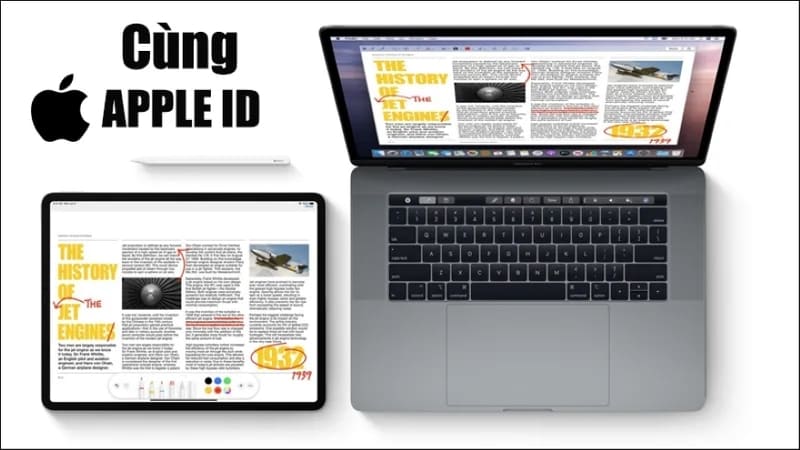
Turn your iPad into a secondary display for your Mac
Requirements to turn iPad into secondary display for Mac

How to turn iPad into a secondary display for Mac

Step 1: Turn on Wi-Fi and Bluetooth on both devices, or use a USB cable to connect your Mac and iPad.
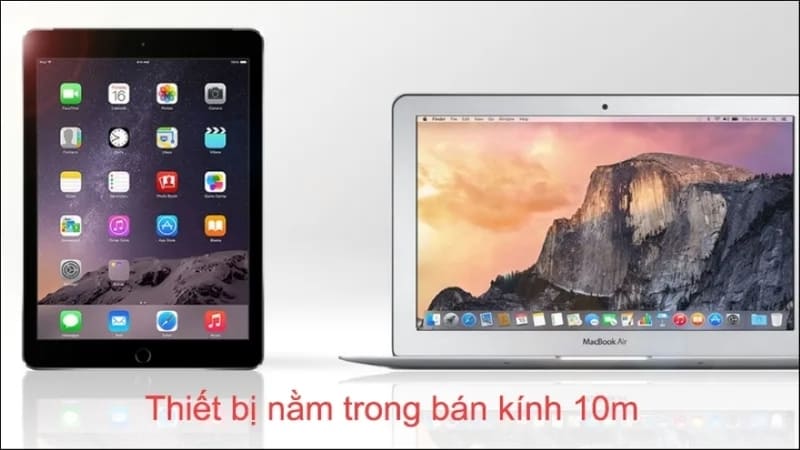
Turn your iPad into a secondary display for your Mac
Connect Mac and iPad

Step 2: Go to 'System Preferences' on Mac > Select Displays > Then enable 'Sidecar' and select the iPad you want to use.
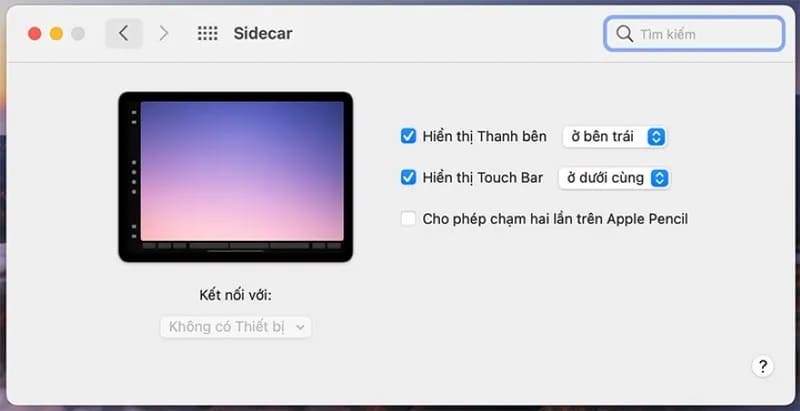
Turn your iPad into a secondary display for your Mac
Enable 'Sidecar'

Step 3: First, to establish the link between iPad and machine Mac to take advantage of the Sidecar function, launch the Control Center on your iPad and find the Sidecar icon to activate it.

Sidecar offers the ability to customize your user experience to your individual needs – from expanding your Mac's workspace by turning your iPad into a secondary display, to displaying independent applications on each device, or synchronously mirror content displayed on Mac to iPad.

How to disconnect Sidecar

After completing your work with Sidecar, you can terminate the connection as follows:

  • On iPad: Find and tap the Disconnect icon located in the lower part of the sidebar.
  • On Mac: Access Control Center via menu > Select Display and then deselect iPad in the Link keyboard and mouse to section.
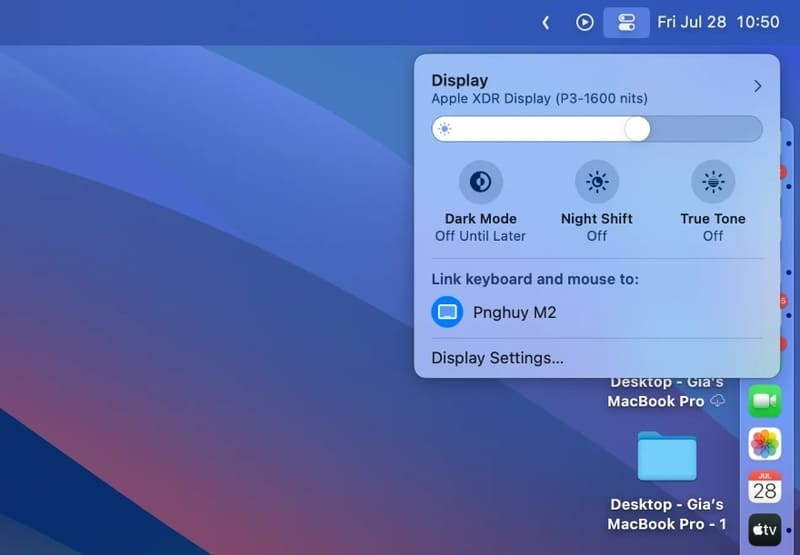
Turn your iPad into a secondary display for your Mac
How to disconnect Sidecar

Epilogue

With the above instructions, hopefully it will be easy for you Turn your iPad into a secondary display for your Mac, improve your work productivity. Good luck!


Tags: displayiPadMacsecondaryturn
Previous Post

File Converter – Convert file format and size in the right-click menu

Next Post

Instructions for collecting Facebook information using Ultimate Facebook Scraper

AnonyViet

AnonyViet

Related Posts

How to change the default font on Windows 10
Tips

How to change the default font on Windows 10

April 13, 2026
5 tips for using a Browser to replace an App (helps save RAM, time and money)
Tips

5 tips for using a Browser to replace an App (helps save RAM, time and money)

April 13, 2026
How to make funny MeMe photos without Photoshop within 10 seconds
Tips

How to make funny MeMe photos without Photoshop within 10 seconds

April 11, 2026
How to quickly design your own Logo without Photoshop
Tips

How to quickly design your own Logo without Photoshop

April 10, 2026
How to convert Website into App on Windows
Tips

How to convert Website into App on Windows

April 9, 2026
Instructions for getting 3 months of Adobe Express Pro for free
Tips

Instructions for getting 3 months of Adobe Express Pro for free

April 9, 2026
Next Post

Instructions for collecting Facebook information using Ultimate Facebook Scraper

0 0 votes
Article Rating
Subscribe
Login
Notify of
guest

guest

0 Comments
Oldest
Newest Most Voted
Inline Feedbacks
View all comments

Recent News

How to avoid Adblock detection on Youtube with 4 good tips

How to avoid Adblock detection on Youtube with 4 good tips

April 17, 2026
How to transfer ChatGPT data to Claude is extremely simple

How to transfer ChatGPT data to Claude is extremely simple

April 16, 2026
How to authenticate the owner’s SIM on VNeID from April 15

How to authenticate the owner’s SIM on VNeID from April 15

April 15, 2026
Speak Cells: Excel tool to read spreadsheets by voice very well

Speak Cells: Excel tool to read spreadsheets by voice very well

April 15, 2026
How to avoid Adblock detection on Youtube with 4 good tips

How to avoid Adblock detection on Youtube with 4 good tips

April 17, 2026
How to transfer ChatGPT data to Claude is extremely simple

How to transfer ChatGPT data to Claude is extremely simple

April 16, 2026
How to authenticate the owner’s SIM on VNeID from April 15

How to authenticate the owner’s SIM on VNeID from April 15

April 15, 2026
AnonyViet - English Version

AnonyViet

AnonyViet is a website share knowledge that you have never learned in school!

We are ready to welcome your comments, as well as your articles sent to AnonyViet.

Follow Us

Contact:

Email: anonyviet.com[@]gmail.com

Main Website: https://anonyviet.com

Recent News

How to avoid Adblock detection on Youtube with 4 good tips

How to avoid Adblock detection on Youtube with 4 good tips

April 17, 2026
How to transfer ChatGPT data to Claude is extremely simple

How to transfer ChatGPT data to Claude is extremely simple

April 16, 2026
No Result
View All Result
  • Home
  • News
  • Software
  • Knowledge
  • MMO
  • Tips
  • Security
  • Network
  • Office

wpDiscuz
0
0
Would love your thoughts, please comment.x
()
x
| Reply




