• Home
  • News
  • Software
  • Knowledge
  • MMO
  • Tips
  • Security
  • Network
  • Office
AnonyViet - English Version
  • Home
  • News
  • Software
  • Knowledge
  • MMO
  • Tips
  • Security
  • Network
  • Office
No Result
View All Result
  • Home
  • News
  • Software
  • Knowledge
  • MMO
  • Tips
  • Security
  • Network
  • Office
No Result
View All Result
AnonyViet - English Version
No Result
View All Result

How to skip the Microsoft login step when installing Windows 11

AnonyViet by AnonyViet
November 1, 2024
in Tips
0

Installing Windows 11 usually requires users to log in with a Microsoft account. However, not everyone wants to use a Microsoft account for personal computers. This article will show you how Skip the Microsoft sign-in step when installing Windows 11 in a detailed and easy to understand way.

Join the channel Telegram belong to AnonyViet 👉 Link 👈

Necessary system requirements when installing Windows 11

Before you begin, make sure your computer meets the minimum system requirements to install Windows 11.

  • Processor: 1 GHz or higher with 2 or more cores on a compatible 64-bit processor or System on Chip (SoC).
  • Memory (RAM): 4 GB.
  • Storage capacity: Hard drive 64GB or more.
  • System Firmware: Must use UEFI Firmware and be able to enable Secure Boot.
  • TPM: Trusted Platform Module (TPM) version 2.0.
  • Graphics card: DirectX 12 compatible or higher with WDDM 2.0 driver.
  • Screen: High resolution (720p), size larger than 9 inches (diagonal), 8 bits/color channel.
  • Internet connection: Required for Windows 11 download and update.

Note: Microsoft may change system requirements from time to time. Please check the latest information on Microsoft's official website.
Necessary system requirements when installing Windows 11

See more: Instructions for turning on Spatial Sound on Windows 11 to enjoy vivid sound

How to skip the Microsoft login step when installing Windows 11

Here are detailed step-by-step instructions to skip the Microsoft sign-in step during Windows 11 installation:

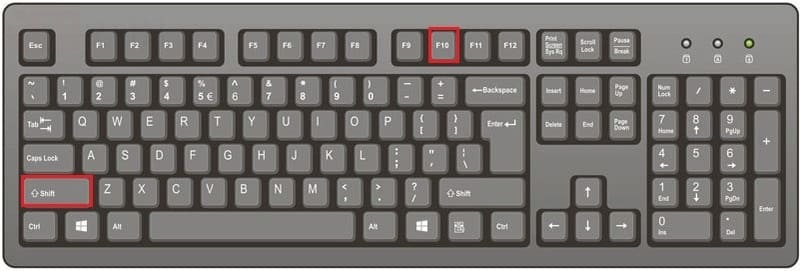
Step 1: As soon as you see the screen asking to sign in with a Microsoft account, press the key combination Shift + F10. This will display the Command Prompt interface.
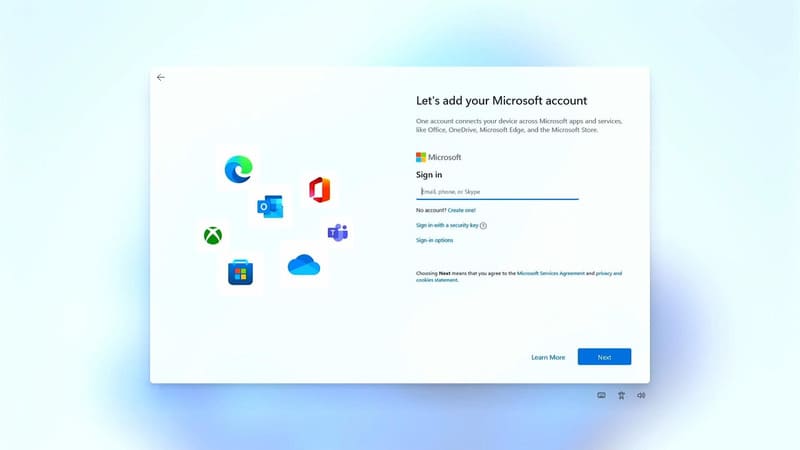
The screen asks to sign in with a Microsoft account
Press the key combination Shift + F10

Step 2: Type the following command to list the network cards on the computer

netsh interface show interface

Type the following command to list the network cards on the computer

When your computer is connected to the network, you will see the word 'Connected', and in the Interface Name section is the name of the network card on the computer. For example, in the picture, my network card is called Ethernet.
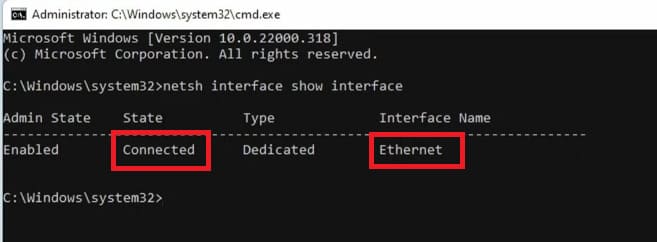
Interface Name is the name of the network card in the computer

Step 3: Next, type the following command:

netsh interface set interface “Tên card” admin=disable

Replace “Card name” with the network card name you just found in step 2. Remember to type correctly, including both upper and lower case letters.

For example: netsh interface set interface “Ethernet” admin=disable

This command will temporarily disable your network connection.
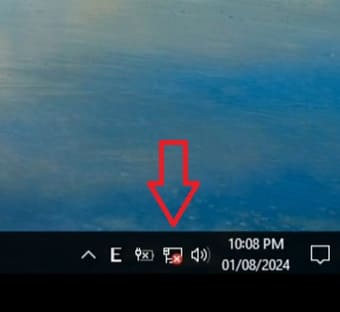
Disable network connection

Step 4: Click the back arrow button on the Windows 11 installation screen. Now, because there is no internet connection, Windows will not be able to ask you to sign in with a Microsoft account. Instead, you will see the option to create a local account (offline account).
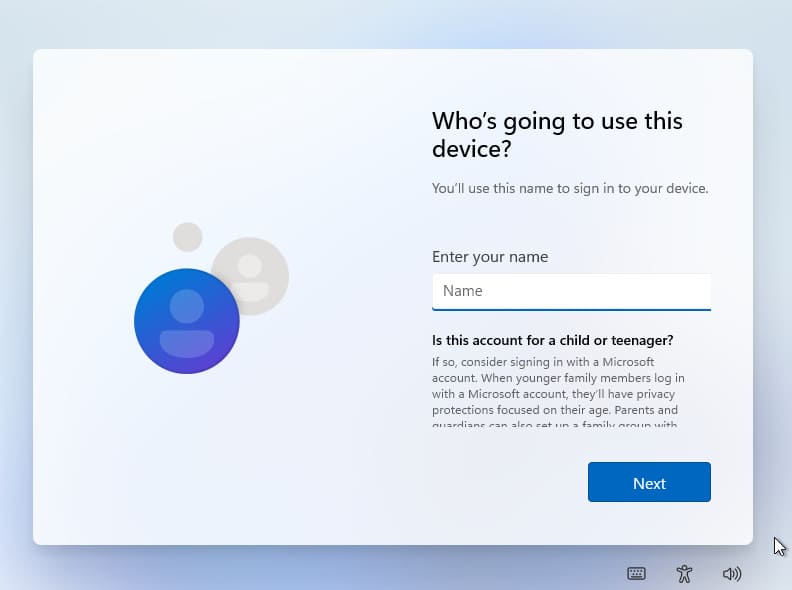
Local account creation screen

Step 5: Fill in the information needed to create a local account, including username and password (if desired).

Step 6: After this step, there will be some additional security questions and privacy-related settings such as location sharing, data sharing, advertising ID, etc. After completing the steps, the installation process will take place.

The Windows 11 installation process will take place

Once everything is done, you will reach the Windows 11 home screen.

Step 7: To turn the network card back on, press the up arrow key to avoid wasting time retyping the code > Change disable wall enable > Enter and you're done.

Benefits of using local accounts

  • Local accounts help limit remote access to personal data by Microsoft.
  • You're in complete control of your data and don't have to share it with Microsoft.
  • Easy to manage and use, no internet connection required to log in.

Note: Using a local account may limit some Windows 11 features and services that require a Microsoft account. You should consider carefully before making a choice.
Benefits of using local accounts

See more: Super Drag Drop – Drag and drop to open links and images in new tabs

Conclusion

By following the simple steps above, you can Skip the Microsoft sign-in step and use a local account when installing Windows 11. This helps you protect your privacy and have more control over your personal computer. Wish you success!

Tags: installingloginMicrosoftSkipstepWindows
Previous Post

GDSCRIPT – Basic Godot Engine

Next Post

How to use ChatGPT Search to find content using AI

AnonyViet

AnonyViet

Related Posts

SynthID Detector: Genuine AI checking tool from Google
Tips

SynthID Detector: Genuine AI checking tool from Google

October 11, 2026
Microsoft is preparing to launch Windows 11
Tips

Microsoft is preparing to launch Windows 11

October 9, 2026
How to download all photos from Google Photos to transfer to another service
Tips

How to download all photos from Google Photos to transfer to another service

October 8, 2026
How to use newly updated utilities on Windows 10
Tips

How to use newly updated utilities on Windows 10

October 7, 2026
Stealth Reader – Web story reader with Excel interface without being detected by the boss
Tips

Stealth Reader – Web story reader with Excel interface without being detected by the boss

October 7, 2026
Tips for handling when JPG images cannot be saved in Photoshop
Tips

Tips for handling when JPG images cannot be saved in Photoshop

October 6, 2026
Next Post
How to use ChatGPT Search to find content using AI

How to use ChatGPT Search to find content using AI

0 0 votes
Article Rating
Subscribe
Login
Notify of
guest

guest

0 Comments
Oldest
Newest Most Voted

Recent News

SynthID Detector: Genuine AI checking tool from Google

SynthID Detector: Genuine AI checking tool from Google

October 11, 2026
NoteCute – Extension to create super cute sticky notes

NoteCute – Extension to create super cute sticky notes

October 10, 2026
Super virtual way to change the photography angle using AI on iPhone

Super virtual way to change the photography angle using AI on iPhone

October 9, 2026
Instructions for detecting network vulnerabilities: How to check the system for data leaks (IP/DNS)

Instructions for detecting network vulnerabilities: How to check the system for data leaks (IP/DNS)

October 9, 2026
SynthID Detector: Genuine AI checking tool from Google

SynthID Detector: Genuine AI checking tool from Google

October 11, 2026
NoteCute – Extension to create super cute sticky notes

NoteCute – Extension to create super cute sticky notes

October 10, 2026
Super virtual way to change the photography angle using AI on iPhone

Super virtual way to change the photography angle using AI on iPhone

October 9, 2026
AnonyViet - English Version

AnonyViet

AnonyViet is a website share knowledge that you have never learned in school!

We are ready to welcome your comments, as well as your articles sent to AnonyViet.

Follow Us

Contact:

Email: anonyviet.com[@]gmail.com

Main Website: https://anonyviet.com

Recent News

SynthID Detector: Genuine AI checking tool from Google

SynthID Detector: Genuine AI checking tool from Google

October 11, 2026
NoteCute – Extension to create super cute sticky notes

NoteCute – Extension to create super cute sticky notes

October 10, 2026
  • Home
  • Home 2
  • Home 3
  • Home 4
  • Home 5
  • Home 6
  • Next Dest Page
  • Sample Page

say88 tỷ lệ kèo nhà cái kèo nhà cái 5 febet

No Result
View All Result
  • Home
  • News
  • Software
  • Knowledge
  • MMO
  • Tips
  • Security
  • Network
  • Office

say88 tỷ lệ kèo nhà cái kèo nhà cái 5 febet

wpDiscuz
0
0
Would love your thoughts, please comment.x
()
x
| Reply