Google has now become a security information provider for Windows 10, allowing users to log in to Windows 10 with their Google account. But this feature is only for G Suite Enterprise, G Suite Enterprise Education, or Cloud Identity Premium. In this article, I will show you how to log in to Windows with a Google account.
| Join the channel Telegram belong to AnonyViet 👉 Link 👈 |
Requirements before using GCPW
To use a Google Login account in Windows, you need to meet the following requirements:
– Must have a G Suite Enterprise, G Suite Enterprise Education or account Cloud Identity Premium Registered to manage Windows devices.
– Use registry key during installation.
– The operating system must be Windows 10 Professional, Business or Enterprise (version 1803 or higher) and the user account must have Administrator rights.
– The device must have Google Chrome installed.
Remember, this is not a replacement for a Microsoft account. If your business needs you to use a Google account, give them SSO for added Google security.
Sign in to Windows with a Google account
Follow these steps to use Google Account (Domain or Google Suite) to sign in to Windows 10:
- GCPW configuration
- Set up the Registry to log in to the domain
- Add a work account (Google Work)
- Connect your existing Windows account to your Google Work account
1. Download and install GCPW
Download GCPW, and run the installation file with admin rights. After installation, check to see if you have the following files in these locations:
C:\Program Files\Google\CredentialProvider\Gaia.dll
C:\Program Files\Google\CredentialProvider\gcp_setup.exe
C:\Program Files\Google\CredentialProvider\gcp_eventlog_provider.dll
2. Configure Registry
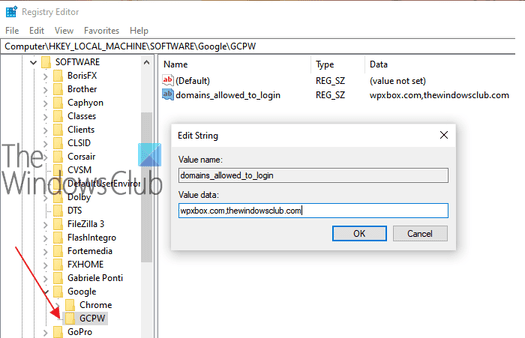
GCPW allows you to configure domains that can be used to log in with a Google account. Usually, you can configure one or two domains. Additionally, you can configure to prevent the device from automatically enrolling in Windows device management, or register multiple Google accounts on the device, configure it locally, and customize the validity period.
Open Registry Editor, windows + R type regedit and go to the path:
HKEY_LOCAL_MACHINE\Software\GoogleIf there is no directory GCPWyou can create it by right-clicking on the Google folder and selecting New -> Key.
Then right-click on the folder GCPW, and create a new String Value named:
domains_allowed_to_loginDouble click on the newly created String, and add domains to it like anonyviet.com
Restart the computer to apply the changes.
3. Sign in with your Google account
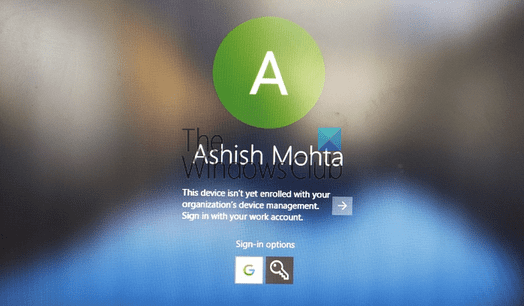
When your computer restarts, you'll see a new sign-in option at the bottom of the users list. Click on it and sign in with your Google account. Login will follow all the protocols like 2FA or any other protocols that have been established. The username for those accounts is usually the domain name + first name. Since this is a new account, Windows will take some time to set up. Once completed, that account will be listed with other accounts.
However, you may have to re-login with your user and password each time you log in to your account. To fix this, you can set a PIn code for your account and set the validity period to 5 days. Therefore, every time you log in to your Google Work account, you only need to enter your PIN code. Users can log in to their Microsoft account in case they lose their Internet connection.
4. How to connect Google Login to your current account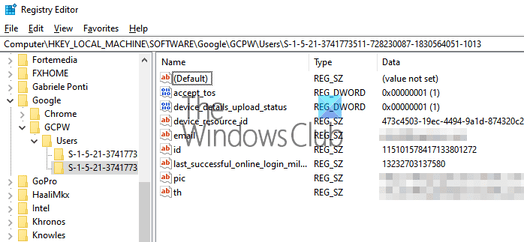
Setting up this feature is a bit complicated, you should only do it if you don't want your work account and home account to be different. You will find the Windows user's SID and then associate it with the Google account. I recommend you experiment with a test account and find out if it works as expected. Additionally, users will need a profile in Active Directory to use this feature.
Follow this guide to find the user's SID. Go to:
HKEY_LOCAL_MACHINE\Software\GoogleRight-click on the folder GCPW and choose New -> Key. Name the folder as Users.
Then, right-click on the User folder and select New -> Key and change Value name to the user's SID.
Right-click SID, and then click New -> String.
Change Value name wall e-mail.
Double click on the new Value, and then change Value data to the Google Work account you want to link to your Microsoft Local account.
Use the user's full email address (for example, [email protected]).
That's it, when you log in to that account, you will receive a Google account verification code. It links the user's Google account to their Windows profile by SID. If the SID is incorrect, GCPW creates a new Windows profile on the device with the user's Google credentials and associates their Google account with that profile.
If you enroll your device with Windows device management, many features on the device will be controlled through GCPW. If you want to escape or disable that, change the key below to 0:
enable_dm_enrollmentin:
HKEY_LOCAL_MACHINE\Software\Google\GCPWIf you're using an account that belongs to GSuite, that account can be configured with a Windows account and used to sign in to your work account.