• Home
  • News
  • Software
  • Knowledge
  • MMO
  • Tips
  • Security
  • Network
  • Office
AnonyViet - English Version
  • Home
  • News
  • Software
  • Knowledge
  • MMO
  • Tips
  • Security
  • Network
  • Office
No Result
View All Result
  • Home
  • News
  • Software
  • Knowledge
  • MMO
  • Tips
  • Security
  • Network
  • Office
No Result
View All Result
AnonyViet - English Version
No Result
View All Result

How to set up automatic trash cleaning on Windows 11

AnonyViet by AnonyViet
May 6, 2024
in Tips
0

Did you know that when you delete a file on Windows 11, it doesn't completely disappear from your hard drive? Instead, it will be moved to the Recycle Bin so you can restore it if necessary. However, these files will take up hard drive space if you do not delete them manually. So you should Set up automatic trash cleanup on Windows 11 to free up storage space and increase computer performance.

Join the channel Telegram belong to AnonyViet 👉 Link 👈

Why should you set up automatic trash cleanup?

Recycle Bin (also known as Recycle Bin) is an area familiar to Windows users. This place contains files and folders that users have deleted, and users can go to the Recycle Bin to retrieve files that were accidentally deleted or are still needed. To completely remove and no longer have these files on the system, you must do one more step: “Empty Recycle Bin”.

However, if you find this laborious and time-consuming, you can set the Recycle Bin to automatically delete junk files after a fixed period of your choice.
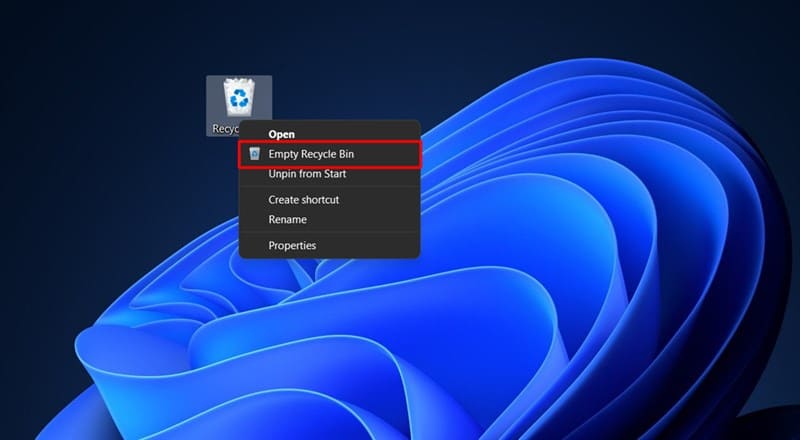
Set up automatic trash cleanup
Set up automatic trash cleaning to save time

How to set up automatic trash cleaning on Windows 11

Step 1: Press Windows key + I to open the Settings window.

Step 2: Select System and then select Storage.
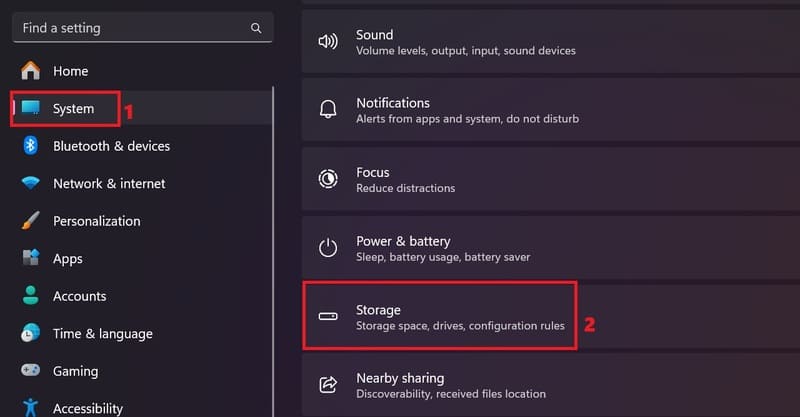
Set up automatic trash cleanup
Select System > Storage

Step 3: In the Storage management section, select Storage Sense (not the On/Off option on the right).
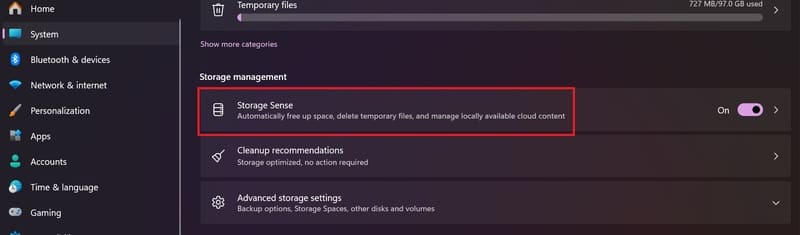
Set up automatic trash cleanup
Select Storage Sense

Step 4: In the new window, you will see a section called 'Automatic User content cleanup'. Please change it to On.
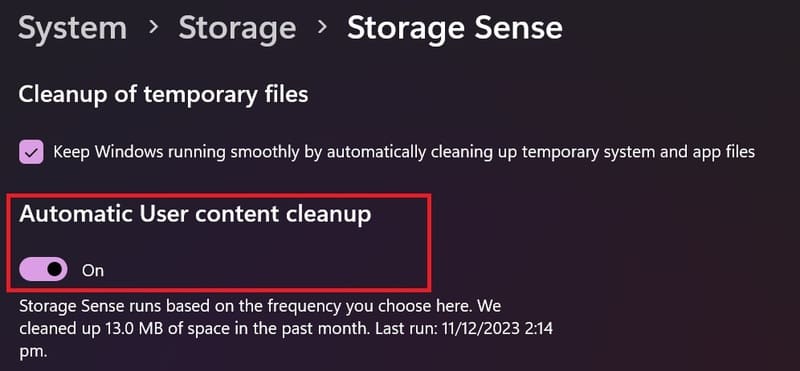
Set up automatic trash cleanup
Enable 'Automatic User content cleanup'

You will see a menu below with options to delete files in the trash and Download folder after a certain period of time. You can choose from 1, 14, 30 and 60 days depending on your needs. You should choose a reasonable amount of time to ensure you don't accidentally delete important files.


Set up automatic trash cleanup
Choose the time to delete files in the trash
Set up automatic trash cleanup
Choose the time to delete files in Downloads

Step 5: Once completed, you can select Run Storage Sense now to perform your first trash cleanup. Or you can let Storage Sense automatically run according to the schedule you set.
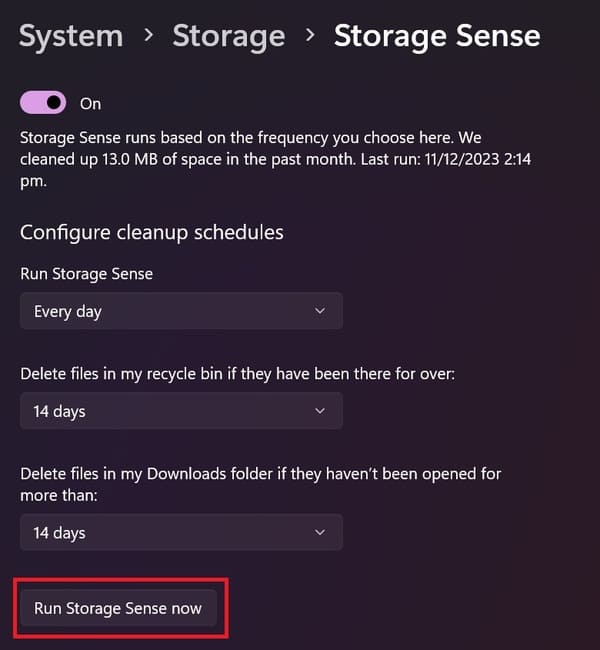
Set up automatic trash cleanup
Select Run Storage Sense now

After setting up automatic trash cleanup Windows 11, you will find that your computer will have more storage space. You can check the results by opening the trash can and seeing if it has been emptied. You can also open Storage Sense settings to see how much hard drive space has been freed.

Epilogue

With How to set up automatic trash cleanup On Windows 11, you won't have to worry about forgetting to delete unnecessary files anymore. You'll also have a faster and more efficient computer. Try this method today and feel the difference. Good luck!


The article scored: 5/5 – (100 votes)

Tags: AutomaticcleaningsetTrashWindows
Previous Post

How to install Wine on Linux

Next Post

How to automatically turn off notifications when displaying Windows 11 screen

AnonyViet

AnonyViet

Related Posts

How to change the default font on Windows 10
Tips

How to change the default font on Windows 10

April 13, 2026
5 tips for using a Browser to replace an App (helps save RAM, time and money)
Tips

5 tips for using a Browser to replace an App (helps save RAM, time and money)

April 13, 2026
How to make funny MeMe photos without Photoshop within 10 seconds
Tips

How to make funny MeMe photos without Photoshop within 10 seconds

April 11, 2026
How to quickly design your own Logo without Photoshop
Tips

How to quickly design your own Logo without Photoshop

April 10, 2026
How to convert Website into App on Windows
Tips

How to convert Website into App on Windows

April 9, 2026
Instructions for getting 3 months of Adobe Express Pro for free
Tips

Instructions for getting 3 months of Adobe Express Pro for free

April 9, 2026
Next Post
How to automatically turn off notifications when displaying Windows 11 screen

How to automatically turn off notifications when displaying Windows 11 screen

0 0 votes
Article Rating
Subscribe
Login
Notify of
guest

guest

0 Comments
Oldest
Newest Most Voted
Inline Feedbacks
View all comments

Recent News

How to transfer ChatGPT data to Claude is extremely simple

How to transfer ChatGPT data to Claude is extremely simple

April 16, 2026
How to authenticate the owner’s SIM on VNeID from April 15

How to authenticate the owner’s SIM on VNeID from April 15

April 15, 2026
Speak Cells: Excel tool to read spreadsheets by voice very well

Speak Cells: Excel tool to read spreadsheets by voice very well

April 15, 2026
Review of Galaxy A57 and A37: Some are eight ounces, some are half a pound

Review of Galaxy A57 and A37: Some are eight ounces, some are half a pound

April 14, 2026
How to transfer ChatGPT data to Claude is extremely simple

How to transfer ChatGPT data to Claude is extremely simple

April 16, 2026
How to authenticate the owner’s SIM on VNeID from April 15

How to authenticate the owner’s SIM on VNeID from April 15

April 15, 2026
Speak Cells: Excel tool to read spreadsheets by voice very well

Speak Cells: Excel tool to read spreadsheets by voice very well

April 15, 2026
AnonyViet - English Version

AnonyViet

AnonyViet is a website share knowledge that you have never learned in school!

We are ready to welcome your comments, as well as your articles sent to AnonyViet.

Follow Us

Contact:

Email: anonyviet.com[@]gmail.com

Main Website: https://anonyviet.com

Recent News

How to transfer ChatGPT data to Claude is extremely simple

How to transfer ChatGPT data to Claude is extremely simple

April 16, 2026
How to authenticate the owner’s SIM on VNeID from April 15

How to authenticate the owner’s SIM on VNeID from April 15

April 15, 2026
No Result
View All Result
  • Home
  • News
  • Software
  • Knowledge
  • MMO
  • Tips
  • Security
  • Network
  • Office

wpDiscuz
0
0
Would love your thoughts, please comment.x
()
x
| Reply