• Home
  • News
  • Software
  • Knowledge
  • MMO
  • Tips
  • Security
  • Network
  • Office
AnonyViet - English Version
  • Home
  • News
  • Software
  • Knowledge
  • MMO
  • Tips
  • Security
  • Network
  • Office
No Result
View All Result
  • Home
  • News
  • Software
  • Knowledge
  • MMO
  • Tips
  • Security
  • Network
  • Office
No Result
View All Result
AnonyViet - English Version
No Result
View All Result

How to set screen off time on Windows 10

AnonyViet by AnonyViet
January 28, 2023
in Tips
0

Have you ever been annoyed when Windows 10 turns off the screen quickly? Before, I was also very annoyed about this screen lock time problem, every time I left the computer for less than 5 minutes to make a cup of coffee, the computer turned off the screen. Entering the password is also fast but gradually becomes inconvenient and uncomfortable. So in this article, I will show you how to set the screen lock time on Windows 10 very easily.

Join the channel Telegram of the AnonyViet 👉 Link 👈

How to set screen off time on Windows 10

How to set screen lock time on Windows 10

1. Set screen lock time using Settings

First, you click Start Menu and select the cog icon or press the charge combination Windows + i to open the Settings app.
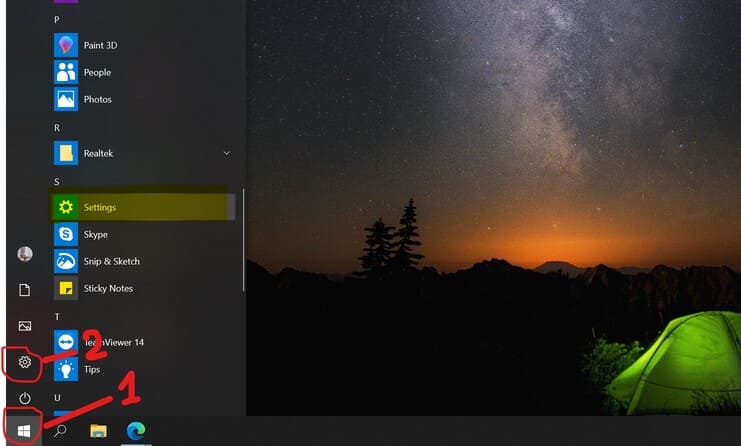
Set screen lock time using Settings

Next, you access the section Lock screen in the menu on the left.
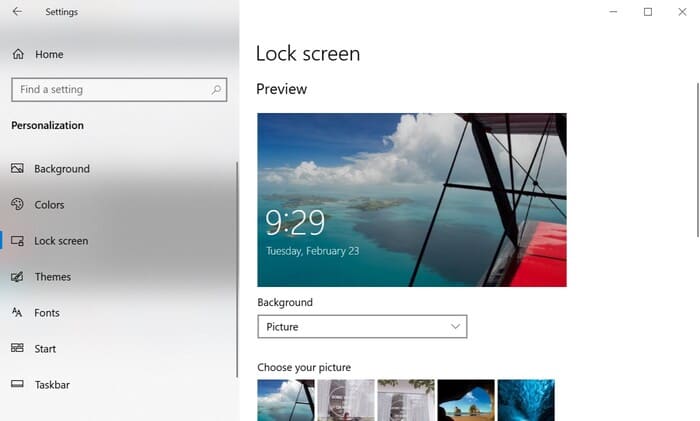
Lock screen

Scroll down and select Screen timeout settings to set the screen lock time.

Screen timeout settings

The Settings app will take you to the Power & sleep. Here, there are 2 modes:

  • Screen: The screen will turn off, but the apps will still work properly.
  • Sleep: Select the time the device will go to sleep, then all application activities will pause, the screen will turn off.
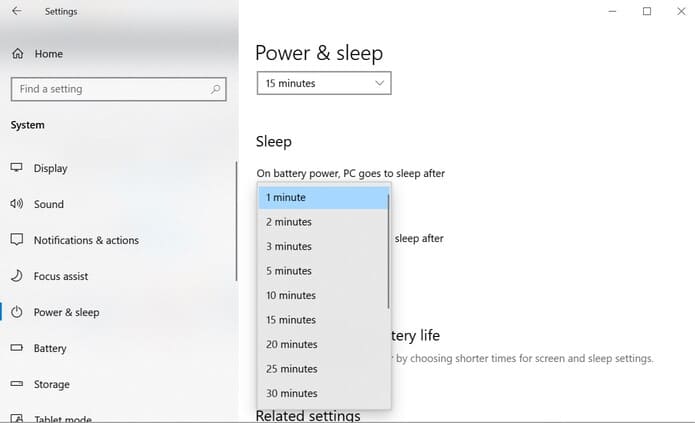
Power & sleep

2. Set screen lock time using Control Panel

In addition to setting the screen lock time using the Settings above, you can also use the Control Panel.

First, you press Start Menu and type Run or press the key combination Windows + CHEAP and type Control to open the Control Panel.
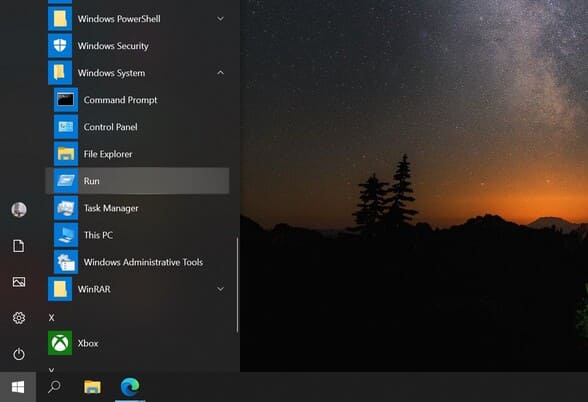
Set screen lock time using Control Panel

Next, you visit System and Security > Power Options.

System and Security > Power Options” width=”588″ height=”344″ srcset=”https://anonyviet.com/wp-content/uploads/2021/06/151.jpg 588w, https://anonyviet.com/wp-content/uploads/2021/06/151-300×176.jpg 300w” sizes=”(max-width: 588px) 100vw, 588px” title=”How to set screen off time on Windows 10 19″/></p>
<p>Here, select <strong>Change plan settings</strong> in the mode you are selecting.  For example, I am choosing mode <strong>High Performance. </strong>You can adjust 2 functions:</p>
<ul>
<li><strong>Turn off display:</strong> choose how long the screen will turn off, apps stay active</li>
<li><strong>Put the computer to sleep:</strong> Choose a time for the laptop to sleep (sleep) applications will temporarily shut down.</li>
</ul>
<p><img decoding=

You can change the screen off time when the laptop is on battery power or when plugged in. You can also change the time the computer goes to sleep. Like me, I set it all to Never. If you still like to turn off your computer screen, you can refer to creating beautiful clock standby screens here Please.


The article achieved: 5/5 – (100 votes)

Tags: screensettimeWindows
Previous Post

TOP good tweaks on iOS 14.3 compatible with iPhone

Next Post

How to Reset Settings to Defaults in Windows 10

AnonyViet

AnonyViet

Related Posts

Windows 7/8.1/10 users will be upgraded to Windows 11 for free
Tips

Windows 7/8.1/10 users will be upgraded to Windows 11 for free

July 30, 2026
Instructions for receiving ChatGPT Plus for 1 month for free in 2026
Tips

Instructions for receiving ChatGPT Plus for 1 month for free in 2026

July 28, 2026
Some reasons I don’t like Windows 11
Tips

Some reasons I don’t like Windows 11

July 27, 2026
Instructions on how to get free Facebook white ticks
Tips

Instructions on how to get free Facebook white ticks

July 27, 2026
Collection of Windows 11 wallpapers for computers and phones
Tips

Collection of Windows 11 wallpapers for computers and phones

July 26, 2026
Don’t install leaked Windows 11
Tips

Don’t install leaked Windows 11

July 25, 2026
Next Post
How to Reset Settings to Defaults in Windows 10

How to Reset Settings to Defaults in Windows 10

0 0 votes
Article Rating
Subscribe
Login
Notify of
guest

guest

0 Comments
Oldest
Newest Most Voted

Recent News

Windows 7/8.1/10 users will be upgraded to Windows 11 for free

Windows 7/8.1/10 users will be upgraded to Windows 11 for free

July 30, 2026
Instructions for receiving the free Certified LLM Security Expert certificate

Instructions for receiving the free Certified LLM Security Expert certificate

July 30, 2026
MSI laptops are not just for gamers: Which line is suitable for students, office workers and creative people?

MSI laptops are not just for gamers: Which line is suitable for students, office workers and creative people?

July 29, 2026
What is quantum resistant cryptography? Why must the Internet change?

What is quantum resistant cryptography? Why must the Internet change?

July 29, 2026
Windows 7/8.1/10 users will be upgraded to Windows 11 for free

Windows 7/8.1/10 users will be upgraded to Windows 11 for free

July 30, 2026
Instructions for receiving the free Certified LLM Security Expert certificate

Instructions for receiving the free Certified LLM Security Expert certificate

July 30, 2026
MSI laptops are not just for gamers: Which line is suitable for students, office workers and creative people?

MSI laptops are not just for gamers: Which line is suitable for students, office workers and creative people?

July 29, 2026
AnonyViet - English Version

AnonyViet

AnonyViet is a website share knowledge that you have never learned in school!

We are ready to welcome your comments, as well as your articles sent to AnonyViet.

Follow Us

Contact:

Email: anonyviet.com[@]gmail.com

Main Website: https://anonyviet.com

Recent News

Windows 7/8.1/10 users will be upgraded to Windows 11 for free

Windows 7/8.1/10 users will be upgraded to Windows 11 for free

July 30, 2026
Instructions for receiving the free Certified LLM Security Expert certificate

Instructions for receiving the free Certified LLM Security Expert certificate

July 30, 2026
  • Home
  • Home 2
  • Home 3
  • Home 4
  • Home 5
  • Home 6
  • Next Dest Page
  • Sample Page

say88 tỷ lệ kèo nhà cái kèo nhà cái 5 febet

No Result
View All Result
  • Home
  • News
  • Software
  • Knowledge
  • MMO
  • Tips
  • Security
  • Network
  • Office

say88 tỷ lệ kèo nhà cái kèo nhà cái 5 febet

wpDiscuz
0
0
Would love your thoughts, please comment.x
()
x
| Reply