• Home
  • News
  • Software
  • Knowledge
  • MMO
  • Tips
  • Security
  • Network
  • Office
AnonyViet - English Version
  • Home
  • News
  • Software
  • Knowledge
  • MMO
  • Tips
  • Security
  • Network
  • Office
No Result
View All Result
  • Home
  • News
  • Software
  • Knowledge
  • MMO
  • Tips
  • Security
  • Network
  • Office
No Result
View All Result
AnonyViet - English Version
No Result
View All Result

How to Reset Settings to Defaults in Windows 10

AnonyViet by AnonyViet
January 28, 2023
in Tips
0

Like other apps, the Settings app can also misbehave from time to time. If this happens, resetting the Settings app to its default settings may fix the problem you’re having. Let’s find out with me.

Join the channel Telegram of the AnonyViet 👉 Link 👈

How to Reset Settings to Defaults in Windows 10

When should you reset the Settings app

You should reset the Settings app if it crashes frequently or some functions in the app don’t work.

Like resetting any other app, when you reset the Settings app, it clears various settings and returns them to their default values. This can fix errors and other problems caused by your mischief.

If you prefer to use the GUI, you can use the Start menu to reset the Settings app. Skip this section if you want to use the command.

To reset Settings, open the Start menu and search for “Settings“. Right-click the app in the results and select “App settings“.
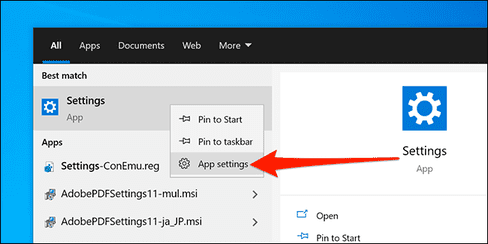
Reset Settings app using Start Menu

In the Settings window, scroll down to the Reset section and click “Reset”.
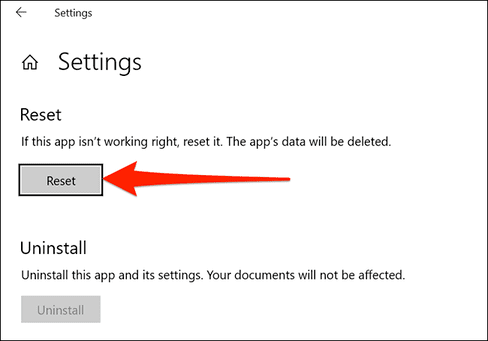
Reset

You will receive a prompt stating that your app data will be deleted. Click “Reset” in this prompt to continue.
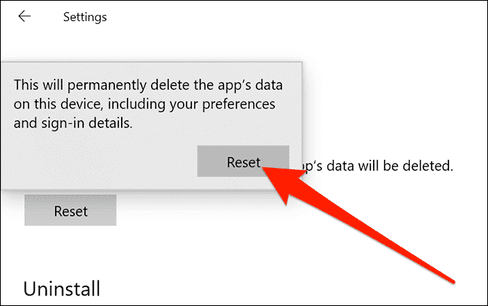
reset settings

The Settings app has now been reset. You can now open it from the Start menu or by pressing Windows + i.

Reset Settings app using PowerShell

You can also run a command in Windows PowerShell to reset the Settings app. But to do this, you must use Windows 10 build 20175 or later. (In other words, you need Windows 10 version 21H2 above. At the time of this writing, this is an unreleased pre-release version of Windows 10.)

To test your build, press Windows + R, and type “winver” (without the quotes) in the Run window and press “Enter”. The second line in the About Windows window shows your current build version.

Reset Settings app using PowerShell

If you are using a supported build, open the Start Menu, search for “PowerShell” and right click and select “Run as Administrator”.
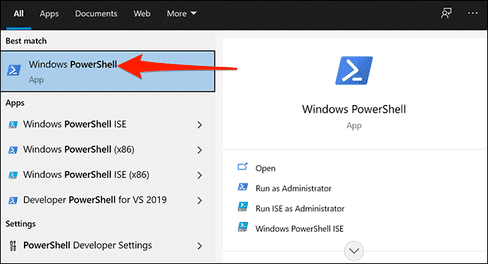
Run as Administrator

Select “Yes“in the announcement “User Account Control”.

Copy the command below and paste it in PowerShell. Press “Enter” to run the command.

Get-AppxPackage *windows.immersivecontrolpanel* | Reset-AppxPackage

Get-AppxPackage *windows.immersivecontrolpanel* |  Reset-AppxPackage

So you have reset Windows Settings

Reset Settings app using Command Prompt

You can also use Command Prompt to reset the Settings app. However, you will need to use the version of Windows 10 that you need to run the PowerShell command above.

To get started, go to the Start Menu, search for “Command Prompt”, right-click and select “Run as administrator”.
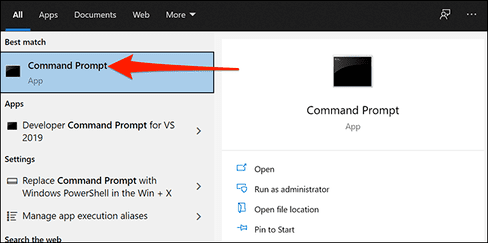
Reset Settings app using Command Prompt

Click “Yes” in User Account Control.

Copy the command below and paste it into the Command Prompt. Press “Enter” to run the command.

PowerShell -ExecutionPolicy Unrestricted -Command "& {$manifest = (Get-AppxPackage *immersivecontrolpanel*).InstallLocation + '\AppxManifest.xml' ; Add-AppxPackage -DisableDevelopmentMode -Register $manifest}"
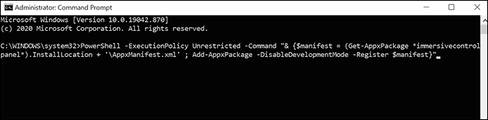
PowerShell -ExecutionPolicy Unrestricted -Command "& {$manifest = (Get-AppxPackage *immersivecontrolpanel*).InstallLocation + '\AppxManifest.xml' ;  Add-AppxPackage -DisableDevelopmentMode -Register $manifest}"

If those methods don’t fix your problem, you can reset all Windows 10 mine. This returns all your settings to their default state, potentially fixing many problems on your computer.


The article achieved: 5/5 – (100 votes)

Tags: DefaultsResetSettingsWindows
Previous Post

How to set screen off time on Windows 10

Next Post

How to Jailbreak iOS 11 – iOS 14.3 with Unc0ver 6 (supports Iphone 12)

AnonyViet

AnonyViet

Related Posts

How to record reaction videos with Android phones, no app needed
Tips

How to record reaction videos with Android phones, no app needed

June 1, 2026
Instructions on how to get Google AI Pro 1 year for free for new accounts
Tips

Instructions on how to get Google AI Pro 1 year for free for new accounts

June 1, 2026
Top free AI tools to help write, test and optimize content
Tips

Top free AI tools to help write, test and optimize content

June 1, 2026
Instructions for receiving Lovable Pro 12 months for free
Tips

Instructions for receiving Lovable Pro 12 months for free

May 29, 2026
Instructions for receiving 1 month of ElevenLabs Creator for free worth
Tips

Instructions for receiving 1 month of ElevenLabs Creator for free worth $22

May 25, 2026
How to create beautiful studio-like preschool graduation photos for your child
Tips

How to create beautiful studio-like preschool graduation photos for your child

May 21, 2026
Next Post
How to Jailbreak iOS 11 – iOS 14.3 with Unc0ver 6 (supports Iphone 12)

How to Jailbreak iOS 11 – iOS 14.3 with Unc0ver 6 (supports Iphone 12)

0 0 votes
Article Rating
Subscribe
Login
Notify of
guest

guest

0 Comments
Oldest
Newest Most Voted
Inline Feedbacks
View all comments

Recent News

Instructions on how to prevent acquaintances from seeing your Tiktok

Instructions on how to prevent acquaintances from seeing your Tiktok

June 2, 2026
How to record reaction videos with Android phones, no app needed

How to record reaction videos with Android phones, no app needed

June 1, 2026
Instructions on how to get Google AI Pro 1 year for free for new accounts

Instructions on how to get Google AI Pro 1 year for free for new accounts

June 1, 2026
Top free AI tools to help write, test and optimize content

Top free AI tools to help write, test and optimize content

June 1, 2026
Instructions on how to prevent acquaintances from seeing your Tiktok

Instructions on how to prevent acquaintances from seeing your Tiktok

June 2, 2026
How to record reaction videos with Android phones, no app needed

How to record reaction videos with Android phones, no app needed

June 1, 2026
Instructions on how to get Google AI Pro 1 year for free for new accounts

Instructions on how to get Google AI Pro 1 year for free for new accounts

June 1, 2026
AnonyViet - English Version

AnonyViet

AnonyViet is a website share knowledge that you have never learned in school!

We are ready to welcome your comments, as well as your articles sent to AnonyViet.

Follow Us

Contact:

Email: anonyviet.com[@]gmail.com

Main Website: https://anonyviet.com

Recent News

Instructions on how to prevent acquaintances from seeing your Tiktok

Instructions on how to prevent acquaintances from seeing your Tiktok

June 2, 2026
How to record reaction videos with Android phones, no app needed

How to record reaction videos with Android phones, no app needed

June 1, 2026
No Result
View All Result
  • Home
  • News
  • Software
  • Knowledge
  • MMO
  • Tips
  • Security
  • Network
  • Office

wpDiscuz
0
0
Would love your thoughts, please comment.x
()
x
| Reply