Batch files, also known as cmd files, are used to execute CMD commands with a file you have pre-programmed. If you want Windows to perform a certain task, within a certain time, set a schedule to run the Batch file and set a timer to automatically trigger the file to run automatically.
| Join the channel Telegram belong to AnonyViet 👉 Link 👈 |

Schedule batch files to run in Windows using Task Scheduler
For example, you want to schedule an appointment confess to the batch file or enabled virus batch files or try Other interesting tricks on CMD. Please follow the instructions below:
After creating a batch file to automate a certain job, you will want it to run automatically at a certain time. The easiest way to do that is to use the Task Scheduler built into Windows. This is a tool that automatically runs scheduled jobs.
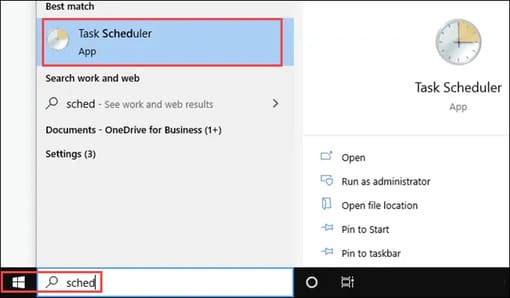
- Select Start menu and enter scheduler. The first result that appears will be Windows Task Scheduler.
 Task Scheduler will have many scheduled tasks. Windows and other programs also use scheduled tasks.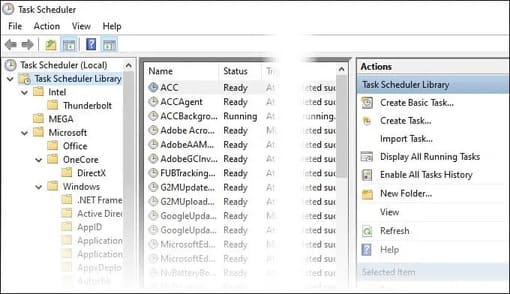
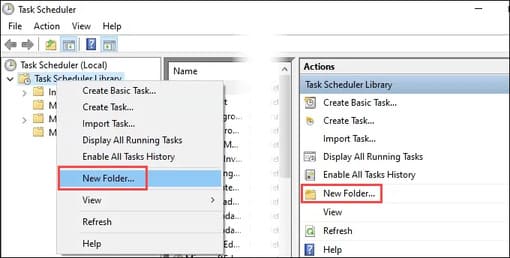
- Create a new folder for your tasks for easy identification. Right click Task Scheduler Library and choose New Folder… or choose New Folder in the table Actions on the right side.
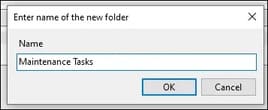
- Enter a name for the new folder. Give it a meaningful name.
- Right click on the new folder and select Create Task… or choose Create Task… in the table Actions.
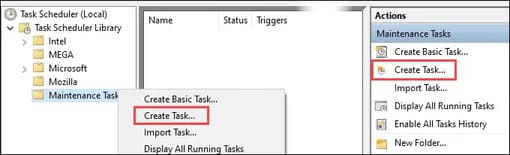
- Window Create Task will open the tab General. Enter a meaningful name for the task in the item Name. In section Description, Write the task this task performs.
Note the button Change User or Group. It will allow you to run the script under a different user. If your batch file requires Administrator rights, you should change the user to Administrator. It will ask you to enter the Administrator’s password.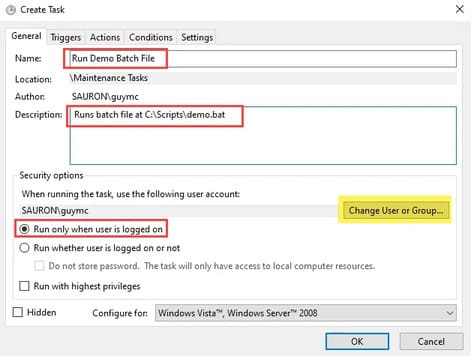 Also note that the script will only run when the user is logged in (Run only when the user is logged on). You can change this setting to Run whether the user is logged in or not (Run whether user is logged on or not) if you want it to run at any time.
 - Select tabs Triggers (activate). Triggers is what determines when a task runs. Select New to create triggers.
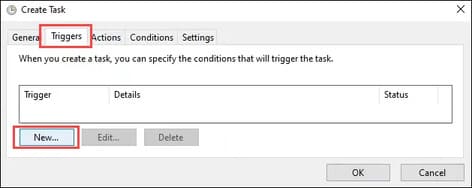
- There are many options in the window New Trigger. You can see what those options are.
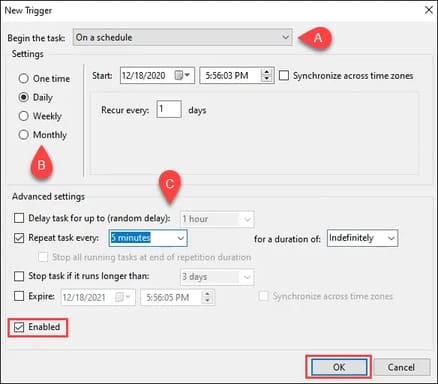
- In section Begin the tasks Includes options:
– On a schedule
– At log on (At log in)
– At startup (At startup)
– On idle (On idle)
– On an event (When a certain event occurs)
– At task creation/modification (At task creation/modification)
– On connection to user session (When connecting to user session)
– On disconnect from user session (On disconnect from user session)
– On workstation lock (On workstation lock)
– On workstation unlock (On workstation unlocked)
On a schedule is the most common way and the one I will use in this article. - There are also options for scheduling Settings. Options include:
– One time (once)
– Daily (every day)
– Weekly (weekly)
– Monthly (monthly)
I will choose Daily for this example. - In Advanced settingsyou can customize more parameters about how the task fires. This task is currently set to Repeat every 5 minutes, indefinitely. Note that box Enabled is selected by default. This is the first place to check when troubleshooting why a scheduled task isn’t running. Select OK once you’re done setting it up.
- Select tabs Actionsthen select New to indicate what the scheduled task will do.
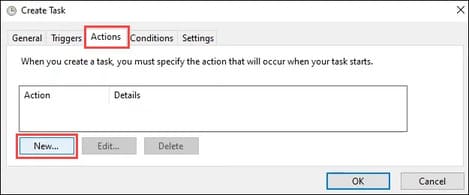
- In the menu Action: you have the following options:
– Start a program
– Send an email
– Display a message.
The last two options are no longer supported. It’s best not to use them when you schedule batch files. Leave in default mode Start a program.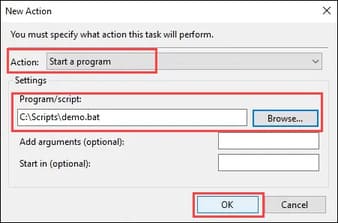 Enter the full path to the script. Press Browse and select that command file.
Items Add arguments and Start in fields will be empty. You can use them when moving to more complex scripts and tasks. You will definitely need these to schedule PowerShell scripts. Select OK to continue. - The task has been scheduled. Select OK to close the window and return to Task Scheduler. Select the task you just created and test it. Right-click the task and select Run or choose Run in the table Actions.
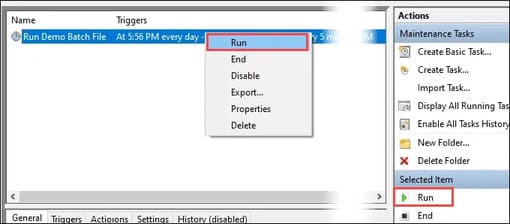
When the mission is over, look at the column Last Run Result. You will see the text The operation completed successfully.
If it displays differently, try pressing the F5 button to refresh the screen. If it still says something else, perhaps the task you created was corrupted.

Learn about the Conditions and Settings tab?
There are two tabs that we did not discuss in the tutorial above. For most tasks, you don’t need to learn these tabs. However, we still have to see what they contain.
Create Task – Conditions
These settings relate to the state of the computer. If the task takes up a lot of resources or might interrupt the person using it, change the section Idle.
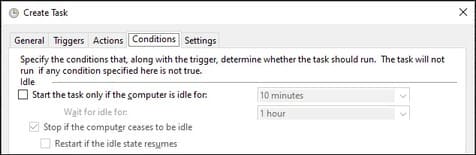
Part Power default is Start task only if the computer is on AC power (Start the task only if the computer is on AC power) and Stop if the computer switches to battery power (Stop if the computer switches to battery power) is enabled.
In most cases when you’re scheduling batch files, you’re probably fine with the above options. I put some computers in sleep mode to save power when they are not in use. But if the computer is in sleep mode, the task will not run. If so, you will need to check the dialog box Wake the computer to run this task.

Nowadays, computers are almost always connected to a network. However, if your task depends on a network connection, change the section Network.
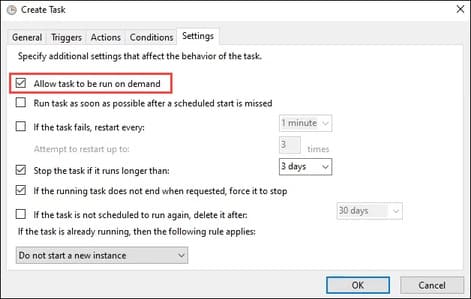
Create Task – Settings
Tab Settings related to task operations. By default, the Allow task runs on demand ( Allow tasks to be run on demand).
Some tasks may get stuck in a loop or not run because their trigger condition is not met. These are the settings you will have to adjust to solve that problem. For most tasks, the default settings are best.
Frequently asked questions
How to create a schedule to run a batch file?
You need to use the Task Scheduler tool available in Windows. Find “scheduler” in the Start Menu, then create a new Task, specify the batch file to run and set the desired time/schedule.
Can I run a batch file without logging into Windows?
Maybe. During the Task creation process, in the “General” section, uncheck the “Run only when user is logged on” option so that the batch file runs even when you are not logged in.
If my batch file requires Admin rights, what should I do?
In the “General” section of the Task creation window, use the “Change User or Group” button to change the user to “Administrator” and enter the corresponding password.