• Home
  • News
  • Software
  • Knowledge
  • MMO
  • Tips
  • Security
  • Network
  • Office
AnonyViet - English Version
  • Home
  • News
  • Software
  • Knowledge
  • MMO
  • Tips
  • Security
  • Network
  • Office
No Result
View All Result
  • Home
  • News
  • Software
  • Knowledge
  • MMO
  • Tips
  • Security
  • Network
  • Office
No Result
View All Result
AnonyViet - English Version
No Result
View All Result

How to save a meeting / lesson video on Microsoft Teams

AnonyViet by AnonyViet
January 27, 2023
in Tips
0

Microsoft Teams has become invaluable to many businesses over the past 18 months. As an online meeting and collaboration tool, it allows colleagues and customers to communicate with each other even when they cannot meet face-to-face. However, unless you are a very quick note-taker, you won’t be able to record the information of that meeting. So, being able to save the meeting video so you can review it is extremely important.

Join the channel Telegram of the AnonyViet 👉 Link 👈

Luckily, Teams offers the ability to record meetings – even in the free plan.

How to save a meeting / lesson video on Microsoft Teams

How to save a meeting / lesson video on Microsoft Teams

Step 1: Who is allowed to record the meeting?
How to save a video of a meeting/study session on Microsoft Teams 7

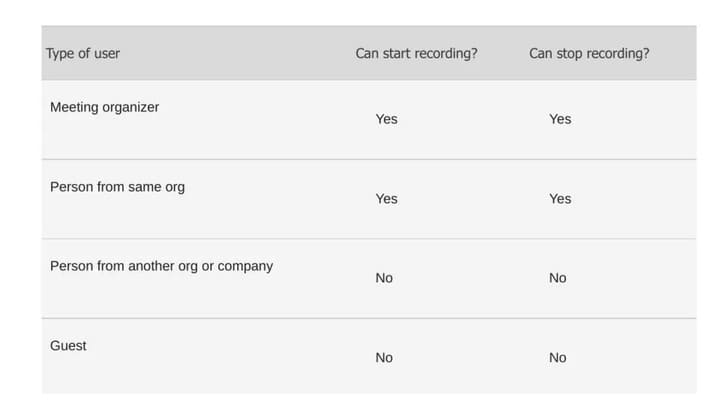
While all Teams meetings can be saved to Video while learning online, that doesn’t mean any meeting participant can. Only administrators can record the meeting. Another important aspect to consider is that participants cannot record the meeting. In fact, Microsoft also enforces some other restrictions.

Basically, the meeting organizer and individuals in the same organization can start and stop recording the meeting. That doesn’t mean external meeting participants don’t have video, though. As of January 2021, Microsoft started saving Teams saved Video Files in OneDrive and SharePoint, so downloading and sharing your saved Video Files with others is easy.

Step 2: Start recording the meeting
How to save a meeting / lesson video on Microsoft Teams 8

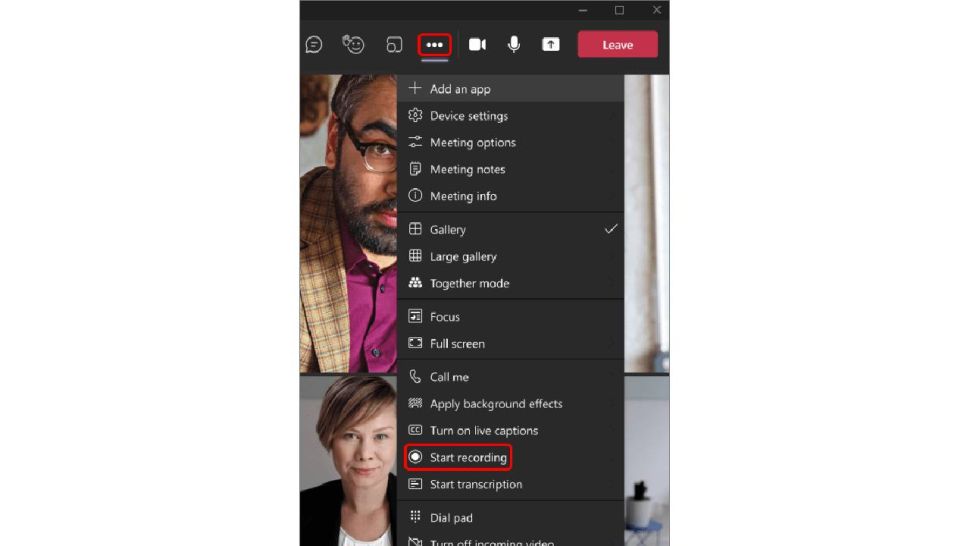
You must first join or start meeting, then click the three dots in the “More actions” section of the meeting dashboard. You will see “Start recording”. Click that and everyone in the meeting will get a notification that recording is in progress.

Remember that only one participant can record the meeting. However, recording will continue even if the person leaves. Only when everyone has left the meeting will the recording stop. If a participant forgets to exit the call, recording will stop automatically after four hours.

Step 3: Stop recording the meeting

How to save a video of a meeting/study session on Microsoft Teams 9

Sometimes you may want to stop recording your meeting before it ends. If that is the case, then just go to “More actions” and select “Stop recording”. Alternatively, you can choose to just stop recording the meeting and continue recording.

Step 4: Find the saved Video File

How to save a video of a meeting/study session on Microsoft Teams 10

Saving Videos while studying with Microsoft Teams is one thing, but it won’t help if you can’t find your saved Video File. As mentioned above, Teams saved Video Files are in SharePoint or OneDrive depending on the type of meeting that took place. If it’s a channel meeting, the saved Video File will be processed and saved to SharePoint. OneDrive will be used for any other type of meeting.

For convenience, meeting participants will also receive a link to the saved Video File. Clicking the link will take you to SharePoint or OneDrive, where you will be able to download or preview the saved Video File. Sharing the saved Video File with anyone else, regardless of whether they are in the meeting or not, is very simple. In SharePoint or OneDrive, simply click the “Share” link and enter the details of who you want to share the saved Video File with. Also, if you are the meeting organizer, here you will find the option to delete the saved Video File.

Step 5: Set a limit for File Save
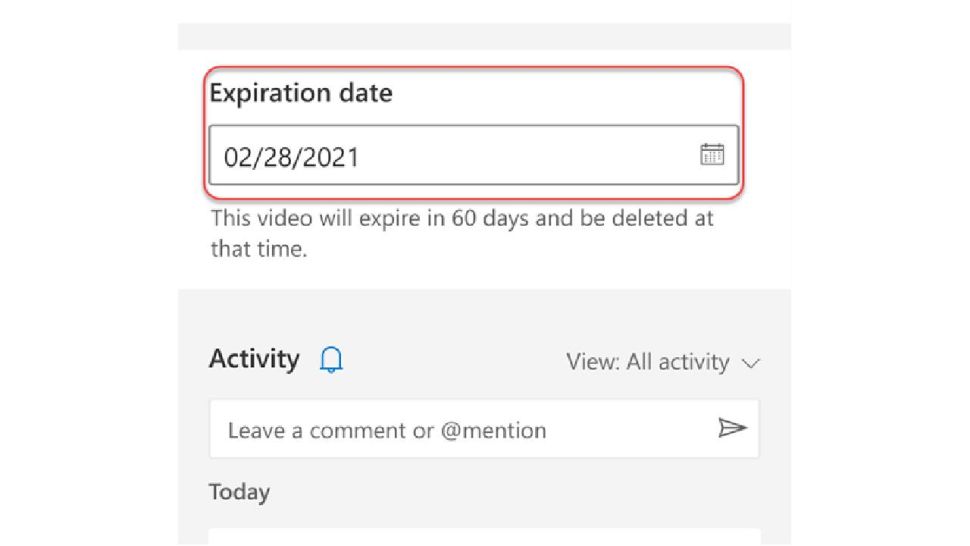
How to save a video of a meeting/study session on Microsoft Teams 11

Leaving Video Files saved in Teams meetings is the least security risk, especially with many businesses sharing sensitive documents remotely. Then you should delete the saved Video files as soon as you don’t need them, but doing so manually will cause additional inconvenience and is easy to forget. However, you can automatically delete your saved Video Files.

If your saved Video File has an expiration date, Teams users will receive a notification when the meeting is over. Click on the saved Video File and select the info icon in the top right corner or by finding the recording file in SharePoint or OneDrive and clicking “Details”. On the Details page, you can find a menu with options to set an expiration date. Also, if your video is nothing sensitive, you can set no expiration date for the video.


The article achieved: 5/5 – (100 votes)

Tags: LessonmeetingMicrosoftsaveTeamsvideo
Previous Post

[Bản quyền] EASEUS Partition Master Disk Partition Software

Next Post

Instructions to receive $ 11 to create a Free VPS without Visa

AnonyViet

AnonyViet

Related Posts

Windows 7/8.1/10 users will be upgraded to Windows 11 for free
Tips

Windows 7/8.1/10 users will be upgraded to Windows 11 for free

July 30, 2026
Instructions for receiving ChatGPT Plus for 1 month for free in 2026
Tips

Instructions for receiving ChatGPT Plus for 1 month for free in 2026

July 28, 2026
Some reasons I don’t like Windows 11
Tips

Some reasons I don’t like Windows 11

July 27, 2026
Instructions on how to get free Facebook white ticks
Tips

Instructions on how to get free Facebook white ticks

July 27, 2026
Collection of Windows 11 wallpapers for computers and phones
Tips

Collection of Windows 11 wallpapers for computers and phones

July 26, 2026
Don’t install leaked Windows 11
Tips

Don’t install leaked Windows 11

July 25, 2026
Next Post
Instructions to receive $ 11 to create a Free VPS without Visa

Instructions to receive $ 11 to create a Free VPS without Visa

0 0 votes
Article Rating
Subscribe
Login
Notify of
guest

guest

0 Comments
Oldest
Newest Most Voted

Recent News

Windows 7/8.1/10 users will be upgraded to Windows 11 for free

Windows 7/8.1/10 users will be upgraded to Windows 11 for free

July 30, 2026
Instructions for receiving the free Certified LLM Security Expert certificate

Instructions for receiving the free Certified LLM Security Expert certificate

July 30, 2026
MSI laptops are not just for gamers: Which line is suitable for students, office workers and creative people?

MSI laptops are not just for gamers: Which line is suitable for students, office workers and creative people?

July 29, 2026
What is quantum resistant cryptography? Why must the Internet change?

What is quantum resistant cryptography? Why must the Internet change?

July 29, 2026
Windows 7/8.1/10 users will be upgraded to Windows 11 for free

Windows 7/8.1/10 users will be upgraded to Windows 11 for free

July 30, 2026
Instructions for receiving the free Certified LLM Security Expert certificate

Instructions for receiving the free Certified LLM Security Expert certificate

July 30, 2026
MSI laptops are not just for gamers: Which line is suitable for students, office workers and creative people?

MSI laptops are not just for gamers: Which line is suitable for students, office workers and creative people?

July 29, 2026
AnonyViet - English Version

AnonyViet

AnonyViet is a website share knowledge that you have never learned in school!

We are ready to welcome your comments, as well as your articles sent to AnonyViet.

Follow Us

Contact:

Email: anonyviet.com[@]gmail.com

Main Website: https://anonyviet.com

Recent News

Windows 7/8.1/10 users will be upgraded to Windows 11 for free

Windows 7/8.1/10 users will be upgraded to Windows 11 for free

July 30, 2026
Instructions for receiving the free Certified LLM Security Expert certificate

Instructions for receiving the free Certified LLM Security Expert certificate

July 30, 2026
  • Home
  • Home 2
  • Home 3
  • Home 4
  • Home 5
  • Home 6
  • Next Dest Page
  • Sample Page

say88 tỷ lệ kèo nhà cái kèo nhà cái 5 febet

No Result
View All Result
  • Home
  • News
  • Software
  • Knowledge
  • MMO
  • Tips
  • Security
  • Network
  • Office

say88 tỷ lệ kèo nhà cái kèo nhà cái 5 febet

wpDiscuz
0
0
Would love your thoughts, please comment.x
()
x
| Reply