• Home
  • News
  • Software
  • Knowledge
  • MMO
  • Tips
  • Security
  • Network
  • Office
AnonyViet - English Version
  • Home
  • News
  • Software
  • Knowledge
  • MMO
  • Tips
  • Security
  • Network
  • Office
No Result
View All Result
  • Home
  • News
  • Software
  • Knowledge
  • MMO
  • Tips
  • Security
  • Network
  • Office
No Result
View All Result
AnonyViet - English Version
No Result
View All Result

How to “revive” Wordpad on Windows 11

AnonyViet by AnonyViet
December 15, 2024
in Tips
0

Microsoft has officially killed WordPad on Windows 11 from Insider Preview Build 26020. This makes many users, especially those familiar with this simple text editor, feel regretful. Although there are many free and powerful alternatives like LibreOffice Writer, if you still want to use WordPad on Windows 11this article will show you how to restore it.

Instructions for downloading and installing WordPad

First, you need to download the WordPad application. There are two versions: for x86 64-bit computers (also known as x86_64 or amd64) and for ARM 64-bit computers.

If you're not sure what type your computer is, open Settings > Click the System tab and click About at the bottom. It will display “x64-based processor” for x86 64-bit or “ARM-based processor” for ARM 64-bit.

WordPad for x86 64-bit Windows 11

WordPad for ARM 64-bit Windows 11
You can download and install WordPad on Windows 11

Note:

  • These files are WordPad backups from personal computers and have been tested for safety. The x86 version was taken from a gaming PC running Windows 11 build 22621.2861, and the ARM version was taken from a Parallels virtual machine running Windows 11 build 22631.2861.
  • You can also extract files from another Windows computer by copying the Accessories folder from C:\Program Files\Windows NT\Accessories.
  • If you encounter Windows Defender pop-ups about unrecognized applications, click “More Info” and then click “Run anyway”. To prevent these pop-ups in the future, right-click the WordPad application, select Properties, and click the Unblock checkbox.
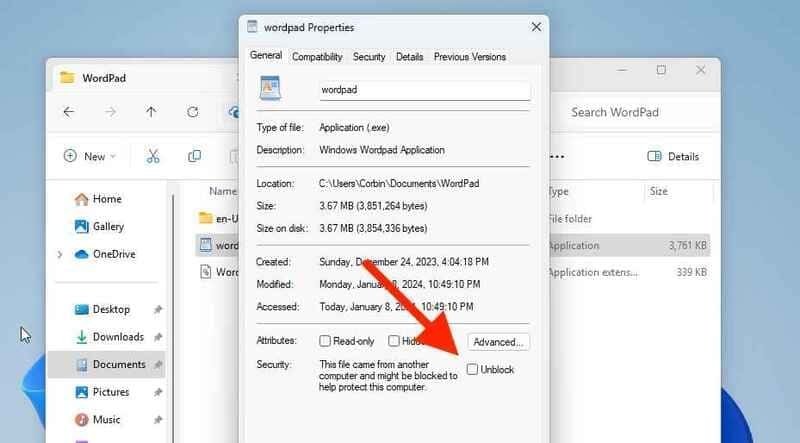
Click the Unblock checkbox

See more: How to display the Show Desktop button on the Windows 11 taskbar

You can add WordPad to the Start Menu for quick access by creating a shortcut. Here's how:

Step 1: Right-click the Start icon on the taskbar and select “Run” (or press the Win + R key combination), then paste the following path:

%AppData%\Microsoft\Windows\Start Menu\Programs

Step 2: Then, confirm by clicking OK in the Run dialog box.

Step 3: Next, click the “New” button on the toolbar and select “Shortcut.”
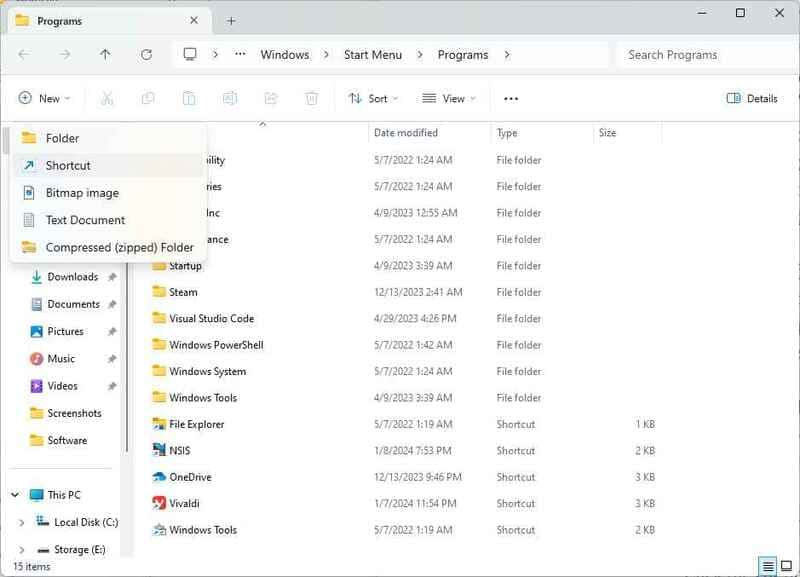
Click the button "New" and choose "Shortcuts"
Click the “New” button and select “Shortcut”

Step 4: In the Create Shortcut window, click the “Browse” button and select the WordPad application file in the folder where you saved it.
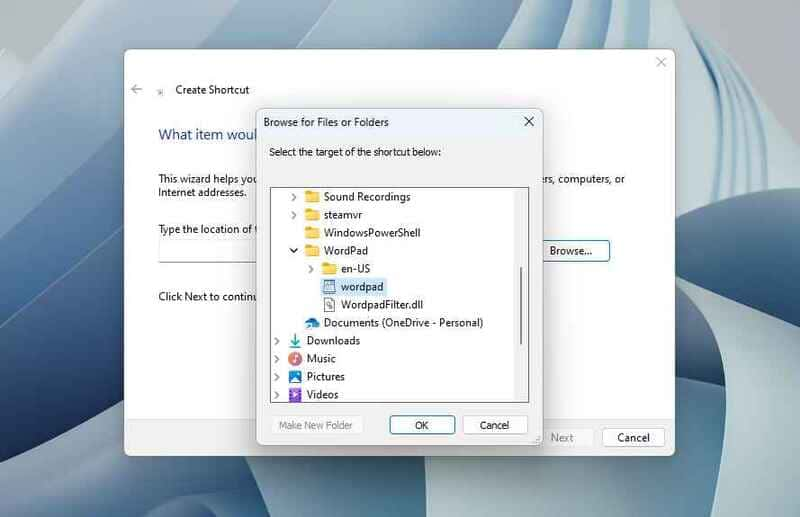
Select the WordPad application file

Step 5: Click “Next” and enter “WordPad” (or whatever name you want) as the name of the shortcut. Then click the “Finish” button.

That's it! The WordPad shortcut will be added to the Programs folder and appear in your Start Menu.
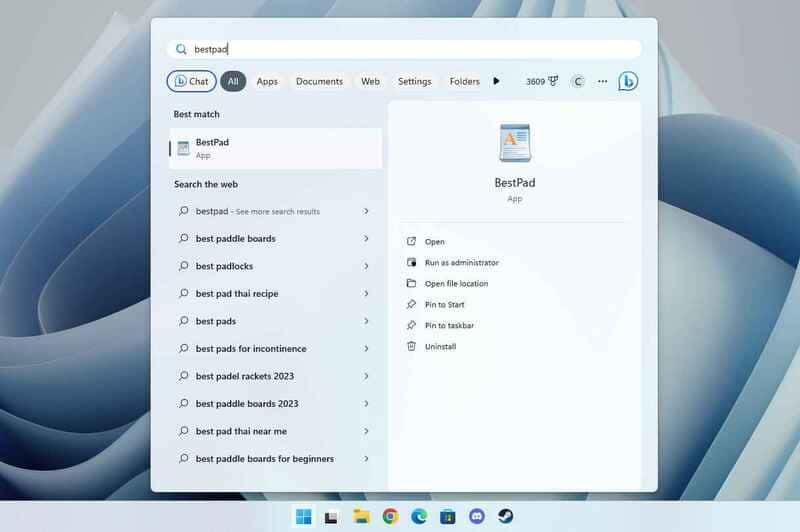
How to pin WordPad to Start Menu

See more: How to restore old Notepad on Windows 11

Conclusion

Reinstallation WordPad on Windows 11 It's actually simpler than you think. With just a few steps, you can continue using this familiar text editor. Please share with your friends if you find it interesting!


Tags: reviveWindowsWordpad
Previous Post

Snov.io Email Finder: Search emails with only company name/domain name/LinkedIn profile

Next Post

Festivitas: Bring Christmas atmosphere to MacOS

AnonyViet

AnonyViet

Related Posts

How to write Shell Script in Linux/Unix
Tips

How to write Shell Script in Linux/Unix

December 6, 2025
How to completely uninstall WSL on Windows 11?
Tips

How to completely uninstall WSL on Windows 11?

December 6, 2025
Kinh nghiệm mua Laptop cho sinh viên nhóm ngành kế toán, kinh tế, xã hội…
Tips

Kinh nghiệm mua Laptop cho sinh viên nhóm ngành kế toán, kinh tế, xã hội…

December 5, 2025
8 tips for more successful PowerPoint presentations
Tips

8 tips for more successful PowerPoint presentations

December 4, 2025
Chrome extensions to improve productivity in 2021
Tips

Chrome extensions to improve productivity in 2021

December 2, 2025
How to create photos that run KPIs while crying using Gemini for the 12 zodiac animals
Tips

How to create photos that run KPIs while crying using Gemini for the 12 zodiac animals

December 1, 2025
Next Post
Festivitas: Bring Christmas atmosphere to MacOS

Festivitas: Bring Christmas atmosphere to MacOS

0 0 votes
Article Rating
Subscribe
Login
Notify of
guest

guest

0 Comments
Oldest
Newest Most Voted
Inline Feedbacks
View all comments

Recent News

How to transfer music from other services to Apple Music, no app required

How to transfer music from other services to Apple Music, no app required

December 8, 2025
How to create Mind Map and Flowchart using ChatGPT is super simple

How to create Mind Map and Flowchart using ChatGPT is super simple

December 7, 2025
Free Gemini Google certification exam guide and Answers

Free Gemini Google certification exam guide and Answers

December 6, 2025
How to write Shell Script in Linux/Unix

How to write Shell Script in Linux/Unix

December 6, 2025
How to transfer music from other services to Apple Music, no app required

How to transfer music from other services to Apple Music, no app required

December 8, 2025
How to create Mind Map and Flowchart using ChatGPT is super simple

How to create Mind Map and Flowchart using ChatGPT is super simple

December 7, 2025
Free Gemini Google certification exam guide and Answers

Free Gemini Google certification exam guide and Answers

December 6, 2025
AnonyViet - English Version

AnonyViet

AnonyViet is a website share knowledge that you have never learned in school!

We are ready to welcome your comments, as well as your articles sent to AnonyViet.

Follow Us

Contact:

Email: anonyviet.com[@]gmail.com

Main Website: https://anonyviet.com

Recent News

How to transfer music from other services to Apple Music, no app required

How to transfer music from other services to Apple Music, no app required

December 8, 2025
How to create Mind Map and Flowchart using ChatGPT is super simple

How to create Mind Map and Flowchart using ChatGPT is super simple

December 7, 2025
  • Home
  • Home 2
  • Home 3
  • Home 4
  • Home 5
  • Home 6
  • Next Dest Page
  • Sample Page

trang chủ f168 nhà cái 78win https://www.qq8827.com/

No Result
View All Result
  • Home
  • News
  • Software
  • Knowledge
  • MMO
  • Tips
  • Security
  • Network
  • Office

trang chủ f168 nhà cái 78win https://www.qq8827.com/

wpDiscuz
0
0
Would love your thoughts, please comment.x
()
x
| Reply