• Home
  • News
  • Software
  • Knowledge
  • MMO
  • Tips
  • Security
  • Network
  • Office
AnonyViet - English Version
  • Home
  • News
  • Software
  • Knowledge
  • MMO
  • Tips
  • Security
  • Network
  • Office
No Result
View All Result
  • Home
  • News
  • Software
  • Knowledge
  • MMO
  • Tips
  • Security
  • Network
  • Office
No Result
View All Result
AnonyViet - English Version
No Result
View All Result

How to review Wifi password on Andorid, iPhone and computer

AnonyViet by AnonyViet
January 12, 2023
in Network
0

On your phone and computer save a lot of Wifi passwords to access. How to review Wifi password on Andorid, iPhone and computer. Please follow the instructions below

Join the channel Telegram of the AnonyViet 👉 Link 👈

How to review Wifi password on Andorid, iPhone and computer

Fortunately, there are ways to review your WiFi password on any connected device. I will show you how to find your WiFi password on Android, iOS, Windows and macOS devices. You can also find the default password of your Wi-Fi router on the back.

How to review Wifi password on Andorid, iPhone

Android

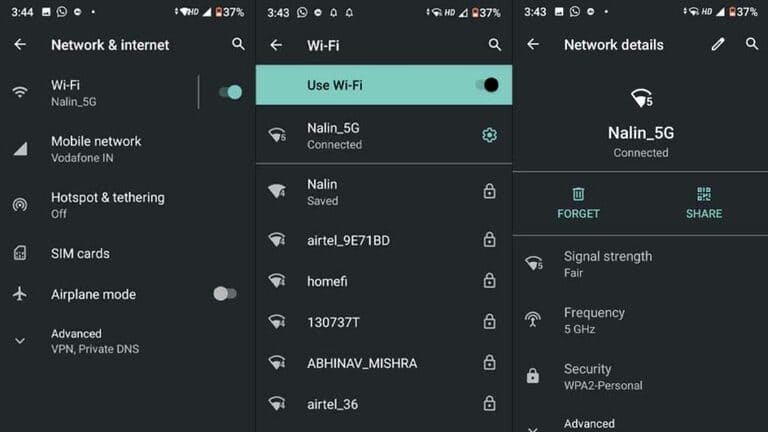
1. Go to Settings and select WiFi.

2. Click the gear or padlock icon next to your WiFi network.
How to review Wifi password on Andorid, iPhone and computer

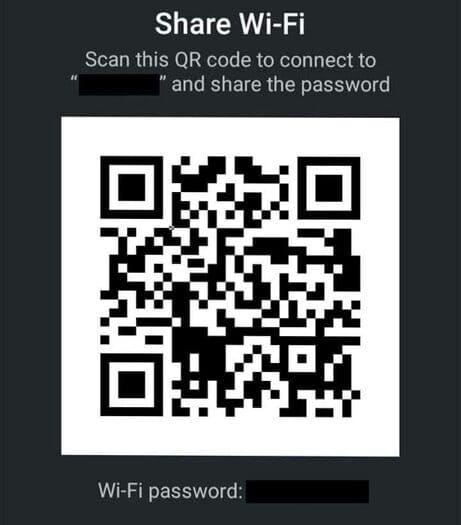
3. Select Share Password. You may need a fingerprint or pattern password.

4. Your WiFi password will now appear under the QR code.
How to review Wifi password on Andorid, iPhone and computer 11

Note: You can share your password directly or scan the QR code with another phone.

Iphone

To find the WiFi password on your iPhone, you need a macOS device. You can also share your WiFi password with other Apple devices by bringing both devices closer together. However, you need to make sure that the other person’s Apple ID is in your Contacts app.

1. Go to Settings and select iCloud.

2. Turn on Keychain.

3. Connect to the WiFi network you want and turn on your personal hotspot.

4. Connect your Mac to your iPhone’s hotspot.

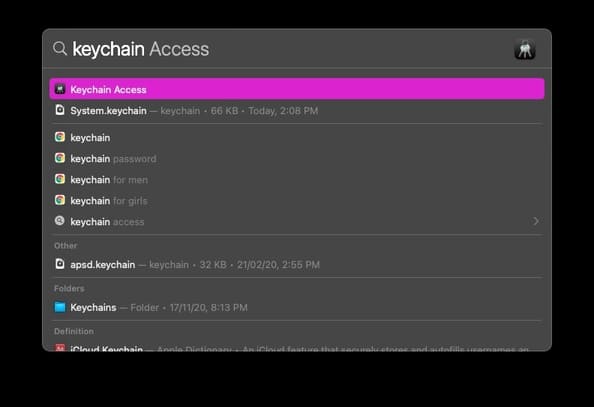
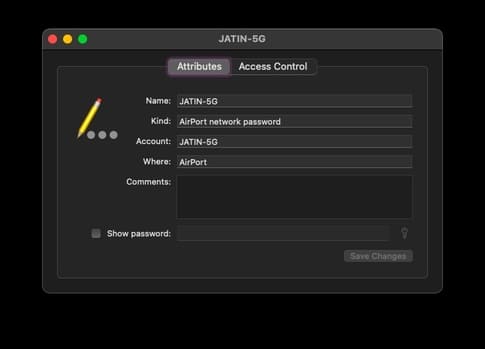
5. Enter Spotlight (CMD + Space) on a Mac and type Keychain Access.
How to review Wifi password on Andorid, iPhone and computer

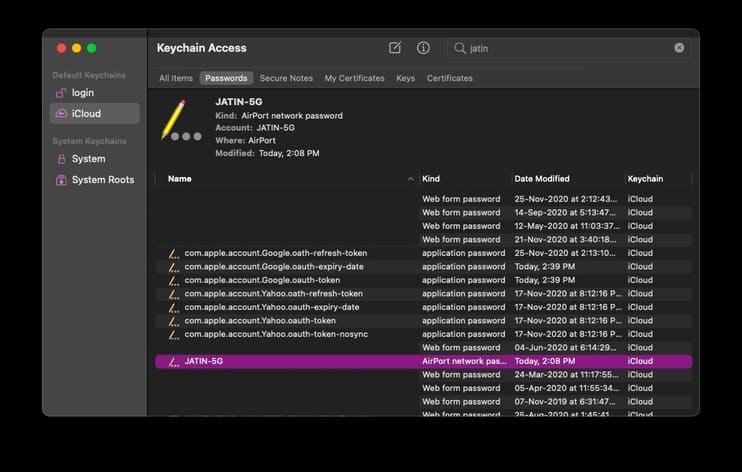
6. Search for your WiFi network name and open it.
How to review Wifi password on Andorid, iPhone and computer

7. Click Show Password and enter your user credentials.
How to review Wifi password on Andorid, iPhone and computer

How to review Wifi passwords on Windows and macOS

To review the Wifi password on your computer, you can use these 2 ways on Windows and MacOS:

Windows

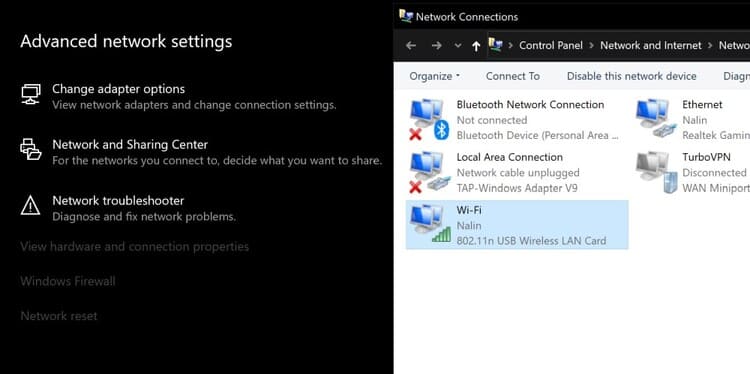
1. Go to Start Menu and find Network Status.

2. Click Change Adapter Options and a pop-up menu will appear.
How to review Wifi password on Andorid, iPhone and computer

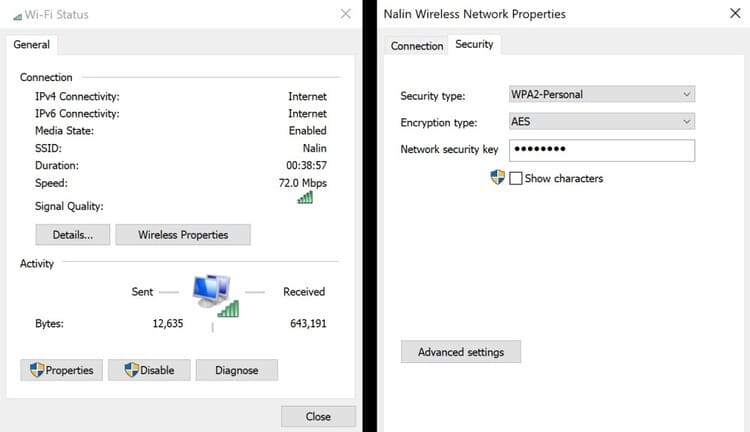
3. Double-click your WiFi network and select Wireless Properties.

4. Go to the Security tab and select Show Characters.
How to review Wifi password on Andorid, iPhone and computer

5. Now you should be able to see your WiFi password.

Note: You can also view other saved networks’ WiFi passwords on your Windows PC using Command Prompt here.

macOS

1. Go to Spotlight (CMD + Space) and open the app Keychain Access.

2. Search for your WiFi network name and open it.

3. Click Show Password and enter your login information.

4. You should now be able to see your password.

The article achieved: 5/5 – (100 votes)

Tags: AndoridcomputeriPhonePasswordreviewWiFi
Previous Post

What is International Men’s Day? What is International Men’s Day?

Next Post

Share Code Confess the beating heart of valedictorian Ly

AnonyViet

AnonyViet

Related Posts

How to register OpenClaw to join Moltbook (social network for AI Agents)
Network

How to register OpenClaw to join Moltbook (social network for AI Agents)

February 7, 2026
Hướng dẫn đăng ký Google Colab Pro 1 Năm Miễn Phí
Network

Hướng dẫn đăng ký Google Colab Pro 1 Năm Miễn Phí

February 7, 2026
Instructions for Configuring OpenClaw on Ubuntu VPS 2.5G RAM (only /year)
Network

Instructions for Configuring OpenClaw on Ubuntu VPS 2.5G RAM (only $18/year)

February 4, 2026
Instructions for connecting OpenClaw with Whatsapp
Network

Instructions for connecting OpenClaw with Whatsapp

February 3, 2026
Instructions for installing OpenClaw – AI Personal Assistant on your computer
Network

Instructions for installing OpenClaw – AI Personal Assistant on your computer

February 1, 2026
Pia S5 Proxy 2026 review: The best residential Socks5 Proxy today
Network

Pia S5 Proxy 2026 review: The best residential Socks5 Proxy today

January 20, 2026
Next Post
Share Code Confess the beating heart of valedictorian Ly

Share Code Confess the beating heart of valedictorian Ly

0 0 votes
Article Rating
Subscribe
Login
Notify of
guest

guest

0 Comments
Oldest
Newest Most Voted
Inline Feedbacks
View all comments

Recent News

How to set up a private voice on iPhone that few people know

How to set up a private voice on iPhone that few people know

February 11, 2026
Instructions to Hide Secret Documents in Any Song

Instructions to Hide Secret Documents in Any Song

February 10, 2026
How to blur photos on iPhone after taking them is extremely simple

How to blur photos on iPhone after taking them is extremely simple

February 10, 2026
Dell SE2426: A “lifesaver” solution for office workers’ eyes.

Dell SE2426: A “lifesaver” solution for office workers’ eyes.

February 9, 2026
How to set up a private voice on iPhone that few people know

How to set up a private voice on iPhone that few people know

February 11, 2026
Instructions to Hide Secret Documents in Any Song

Instructions to Hide Secret Documents in Any Song

February 10, 2026
How to blur photos on iPhone after taking them is extremely simple

How to blur photos on iPhone after taking them is extremely simple

February 10, 2026
AnonyViet - English Version

AnonyViet

AnonyViet is a website share knowledge that you have never learned in school!

We are ready to welcome your comments, as well as your articles sent to AnonyViet.

Follow Us

Contact:

Email: anonyviet.com[@]gmail.com

Main Website: https://anonyviet.com

Recent News

How to set up a private voice on iPhone that few people know

How to set up a private voice on iPhone that few people know

February 11, 2026
Instructions to Hide Secret Documents in Any Song

Instructions to Hide Secret Documents in Any Song

February 10, 2026
  • Home
  • Home 2
  • Home 3
  • Home 4
  • Home 5
  • Home 6
  • Next Dest Page
  • Sample Page

https://sun52.network

No Result
View All Result
  • Home
  • News
  • Software
  • Knowledge
  • MMO
  • Tips
  • Security
  • Network
  • Office

https://sun52.network

wpDiscuz
0
0
Would love your thoughts, please comment.x
()
x
| Reply