• Home
  • News
  • Software
  • Knowledge
  • MMO
  • Tips
  • Security
  • Network
  • Office
AnonyViet - English Version
  • Home
  • News
  • Software
  • Knowledge
  • MMO
  • Tips
  • Security
  • Network
  • Office
No Result
View All Result
  • Home
  • News
  • Software
  • Knowledge
  • MMO
  • Tips
  • Security
  • Network
  • Office
No Result
View All Result
AnonyViet - English Version
No Result
View All Result

How to Remove Gallery from File Explorer on Windows 11

AnonyViet by AnonyViet
September 19, 2024
in Tips
0

Are you annoyed with the Gallery item appearing in File Explorer on Windows 11? If you are not familiar or do not use this feature often, you can completely remove it from the left navigation bar. This article AnonyViet will guide you in detail on 2 ways Remove Gallery from File Explorer that anyone can do

Join the channel Telegram belong to AnonyViet 👉 Link 👈

What is a Gallery?

In the Windows 11 23H2 update, Microsoft introduced a new feature called 'Gallery' that is integrated directly into File Explorer. This feature provides a photo view similar to the default Photos app, with the following advantages:

  • Preview photos with larger thumbnail sizes.
  • Hide file names, making the interface more intuitive.
  • Sort photos by time.
  • Allows adding or removing folders from view.

While it's convenient for many users, some are more familiar with the Photos app or have their own way of managing photos. In that case, you can disable the 'Photo Library' feature completely using the instructions below.
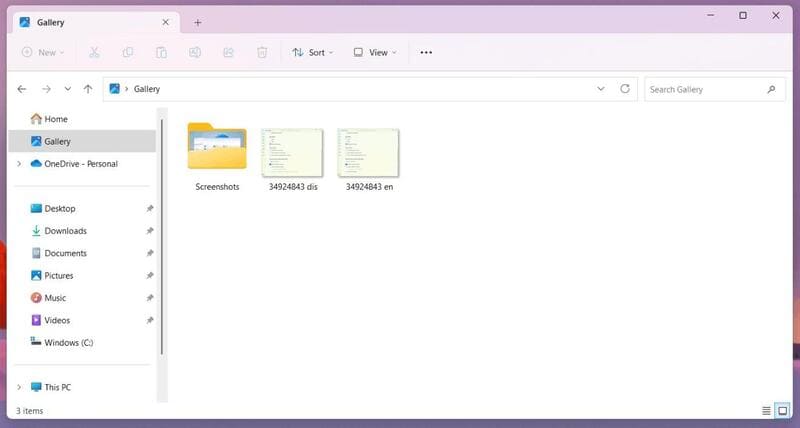
Photo Gallery on Windows 11

See also: How Restore File Explorer ribbon interface on Windows 11

Things to remember before doing

To remove Gallery from File Explorer, you'll need to modify the Registry, which is a delicate operation that can cause serious system problems if done incorrectly. Therefore, you should only proceed if you have:

  • Understand the steps.
  • Back up your entire system or create a Registry restore point before you begin.

If everything is ok, let's get started!

Steps to remove Gallery from File Explorer Windows 11

Method 1: Through Registry

Step 1: Click Start on Windows 11.

Step 2: Search for 'regedit' and click 'Run as administrator' to open the Registry.
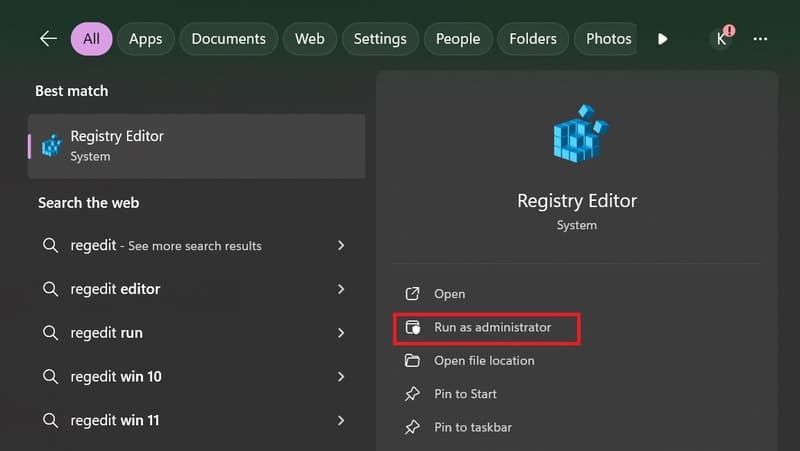
Open Registry Editor

Step 3: Navigate to the following address:

HKEY_CURRENT_USER\Software\Classes\CLSID

Step 4: Right click on the 'CLSID' folder, select 'New' -> 'Key'
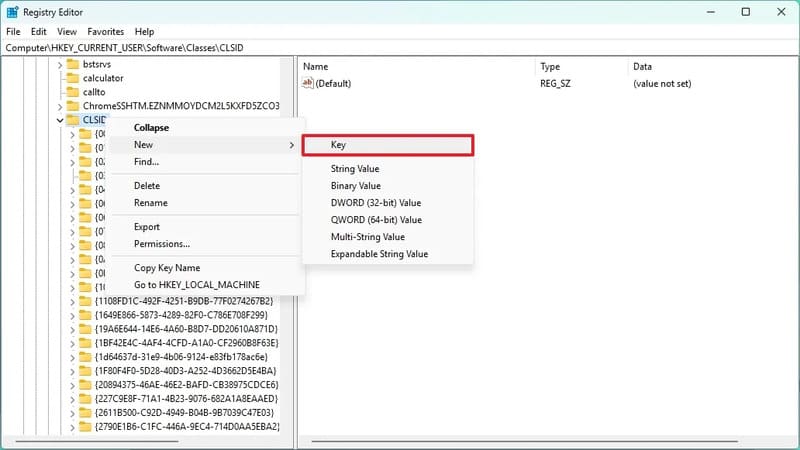
Select'New' ->'Key'” width=”800″ height=”450″ srcset=”https://anonyviet.com/wp-content/uploads/2024/07/xoa-gallery-khoi-file-explorer-3.jpg 800w, https://anonyviet.com/wp-content/uploads/2024/07/xoa-gallery-khoi-file-explorer-3-300×169.jpg 300w, https://anonyviet.com/wp-content/uploads/2024/07/xoa-gallery-khoi-file-explorer-3-768×432.jpg 768w, https://anonyviet.com/wp-content/uploads/2024/07/xoa-gallery-khoi-file-explorer-3-750×422.jpg 750w” sizes=”(max-width: 800px) 100vw, 800px”/><figcaption id=Select 'New' -> 'Key'

Step 5: Name the new key {e88865ea-0e1c-4e20-9aa6-edcd0212c87c} and press Enter.

Step 6: Right click on the newly created key, select 'New' -> 'DWORD (32-bit) Value'
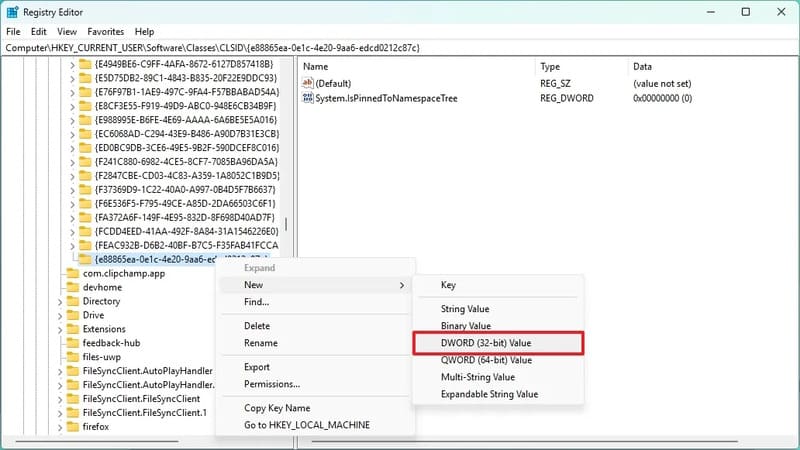
Select'New' ->'DWORD (32-bit) Value'” width=”800″ height=”450″ srcset=”https://anonyviet.com/wp-content/uploads/2024/07/xoa-gallery-khoi-file-explorer-4.jpg 800w, https://anonyviet.com/wp-content/uploads/2024/07/xoa-gallery-khoi-file-explorer-4-300×169.jpg 300w, https://anonyviet.com/wp-content/uploads/2024/07/xoa-gallery-khoi-file-explorer-4-768×432.jpg 768w, https://anonyviet.com/wp-content/uploads/2024/07/xoa-gallery-khoi-file-explorer-4-750×422.jpg 750w” sizes=”(max-width: 800px) 100vw, 800px”/><figcaption id=Select 'New' -> 'DWORD (32-bit) Value'

Step 7: Name the new value System.IsPinnedToNamespaceTree > Press Enter.

Step 8: Right click on the newly created DWORD value, select 'Modify'

Step 9: In the 'Edit DWORD Value' window, make sure the 'Value data' value is set to '0'.
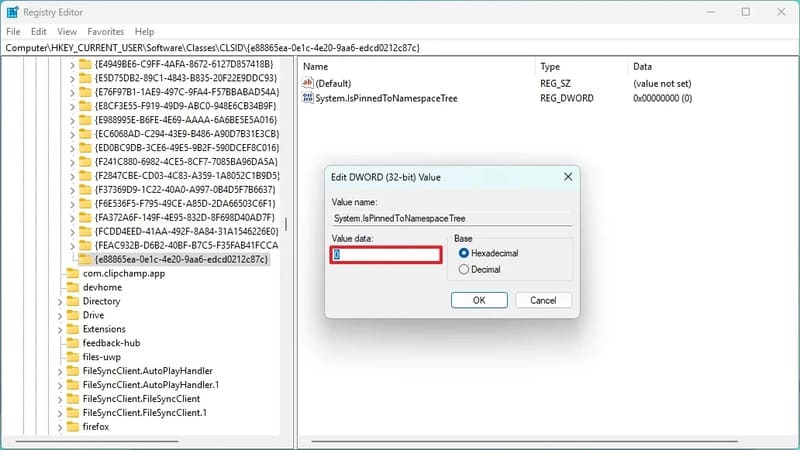
Enter 0 in Value data

Step 10: Click 'OK' to save changes > Restart your computer.

Tips: You can also restart 'Windows Explorer' from the 'Processes' tab in Task Manager by clicking the 'Restart task' button.

After completing the above steps, the 'Photo Library' item will no longer appear on the left navigation bar of File Explorer when you restart.

How to Restore Gallery on File Explorer

If you want to restore 'Photo Library', follow the same steps again but in step 4, right click on the key {e88865ea-0e1c-4e20-9aa6-edcd0212c87c} and select 'Delete' to delete it.

Method 2: Through CMD

Step 1: Type cmd in the Search bar and select 'Run as Administrator''
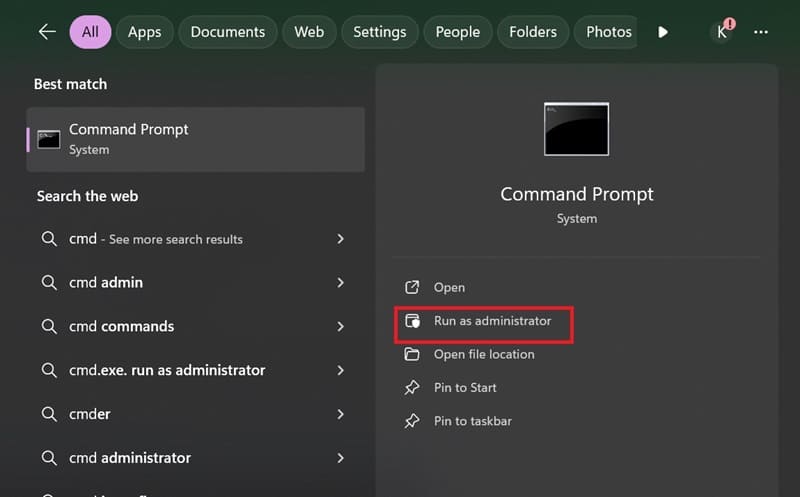
Open Command Prompt
Open Command Prompt

Step 2: Paste the following command and press Enter:

reg delete HKLM\SOFTWARE\Microsoft\Windows\CurrentVersion\Explorer\Desktop\NameSpace_41040327\{e88865ea-0e1c-4e20-9aa6-edcd0212c87c}
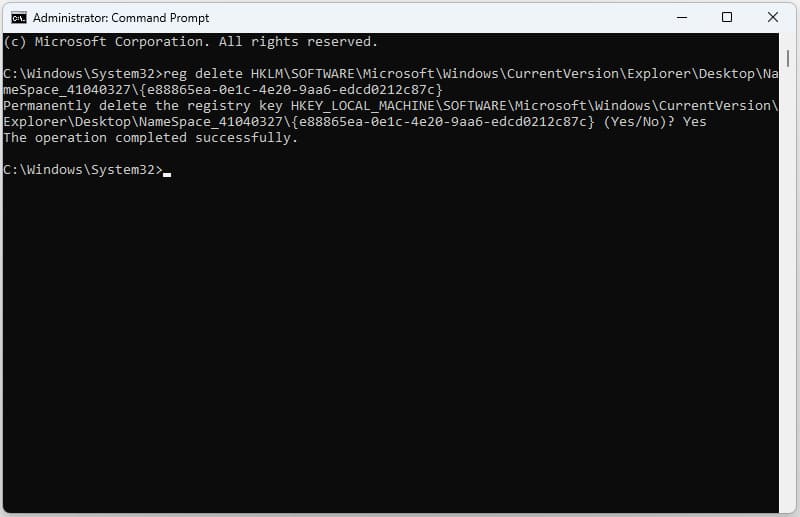
Paste the following command in

To restore the Gallery item, you also go back to Command Prompt and paste the following command and press Enter:

reg add HKLM\SOFTWARE\Microsoft\Windows\CurrentVersion\Explorer\Desktop\NameSpace_41040327\{e88865ea-0e1c-4e20-9aa6-edcd0212c87c}.

See also: How to remove Hidden File Virus in USB using CMD on Windows 10

Conclusion

Job Remove Gallery from File Explorer Whether or not depends on the needs and personal preferences of each user. Hopefully this article has provided you with useful information to make the right choice and optimize your photo management experience on Windows 11. Good luck!


Tags: ExplorerfileGalleryremoveWindows
Previous Post

Instructions for anonymous comments on Facebook

Next Post

Create a Group Chat on TikTok: Have You Tried It?

AnonyViet

AnonyViet

Related Posts

How to record reaction videos with Android phones, no app needed
Tips

How to record reaction videos with Android phones, no app needed

June 1, 2026
Instructions on how to get Google AI Pro 1 year for free for new accounts
Tips

Instructions on how to get Google AI Pro 1 year for free for new accounts

June 1, 2026
Top free AI tools to help write, test and optimize content
Tips

Top free AI tools to help write, test and optimize content

June 1, 2026
Instructions for receiving Lovable Pro 12 months for free
Tips

Instructions for receiving Lovable Pro 12 months for free

May 29, 2026
Instructions for receiving 1 month of ElevenLabs Creator for free worth
Tips

Instructions for receiving 1 month of ElevenLabs Creator for free worth $22

May 25, 2026
How to create beautiful studio-like preschool graduation photos for your child
Tips

How to create beautiful studio-like preschool graduation photos for your child

May 21, 2026
Next Post
Create a Group Chat on TikTok: Have You Tried It?

Create a Group Chat on TikTok: Have You Tried It?

0 0 votes
Article Rating
Subscribe
Login
Notify of
guest

guest

0 Comments
Oldest
Newest Most Voted
Inline Feedbacks
View all comments

Recent News

How to record reaction videos with Android phones, no app needed

How to record reaction videos with Android phones, no app needed

June 1, 2026
Instructions on how to get Google AI Pro 1 year for free for new accounts

Instructions on how to get Google AI Pro 1 year for free for new accounts

June 1, 2026
Top free AI tools to help write, test and optimize content

Top free AI tools to help write, test and optimize content

June 1, 2026
TruyenDrive: Turn Google Drive into a professional manga reader

TruyenDrive: Turn Google Drive into a professional manga reader

May 31, 2026
How to record reaction videos with Android phones, no app needed

How to record reaction videos with Android phones, no app needed

June 1, 2026
Instructions on how to get Google AI Pro 1 year for free for new accounts

Instructions on how to get Google AI Pro 1 year for free for new accounts

June 1, 2026
Top free AI tools to help write, test and optimize content

Top free AI tools to help write, test and optimize content

June 1, 2026
AnonyViet - English Version

AnonyViet

AnonyViet is a website share knowledge that you have never learned in school!

We are ready to welcome your comments, as well as your articles sent to AnonyViet.

Follow Us

Contact:

Email: anonyviet.com[@]gmail.com

Main Website: https://anonyviet.com

Recent News

How to record reaction videos with Android phones, no app needed

How to record reaction videos with Android phones, no app needed

June 1, 2026
Instructions on how to get Google AI Pro 1 year for free for new accounts

Instructions on how to get Google AI Pro 1 year for free for new accounts

June 1, 2026
No Result
View All Result
  • Home
  • News
  • Software
  • Knowledge
  • MMO
  • Tips
  • Security
  • Network
  • Office

wpDiscuz
0
0
Would love your thoughts, please comment.x
()
x
| Reply