• Home
  • News
  • Software
  • Knowledge
  • MMO
  • Tips
  • Security
  • Network
  • Office
AnonyViet - English Version
  • Home
  • News
  • Software
  • Knowledge
  • MMO
  • Tips
  • Security
  • Network
  • Office
No Result
View All Result
  • Home
  • News
  • Software
  • Knowledge
  • MMO
  • Tips
  • Security
  • Network
  • Office
No Result
View All Result
AnonyViet - English Version
No Result
View All Result

How to record Chromebook screen – ChromeOS

AnonyViet by AnonyViet
November 14, 2025
in Tips
0

Screen recording helps you record what happens on your computer screen. On Windows, there are quite a few third-party screen recording applications. Luckily, ChromeOS has a built-in tool that makes it easy to record your Chromebook screen without the need for additional software.

Join the channel Telegram belong to AnonyViet 👉 Link 👈

How to record Chromebook screen – ChromeOS

Chromebooks are laptops and run on Google’s Chrome operating system. The hardware may look like any other laptop, but the minimalist, web browser-based Chrome OS is a different experience from the Windows and MacOS laptops you’re used to.

Introduced in Chrome OS 89the Chromebook screen recording tool is available in the Quick Settings panel. This tool can be used to take screenshots and record videos. It is very powerful and easy to use. I will show you how this tool works.

How to record Chromebook screen

First, click on the clock above Shelf in the bottom right corner to open Quick Settings.
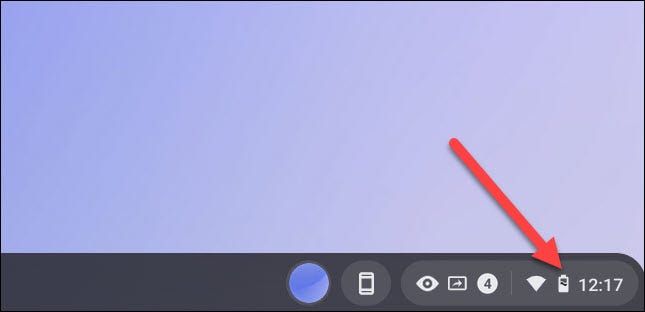
Quick Settings

Select the arrow at the top right of the menu if it is not fully expanded.
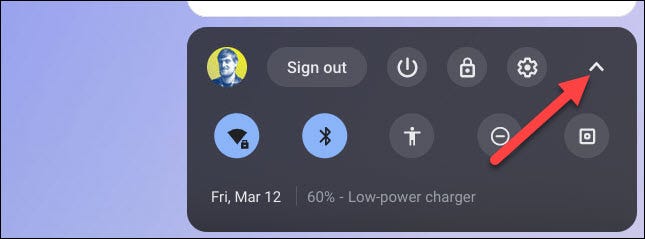
arrow at top right

Next, click the “Screen Capture” button.
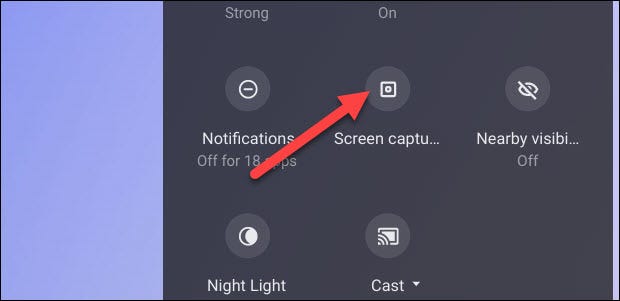
Screen Capture

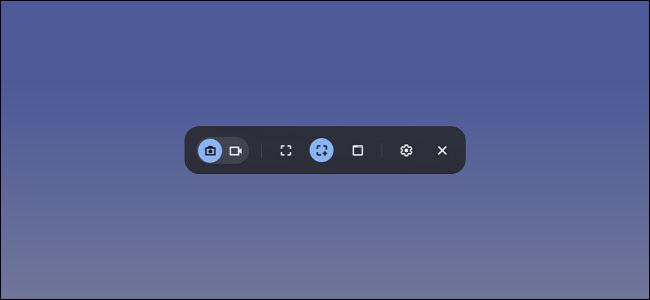
The Screen Capture toolbar will appear at the bottom of the screen. You must select the video icon to record your screen. The camera icon will only take screenshots on Chromebooks.
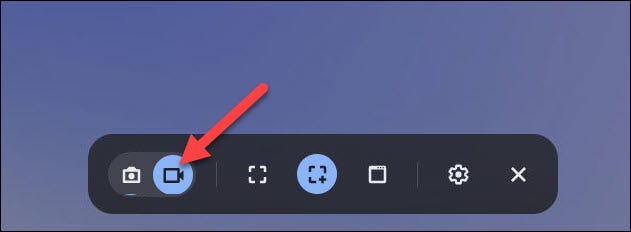
camera icon

There are a few different ways you can get back to the screen. You can choose to record full screen, part of the screen, or a specific window. Select an option to continue.
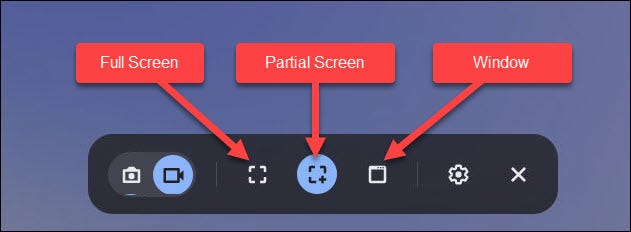
Screen recording on ChromeOS

Before we start recording the screen, click on the settings icon. Here, you can choose to record audio via the built-in Microphone during screen recording.
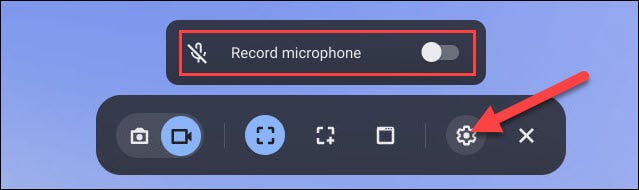
Recording via Microphone

How to start recording your screen will be slightly different depending on the mode you have selected.

  • Full Screen: Click anywhere on the screen to start recording.
  • Partial: Drag to select the area you want to record and then click the “Record” button.
  • Window: Click the window or area of ​​the screen you want to record to start recording.

As mentioned above, with full screen recording, just click anywhere on your Chromebook screen.
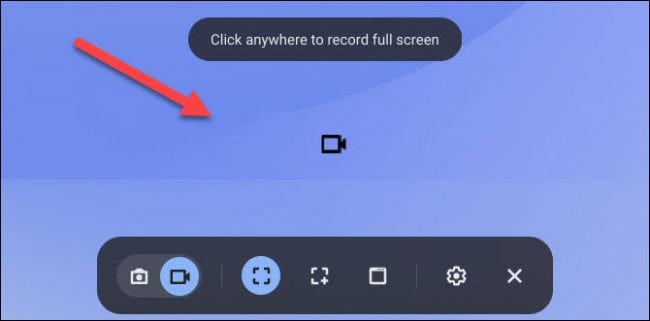
Record full screen

And with the window recording feature, start recording a screen video by selecting the specific window you want to record.
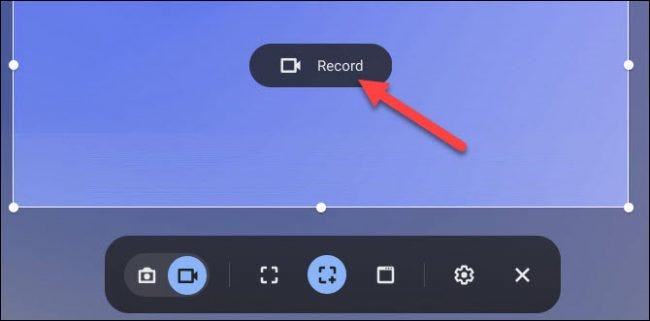
record chromebooks

A three-second countdown will appear on the screen and then recording will begin. When you’re done recording, click the red stop button on the Shelf.
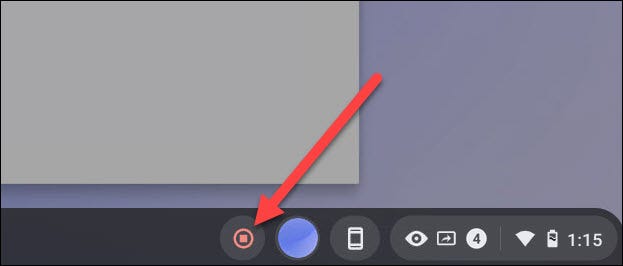
three seconds will appear

A message will appear indicating that the recording process has completed “Screen Recording Taken”. Click on it to go to the video file in your “Download” folder.
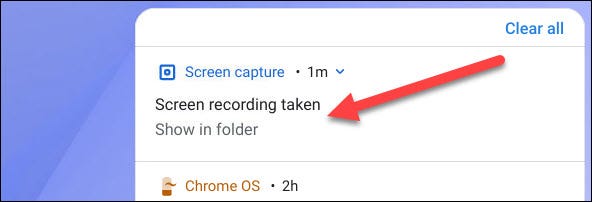
Screen Recording Taken

The folder will open and you can select a video file to view, share, save to Google Drive, or delete the video.
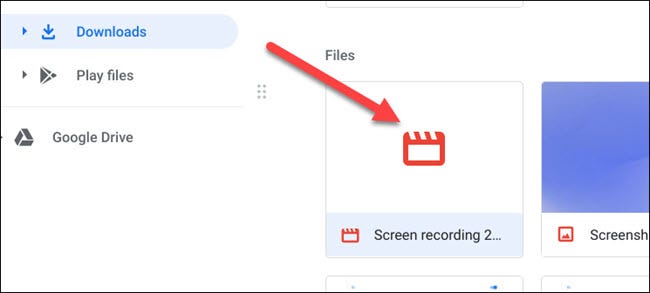
save to Google Drive
The built-in screen recorder is the best and easiest way to record your screen on Chromebook. The only annoying thing is that these videos will be saved as files WEBM. I think you will also use online conversion websites to convert WEBM to mp4 soon. Oh well, did you know? Why do Chromebooks never get viruses?

Frequently asked questions

Do I need to install any software to record my Chromebook screen?

No need! Chromebooks have a built-in screen recording tool in Quick Settings.

Can I record the full screen, part of the screen, or just a specific window?

Yes, you can choose to record full screen, part of the screen or a specific window depending on your needs.

In what format and where is the screen recording video saved?

Videos are saved as WEBM files in the Chromebook’s “Downloads” folder.

Previous Post

How to create photos under the snow extremely quickly in just a few minutes

Next Post

How to get 2000 free Manus credits in just 3 steps

AnonyViet

AnonyViet

Related Posts

Windows 7/8.1/10 users will be upgraded to Windows 11 for free
Tips

Windows 7/8.1/10 users will be upgraded to Windows 11 for free

July 30, 2026
Instructions for receiving ChatGPT Plus for 1 month for free in 2026
Tips

Instructions for receiving ChatGPT Plus for 1 month for free in 2026

July 28, 2026
Some reasons I don’t like Windows 11
Tips

Some reasons I don’t like Windows 11

July 27, 2026
Instructions on how to get free Facebook white ticks
Tips

Instructions on how to get free Facebook white ticks

July 27, 2026
Collection of Windows 11 wallpapers for computers and phones
Tips

Collection of Windows 11 wallpapers for computers and phones

July 26, 2026
Don’t install leaked Windows 11
Tips

Don’t install leaked Windows 11

July 25, 2026
Next Post
How to get 2000 free Manus credits in just 3 steps

How to get 2000 free Manus credits in just 3 steps

0 0 votes
Article Rating
Subscribe
Login
Notify of
guest

guest

0 Comments
Oldest
Newest Most Voted

Recent News

Windows 7/8.1/10 users will be upgraded to Windows 11 for free

Windows 7/8.1/10 users will be upgraded to Windows 11 for free

July 30, 2026
Instructions for receiving the free Certified LLM Security Expert certificate

Instructions for receiving the free Certified LLM Security Expert certificate

July 30, 2026
MSI laptops are not just for gamers: Which line is suitable for students, office workers and creative people?

MSI laptops are not just for gamers: Which line is suitable for students, office workers and creative people?

July 29, 2026
What is quantum resistant cryptography? Why must the Internet change?

What is quantum resistant cryptography? Why must the Internet change?

July 29, 2026
Windows 7/8.1/10 users will be upgraded to Windows 11 for free

Windows 7/8.1/10 users will be upgraded to Windows 11 for free

July 30, 2026
Instructions for receiving the free Certified LLM Security Expert certificate

Instructions for receiving the free Certified LLM Security Expert certificate

July 30, 2026
MSI laptops are not just for gamers: Which line is suitable for students, office workers and creative people?

MSI laptops are not just for gamers: Which line is suitable for students, office workers and creative people?

July 29, 2026
AnonyViet - English Version

AnonyViet

AnonyViet is a website share knowledge that you have never learned in school!

We are ready to welcome your comments, as well as your articles sent to AnonyViet.

Follow Us

Contact:

Email: anonyviet.com[@]gmail.com

Main Website: https://anonyviet.com

Recent News

Windows 7/8.1/10 users will be upgraded to Windows 11 for free

Windows 7/8.1/10 users will be upgraded to Windows 11 for free

July 30, 2026
Instructions for receiving the free Certified LLM Security Expert certificate

Instructions for receiving the free Certified LLM Security Expert certificate

July 30, 2026
  • Home
  • Home 2
  • Home 3
  • Home 4
  • Home 5
  • Home 6
  • Next Dest Page
  • Sample Page

say88 tỷ lệ kèo nhà cái kèo nhà cái 5 febet

No Result
View All Result
  • Home
  • News
  • Software
  • Knowledge
  • MMO
  • Tips
  • Security
  • Network
  • Office

say88 tỷ lệ kèo nhà cái kèo nhà cái 5 febet

wpDiscuz
0
0
Would love your thoughts, please comment.x
()
x
| Reply