How to prevent others from installing software is an extremely useful trick, helping you protect your computer from applications of unknown origin. Installing programs arbitrarily not only weighs down your computer but also poses a potential risk of virus and malware infection. Luckily, Windows 11 provides built-in tools for you to do this without needing to install any additional applications.
📢 Join the channel Telegram belong to AnonyViet
Update new articles, cool tools and IT tips fastest
4 ways to prevent others from installing software on Windows 11
Below are methods built into the operating system to help you set up a safety “shield” for your computer.
This is the simplest method, allowing you to limit the source of application installations to only the official Microsoft application store.
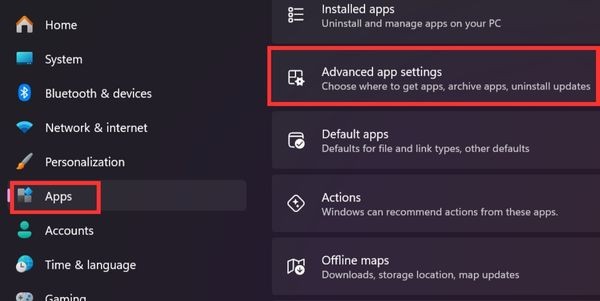
Step 1: The first step is to log in Settings on your computer, then navigate to section Apps. Next, in the application management interface, find and click Advanced app settings.
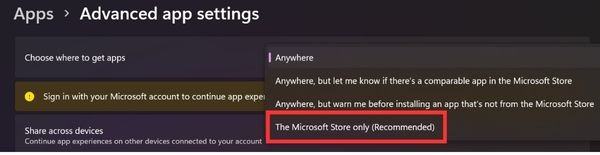
Step 2: Here, you will see a section called Choose where to get apps. Click on it and select “The Microsoft Store only (Recommended)” from the drop-down list.
Once completed, the system will automatically erect a barrier, allowing only applications that have been approved by Microsoft from the Store to be installed, and rejecting any installation files from outside.
2. Use Group Policy
If you are using version Windows 11 Pro, Enterprise or Education, tools Local Group Policy Editor will be a great assistant to completely disable the Windows installer.
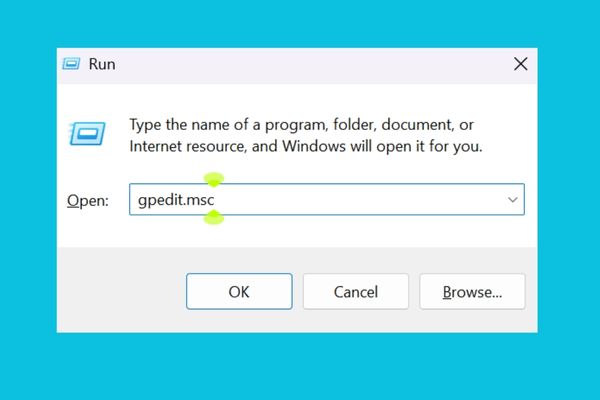
Step 1: To get started, open the dialog box Run by key combination Windows + Rtype the command gpedit.msc and press Enter.
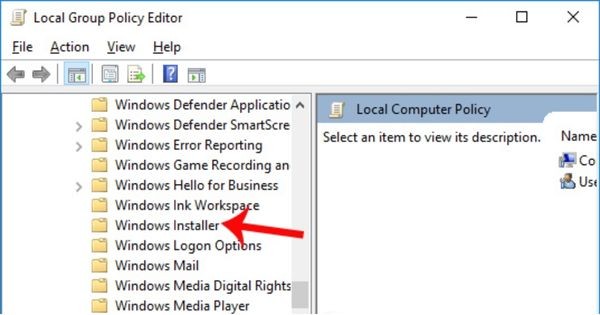
Step 2: In the Group Policy window, navigate the following directory tree to find the correct policy to change: Computer Configuration > Administrative Templates > Windows Components > Windows Installer.
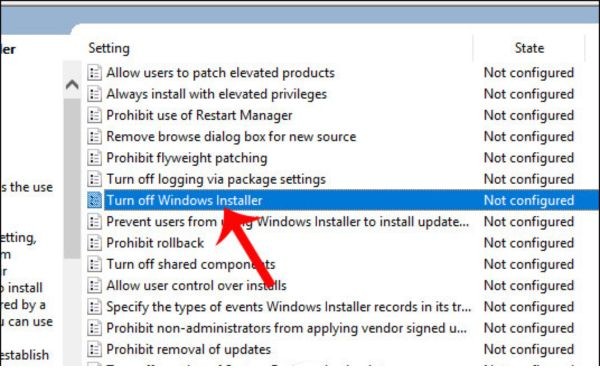
Step 3: Then, in the right pane, find and double-click the policy named “Turn off Windows Installer“.
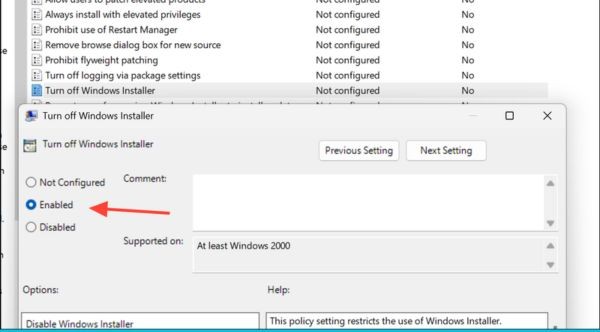
Step 4: Finally, in the new window that appears, you just need to select Enabledthen under “Disable Windows Installer” below, select the option Always. Press Apply and OK to confirm changes.
With this setting, all attempts to install software through the Windows Installer process will be blocked. To go back to the way it was, just go through the steps again and select Not Configured.
3. Interfering with the Registry
For users Windows 11 Home without Group Policy, Registry Editor is an effective alternative.
Important note: This is a powerful method but also potentially risky if done wrong. Therefore, you should back up the Registry before starting.
Step 1: First, open it Registry Editor by searching regedit in the Start menu.
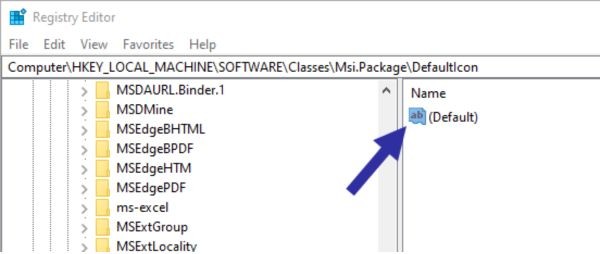
Next, you need to access the following path exactly: HKEY_LOCAL_MACHINE\Software\Classes\Msi.Package\DefaultIcon.
Step 2: Here, you will see a default value called “(Default)“ Double click on it to edit.
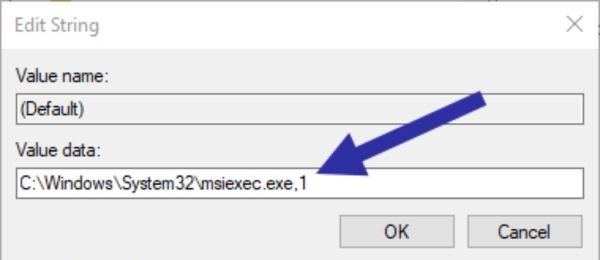
Step 3: In box “Value data“, you will see a path that ends with a number 0. Your task is to change this zero into a number 1 and leave the rest of the path intact. Press OK and restart the computer.
This will prevent the .msi installer from running, similar to the Group Policy method.
4. Decentralize user rights
All of the above methods are very effective, but the most fundamental and secure solution is user account management. Instead of giving someone else an Administrator account, create one for them Standard User (Standard User). The Standard User account will not have permission to install most software or change important system settings.
Every time they try to install an application, Windows will ask for the Administrator account’s password. If there is no password, the installation will be aborted. Basically, this is the strongest line of defense. Most malware or unwanted software requires administrator rights to deeply interfere with the system.
Conclusion
So, there are many How to prevent others from installing software on your Windows 11 computer, from simple settings in Settings to more advanced customizations. By combining the use of a standard user account with one of the above methods, you can rest assured that your computer will always be kept safe.