• Home
  • News
  • Software
  • Knowledge
  • MMO
  • Tips
  • Security
  • Network
  • Office
AnonyViet - English Version
  • Home
  • News
  • Software
  • Knowledge
  • MMO
  • Tips
  • Security
  • Network
  • Office
No Result
View All Result
  • Home
  • News
  • Software
  • Knowledge
  • MMO
  • Tips
  • Security
  • Network
  • Office
No Result
View All Result
AnonyViet - English Version
No Result
View All Result

How to open multiple Websites at the same time on Windows 10 with 1 Click

AnonyViet by AnonyViet
January 29, 2023
in Tips
0

You can create small scripts in Windows 10 that open multiple Websites at the same time. This trick uses Windows 10’s scripting capabilities, but there’s also a pretty easy way to do it in any web browser. You can also take advantage of the Bookmark feature on your browser to open multiple Websites with one click.

Join the channel Telegram of the AnonyViet 👉 Link 👈

How to open multiple Websites at the same time on Windows 10 with 1 Click

How to create a script to open multiple Websites at the same time

To open multiple web pages at once in the browser, you need to create a script file for these websites on your PC. Basically, you create a file, add all your web pages to this script, and run the script when you want to open many of them at once.

If you don’t know what a script is, you can read it here Please. You can create this script using the built-in Notepad software on your PC. To open Notepad, just go to “Start menu”keyword search “Notepad” and select the top result.
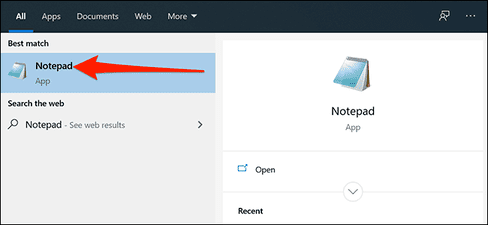
Notepad

Copy the following code and paste it into Notepad:

@echo off
start https://www.howtogeek.com
start https://www.reviewgeek.com
start https://www.cloudsavvyit.com
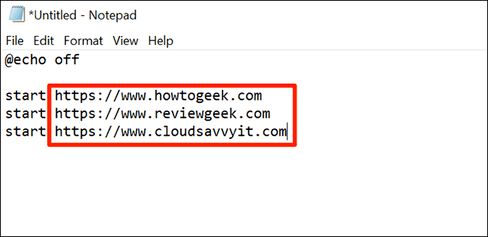
open multiple websites at the same time

The above code will open the three web pages you entered. Windows 10 will use the default web browser to open those web pages. You want to open as many web pages at the same time, just add the website link to the notepad file above. Just put each web address on its own line and add the command “start” and a space before each web address.

When you’re done, go to File -> Save As to save files.
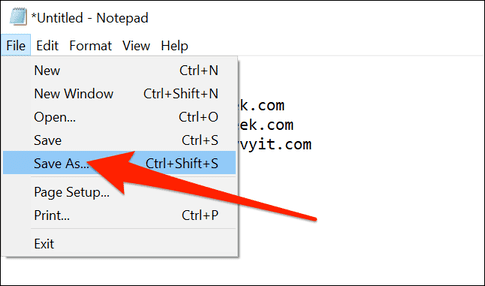
Save As

Choose a folder to save this file to. You should leave it on the Desktop because it will help you open the script faster than other places.

Then, name your script in the “File name” field and add “.bat” to the end of the name. If you want to name your file as “LaunchAllSitesyou must enter “LaunchAllSites.bat”. Then choose “All Files” in the section “Save as type” and click “Save”.
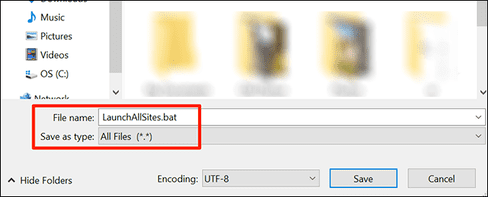
LaunchAllSites

So the script to open the website has been created. To use, you double click on the file LaunchAllSites.bat just created, and all your specified web pages will launch in the default web browser. You will see a Command Prompt window appear for a moment, but the window will disappear immediately.

You can create multiple short scripts like this to open different types of websites on your Windows 10 PC.

How to edit the website list in the script file

Your newly created script file is editable and you can add or remove web pages whenever you want. Use text editors like Notepad to change the contents of the script file.

To add or remove web pages from your script, right-click the script and select “Edit”.
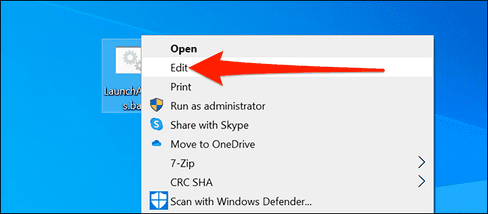
How to edit the site list in the script file

Your script will open in Notepad and you can now add or remove URLs. When you’re done, be sure to click File -> Save to save the changes.

How to change the default web browser

All website addresses in the filescript will open in the default browser on your PC. If you want to open your links in another browser, you can simply set that browser as Windows default browser.

Into the “Start menu”keyword search “Settings” and click on the first result. You can also press Windows + i to open Settings.
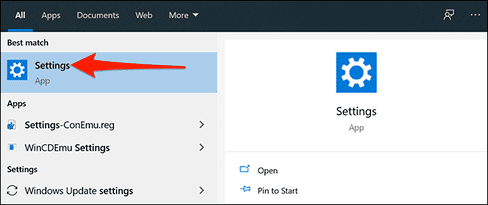
How to change the default web browser

In Settingspress “Apps“, then select “Default app” left side.
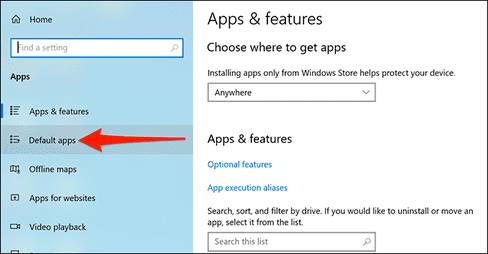
Default app

Click on your current browser in “Web browser”, then select a new browser to set it as default.
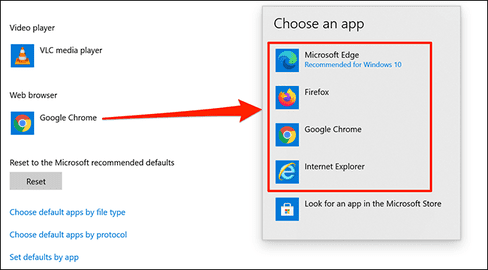
Web browser

Your web pages will now open in the new default browser.

How to open multiple web pages at the same time in the browser

If you want, you can open multiple web pages at once from your browser. To do this, you need to add all your web pages to the bookmarks folder.

Open your browser, press Ctrl + Shift + CANCEL to open the Bookmarks bar.

Open all the websites you want to open all web pages in 1 click, then press Ctrl + Shift + EASY to save those websites to the Bookmark folder.

After this, you just need to right click on your bookmarks folder and click “Open all”.
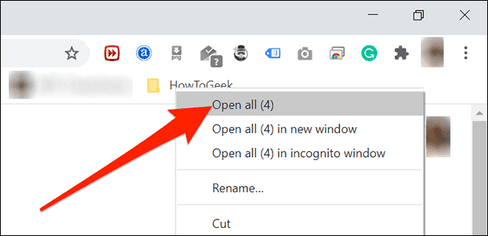
How to open multiple web pages at once in your browser

If you use Firefox, you can do this by right-clicking on your bookmarks folder and selecting “Open All in Tabs”. This will open all your web pages in the bookmarks folder.
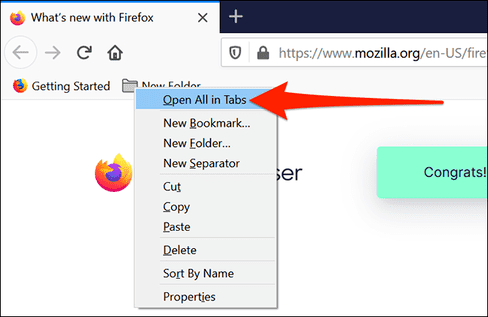
bookmark folder

So that’s it then.

The article achieved: 5/5 – (100 votes)

Tags: clickMultipleopentimeWebsitesWindows
Previous Post

Oni Keylogger v1.7 computer monitoring Full Version 2018

Next Post

Share Key IObit Uninstaller 10 Pro Full License – Uninstall software completely

AnonyViet

AnonyViet

Related Posts

How to change the default font on Windows 10
Tips

How to change the default font on Windows 10

April 13, 2026
5 tips for using a Browser to replace an App (helps save RAM, time and money)
Tips

5 tips for using a Browser to replace an App (helps save RAM, time and money)

April 13, 2026
How to make funny MeMe photos without Photoshop within 10 seconds
Tips

How to make funny MeMe photos without Photoshop within 10 seconds

April 11, 2026
How to quickly design your own Logo without Photoshop
Tips

How to quickly design your own Logo without Photoshop

April 10, 2026
How to convert Website into App on Windows
Tips

How to convert Website into App on Windows

April 9, 2026
Instructions for getting 3 months of Adobe Express Pro for free
Tips

Instructions for getting 3 months of Adobe Express Pro for free

April 9, 2026
Next Post
Share Key IObit Uninstaller 10 Pro Full License – Uninstall software completely

Share Key IObit Uninstaller 10 Pro Full License - Uninstall software completely

0 0 votes
Article Rating
Subscribe
Login
Notify of
guest

guest

0 Comments
Oldest
Newest Most Voted
Inline Feedbacks
View all comments

Recent News

Japanese Watch Week: Choose the color that suits your destiny, start the new year well at Mobile World

Japanese Watch Week: Choose the color that suits your destiny, start the new year well at Mobile World

April 20, 2026
4K Video Downloader Plus – Tool to download YouTube videos on macOS

4K Video Downloader Plus – Tool to download YouTube videos on macOS

April 20, 2026
How to add Watermark to Google Docs to protect copyright

How to add Watermark to Google Docs to protect copyright

April 19, 2026
How to intercept traffic using Burp Suite to analyze HTTP/HTTPS

How to intercept traffic using Burp Suite to analyze HTTP/HTTPS

April 18, 2026
Japanese Watch Week: Choose the color that suits your destiny, start the new year well at Mobile World

Japanese Watch Week: Choose the color that suits your destiny, start the new year well at Mobile World

April 20, 2026
4K Video Downloader Plus – Tool to download YouTube videos on macOS

4K Video Downloader Plus – Tool to download YouTube videos on macOS

April 20, 2026
How to add Watermark to Google Docs to protect copyright

How to add Watermark to Google Docs to protect copyright

April 19, 2026
AnonyViet - English Version

AnonyViet

AnonyViet is a website share knowledge that you have never learned in school!

We are ready to welcome your comments, as well as your articles sent to AnonyViet.

Follow Us

Contact:

Email: anonyviet.com[@]gmail.com

Main Website: https://anonyviet.com

Recent News

Japanese Watch Week: Choose the color that suits your destiny, start the new year well at Mobile World

Japanese Watch Week: Choose the color that suits your destiny, start the new year well at Mobile World

April 20, 2026
4K Video Downloader Plus – Tool to download YouTube videos on macOS

4K Video Downloader Plus – Tool to download YouTube videos on macOS

April 20, 2026
No Result
View All Result
  • Home
  • News
  • Software
  • Knowledge
  • MMO
  • Tips
  • Security
  • Network
  • Office

wpDiscuz
0
0
Would love your thoughts, please comment.x
()
x
| Reply