• Home
  • News
  • Software
  • Knowledge
  • MMO
  • Tips
  • Security
  • Network
  • Office
AnonyViet - English Version
  • Home
  • News
  • Software
  • Knowledge
  • MMO
  • Tips
  • Security
  • Network
  • Office
No Result
View All Result
  • Home
  • News
  • Software
  • Knowledge
  • MMO
  • Tips
  • Security
  • Network
  • Office
No Result
View All Result
AnonyViet - English Version
No Result
View All Result

How to open files with just 1 mouse click – Convenient solution when using touchpad

AnonyViet by AnonyViet
February 13, 2024
in Tips
0

Did you know that you can Open files with just 1 mouse click Are not? This is a feature that allows you to simply click a button once to perform an action, such as restarting the computer, shutting down the computer, or changing options. How to do it? Let's explore together!

Join the channel Telegram belong to AnonyViet 👉 Link 👈

Double-clicking is the common way to open applications and windows on Windows computers. However, most modern compact laptops often have touchpads instead of mice, and double-clicking on the touchpad is quite annoying and time-consuming. Therefore, you may like the one-click function in the article below.

Ways to open files with just 1 click on Windows

There are ways to enable single-click functionality to open files, folders, and applications instead of double-clicking on Windows. Here are the commonly used ways:

Method 1: Use Folder Options

Step 1: Open This PC on your Windows computer

Step 2: On the top menu or toolbar, click the three-dot icon.
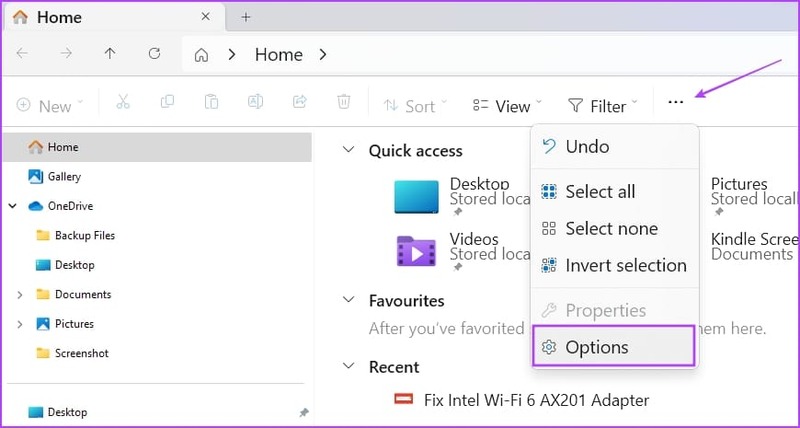
Open files with just 1 mouse click
Click the three-dot icon > Options

Step 3: Select Options.

Step 4: Under the Click items as follows option, select 'Single-click to open an item' (point to select)
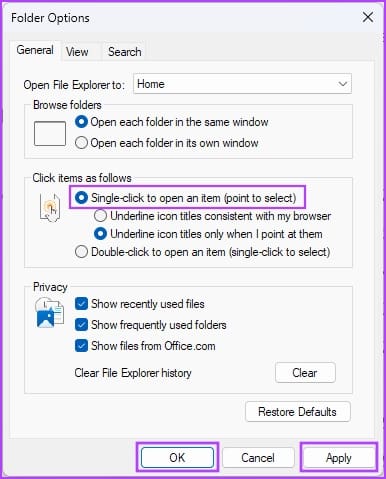
Open files with just 1 mouse click
Select 'Single-click to open an item'

Step 5: Here, you can also choose one of the following options:

  • Underline icon titles consistent with my browser: all icons and items will look like a hypertext link on the web browser
  • Underline icon titles only when I point at them: only when pointing at an item or icon will it display a hypertext link that you can click to access the application, folder or file

Step 6: Click the Apply and OK buttons to save and apply the changes.

Step 7: When you want to return to the double-click functionality to open files, folders and applications, just go to Folder Options > General and press the Restore Defaults button.

Method 2: Use File Explorer Options

This method is for versions of Windows 10 and earlier.

On Windows 10/8

Step 1: Press Windows key + S together to open the Start menu.

Step 2: Start typing File Explorer, and the File Explorer Options link will appear under the Best Match section of the search results.
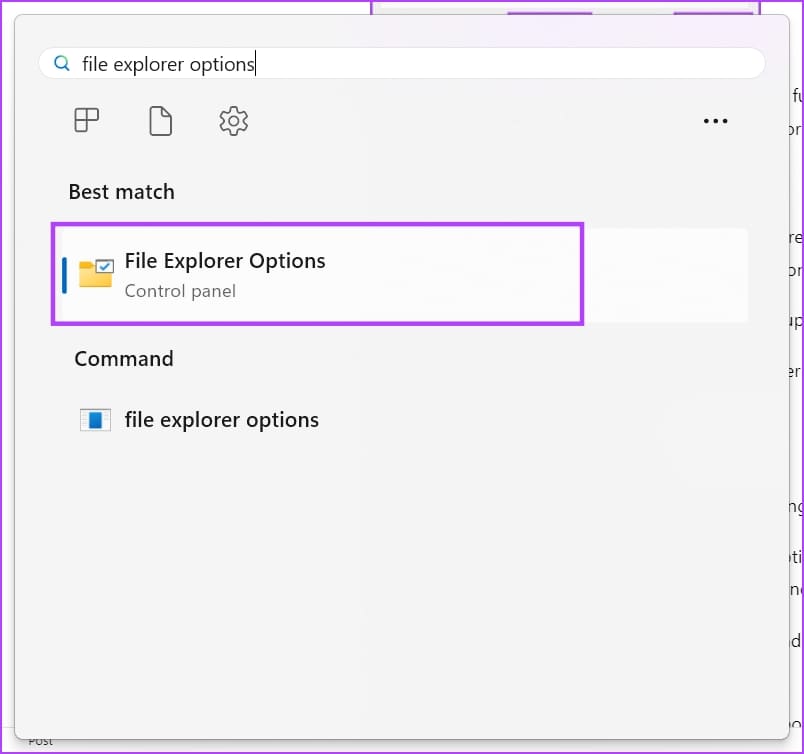
Open files with just 1 mouse click
Click File Explorer Options

Step 3: Click File Explorer Options. The File Explorer Options dialog box is no different from the Folder Options that I showed in method 1.

On Windows 7/Vista

  • Right-click the Start button > Select Control Panel.
  • Select 'Appearance and Personalization' on the left navigation panel.
  • Click the Specify single- or double-click to open link under Folder Options settings.

Step 4: Here, you can also choose one of the following options:

  • Underline icon titles consistent with my browser: all icons and items will look like a hypertext link on the web browser
  • Underline icon titles only when I point at them: only when pointing at an item or icon will it display a hypertext link that you can click to access the application, folder or file

Step 5: Click the Apply and OK buttons to save and apply the changes.

Method 3: Modify Registry Editor

When you cannot enable single click to open apps and files on Windows using any of the above methods, modify Windows Registry keys by following these steps. Don't forget to back up Registry entries before performing this method.

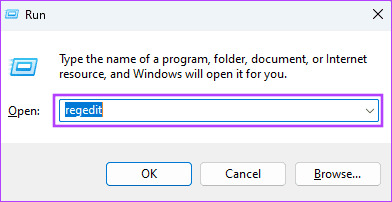
Step 1: Open the Run dialog box by pressing Windows key + R.

Step 2: Then, type 'regedit' in the Run box and press Enter.
Open files with just 1 mouse click
Type 'regedit'

Step 3: The Registry editor will open.

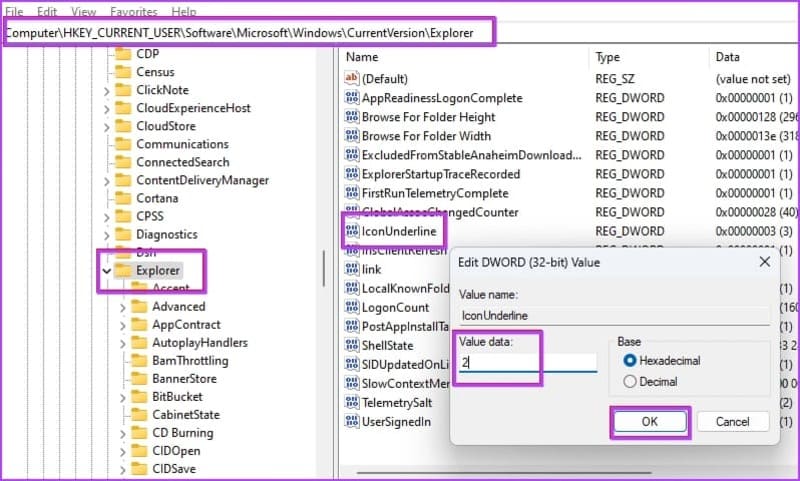
Step 4: Navigate to HKEY_CURRENT_USER -> Software -> Microsoft -> Windows -> CurrentVersion -> Explorer

Step 6: Double click IconUnderline and change the value to 2. (Default value is 3)
Open files with just 1 mouse click
Operate as instructed

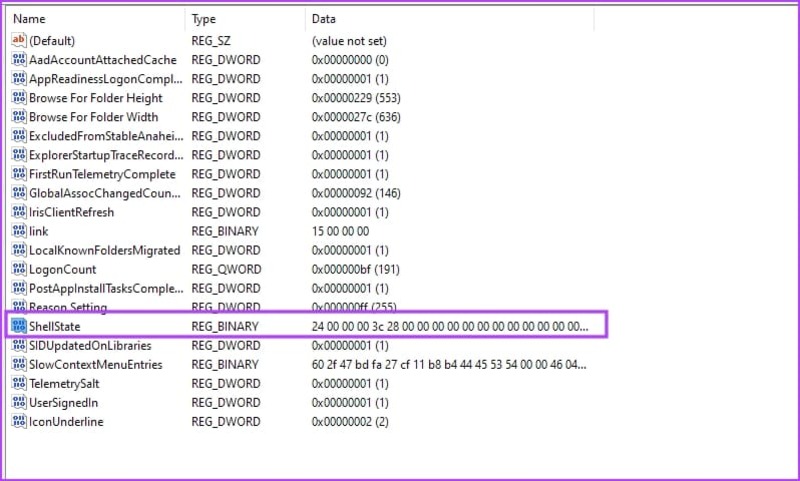
Step 7: Double-click the ShellState entry.
Open files with just 1 mouse click
Double-click the ShellState entry.

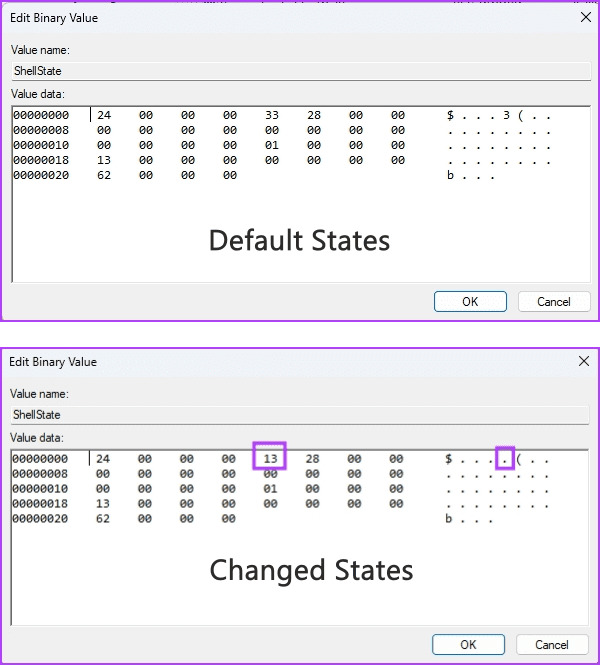
Step 8: Make the necessary changes as shown below and click OK.
Open files with just 1 mouse click
Make the necessary changes as shown

Step 9: After making the above changes, restart your PC.

Method 4: Use Command Prompt

Step 1: Search for Command Prompt in the menu, right click and select 'Run as administrator'
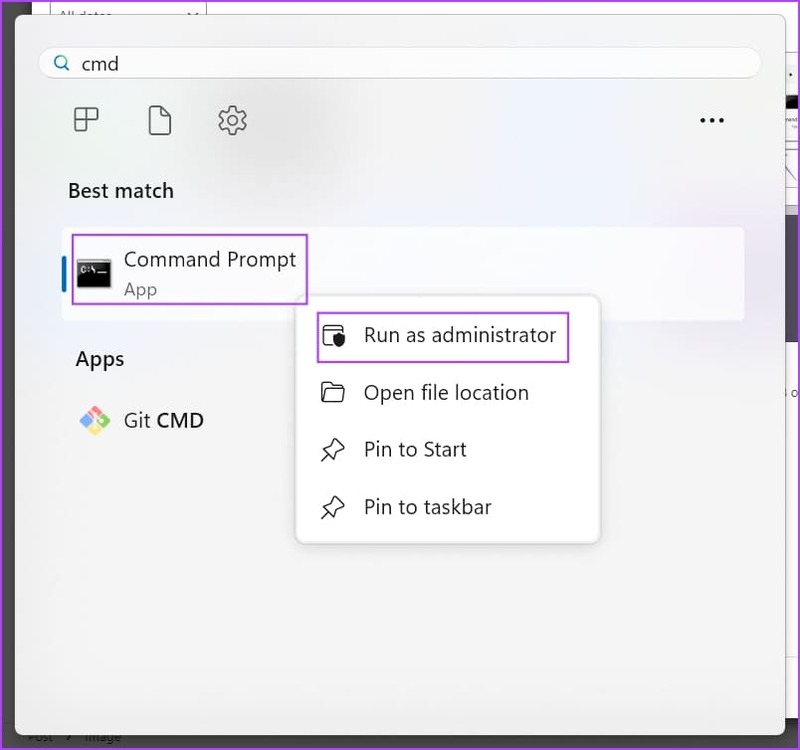
Open files with just 1 mouse click
Search for Command Prompt

Step 2: Paste the following code and press Enter

REG ADD “HKCU\SOFTWARE\Microsoft\Windows\CurrentVersion\Explorer” /V IconUnderline /T REG_DWORD /D 3 /F

Step 3: Continue pasting the following code > Enter

REG ADD “HKCU\SOFTWARE\Microsoft\Windows\CurrentVersion\Explorer” /V ShellState /T REG_BINARY /D 240000001ea80000000000000000000000000001000000130000000000000062000000 /F

Step 4: Restart your PC

It is done! You have successfully enabled the 1-click function to open elements on your computer.

Epilogue

So you know How to open files with just 1 mouse click on Windows already. This is a very convenient and quick feature, helping you save time and effort when using your computer. Wishing you a successful application!

The article scored: 5/5 – (100 votes)

Tags: clickconvenientfilesmouseopenSolutiontouchpad
Previous Post

How to turn off views on Messenger so the other person doesn't know you've read the message

Next Post

Summary of PowerToys features and how to use them

AnonyViet

AnonyViet

Related Posts

Windows 7/8.1/10 users will be upgraded to Windows 11 for free
Tips

Windows 7/8.1/10 users will be upgraded to Windows 11 for free

July 30, 2026
Instructions for receiving ChatGPT Plus for 1 month for free in 2026
Tips

Instructions for receiving ChatGPT Plus for 1 month for free in 2026

July 28, 2026
Some reasons I don’t like Windows 11
Tips

Some reasons I don’t like Windows 11

July 27, 2026
Instructions on how to get free Facebook white ticks
Tips

Instructions on how to get free Facebook white ticks

July 27, 2026
Collection of Windows 11 wallpapers for computers and phones
Tips

Collection of Windows 11 wallpapers for computers and phones

July 26, 2026
Don’t install leaked Windows 11
Tips

Don’t install leaked Windows 11

July 25, 2026
Next Post
Summary of PowerToys features and how to use them

Summary of PowerToys features and how to use them

0 0 votes
Article Rating
Subscribe
Login
Notify of
guest

guest

0 Comments
Oldest
Newest Most Voted

Recent News

Windows 7/8.1/10 users will be upgraded to Windows 11 for free

Windows 7/8.1/10 users will be upgraded to Windows 11 for free

July 30, 2026
Instructions for receiving the free Certified LLM Security Expert certificate

Instructions for receiving the free Certified LLM Security Expert certificate

July 30, 2026
MSI laptops are not just for gamers: Which line is suitable for students, office workers and creative people?

MSI laptops are not just for gamers: Which line is suitable for students, office workers and creative people?

July 29, 2026
What is quantum resistant cryptography? Why must the Internet change?

What is quantum resistant cryptography? Why must the Internet change?

July 29, 2026
Windows 7/8.1/10 users will be upgraded to Windows 11 for free

Windows 7/8.1/10 users will be upgraded to Windows 11 for free

July 30, 2026
Instructions for receiving the free Certified LLM Security Expert certificate

Instructions for receiving the free Certified LLM Security Expert certificate

July 30, 2026
MSI laptops are not just for gamers: Which line is suitable for students, office workers and creative people?

MSI laptops are not just for gamers: Which line is suitable for students, office workers and creative people?

July 29, 2026
AnonyViet - English Version

AnonyViet

AnonyViet is a website share knowledge that you have never learned in school!

We are ready to welcome your comments, as well as your articles sent to AnonyViet.

Follow Us

Contact:

Email: anonyviet.com[@]gmail.com

Main Website: https://anonyviet.com

Recent News

Windows 7/8.1/10 users will be upgraded to Windows 11 for free

Windows 7/8.1/10 users will be upgraded to Windows 11 for free

July 30, 2026
Instructions for receiving the free Certified LLM Security Expert certificate

Instructions for receiving the free Certified LLM Security Expert certificate

July 30, 2026
  • Home
  • Home 2
  • Home 3
  • Home 4
  • Home 5
  • Home 6
  • Next Dest Page
  • Sample Page

say88 tỷ lệ kèo nhà cái kèo nhà cái 5 febet

No Result
View All Result
  • Home
  • News
  • Software
  • Knowledge
  • MMO
  • Tips
  • Security
  • Network
  • Office

say88 tỷ lệ kèo nhà cái kèo nhà cái 5 febet

wpDiscuz
0
0
Would love your thoughts, please comment.x
()
x
| Reply