PowerToys is a free toolkit developed by Microsoft, designed to help users work more effectively with Windows 10. With PowerToys, you can perform the above common operations quickly and conveniently. benefits, such as drag and drop, copy, move, delete, archive files, edit files, display and customize the Windows interface,…
| Join the channel Telegram belong to AnonyViet 👉 Link 👈 |
Outstanding features of PowerToys
If you have not installed PowerToys, you can go to the link The following to download.
Awake – Keeps your PC awake
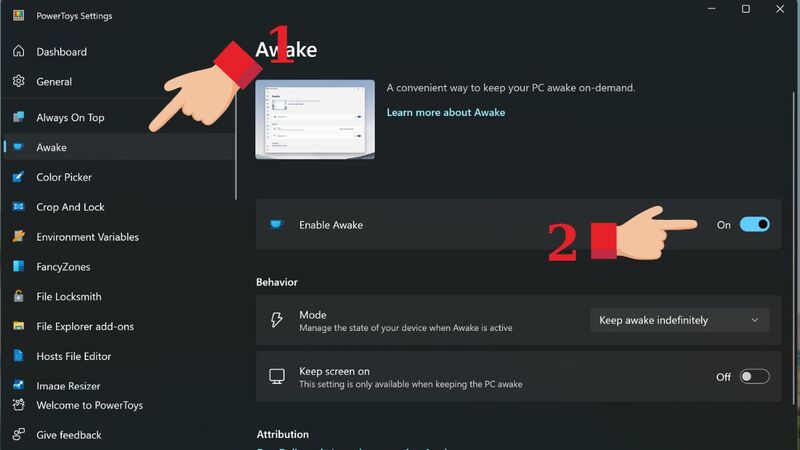
When you turn on the Awake feature, you prevent your PC and display from automatically going to sleep, preventing your PC from being turned off. To enable the Awake feature, do the following:
Step 1: Select the Awake tab in PowerToys > Click the On button in the Enable Awake section.
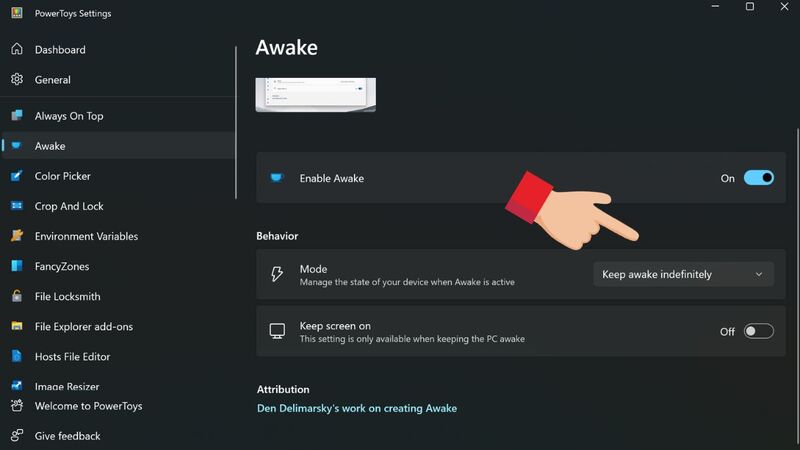
Step 2: Select Mode, click Keep Awake Indefinitely to keep your PC always active.
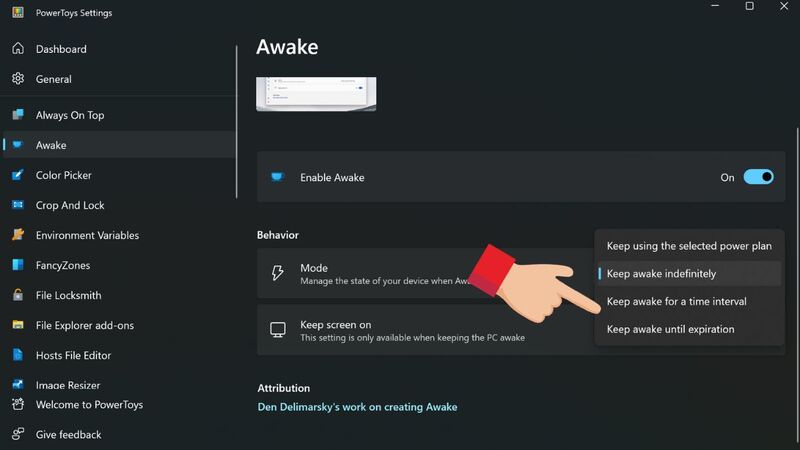
Step 3: If you want to adjust the activity time, tap Keep awake for a time interval or tap Keep awake until expiration.
Peek – View images and files without opening them
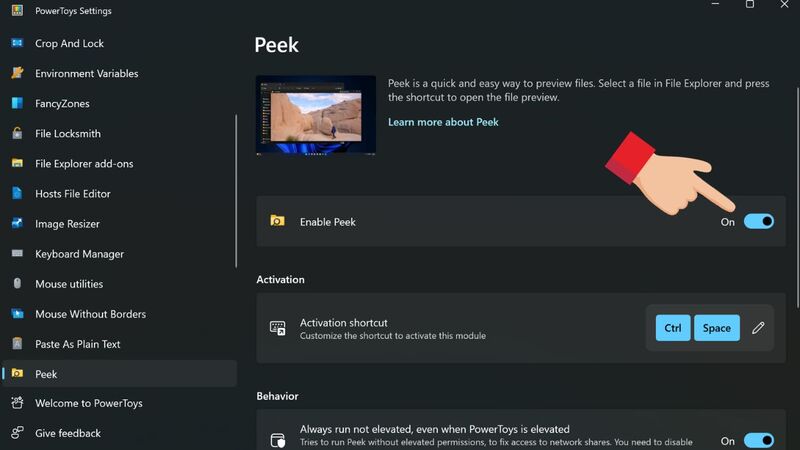
With the Peek utility in PowerToys, you can quickly view files, documents, and images in File Explorer without opening them in a media player or application. To quickly view using Peek, follow these steps:
Step 1: Start by activating the Peek feature in the Enable Peek section.
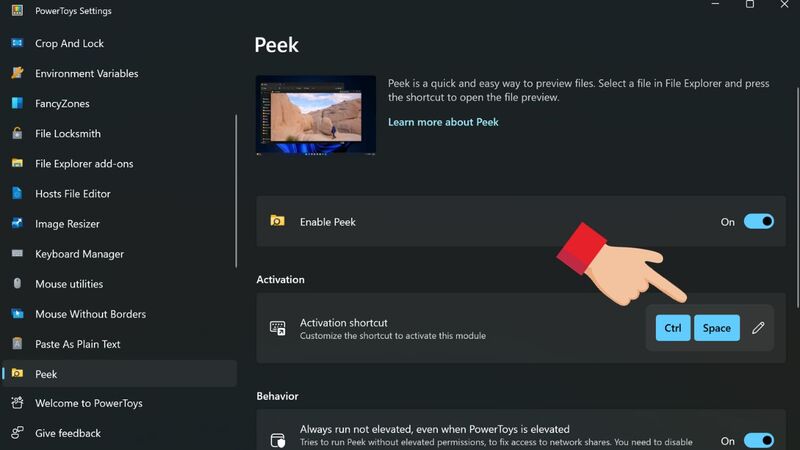
Step 2: You can change the shortcut by selecting Activation shortcut Note: Shortcuts only start from the Windows, Alt and Shift, Ctrl buttons.
PowerToys Run – Run any application instantly
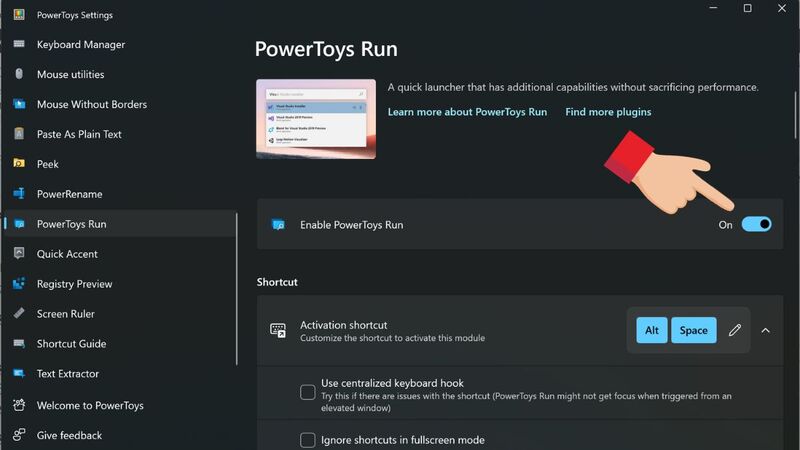
PowerToys Run utility is like a quick driver for applications and files. You can run them immediately using the keyboard shortcut Alt+Ctrl. With this utility, you can search files more easily and conveniently on Windows. Activate and customize PowerToys Run as follows:
Step 1: Select the PowerToys Run tab on the toolbar. Click On in the Enable PowerToys Run section.
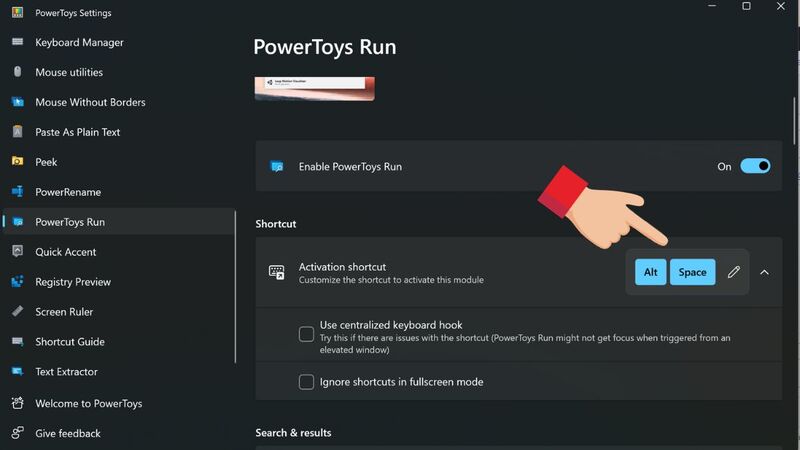
Step 2: Visit Activation Shortcut to adjust the key combination to activate the search engine. (The default shortcut is Alt+Space, users can change as desired by clicking the pencil icon).
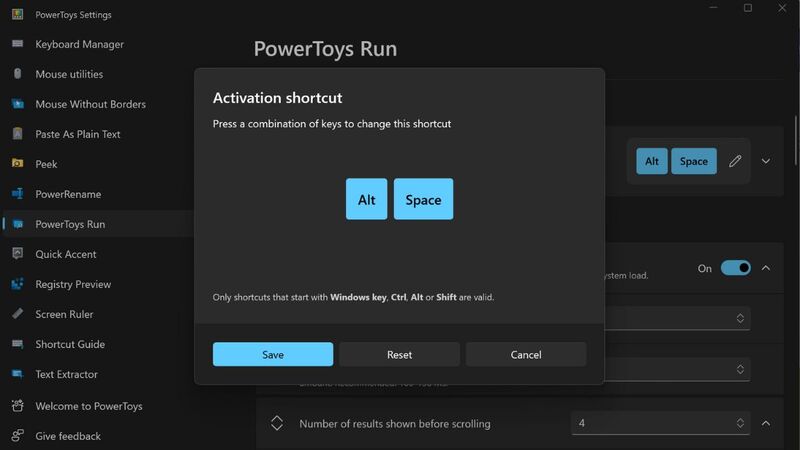
Step 3: You can extend the ability to search and run applications by adding Plugins in PowerToys Run.
For example, to access devices in Settings in the search bar, users can select Windows Settings in Plugins.
Image Resizer – Improves image quality and resizing
With the image editing utility, you will be able to change the size of images easily and conveniently without using a complicated tool. You just need to select the image and click Resize image from the toolbar to adjust the size of the image. After resizing the image using Image Resizer as follows:
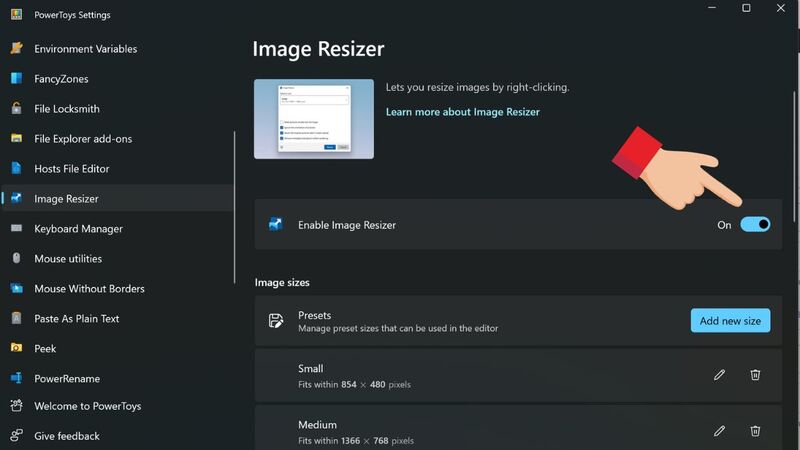
Step 1: Click on Image Resizer in PowerToys > Click On in the Enable Image Resizer section to activate.
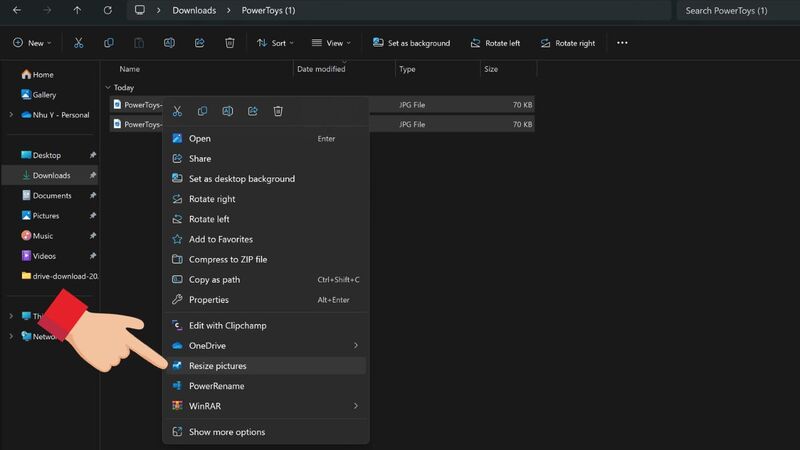
Step 2: You select one or more images in File Explorer and right-click, select Image Resizer.
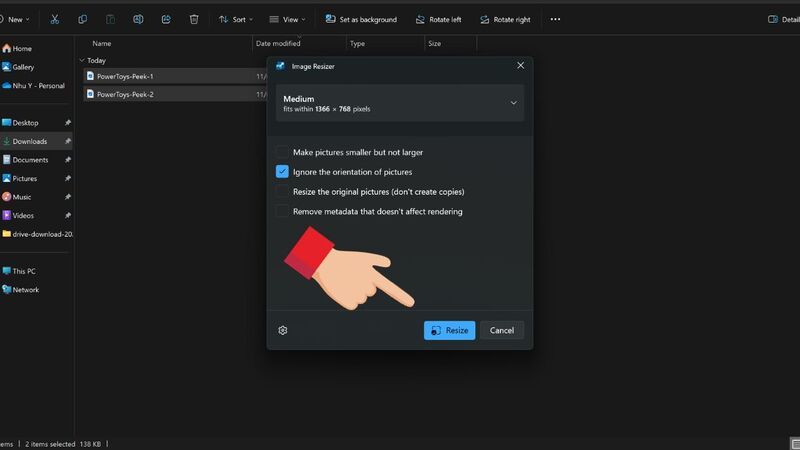
Step 3: You choose the desired image size and click Resize.
Fancy Zones – Create custom window layouts
This utility allows users to freely adjust and arrange the application's windows according to the default layout or according to their preferences. To be able to adjust the layout as desired, press the key combination Windows + Shift + ` (accent). After customizing, hold down the Shift key and drag the applications to the location set from the previous step.
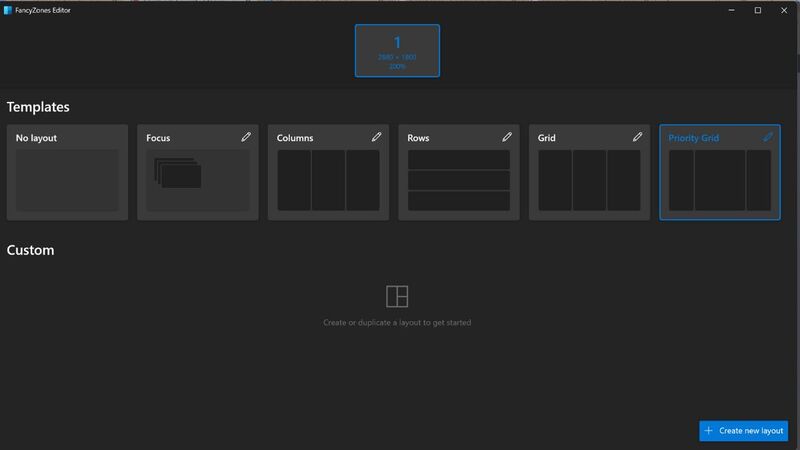
Screen Ruler – Measures the distance between clear elements
The next utility is Screen Ruler with a function that helps users measure the size and distance on their screen. For example: You are working on a video and want to know the distance between two objects. They can use Screen Ruler to measure distance right on the screen.
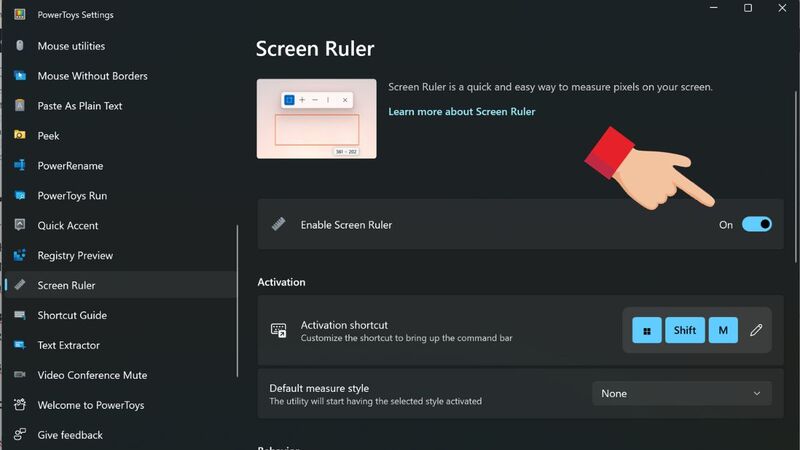
Step 1: Click on Screen Ruler in PowerToys > Click On in the Enable Screen Ruler section to activate.
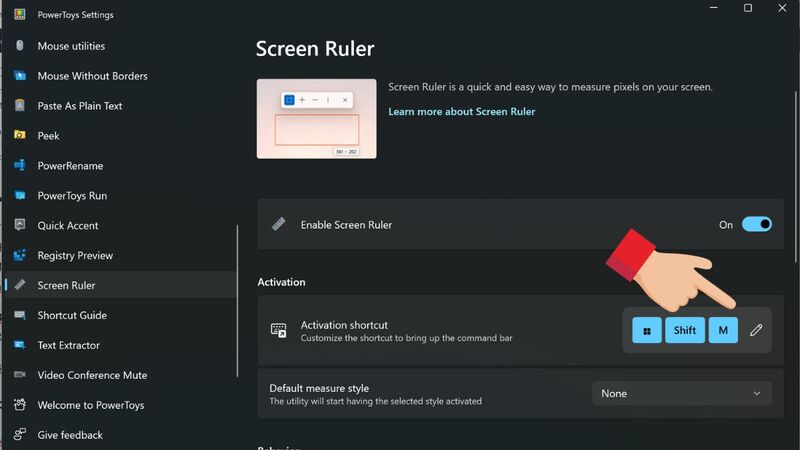
Step 2: You press the key combination Windows + Shift + M to measure the distance between objects.
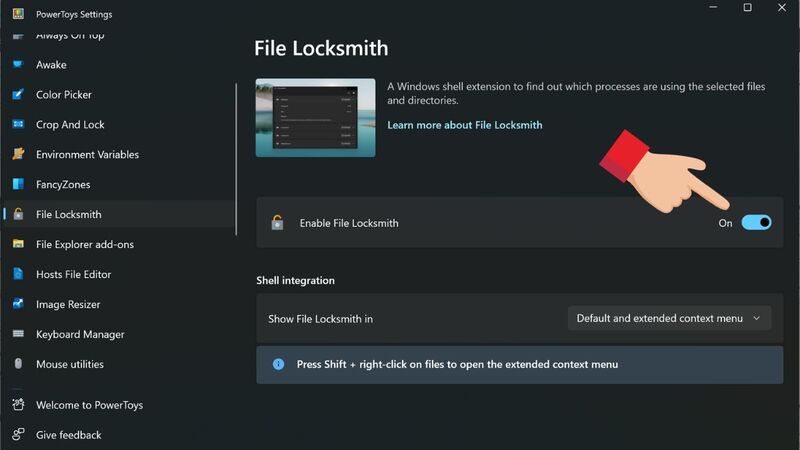
File Locksmith – Unlock files with just one click
File Locksmith is a utility that helps users determine how to use files or applications on Windows operating systems. This will be more useful if the user wants to delete or move an application but the message “the file is being used by another program” appears.
File Locksmith is a utility that allows users to lock file usage and prevent failed deletions and moves. To turn on this utility, select File Locksmith in the left toolbar > Click On in the Enable File Locksmith section.
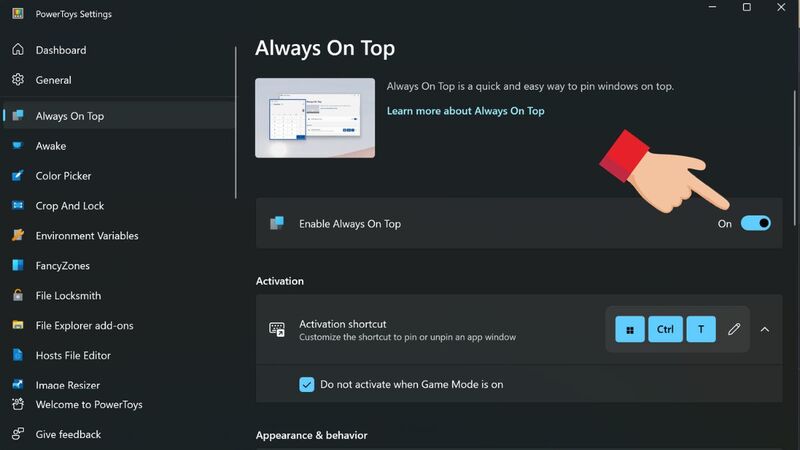
Always On Top
The Always On Top utility allows users to place an application window on top of the windows of other applications. The placed application window will be in the highest position, not blocked by any other application. Users set the application by pressing the key combination Windows + Ctrl + T or editing the key combination in the Activation Shortcut section.
PowerRename – Rename multiple files at once
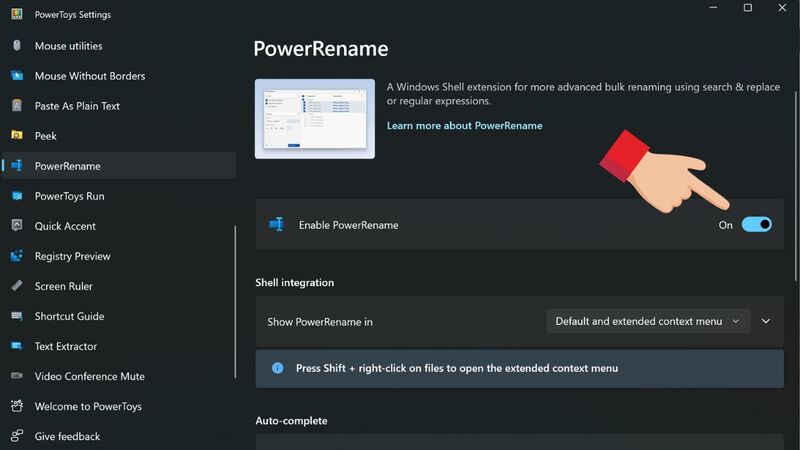
To use this utility, users can easily rename multiple files at once. Perform activation as follows:
Step 1: Click PowerRename in the left bar of PowerToys Settings > Select Enable PowerRename and turn it on to On to activate.
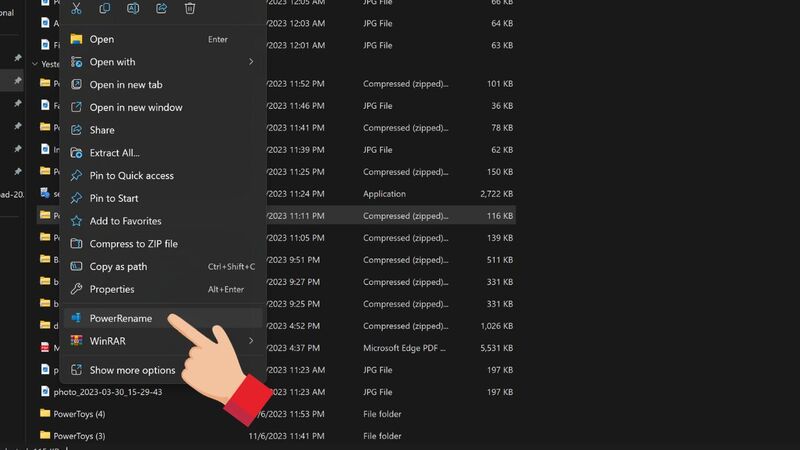
Step 2: Just select the file and right-click > Click PowerRename from the menu to rename it.
Epilogue
PowerToys is a set of tools that help improve Windows 10 computer performance. With PowerToys, you can work more efficiently by performing common operations on your computer quickly and conveniently. Good luck!