• Home
  • News
  • Software
  • Knowledge
  • MMO
  • Tips
  • Security
  • Network
  • Office
AnonyViet - English Version
  • Home
  • News
  • Software
  • Knowledge
  • MMO
  • Tips
  • Security
  • Network
  • Office
No Result
View All Result
  • Home
  • News
  • Software
  • Knowledge
  • MMO
  • Tips
  • Security
  • Network
  • Office
No Result
View All Result
AnonyViet - English Version
No Result
View All Result

How to move or disable the notification window on Windows 10

AnonyViet by AnonyViet
February 1, 2023
in Tips
0

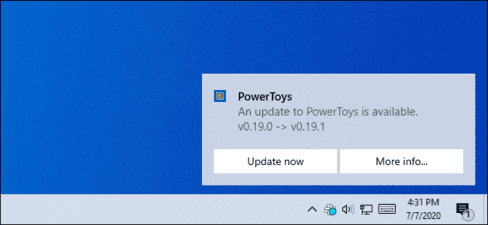
By default, the Windows 10 notification window appears in the lower right corner of your screen. Windows itself doesn’t allow you to move these notifications, but you can still move certain windows to other corners of the screen.

Join the channel Telegram of the AnonyViet 👉 Link 👈

notification window

Registry won’t help you

Some websites will ask you to change the values ​​of “DisplayToastAtBottom” in the registry to change the location of the notification. However, this only worked in the early Preview builds of Windows and it was removed before the final release of Windows 10 was released.

Since the update Windows 10 May 2020there is still no built-in feature to move notifications on Windows 10, to the upper right, or left corner of the screen.

But there are still some things you can do to move those notifications.

Use Settings included in the app

Windows built-in notifications are clearly inflexible. That’s why many Windows applications have developed their own custom notification systems. If you want to turn off or move the notification in the right corner of the screen to another location, see the instructions below.

Some apps even support Windows 10’s built-in notification system. These apps let you choose where notifications appear in their settings,

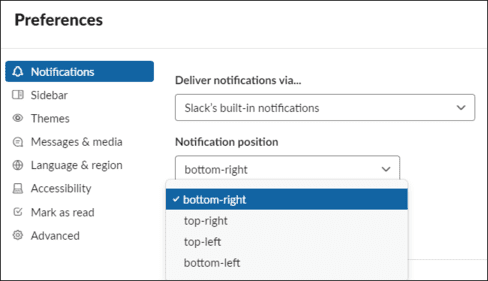
In Slack, for example, you can tap your workspace name in the upper-left corner of the screen and select “Preferences“. Scroll down to the Notifications pane and you will see an option “Deliver notifications via“. Select “Slack’s built-in notifications“, in the “Notification position“, you can choose where you like the notification to appear.

If you choose “Windows Action Center” in Slack, you won’t be able to choose the notification location anymore because Windows 10 doesn’t allow it.
How to move or disable the notification window on Windows 10 6

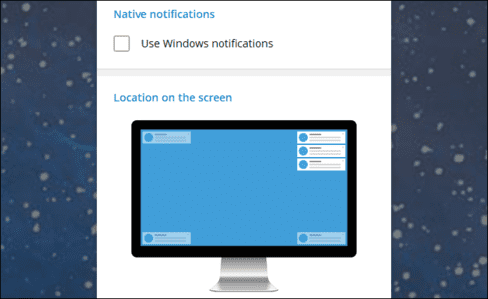
On Telegram, one of the popular chat apps, there is a similar option. If you open Settings and select “Notifications”you can deselect “Use windows notifications” and then you will be free to choose any corner of the screen to display Telegram notifications.
How to move or disable the notification window on Windows 10 7

Not all apps have this option. It also depends on the application developer. But, on Windows 10, all you can do is hope that the app offers options for editing notification locations. Check in the Settings section of the application to see if it has such an option.

Turns off (or hides) an application’s notification window

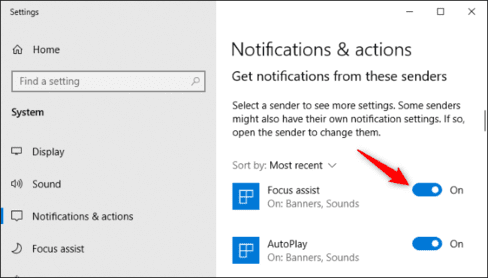
If an app’s notifications keep distracting you and it uses Windows 10’s built-in notifications, you can turn it off there. You can disable all app notifications by going to Settings > System > Notifications & actions. In the section “Get notifications from these senders”switch the apps you want to turn off notifications to “Off”.
How to move or disable the notification window on Windows 10 8

You can also hide the notifications of those apps by tapping the app in “Get notifications from these senders”.

Unchecked “Show notification banners” and turn on “Show notifications in action center”.
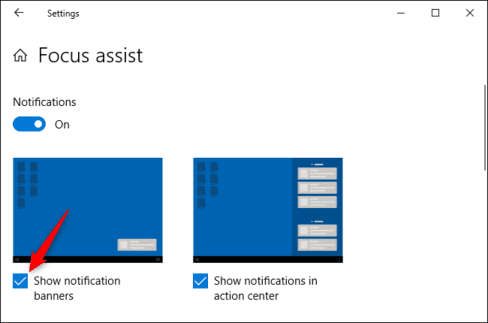
How to move or disable the notification window on Windows 10 9

Those notifications will disappear and you can view them by opening Action Center. Press Win + A or click the notification icon on the taskbar to open the Action Center.


The article achieved: 5/5 – (100 votes)

Tags: DisableMoveNotificationwindowWindows
Previous Post

SQLI Hunter v1.2 – Automatically find SQL Injection errors

Next Post

How to use App 1.1.1.1 on a computer to access blocked websites

AnonyViet

AnonyViet

Related Posts

How to change the default font on Windows 10
Tips

How to change the default font on Windows 10

April 13, 2026
5 tips for using a Browser to replace an App (helps save RAM, time and money)
Tips

5 tips for using a Browser to replace an App (helps save RAM, time and money)

April 13, 2026
How to make funny MeMe photos without Photoshop within 10 seconds
Tips

How to make funny MeMe photos without Photoshop within 10 seconds

April 11, 2026
How to quickly design your own Logo without Photoshop
Tips

How to quickly design your own Logo without Photoshop

April 10, 2026
How to convert Website into App on Windows
Tips

How to convert Website into App on Windows

April 9, 2026
Instructions for getting 3 months of Adobe Express Pro for free
Tips

Instructions for getting 3 months of Adobe Express Pro for free

April 9, 2026
Next Post
How to use App 1.1.1.1 on a computer to access blocked websites

How to use App 1.1.1.1 on a computer to access blocked websites

0 0 votes
Article Rating
Subscribe
Login
Notify of
guest

guest

0 Comments
Oldest
Newest Most Voted
Inline Feedbacks
View all comments

Recent News

4K Video Downloader Plus – Tool to download YouTube videos on macOS

4K Video Downloader Plus – Tool to download YouTube videos on macOS

April 20, 2026
How to add Watermark to Google Docs to protect copyright

How to add Watermark to Google Docs to protect copyright

April 19, 2026
How to intercept traffic using Burp Suite to analyze HTTP/HTTPS

How to intercept traffic using Burp Suite to analyze HTTP/HTTPS

April 18, 2026
How to avoid Adblock detection on Youtube with 4 good tips

How to avoid Adblock detection on Youtube with 4 good tips

April 17, 2026
4K Video Downloader Plus – Tool to download YouTube videos on macOS

4K Video Downloader Plus – Tool to download YouTube videos on macOS

April 20, 2026
How to add Watermark to Google Docs to protect copyright

How to add Watermark to Google Docs to protect copyright

April 19, 2026
How to intercept traffic using Burp Suite to analyze HTTP/HTTPS

How to intercept traffic using Burp Suite to analyze HTTP/HTTPS

April 18, 2026
AnonyViet - English Version

AnonyViet

AnonyViet is a website share knowledge that you have never learned in school!

We are ready to welcome your comments, as well as your articles sent to AnonyViet.

Follow Us

Contact:

Email: anonyviet.com[@]gmail.com

Main Website: https://anonyviet.com

Recent News

4K Video Downloader Plus – Tool to download YouTube videos on macOS

4K Video Downloader Plus – Tool to download YouTube videos on macOS

April 20, 2026
How to add Watermark to Google Docs to protect copyright

How to add Watermark to Google Docs to protect copyright

April 19, 2026
No Result
View All Result
  • Home
  • News
  • Software
  • Knowledge
  • MMO
  • Tips
  • Security
  • Network
  • Office

wpDiscuz
0
0
Would love your thoughts, please comment.x
()
x
| Reply