• Home
  • News
  • Software
  • Knowledge
  • MMO
  • Tips
  • Security
  • Network
  • Office
AnonyViet - English Version
  • Home
  • News
  • Software
  • Knowledge
  • MMO
  • Tips
  • Security
  • Network
  • Office
No Result
View All Result
  • Home
  • News
  • Software
  • Knowledge
  • MMO
  • Tips
  • Security
  • Network
  • Office
No Result
View All Result
AnonyViet - English Version
No Result
View All Result

How to keep NumLock key always on in Windows 11

AnonyViet by AnonyViet
August 7, 2024
in Tips
0

Do you often have trouble because the Numlock key is always disabled every time you start your Windows 11 computer? Entering numbers becomes more difficult and time-consuming? Don't worry, this article will guide you how to turn the key Numlock is always onhelping you save time and operate more easily.

Join the channel Telegram belong to AnonyViet 👉 Link 👈

Tips to keep NumLock key always on on Windows 11

NumLock is a row of number keys on the keyboard, we often work with these keys. But it is quite annoying when in the Operating System Windows By default, NumLock is always turned off. Here are 2 ways to help you solve this problem:

Method 1: Using Registry Editor

Step 1: Press the Windows + R key combination to open the Run dialog box.

Step 2: Type regedit into the dialog box and press Enter.
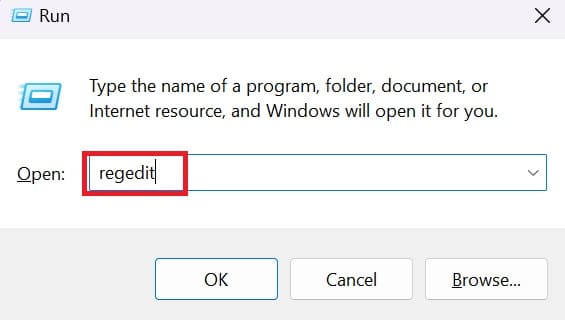
How to keep NumLock key always on in Windows 11
Type regedit

Step 3: Confirm access to Registry Editor by clicking 'Yes'.

Step 4: In Registry Editor, go to the following address:

Computer\HKEY_USERS.DEFAULT\Control Panel\Keyboard
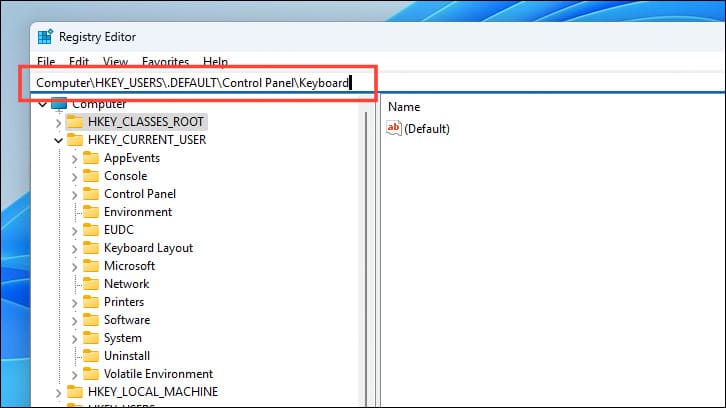
Access to the address as shown

Step 5: Double-click the 'InitialKeyboardIndicators' file to open the Properties window.
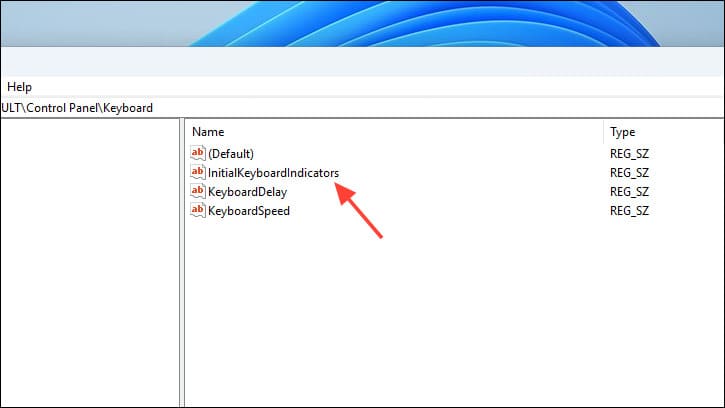
Double-click the file 'InitialKeyboardIndicators'
Double-click the 'InitialKeyboardIndicators' file

If you don't see the above file, you can create a new one by:

  • Right-click on the blank space > Select New > Select String Value.
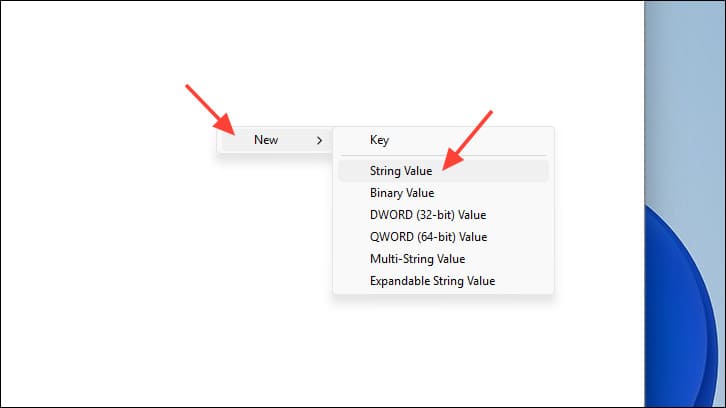
Right click on the blank space > Select New > Select String Value” width=”726″ height=”408″ srcset=”https://anonyviet.com/wp-content/uploads/2024/05/cach-de-phim-numlock-luon-bat-4.jpg 726w, https://anonyviet.com/wp-content/uploads/2024/05/cach-de-phim-numlock-luon-bat-4-300×169.jpg 300w” sizes=”(max-width: 726px) 100vw, 726px”/><figcaption id=Right click on the blank space, Select New; Select String Value
  • Name the new value InitialKeyboardIndicators.

Step 6: In the Edit String window, enter value 2 in the 'Value Data' field > Click OK
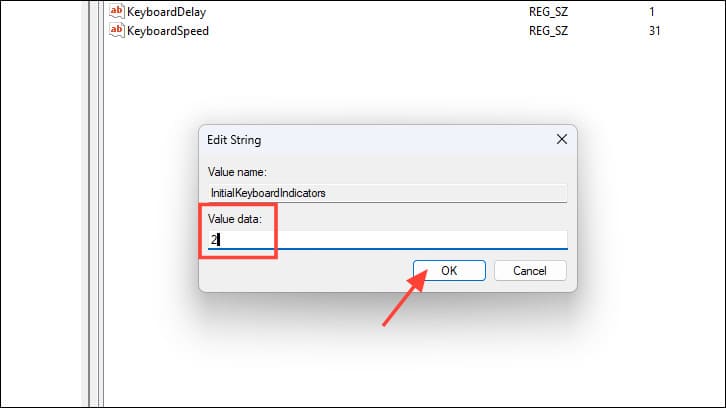
Enter value 2 in the 'Value Data' field
Enter value 2 in 'Value Data'

Step 7: Restart your computer to apply the changes.

After restarting, Numlock will always be on when you sign in to Windows 11.

Method 2: Using Script

If you don't want to do complicated Registry editing, you can create a PowerShell script and set it to run automatically every time you log in to your account.

Step 1: Open the Start menu, search for “Notepad” and select the application of the same name.
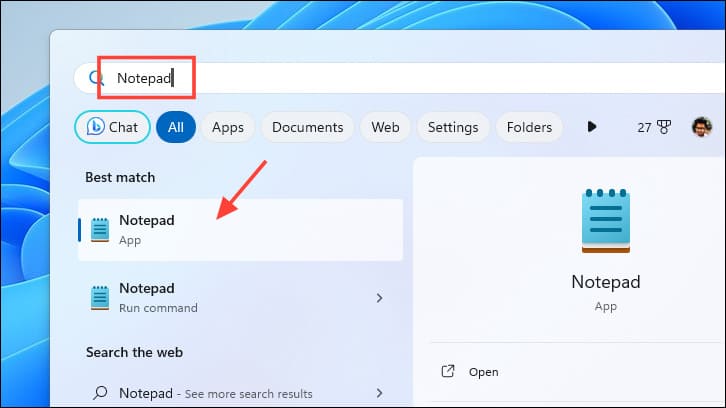
Open Notepad
Open Notepad

Step 2: In Notepad, paste the following code:

set WshShell = CreateObject(“WScript.Shell”)
WshShell.SendKeys “{NUMLOCK}”
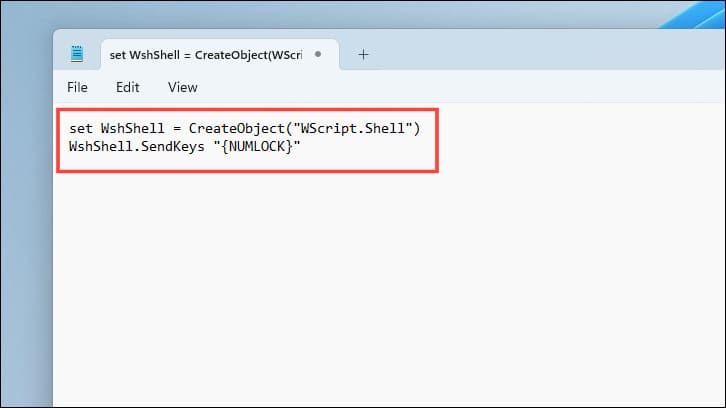
Paste the code to keep NumLock on

Step 3: Click File > Save As to save the file.

Give the script an easy-to-remember name, for example “NumLockOnLogin.vbs” (Remember it must have the .vbs extension)

Step 4: To make sure Notepad doesn't change the file type to text, select 'All Files' under Save as type. Finally, click Save to save.
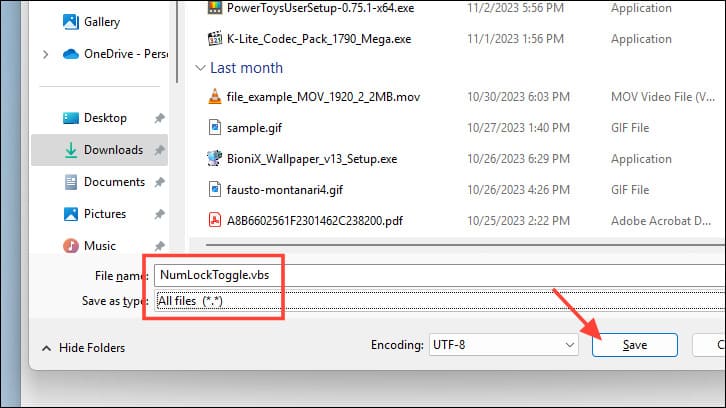
Give your script an easy-to-remember name with the .vbs extension.

Step 5: Find the saved script file, right-click and select Copy (or Ctrl+C).
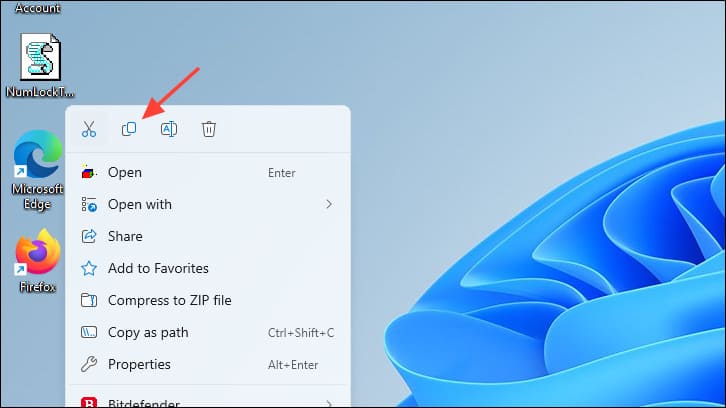
Copy script file
Copy script file

Step 6: Open File Explorer (Double-click This PC or press the Windows+E shortcut).

Open File Explorer
Open File Explorer

Step 7: Paste the following address into the address bar and press Enter:

shell:startup
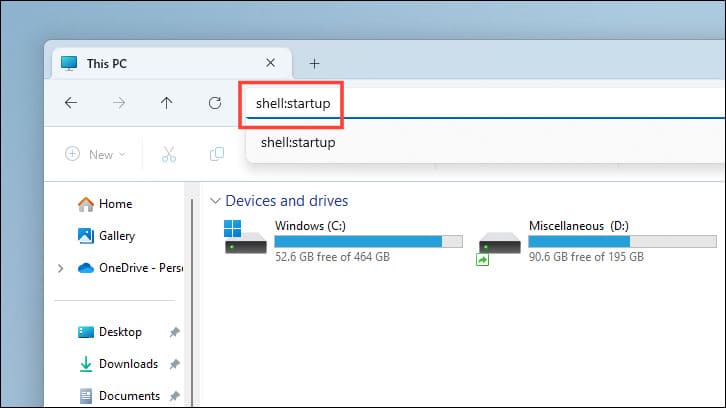
Paste the following address into the address bar

Step 8: Paste the copied script file into this folder (Ctrl+V or right click and select Paste).
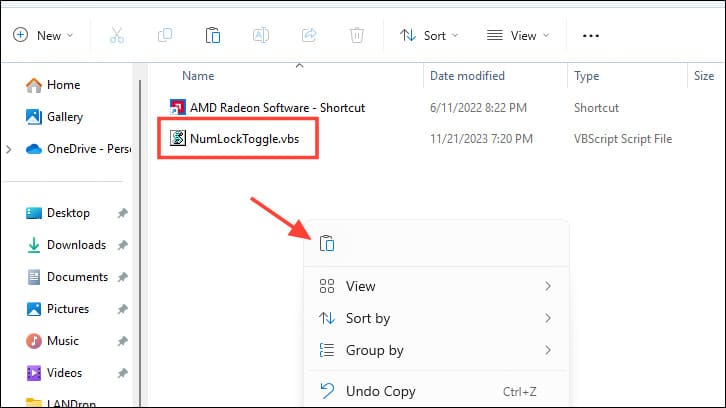
Paste the copied script file in

Now, every time you log in, the script will automatically enable Numlock on Windows 11making it easier for you to enter data.

Epilogue

And those are the two main methods of holding the key. Numlock is always on on Windows 11. Choose the most suitable method according to your needs and personal preferences. Good luck!


Tags: KeyNumLockWindows
Previous Post

5 settings to disable on Windows 11 to avoid being tracked

Next Post

Messenger Automatically Seen Messages: Causes & How to Fix

AnonyViet

AnonyViet

Related Posts

How to record reaction videos with Android phones, no app needed
Tips

How to record reaction videos with Android phones, no app needed

June 1, 2026
Instructions on how to get Google AI Pro 1 year for free for new accounts
Tips

Instructions on how to get Google AI Pro 1 year for free for new accounts

June 1, 2026
Top free AI tools to help write, test and optimize content
Tips

Top free AI tools to help write, test and optimize content

June 1, 2026
Instructions for receiving Lovable Pro 12 months for free
Tips

Instructions for receiving Lovable Pro 12 months for free

May 29, 2026
Instructions for receiving 1 month of ElevenLabs Creator for free worth
Tips

Instructions for receiving 1 month of ElevenLabs Creator for free worth $22

May 25, 2026
How to create beautiful studio-like preschool graduation photos for your child
Tips

How to create beautiful studio-like preschool graduation photos for your child

May 21, 2026
Next Post
Messenger Automatically Seen Messages: Causes & How to Fix

Messenger Automatically Seen Messages: Causes & How to Fix

0 0 votes
Article Rating
Subscribe
Login
Notify of
guest

guest

0 Comments
Oldest
Newest Most Voted
Inline Feedbacks
View all comments

Recent News

How to record reaction videos with Android phones, no app needed

How to record reaction videos with Android phones, no app needed

June 1, 2026
Instructions on how to get Google AI Pro 1 year for free for new accounts

Instructions on how to get Google AI Pro 1 year for free for new accounts

June 1, 2026
Top free AI tools to help write, test and optimize content

Top free AI tools to help write, test and optimize content

June 1, 2026
TruyenDrive: Turn Google Drive into a professional manga reader

TruyenDrive: Turn Google Drive into a professional manga reader

May 31, 2026
How to record reaction videos with Android phones, no app needed

How to record reaction videos with Android phones, no app needed

June 1, 2026
Instructions on how to get Google AI Pro 1 year for free for new accounts

Instructions on how to get Google AI Pro 1 year for free for new accounts

June 1, 2026
Top free AI tools to help write, test and optimize content

Top free AI tools to help write, test and optimize content

June 1, 2026
AnonyViet - English Version

AnonyViet

AnonyViet is a website share knowledge that you have never learned in school!

We are ready to welcome your comments, as well as your articles sent to AnonyViet.

Follow Us

Contact:

Email: anonyviet.com[@]gmail.com

Main Website: https://anonyviet.com

Recent News

How to record reaction videos with Android phones, no app needed

How to record reaction videos with Android phones, no app needed

June 1, 2026
Instructions on how to get Google AI Pro 1 year for free for new accounts

Instructions on how to get Google AI Pro 1 year for free for new accounts

June 1, 2026
No Result
View All Result
  • Home
  • News
  • Software
  • Knowledge
  • MMO
  • Tips
  • Security
  • Network
  • Office

wpDiscuz
0
0
Would love your thoughts, please comment.x
()
x
| Reply