• Home
  • News
  • Software
  • Knowledge
  • MMO
  • Tips
  • Security
  • Network
  • Office
AnonyViet - English Version
  • Home
  • News
  • Software
  • Knowledge
  • MMO
  • Tips
  • Security
  • Network
  • Office
No Result
View All Result
  • Home
  • News
  • Software
  • Knowledge
  • MMO
  • Tips
  • Security
  • Network
  • Office
No Result
View All Result
AnonyViet - English Version
No Result
View All Result

How to install Windows 11 on an Intel or M1/M2 Mac

AnonyViet by AnonyViet
January 24, 2023
in Tips
0

Parallels makes it easy to run Windows 11 on an Intel or M1 Mac using a virtual machine. On an Intel Mac, you can easily run your favorite Windows programs alongside your Mac applications.

Join the channel Telegram of the AnonyViet 👉 Link 👈

How to install Windows 11 on an Intel or M1/M2 Mac

Why use Parallels?

Parallels is a virtual machine program, which means it runs a separate operating system in an emulated computer (called a virtual machine) on your Mac. With Parallels, you can run Windows apps side-by-side with Mac apps using a mode called Coherence, or you can easily open the Windows desktop to work with your Mac files in Windows apps.

This is in contrast to Boot Camp, which requires installing Windows on a separate partition on your Mac’s SSD or hard drive. With Boot Camp, you can only use one operating system at a time — Mac or Windows, not both — and you have to reboot to switch between the two. Unlike Boot Camp, Parallels makes switching between Windows and Mac more flexible and fluid.

What you need

Parallels 18 (currently the latest version) supports Windows 11 on macOS Catalina, Big Sur, and Monterey. The main version of the app costs $80, but if you already have an older version, upgrade for $50. Or you can try it for free for a certain period of time. Visit the Parallels website to get the version you need.

You will also need a license for Windows 11, which you can purchase from Microsoft after installing the operating system. In the case of Intel Macs, you can download the Windows 11 ISO file from Microsoft’s homepage.

How to install Windows 11 on an Intel or M1 Mac

First you need Download and install Parallelson your Mac. During the installation process, make sure you allow Parallels Desktop to access your Mac’s Desktop, Documents, and Downloads folders.

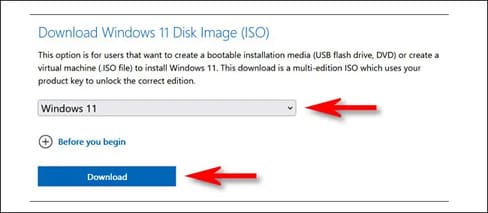
Next, if you’re running an Intel Mac, download Windows 11 ISO from Microsoft website. On the Download page, find the “Download Windows 11 Disk Image (ISO)” section, select “Windows 11”, then click “Download”.
How to install Windows 11 on an Intel Mac or M1/M2 13

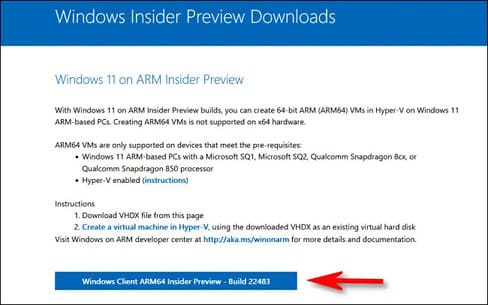
If you’re using an M1/M2 Mac, you can’t use the Intel (x64) version of Windows 11. Instead, you’ll need to sign up for the Windows Insider Program, then Download Windows Client ARM64which will be in the VHDX image file.
How to install Windows 11 on an Intel Mac or M1/M2 14

Once you have the OS ISO file you need, open the Parallels application. For M1/M2 Macs, double-click the VHDX file you just downloaded and follow the on-screen instructions in Parallels to install Windows 11. Some of the steps will be similar to the Mac Intel installation process shown. details below.

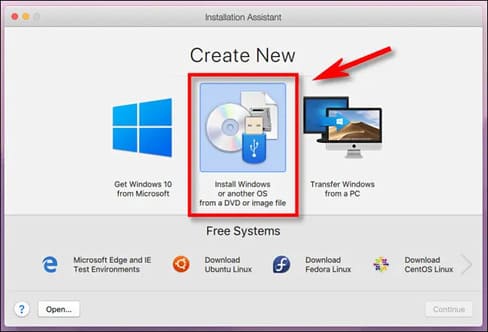
On an Intel Mac, open the Installation Assistant and select “Install Windows or another OS from a DVD or image file” and click “Continue”.
How to install Windows 11 on a Mac Intel or M1/M2 15

Parallels will automatically locate the Windows 11 ISO on your Mac. Select it from the list and click “Continue”.
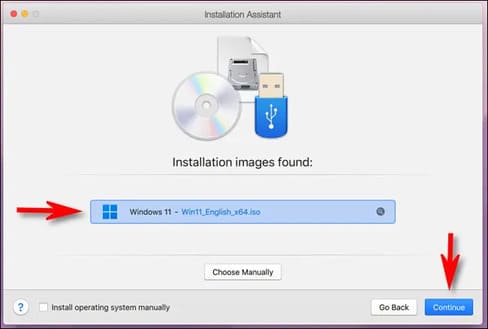
How to install Windows 11 on an Intel or M1/M2 16

Next, Parallels will ask you for a Windows License Key. If you have, you can import it now. Otherwise, uncheck “Enter Windows license key for faster installation” and click “Continue”.
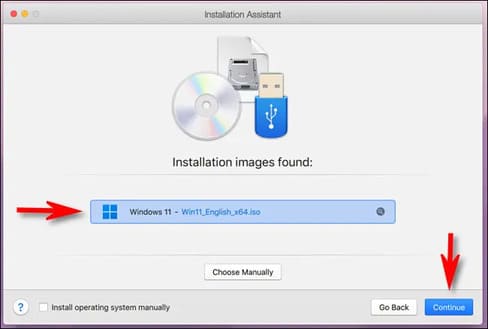
How to install Windows 11 on an Intel or M1/M2 17 . Mac

The Windows 11 ISO file contains installation information for various versions of Windows 11. Select the version you want to install from the menu (Such as “Windows 11 Home” or “Windows 11 Pro”) and click “Continue”. “. Remember that each version has its own price when you later purchase a Windows 11 license.
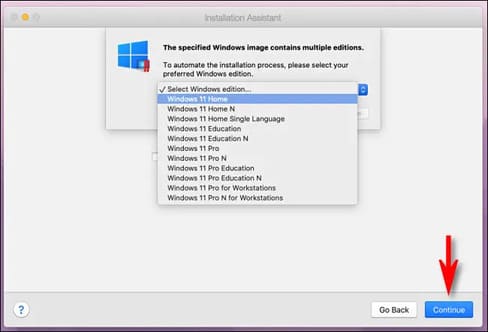
How to install Windows 11 on an Intel Mac or M1/M2 18

Next, Parallels will ask if you plan to use Windows primarily for work or gaming. Choose the one that suits your needs and click “Continue”.
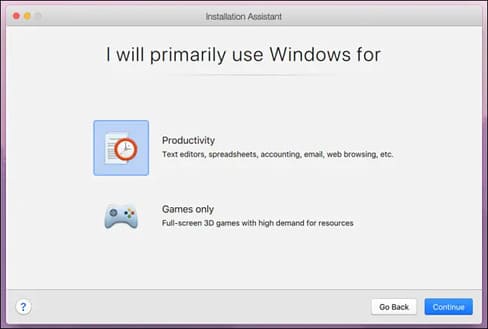
How to install Windows 11 on an Intel Mac or M1/M2 19

The Windows 11 installation will begin. Parallels handles it automatically, and you’ll see the progress in a small virtual machine window on your Mac.
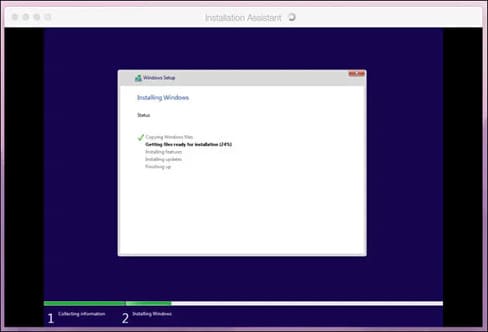
How to install Windows 11 on an Intel Mac or M1/M2 20

When the installation is complete on both the Mac M1 and Intel, you will see the message “Installation Complete”. Click inside the window to continue.
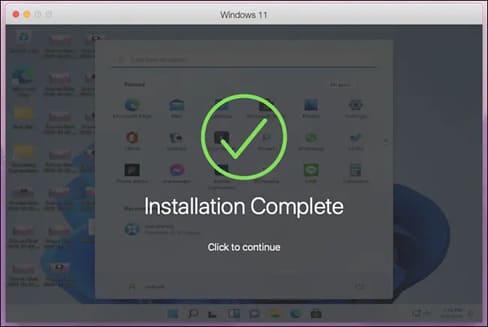
How to install Windows 11 on an Intel or M1/M2 21

At this point, if you’re using the trial version of Parallels, the app will ask you to sign up for a Parallels account. Otherwise, you should see the Windows 11 screen and be ready to go.
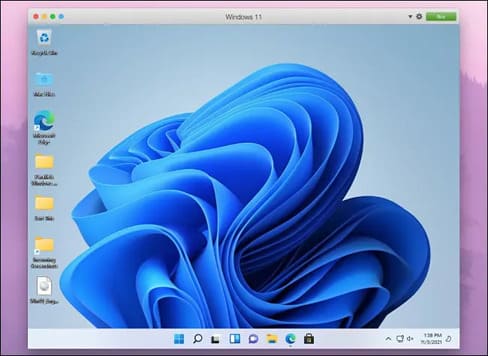
How to install Windows 11 on an Intel Mac or M1/M2 22

To switch to seamless mode where you can use Windows and Mac apps side-by-side, focus on the “Windows 11” window and choose View > Enter Coherence in the menu bar. Or you can press Ctrl + Command + C on your keyboard.

How to install Windows 11 on an Intel Mac or M1/M2 23

To exit Coherence mode, click the Windows logo icon in your Dock and choose View > Exit Coherence in the menu bar. Or you can press Ctrl + Command + C again.

Once you have purchased your Windows 11 license, run the Settings app in Windows 11 and click “System”. Click “Active Now”, then click “Open Store” and you will be able to purchase a Windows license in the Microsoft Store. Alternatively, you can also install Ubuntu alongside Windows here.


The article achieved: 5/5 – (100 votes)

Tags: installIntelM1M2MacWindows
Previous Post

Lesson 197: Circular references in Excel

Next Post

Lesson 198: Formula Auditing Group in Excel

AnonyViet

AnonyViet

Related Posts

How to add sliders to Facebook Stories to easily rewind videos
Tips

How to add sliders to Facebook Stories to easily rewind videos

April 21, 2026
How to change the default font on Windows 10
Tips

How to change the default font on Windows 10

April 13, 2026
5 tips for using a Browser to replace an App (helps save RAM, time and money)
Tips

5 tips for using a Browser to replace an App (helps save RAM, time and money)

April 13, 2026
How to make funny MeMe photos without Photoshop within 10 seconds
Tips

How to make funny MeMe photos without Photoshop within 10 seconds

April 11, 2026
How to quickly design your own Logo without Photoshop
Tips

How to quickly design your own Logo without Photoshop

April 10, 2026
How to convert Website into App on Windows
Tips

How to convert Website into App on Windows

April 9, 2026
Next Post
Lesson 198: Formula Auditing Group in Excel

Lesson 198: Formula Auditing Group in Excel

0 0 votes
Article Rating
Subscribe
Login
Notify of
guest

guest

0 Comments
Oldest
Newest Most Voted
Inline Feedbacks
View all comments

Recent News

Instructions for looking up prescriptions on VNeID instead of paper medical books

Instructions for looking up prescriptions on VNeID instead of paper medical books

April 26, 2026
Tips to completely turn off CAPTCHA codes on iPhone and Mac are super simple

Tips to completely turn off CAPTCHA codes on iPhone and Mac are super simple

April 25, 2026
Compare Poco X8 Pro and Poco X7 Pro: A new step for the “king” of mid-range performance

Compare Poco X8 Pro and Poco X7 Pro: A new step for the “king” of mid-range performance

April 24, 2026
How to compress online videos for free without losing quality

How to compress online videos for free without losing quality

April 24, 2026
Instructions for looking up prescriptions on VNeID instead of paper medical books

Instructions for looking up prescriptions on VNeID instead of paper medical books

April 26, 2026
Tips to completely turn off CAPTCHA codes on iPhone and Mac are super simple

Tips to completely turn off CAPTCHA codes on iPhone and Mac are super simple

April 25, 2026
Compare Poco X8 Pro and Poco X7 Pro: A new step for the “king” of mid-range performance

Compare Poco X8 Pro and Poco X7 Pro: A new step for the “king” of mid-range performance

April 24, 2026
AnonyViet - English Version

AnonyViet

AnonyViet is a website share knowledge that you have never learned in school!

We are ready to welcome your comments, as well as your articles sent to AnonyViet.

Follow Us

Contact:

Email: anonyviet.com[@]gmail.com

Main Website: https://anonyviet.com

Recent News

Instructions for looking up prescriptions on VNeID instead of paper medical books

Instructions for looking up prescriptions on VNeID instead of paper medical books

April 26, 2026
Tips to completely turn off CAPTCHA codes on iPhone and Mac are super simple

Tips to completely turn off CAPTCHA codes on iPhone and Mac are super simple

April 25, 2026
No Result
View All Result
  • Home
  • News
  • Software
  • Knowledge
  • MMO
  • Tips
  • Security
  • Network
  • Office

wpDiscuz
0
0
Would love your thoughts, please comment.x
()
x
| Reply