In this article, I will guide you how to install Microsoft Edge on Ubuntu (or any other Linux distribution based on Ubuntu, like Linux Mint) in two methods: graphical (GUI) and command line (CLI).
| Join the channel Telegram belong to AnonyViet 👉 Link 👈 |
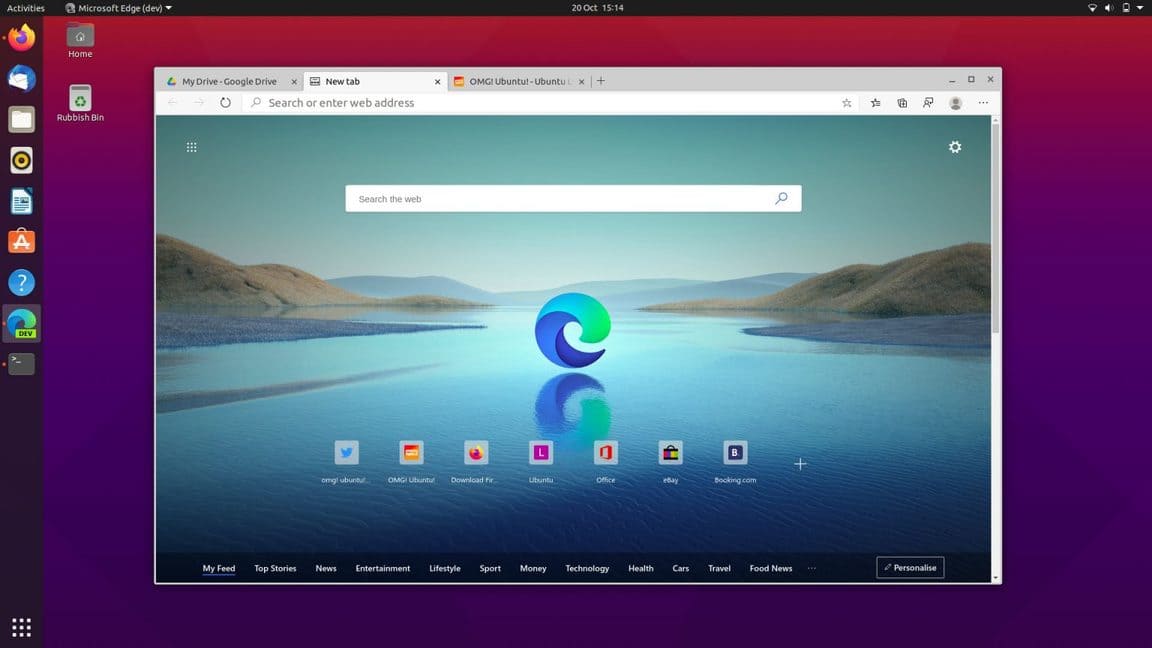
It doesn’t matter which method you choose because you’ll be downloading and installing the same version of Microsoft’s latest browser. Additionally, both methods set things up so that you automatically receive future updates as they are released.
Microsoft Edge is based on Chromium, an open source browser engine developed by Google (though not exclusively). Any website, web app, or web service that can work in any Chromium-based browser, such as Google Chrome, will also work in Edge.
How to install Edge on Ubuntu
Remember that Microsoft Edge on Linux is currently in developer testing mode. It is not a “stable version”. It’s not even a beta. Some features (like browser synchronization) are not currently supported on Linux. Is there an error? Have. Does it crash? Absolutely possible!
Use a graphical interface/GUI
Installing Edge using the graphical user interface is easy to do because Microsoft provides official installation packages for distributions based on Ubuntu and Fedora. You can use these builds to install the browser on your system using your system’s package manager.
Step 1: Go to the Microsoft Edge download page
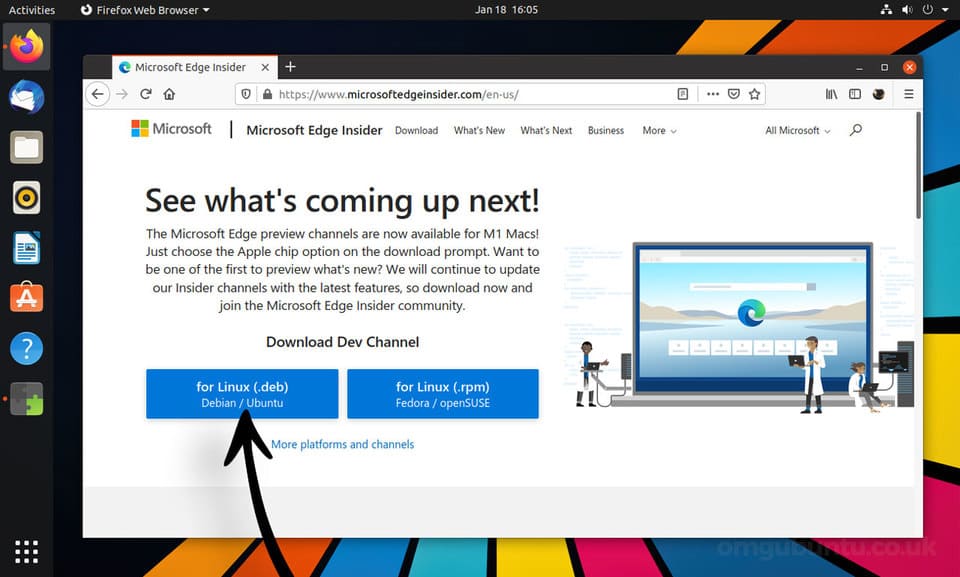
Fire up the browser and open the page download Microsoft Edge Official Microsoft. Here you will find two builds for Linux. Select the ‘Linux (.deb)’ option for Ubuntu.
Step 2: Download Edge
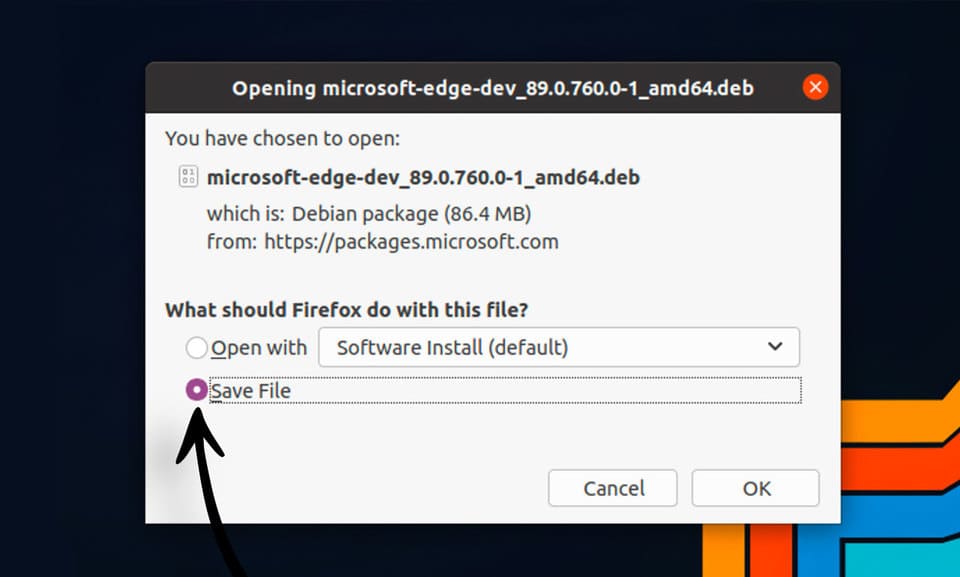
Save the .deb file to the Download folder (or any other folder you can access easily). If you are using Firefox, you can select the “Save File” option to do this.
Step 3: Open the Edge installer
Once the download is complete, you need to double click on the saved file to start the installation and follow the on-screen prompts.

When you install Edge using the official installer, the Microsoft Edge repository is added to the system’s software sources list. You can upgrade to newer versions of the browser as they are released using the tool Software Updater.
Step 4: Open Microsoft Edge
Let the installation finish, then open the browser from the Apps grid (or whatever app menu, launcher, etc. you use on your system).
Use terminal/CLI
Do you like to install software from the terminal? Wise choice, if you use Linux, you must use Terminal, so you can become a pro.
Firstly: You must add the Microsoft Edge repo to the system and enter the Microsoft GPG key to authenticate packages:
curl https://packages.microsoft.com/keys/microsoft.asc | gpg --dearmor > microsoft.gpg
sudo install -o root -g root -m 644 microsoft.gpg /etc/apt/trusted.gpg.d/
sudo sh -c 'echo "deb [arch=amd64https://packages.microsoft.com/repos/edgestable main" > /etc/apt/sources.list.d/microsoft-edge-dev.list'
sudo rm microsoft.gpg
Second step: Run this command to install Microsoft Edge:
sudo apt update && sudo apt install microsoft-edge-dev
Once done, launch the browser from the app grid or run a command microsoft-edge-dev in terminal.
How to uninstall Edge on Ubuntu
So you’ve installed Edge. But after a while of tinkering, you find that Edge is no longer interesting or doesn’t meet your needs, so you want to uninstall Nos? It’s easy, follow me.
Open terminal and run the following command:
sudo apt remove microsoft-edge-*
Alternatively, you can also open the Ubuntu Software application, search for ‘edge’, click on the result and press the ‘remove’ button.
Frequently asked questions
Is Microsoft Edge on Ubuntu stable?
Currently, Microsoft Edge on Linux is still in testing mode for developers. So, some errors or problems may be encountered.
Can I update Microsoft Edge after installing it?
Have. When installing using the official installer, the Microsoft Edge repository is added. You can update through your system’s package manager (e.g. Software Updater).
How to uninstall Microsoft Edge?
You can uninstall with command sudo apt remove microsoft-edge-* in the terminal or through the Ubuntu Software application.