• Home
  • News
  • Software
  • Knowledge
  • MMO
  • Tips
  • Security
  • Network
  • Office
AnonyViet - English Version
  • Home
  • News
  • Software
  • Knowledge
  • MMO
  • Tips
  • Security
  • Network
  • Office
No Result
View All Result
  • Home
  • News
  • Software
  • Knowledge
  • MMO
  • Tips
  • Security
  • Network
  • Office
No Result
View All Result
AnonyViet - English Version
No Result
View All Result

How to install APK file using Windows Subsystem for Android on Windows

AnonyViet by AnonyViet
January 27, 2023
in Tips
0

In this article, I will show you how to install Android APK files on Windows 11 PCs using Windows Subsystem for Android. You can install Windows Subsystem for Android on Windows 11 using the Msixbundle file here.

Join the channel Telegram of the AnonyViet 👉 Link 👈

How to install APK file using Windows Subsystem for Android on Windows

How to install APK file using Windows Subsystem for Android

Currently, Windows 11 has allowed Android APK files to be installed to play games or run applications without virtualization software such as bluestack, memu… To be able to install APKs on WINdows 11 you first need to install Windows Subsystem for Android prior to. Then proceed as follows:

Step 1: Turn on mode Developer in Windows Subsystem

First, open Windows Subsystem for Android by pressing the Windows key and find Windows Subsystem for Android.
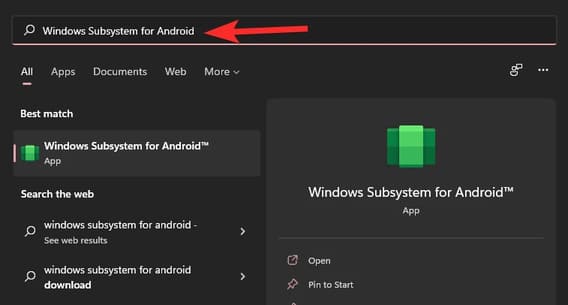
How to install APK file using Windows Subsystem for Android on Windows 23

Click Windows Subsystem for Android. Or click Open.
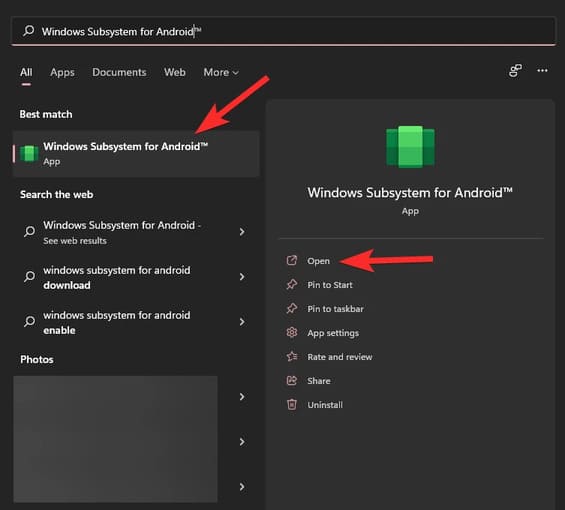
How to install APK file using Windows Subsystem for Android on Windows 24

In Windows Subsystem for Android, enable Developer mode.
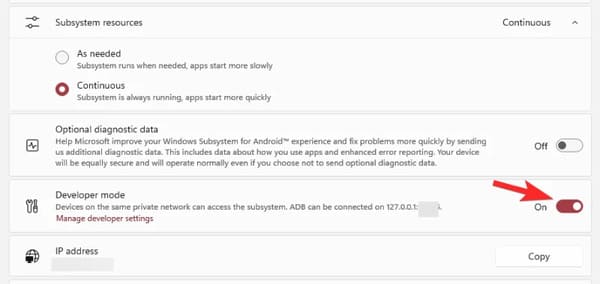
How to install APK file using Windows Subsystem for Android on Windows 25

Step 2: Install SDK Platform Tools

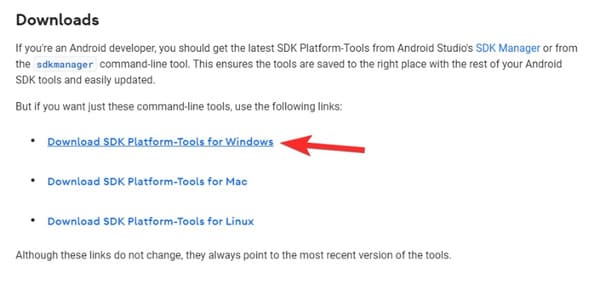
Visit google’s SDK Platform Tools page here.

Press Download SDK Platform-Tools for Windows.
How to install APK file using Windows Subsystem for Android on Windows 26

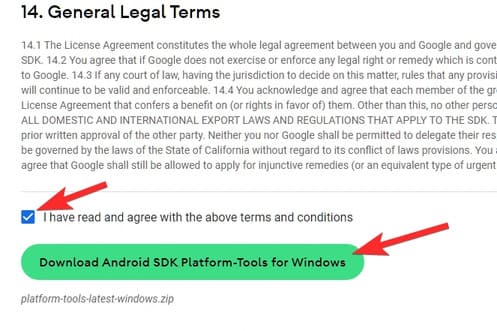
Scroll down and agree to the terms policy. Then click the green button to download Platform Tools.
How to install APK file using Windows Subsystem for Android on Windows 27

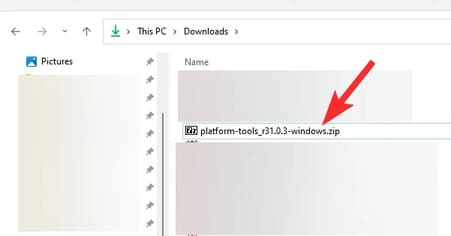
A zip file named platform-tools_r31.0.3-windows will be downloaded to your PC.
How to install APK file using Windows Subsystem for Android on Windows 28

You should create a new folder and move the downloaded file into that folder for easier manipulation.

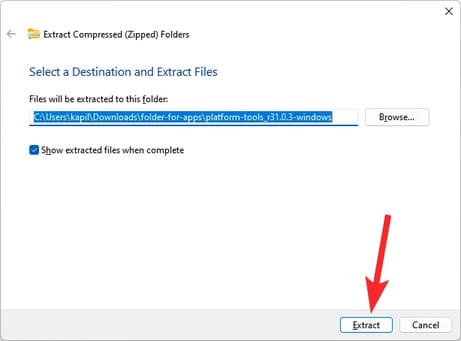
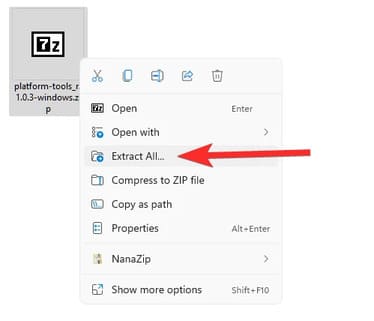
Right click on that file and select Extract all.
How to install APK file using Windows Subsystem for Android on Windows 29

Click Extract.

How to install APK file using Windows Subsystem for Android on Windows 30

The file will be unzipped. Open folder platform tools.
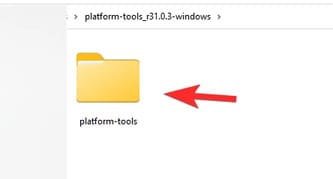
How to install APK file using Windows Subsystem for Android on Windows 31

You will see the adb.exe file and some other files here.

Step 3: Install Android app

Next, open the platform-tools folder.

Here, click on the address bar and type cmdthen press enter.
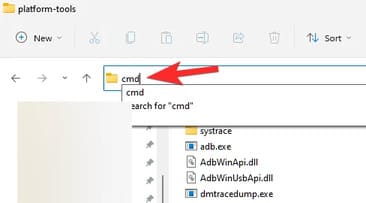
How to install APK file using Windows Subsystem for Android on Windows 32

The command window will open with the location of the platform-tools folder.
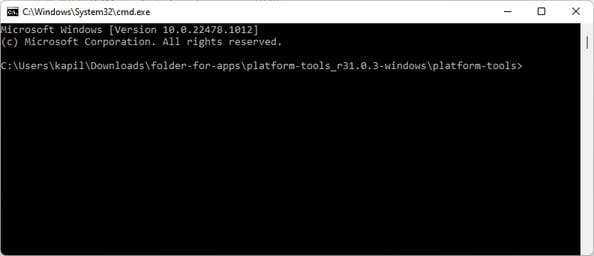
How to install APK file using Windows Subsystem for Android on Windows 33

We have already accessed the platform-tools folder using cmd.
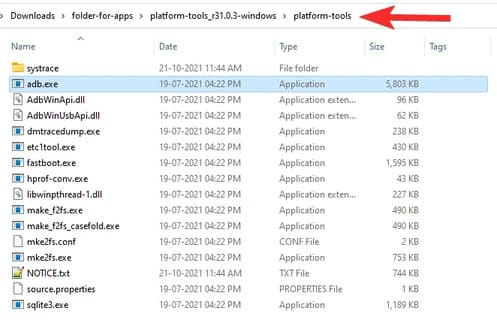
How to install APK file using Windows Subsystem for Android on Windows 34

Now, download the APK file of the Android app you want to install. For example, if you want to install Snapchat, search for Snapchat APK on Google and download its APK file. Next, rename the file to a simpler name like snapchat.apk. Now, move the snapchat.apk file to the platform-tools folder.
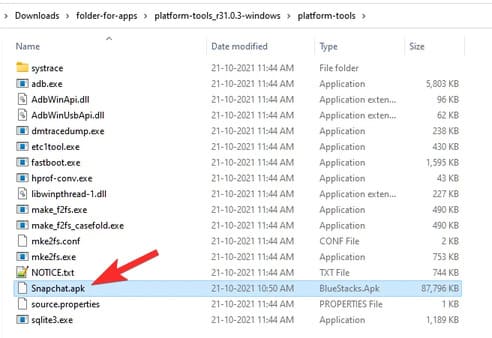
How to install APK file using Windows Subsystem for Android on Windows 35

Then open Windows Subsystem for Android and find the IP where it can connect to ADB in Developer.
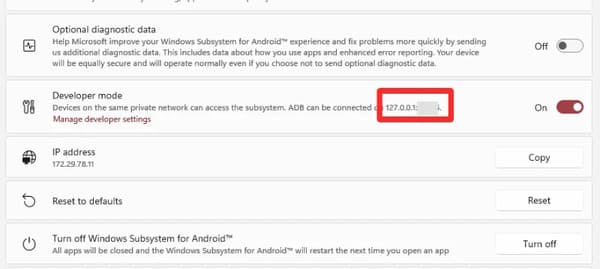
How to install APK file using Windows Subsystem for Android on Windows 36

In cmd, type the command below and press Enter:

adb.exe connect (ip-address)

Eg: adb.exe connect 127.0.0.1:12345
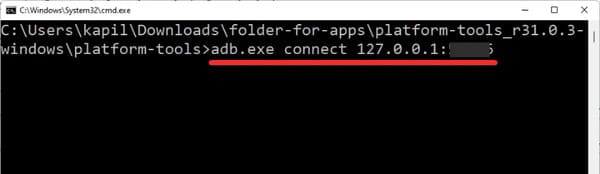
How to install APK file using Windows Subsystem for Android on Windows 37

Now type the install command below and press Enter:

adb.exe install (apk-file-name.apk)

Eg: adb.exe install Snapchat.apk
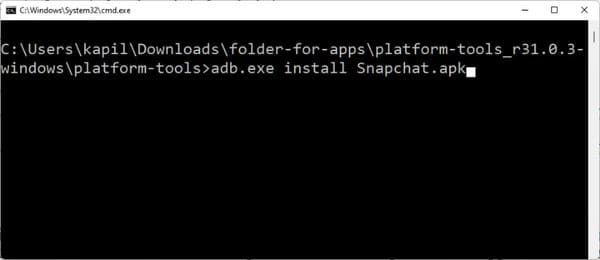
How to install APK file using Windows Subsystem for Android on Windows 38

The Android app will be installed on your PC using ADB and the APK file you provided.
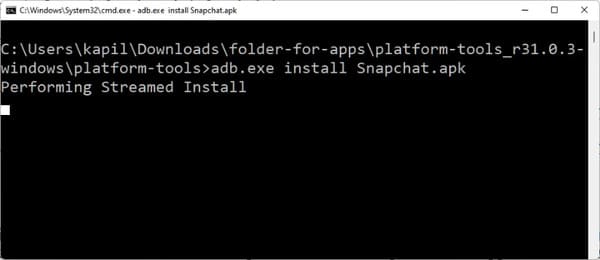
How to install APK file using Windows Subsystem for Android on Windows 39

When it’s done, you’ll see a message Success.
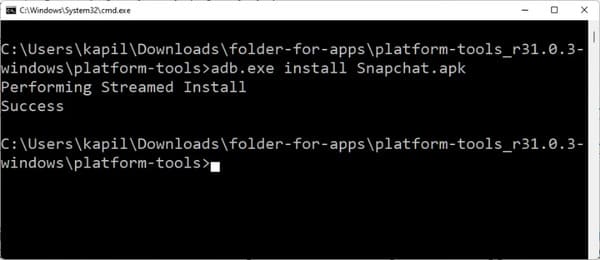
How to install APK file using Windows Subsystem for Android on Windows 40

You can close the CMD window then.

You can now open Android apps on your PC.

Press the Windows key and then enter the name of your application.
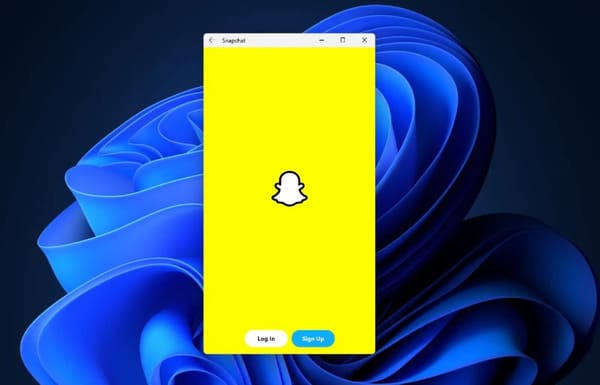
How to install APK file using Windows Subsystem for Android on Windows 41

So you have installed the Android APK file on Windows 11 successfully.

The article achieved: 5/5 – (100 votes)

Tags: AndroidAPKfileinstallSubsystemWindows
Previous Post

How to Active Key Sublime Text 4 – Download Sublime Text 4 Full Key

Next Post

Instructions to register .xyz domain name for 0 VND (free)

AnonyViet

AnonyViet

Related Posts

Instructions for receiving 1 month of ElevenLabs Creator for free worth
Tips

Instructions for receiving 1 month of ElevenLabs Creator for free worth $22

May 25, 2026
How to create beautiful studio-like preschool graduation photos for your child
Tips

How to create beautiful studio-like preschool graduation photos for your child

May 21, 2026
Instructions on how to change iPhone fonts beautifully with Lara
Tips

Instructions on how to change iPhone fonts beautifully with Lara

May 20, 2026
Create images of guardian mascots using AI according to year of birth
Tips

Create images of guardian mascots using AI according to year of birth

May 20, 2026
Try the Shopee Profit Calculator now, avoid the risk of selling at a loss
Tips

Try the Shopee Profit Calculator now, avoid the risk of selling at a loss

May 19, 2026
Prompt converts photos into extremely impressive children’s drawings
Tips

Prompt converts photos into extremely impressive children’s drawings

May 17, 2026
Next Post
Instructions to register .xyz domain name for 0 VND (free)

Instructions to register .xyz domain name for 0 VND (free)

0 0 votes
Article Rating
Subscribe
Login
Notify of
guest

guest

0 Comments
Oldest
Newest Most Voted
Inline Feedbacks
View all comments

Recent News

Instructions for receiving 1 month of ElevenLabs Creator for free worth

Instructions for receiving 1 month of ElevenLabs Creator for free worth $22

May 25, 2026
Instructions on how to turn off YouTube Shorts on iPhone

Instructions on how to turn off YouTube Shorts on iPhone

May 24, 2026
Snapvie: Tool to download 8K YouTube videos, no installation required

Snapvie: Tool to download 8K YouTube videos, no installation required

May 24, 2026
How to create your own Video AI App to use Omni, Nano Banana without API Key

How to create your own Video AI App to use Omni, Nano Banana without API Key

May 23, 2026
Instructions for receiving 1 month of ElevenLabs Creator for free worth

Instructions for receiving 1 month of ElevenLabs Creator for free worth $22

May 25, 2026
Instructions on how to turn off YouTube Shorts on iPhone

Instructions on how to turn off YouTube Shorts on iPhone

May 24, 2026
Snapvie: Tool to download 8K YouTube videos, no installation required

Snapvie: Tool to download 8K YouTube videos, no installation required

May 24, 2026
AnonyViet - English Version

AnonyViet

AnonyViet is a website share knowledge that you have never learned in school!

We are ready to welcome your comments, as well as your articles sent to AnonyViet.

Follow Us

Contact:

Email: anonyviet.com[@]gmail.com

Main Website: https://anonyviet.com

Recent News

Instructions for receiving 1 month of ElevenLabs Creator for free worth

Instructions for receiving 1 month of ElevenLabs Creator for free worth $22

May 25, 2026
Instructions on how to turn off YouTube Shorts on iPhone

Instructions on how to turn off YouTube Shorts on iPhone

May 24, 2026
No Result
View All Result
  • Home
  • News
  • Software
  • Knowledge
  • MMO
  • Tips
  • Security
  • Network
  • Office

wpDiscuz
0
0
Would love your thoughts, please comment.x
()
x
| Reply