If you want to insert images into text Microsoft Wordyou cannot enter text and insert images like you did in Word 2010. That feature has been removed since Microsoft Word 2013. But you can still insert images into text using SmartArt.
📢 Join the channel Telegram belong to AnonyViet
Update new articles, cool tools and IT tips fastest

How to Insert Pictures into Text in Microsoft Word
How to Insert images, also known as nesting inside text, is easily done with Word without using heavy Photoshop software.
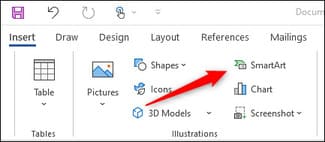
First, you need to open Word software. In the “Illustrations” group of the “Insert” tab, click “SmartArt”.
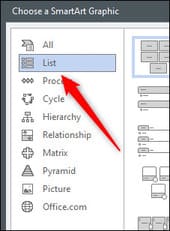
The “Choose a SmartArt Graphic” window will appear. In the left menu, select “List”. You can also choose another one if you like.
Next, select the SmartArt you want to use from the available options. I will use SmartArt “Basic Block List”. After selecting, click “OK”.
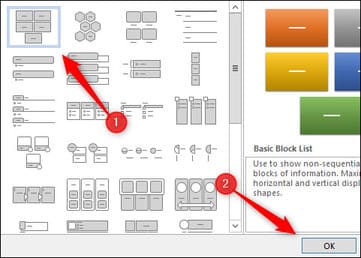
SmartArt will appear in Microsoft Word. Now, delete all and leave one item by clicking on each item and pressing the key Delete.
Next, enter the text you want in the remaining field.

In the image above, I enlarged the text and changed the font to see the image inserted in the text more clearly:
- Fonts: Cooper Black
- Size: 82 pt.
- Format: Bold (Bold)
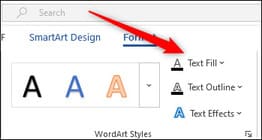
Next, highlight the text contained in SmartArt. In the “WordArt Styles” group of the “Format”, click on the option “Text Fill”.
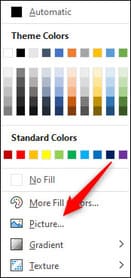
Select “Picture”.
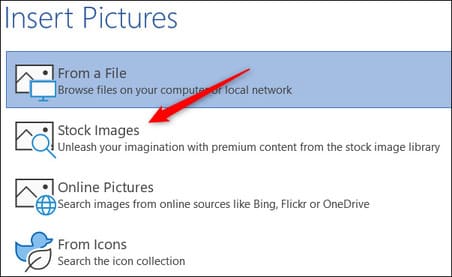
The “Insert Pictures” window will appear. Here, choose where you want to insert the photo:
- From a File: Choose a photo from your computer.
- Stock Images: Choose a photo from the available image library.
- Online Pictures: Find photos online.
- From Icons: Choose an icon from Word’s icon library.
I will choose Stock images.
Select your photo and click “Insert”.
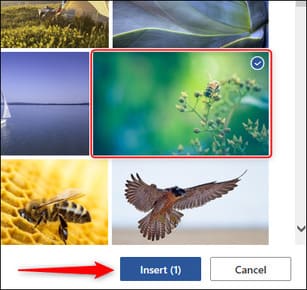
So you have successfully inserted the image into the text.

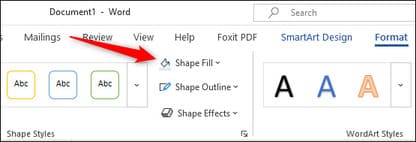
Next, you can remove the SmartArt background. Select SmartArt, go to tab “Format“, click “Shape Fill”.
Next select “No Fill”.
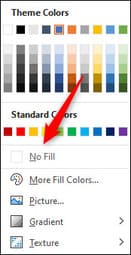
Background SmartArt has now been deleted, and only the text remains. Thus, the image inserted into the text appears without the background below.

Although it’s not as convenient as before, with this little trick, you can still insert images into your text. So you have simply inserted images into text using Word without having to use complicated Photoshop software.
Frequently asked questions
Can I insert images directly into text in Word like before?
No, the feature to insert images directly into text has been removed from Word 2013 onwards. However, you can still achieve the same effect using SmartArt.
What software other than Microsoft Word do I need to do this?
You don’t need any other software. All steps are performed entirely in Microsoft Word.
If I want to use photos from my computer, how do I do that?
During the image selection step, select “From a File” and browse to the image you want to use on your computer.