• Home
  • News
  • Software
  • Knowledge
  • MMO
  • Tips
  • Security
  • Network
  • Office
AnonyViet - English Version
  • Home
  • News
  • Software
  • Knowledge
  • MMO
  • Tips
  • Security
  • Network
  • Office
No Result
View All Result
  • Home
  • News
  • Software
  • Knowledge
  • MMO
  • Tips
  • Security
  • Network
  • Office
No Result
View All Result
AnonyViet - English Version
No Result
View All Result

How to insert a signature in Microsoft Word

AnonyViet by AnonyViet
January 13, 2023
in Office
0

Inserting your signature into Microsoft Word is a way to personalize documents as your own, especially for documents like letters or contracts. If you want to add a signature to a Word document, then read this article.

Join the channel Telegram of the AnonyViet 👉 Link 👈

How to insert a signature in Microsoft Word

There are several ways to add your signature to Word. You can add a signature line, add a digital signature, or insert your own handwritten signature as an image.

How to add a signature line in Word

The signature line gives you or someone else a place to sign documents. If you’re looking to print your Word document, adding a signature line is probably the easiest way to make it easy for others to sign.

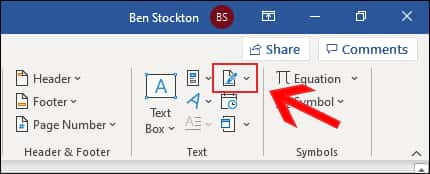
To add a signature line to Word, click Insert > Signature Line. This icon is usually found in the “Text” group.
How to insert a signature in Microsoft Word 11

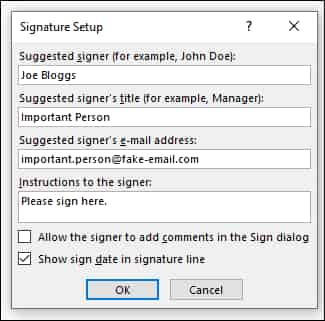
In the “Signature Setup” window, fill in your signature details. You can enter the name, title, and email address of the signer.

You can also provide instructions to the signer. When you are ready, click “OK” to insert your signature line.
How to insert a signature in Microsoft Word 12

Once you’ve confirmed your signature options, a signature line will be inserted with a slash and a line to indicate where to sign.

How to insert a signature in Microsoft Word 13

You can now place it in an appropriate place in your Word document. The document can then be signed in this location after printing, or if you’ve saved your Word document in the DOCX file format, you can insert a digital signature into your document.

How to insert a digital signature in Word

To add a digital signature to your Word document, you need to first follow the instructions above and insert a signature line.

You will also need to install a security certificate for your signature. If you don’t have one, Word will ask you if you’d like to purchase an account from a “Microsoft Partner” like GlobalSign or not.

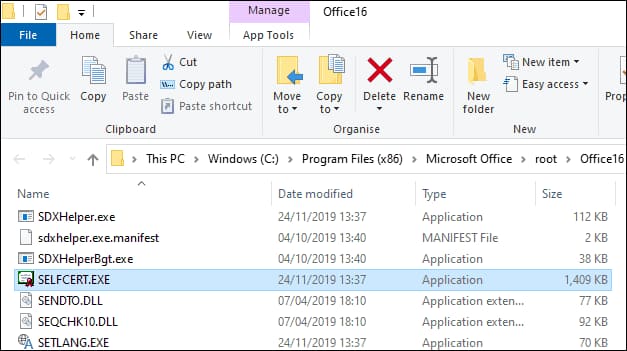
Instead, you can create your own digital certificate using the “Selfcert” tool, which is included in your Microsoft Office installation folder.

Find “Selfcert.exe” in your Office installation folder and double-click it to open it.
How to insert a signature in Microsoft Word 14

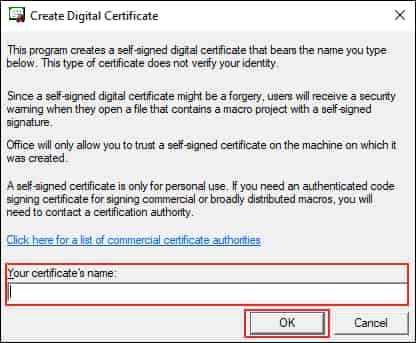
In the Selfcert tool, enter a name for your security certificate under “Your Certificate Name” and then click “OK” to create it.
How to insert a signature in Microsoft Word 15

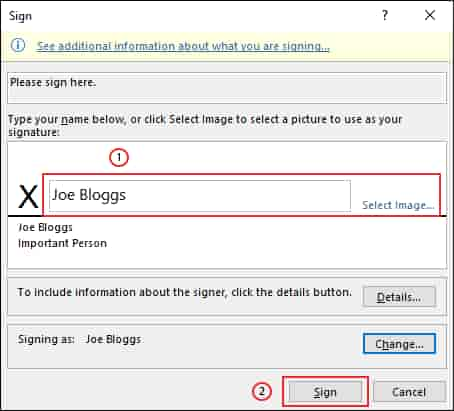
After you have installed the digital certificate, go back to the Word document and double-click your signature line.

Under “Sign”, enter your name or click “Select Image” to insert an image of your handwritten signature.

Click “Sign” to insert your digital signature into the Word document.
How to insert a signature in Microsoft Word 16

Once signed, Word will confirm that the signature has been added.

If you edit the document after signing, the digital signature will become invalid and you will need to sign it again.

How to insert a signature in Microsoft Word 17

How to add a photo signature in Word

If you want to use your handwritten signature, you can take a photo or scan a copy of it and upload it to your computer. Then, insert the signature image into the Word document.

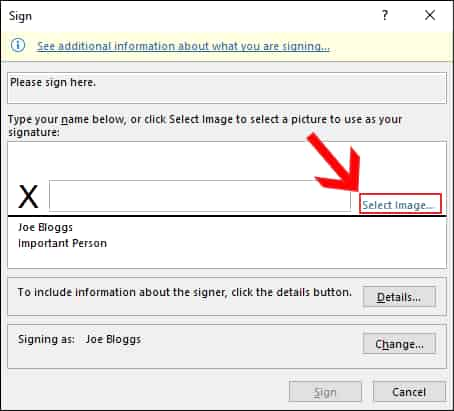
Click Insert > Pictures to manually insert a picture into your document. Alternatively, double-click your signature line and select “Select Image” to insert an image into your signature line.
How to insert a signature in Microsoft Word 18

Under “Insert Pictures”, click “From a File” and select your signature image. From there, click “Sign” to place the photo in your signature line.

Once inserted, the image file containing your signature will be inserted above your signature line.
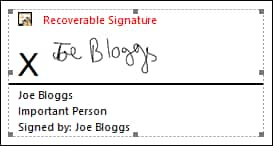
How to insert a signature in Microsoft Word 19

In addition, you can also attach viruses to Word files here.

The article achieved: 5/5 – (100 votes)

Tags: insertMicrosoftsignatureword
Previous Post

Download Driver Booster 10 Pro Full Key – Download and update Driver automatically

Next Post

Fast Google Dorks Scan: Crawl Websites with Dorks

AnonyViet

AnonyViet

Related Posts

How to add Watermark to Google Docs to protect copyright
Office

How to add Watermark to Google Docs to protect copyright

April 19, 2026
Instructions on how to hide formulas in Excel to secure data
Office

Instructions on how to hide formulas in Excel to secure data

February 6, 2026
Top who creates the most beautiful presentation slide today
Office

Top who creates the most beautiful presentation slide today

September 23, 2025
Automatically check and correct spelling errors on Google Docs
Office

Automatically check and correct spelling errors on Google Docs

February 23, 2025
Instructions for downloading Google Docs files easily on any device
Office

Instructions for downloading Google Docs files easily on any device

December 18, 2024
Launching AI image creation feature on Google Docs
Office

Launching AI image creation feature on Google Docs

November 20, 2024
Next Post
Fast Google Dorks Scan: Crawl Websites with Dorks

Fast Google Dorks Scan: Crawl Websites with Dorks

0 0 votes
Article Rating
Subscribe
Login
Notify of
guest

guest

0 Comments
Oldest
Newest Most Voted

Recent News

Windows 7/8.1/10 users will be upgraded to Windows 11 for free

Windows 7/8.1/10 users will be upgraded to Windows 11 for free

July 30, 2026
Instructions for receiving the free Certified LLM Security Expert certificate

Instructions for receiving the free Certified LLM Security Expert certificate

July 30, 2026
MSI laptops are not just for gamers: Which line is suitable for students, office workers and creative people?

MSI laptops are not just for gamers: Which line is suitable for students, office workers and creative people?

July 29, 2026
What is quantum resistant cryptography? Why must the Internet change?

What is quantum resistant cryptography? Why must the Internet change?

July 29, 2026
Windows 7/8.1/10 users will be upgraded to Windows 11 for free

Windows 7/8.1/10 users will be upgraded to Windows 11 for free

July 30, 2026
Instructions for receiving the free Certified LLM Security Expert certificate

Instructions for receiving the free Certified LLM Security Expert certificate

July 30, 2026
MSI laptops are not just for gamers: Which line is suitable for students, office workers and creative people?

MSI laptops are not just for gamers: Which line is suitable for students, office workers and creative people?

July 29, 2026
AnonyViet - English Version

AnonyViet

AnonyViet is a website share knowledge that you have never learned in school!

We are ready to welcome your comments, as well as your articles sent to AnonyViet.

Follow Us

Contact:

Email: anonyviet.com[@]gmail.com

Main Website: https://anonyviet.com

Recent News

Windows 7/8.1/10 users will be upgraded to Windows 11 for free

Windows 7/8.1/10 users will be upgraded to Windows 11 for free

July 30, 2026
Instructions for receiving the free Certified LLM Security Expert certificate

Instructions for receiving the free Certified LLM Security Expert certificate

July 30, 2026
  • Home
  • Home 2
  • Home 3
  • Home 4
  • Home 5
  • Home 6
  • Next Dest Page
  • Sample Page

say88 tỷ lệ kèo nhà cái kèo nhà cái 5 febet

No Result
View All Result
  • Home
  • News
  • Software
  • Knowledge
  • MMO
  • Tips
  • Security
  • Network
  • Office

say88 tỷ lệ kèo nhà cái kèo nhà cái 5 febet

wpDiscuz
0
0
Would love your thoughts, please comment.x
()
x
| Reply