• Home
  • News
  • Software
  • Knowledge
  • MMO
  • Tips
  • Security
  • Network
  • Office
AnonyViet - English Version
  • Home
  • News
  • Software
  • Knowledge
  • MMO
  • Tips
  • Security
  • Network
  • Office
No Result
View All Result
  • Home
  • News
  • Software
  • Knowledge
  • MMO
  • Tips
  • Security
  • Network
  • Office
No Result
View All Result
AnonyViet - English Version
No Result
View All Result

How to increase notification display time on Windows 11

AnonyViet by AnonyViet
May 4, 2024
in Tips
0

Not everyone knows How to increase notification display time on your computer screen, so you can update the latest information from applications, websites or connected devices. You may miss some important notifications if they only appear for a short period of time and then disappear. So how to fix this problem? Let's follow the solution right below!

Join the channel Telegram belong to AnonyViet 👉 Link 👈

Why should we increase notification display time?

Windows 11 is Microsoft's latest operating system, bringing many new features and interfaces to users. One of those features is notifications, which help you update important information from applications and systems.
How to increase notification display time on Windows 11
Why should we increase notification display time?

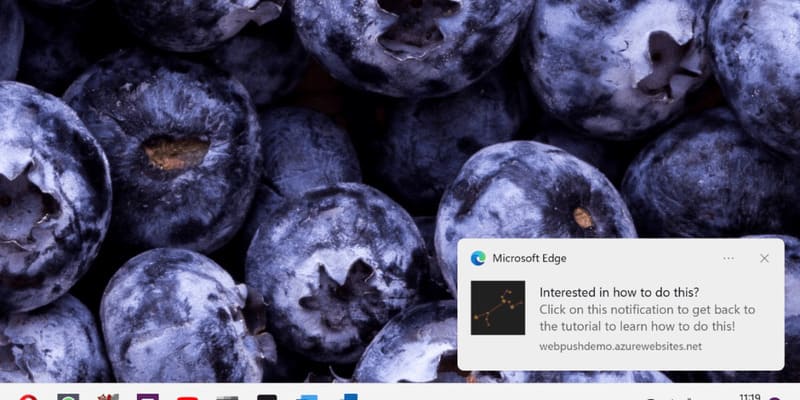
However, by default, notifications on Windows 11 only appear for 5 seconds and then automatically disappear, switching to the Notification Center. This may cause you to miss some important notifications or not read all of their content in time.

How to increase notification display time on Windows 11

Step 1: Open Settings on Windows 11, click the gear icon, or use the keyboard shortcut Windows + I.

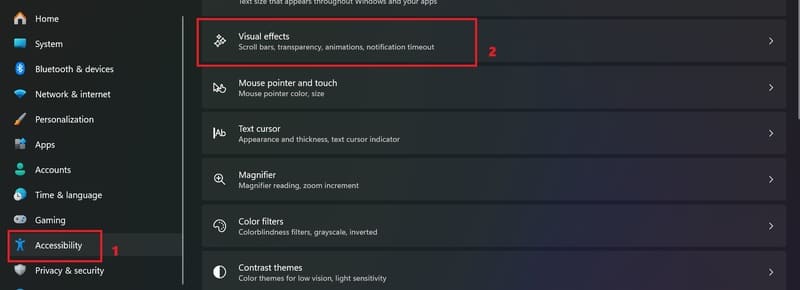
Step 2: In the Settings window, select Accessibility > Visual effects.
How to increase notification display time
Select Accessibility > Visual effects

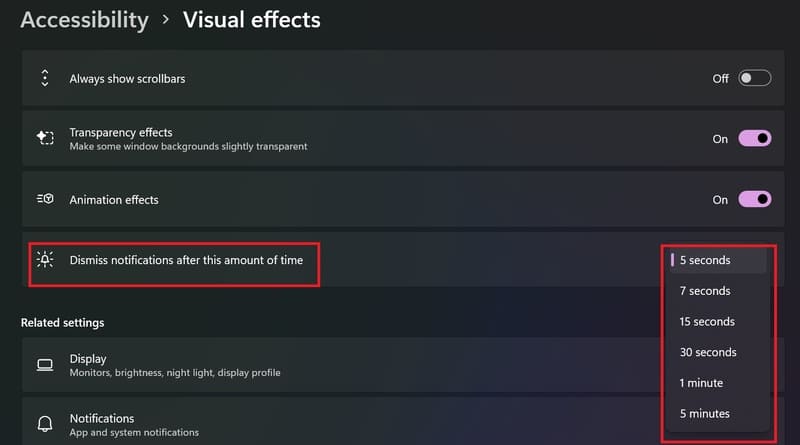
Step 3: Find the 'Dismiss notifications after this amount of time' section. Click on the drop-down menu and choose the time you want the notification to appear, from 5 seconds to 5 minutes.
How to increase notification display time
Tap the drop-down menu and select a time

Epilogue

With the simple steps we have instructed, you already know How to increase notification display time above Windows 11 then right? Hopefully this article will help you not miss any important notifications on your computer. Hope you are succesful.


The article scored: 5/5 – (100 votes)

Tags: displayincreaseNotificationtimeWindows
Previous Post

Top 4 university exam preparation applications

Next Post

Instructions for updating software for AirPods

AnonyViet

AnonyViet

Related Posts

How to record reaction videos with Android phones, no app needed
Tips

How to record reaction videos with Android phones, no app needed

June 1, 2026
Instructions on how to get Google AI Pro 1 year for free for new accounts
Tips

Instructions on how to get Google AI Pro 1 year for free for new accounts

June 1, 2026
Top free AI tools to help write, test and optimize content
Tips

Top free AI tools to help write, test and optimize content

June 1, 2026
Instructions for receiving Lovable Pro 12 months for free
Tips

Instructions for receiving Lovable Pro 12 months for free

May 29, 2026
Instructions for receiving 1 month of ElevenLabs Creator for free worth
Tips

Instructions for receiving 1 month of ElevenLabs Creator for free worth $22

May 25, 2026
How to create beautiful studio-like preschool graduation photos for your child
Tips

How to create beautiful studio-like preschool graduation photos for your child

May 21, 2026
Next Post
Instructions for updating software for AirPods

Instructions for updating software for AirPods

0 0 votes
Article Rating
Subscribe
Login
Notify of
guest

guest

0 Comments
Oldest
Newest Most Voted
Inline Feedbacks
View all comments

Recent News

How to record reaction videos with Android phones, no app needed

How to record reaction videos with Android phones, no app needed

June 1, 2026
Instructions on how to get Google AI Pro 1 year for free for new accounts

Instructions on how to get Google AI Pro 1 year for free for new accounts

June 1, 2026
Top free AI tools to help write, test and optimize content

Top free AI tools to help write, test and optimize content

June 1, 2026
TruyenDrive: Turn Google Drive into a professional manga reader

TruyenDrive: Turn Google Drive into a professional manga reader

May 31, 2026
How to record reaction videos with Android phones, no app needed

How to record reaction videos with Android phones, no app needed

June 1, 2026
Instructions on how to get Google AI Pro 1 year for free for new accounts

Instructions on how to get Google AI Pro 1 year for free for new accounts

June 1, 2026
Top free AI tools to help write, test and optimize content

Top free AI tools to help write, test and optimize content

June 1, 2026
AnonyViet - English Version

AnonyViet

AnonyViet is a website share knowledge that you have never learned in school!

We are ready to welcome your comments, as well as your articles sent to AnonyViet.

Follow Us

Contact:

Email: anonyviet.com[@]gmail.com

Main Website: https://anonyviet.com

Recent News

How to record reaction videos with Android phones, no app needed

How to record reaction videos with Android phones, no app needed

June 1, 2026
Instructions on how to get Google AI Pro 1 year for free for new accounts

Instructions on how to get Google AI Pro 1 year for free for new accounts

June 1, 2026
No Result
View All Result
  • Home
  • News
  • Software
  • Knowledge
  • MMO
  • Tips
  • Security
  • Network
  • Office

wpDiscuz
0
0
Would love your thoughts, please comment.x
()
x
| Reply