• Home
  • News
  • Software
  • Knowledge
  • MMO
  • Tips
  • Security
  • Network
  • Office
AnonyViet - English Version
  • Home
  • News
  • Software
  • Knowledge
  • MMO
  • Tips
  • Security
  • Network
  • Office
No Result
View All Result
  • Home
  • News
  • Software
  • Knowledge
  • MMO
  • Tips
  • Security
  • Network
  • Office
No Result
View All Result
AnonyViet - English Version
No Result
View All Result

How to increase Internet speed with CMD anyone can do it

AnonyViet by AnonyViet
January 29, 2023
in Tips
0

In this article, I will show you how to increase internet speed with cmd. These customizations are related to the DNS cache, and use the ‘netsh int tcp’ command along with other commands to speed up internet access.

Join the channel Telegram of the AnonyViet 👉 Link 👈

How to increase Internet speed with CMD anyone can do it

How to increase internet speed with CMD

CMD is quite useful in many cases. Especially CMD can do things that the interface does not have, if you want to hack Windows CMD. But in this article we will perform Internet acceleration on a computer with a simple CMD, anyone can do it.

1. Test internet speed using ping . command

You can test your internet connection speed by using the ping command to send packets to the default gateway.

To know your default port you can use the command ipconfig /all. Once you get the IP address of the default gateway, ping it continuously with the command ping -t. You will see the time that the packet was sent and responded to.

Time low is a sign that your network is fast. However, running the ping command will consume your network bandwidth as well as your default gateway resources. Although ping packets are very small in size and you may not see any change in internet speed, it does consume bandwidth.
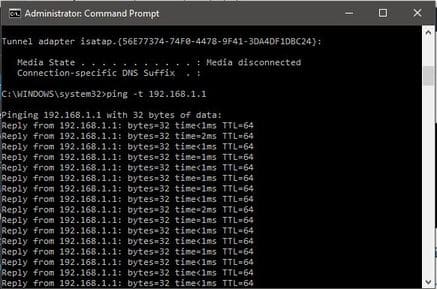
Test internet speed using ping . command

2. Refresh and change another IP

If you are using WiFi, in case you refresh or change the IP will increase the internet speed temporarily, depending on the strength of the WiFi signal. However, in the case of a LAN, this is completely useless.

You use the command:

ipconfig /release // this command is used to delete the current IP of the machine

ipconfig /renew //this command asks for new IP from Router
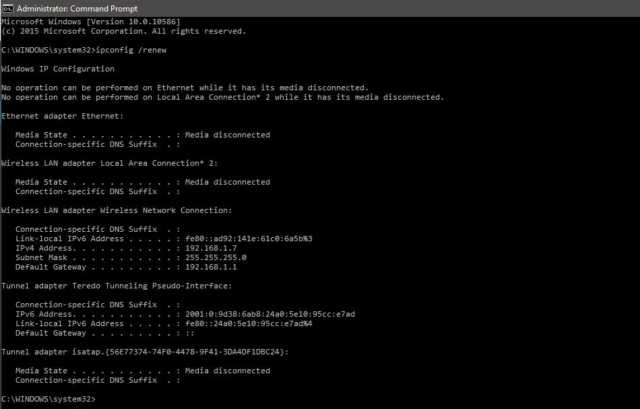
Refresh and change another IP

3. Using the Flushdns . command

Your computer will store the data of the websites you visit the most in its cache DNS resolver. Sometimes, these data will no longer be available after a few months or weeks. So when you clear the DNS resolver cache, you’re also deleting outdated data and freeing the DNS resolver cache.

You use the command: ipconfig /flushdns
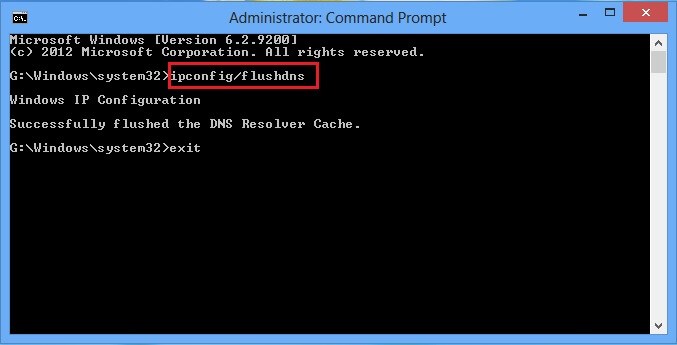
Using the Flushdns . command

When using this command, the connection speed will be slower at first because it requires the computer to request a new DNS for everything. However, you will soon see web pages load faster in the browser.

4. Use “netsh int tcp” command to increase internet speed

Enter this command in cmd: netsh interface tcp show global.
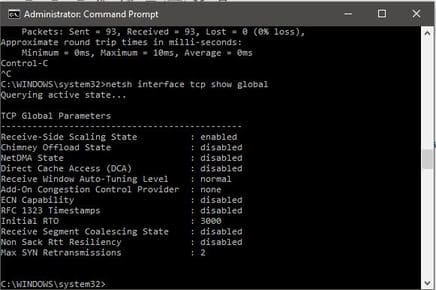
Use command "netsh int tcp" to increase internet speed

If you don’t see the line Receive Window Autotuning in the “Normal” state as shown above, run the following command:

netsh int tcp set global autotuninglevel = normal

This command will set your TCP to Normal from disabled or restricted status. TCP is one of the important factors affecting download speed. Therefore, setting TCP to ‘Normal’ will definitely help you increase your internet speed.

After this command, check another Windows parameter related to slow internet connection called ‘Windows scaling heuristics’. To check this parameter, enter:

netsh interface tcp show heuristics
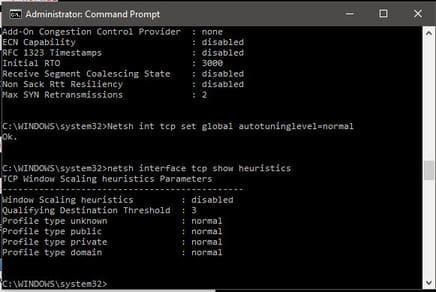
netsh interface tcp show heuristics

In the above case, this feature was disabled. However, in some cases you can turn it on. Microsoft is trying to limit your internet connection for some reason. So to access the internet faster you just need to enter the command below:

netsh interface tcp set heuristics disabled

After pressing enter you will get the message “ok” and now your internet speed is definitely faster.

Once you’ve completed the steps above, you can go back to step one to measure response time and check if your internet speed has increased.


The article achieved: 5/5 – (100 votes)

Tags: CMDincreaseInternetSpeed
Previous Post

Instructions for Fake IP to play games at the reward site

Next Post

How to create HTTP Botnet for extremely powerful DDOS attack with UBoat

AnonyViet

AnonyViet

Related Posts

Get free Cambridge courses to prepare for IELTS, Starters, Movers
Tips

Get free Cambridge courses to prepare for IELTS, Starters, Movers

June 4, 2026
How to record reaction videos with Android phones, no app needed
Tips

How to record reaction videos with Android phones, no app needed

June 1, 2026
Instructions on how to get Google AI Pro 1 year for free for new accounts
Tips

Instructions on how to get Google AI Pro 1 year for free for new accounts

June 1, 2026
Top free AI tools to help write, test and optimize content
Tips

Top free AI tools to help write, test and optimize content

June 1, 2026
Instructions for receiving Lovable Pro 12 months for free
Tips

Instructions for receiving Lovable Pro 12 months for free

May 29, 2026
Instructions for receiving 1 month of ElevenLabs Creator for free worth
Tips

Instructions for receiving 1 month of ElevenLabs Creator for free worth $22

May 25, 2026
Next Post
How to create HTTP Botnet for extremely powerful DDOS attack with UBoat

How to create HTTP Botnet for extremely powerful DDOS attack with UBoat

0 0 votes
Article Rating
Subscribe
Login
Notify of
guest

guest

0 Comments
Oldest
Newest Most Voted
Inline Feedbacks
View all comments

Recent News

How to buy in-game items for free on iPhone

How to buy in-game items for free on iPhone

June 8, 2026
Practical use of Xiaomi 17T Pro: This is a good phone in 2026

Practical use of Xiaomi 17T Pro: This is a good phone in 2026

June 8, 2026
Instructions to receive 6 months of IObit Malware Fighter 13 Pro for free

Instructions to receive 6 months of IObit Malware Fighter 13 Pro for free

June 7, 2026
How to use free online textbooks from grades 1 to 12

How to use free online textbooks from grades 1 to 12

June 6, 2026
How to buy in-game items for free on iPhone

How to buy in-game items for free on iPhone

June 8, 2026
Practical use of Xiaomi 17T Pro: This is a good phone in 2026

Practical use of Xiaomi 17T Pro: This is a good phone in 2026

June 8, 2026
Instructions to receive 6 months of IObit Malware Fighter 13 Pro for free

Instructions to receive 6 months of IObit Malware Fighter 13 Pro for free

June 7, 2026
AnonyViet - English Version

AnonyViet

AnonyViet is a website share knowledge that you have never learned in school!

We are ready to welcome your comments, as well as your articles sent to AnonyViet.

Follow Us

Contact:

Email: anonyviet.com[@]gmail.com

Main Website: https://anonyviet.com

Recent News

How to buy in-game items for free on iPhone

How to buy in-game items for free on iPhone

June 8, 2026
Practical use of Xiaomi 17T Pro: This is a good phone in 2026

Practical use of Xiaomi 17T Pro: This is a good phone in 2026

June 8, 2026
  • Home
  • Home 2
  • Home 3
  • Home 4
  • Home 5
  • Home 6
  • Next Dest Page
  • Sample Page

6789 kv999

No Result
View All Result
  • Home
  • News
  • Software
  • Knowledge
  • MMO
  • Tips
  • Security
  • Network
  • Office

6789 kv999

wpDiscuz
0
0
Would love your thoughts, please comment.x
()
x
| Reply