How to fix disappearing SSD is a hot keyword after the Windows 11 update KB5063878 caused serious problems for many users. This error causes hard drives, especially SSDs, to suddenly “evaporate” when copying large files, causing confusion and the risk of data loss. Don’t worry, AnonyViet will provide you with detailed solutions and effective preventive measures to protect the safety of your devices and data.
| Join the channel Telegram belong to AnonyViet 👉 Link 👈 |
Which Windows 11 update is causing the SSD disappearing error?
The issue stems from a Windows 11 security update 24H2code KB5063878 (build 26100.4946), released by Microsoft on August 12, 2025. Immediately after release, the user community, especially in Japan, simultaneously reported a worrying phenomenon: Their storage hard drive was suddenly no longer recognized by the system.
The general characteristic of this problem is that it often occurs when users perform large data transfer tasks (about 50GB or more) on drives that are more than used. 60% capacity. It is worth mentioning that the problem not only affects modern SSDs and NVMe drives, but even traditional HDDs have become victims.
Which SSD models are in danger?
This issue is not limited to a specific manufacturer or controller type, but affects a wide range of devices from many well-known brands. Independent tests have shown that up to 12/21 SSD models have problems. Some severe cases, like the WD SA510 2TB drive, were completely unrecoverable even after restarting the machine.
The list of devices recorded having problems includes:
- WD products such as Blue SN5000 and SA510.
- Corsair’s high-performance SSD lines are the MP510 and MP600.
- Hard drives from Solidigm (P44 Pro), ADATA (LEGEND 800, SP580), and Samsung (980 PRO 2TB).
- Other popular storage devices include SanDisk Extreme Pro, Kioxia, and SK hynix Platinum P41.

What do Microsoft and manufacturers say about this problem?
In response to the reports, Phison, one of the major SSD controller manufacturers, has launched an investigation. The company said it performed more than 4,500 hours of cumulative testing and more than 2,200 test cycles but was unable to reproduce the error. Phison believes that the problem may be related to the hardware overheating when transferring large files and recommends that users ensure good cooling systems, or this could be a user problem.
As for Microsoft, the software giant has acknowledged the reports and stated that it is “investigating with partners”. However, up to now, Microsoft has not yet officially listed this as a “known issue” on its operating system health page, leaving users still having to find ways to protect themselves.
Instructions on how to fix a disappearing SSD
The safest and most effective solution currently is remove update KB5063878. Please follow the steps below carefully.
Step 1: Prepare the system for safe uninstallation
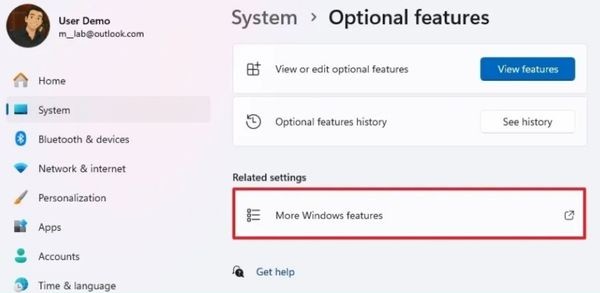
First, open it Settings on Windows 11. Next, navigate to System > Optional features. In the “Related settings” section, click More Windows features.
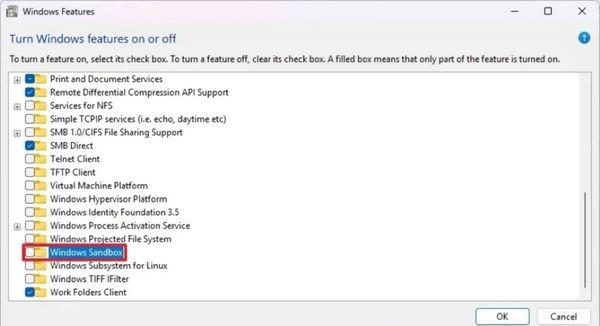
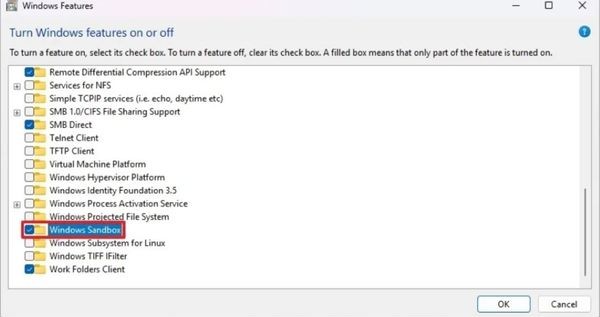
To avoid error 0x800F0825 during uninstallation, you need to temporarily disable the feature Windows Sandbox by unchecking the corresponding box. Finally, you press OK and restart the computer.
Step 2: Uninstall update KB5063878
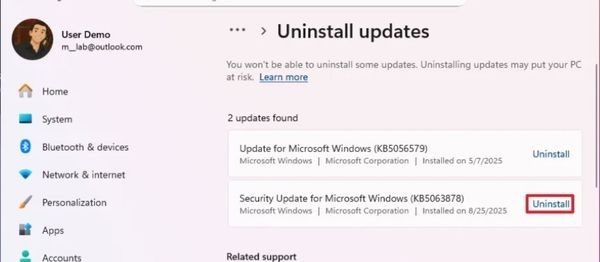
After the computer restarts, reopen it Settings. Please access the section Windows Update > Update history. Here, you find and click on the option Uninstall updates.
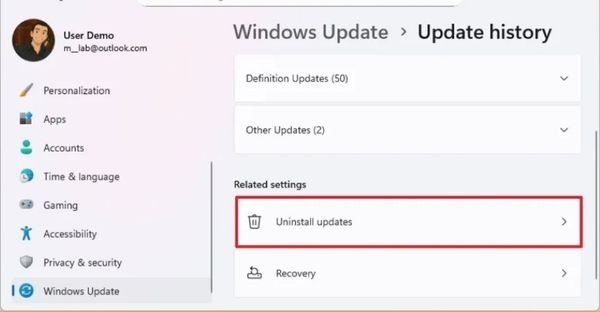
In the list that appears, find the update with the code KB5063878 (build 26100.4946) and press the button Uninstall. The system will ask you to reboot again to complete the process.
Step 3: Pause the update to prevent the error from returning
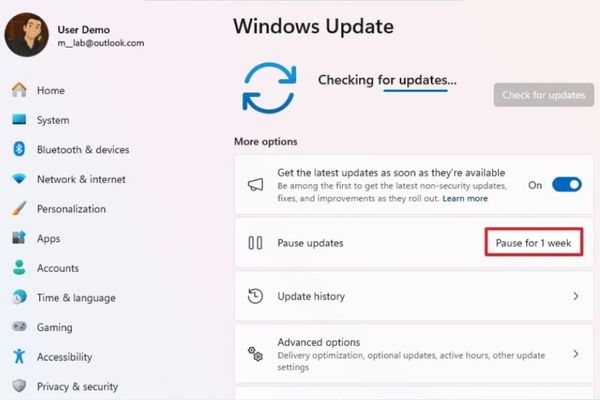
To make sure Windows doesn’t automatically reinstall a failed update, go to Settings > Windows Update.
Here, click the button Pause for 1 week to pause automatic updates for a week.
Step 4: Restore Windows Sandbox (if necessary)
If you regularly use Windows Sandbox, you can re-enable it by going back System > Optional features > More Windows featuresthen check it again in the box Windows Sandbox and restart the machine.
What to do after recovery?
If your hard drive is gone, uninstalling the update may help it reappear. However, if data has been corrupted, you can only restore from a previously created backup.
This incident is a valuable lesson about the importance of data backup. Therefore, to avoid recurring problems, you should:
- Create a full system backup using the tool System Image Backup.
- Enable automatic backup features like File History, Windows Backup, and sync important files to OneDrive.
- Consider turning off automatic updates and only installing new updates about 2 weeks after release to ensure they are stable.

Conclude
The problem of SSD disappearing due to update KB5063878 is a stark reminder of the risks of software updates. By following the instructions above, you can completely proactively apply How to fix SSD disappearing and protect your device. Most importantly, always maintain the habit of backing up data regularly to ensure safety against any unexpected situations.