Gmail has 15GB of free storage shared with Google Drive and Google Photos. The downside to this is that you’ll have less email storage space than Drive and Photos. So, in this article, I will show you how to free up Gmail space before deciding to spend money to buy more space.
| Join the channel Telegram belong to AnonyViet 👉 Link 👈 |

Google wants you to buy more storage
You can see the total space your Gmail account is using from the page Google One Storage. However, this page only statistics the amount of space you use on Google services and redirects you there without any solution to free up space.
Sure, you can start deleting one email at a time, but what if you have at least a few thousand emails :v. I guess you don’t want to waste a ton of time deleting all those emails.
Google wants you to buy more space to store all those old emails. But you can free up those old emails without spending any extra money. The handsome admin will guide you right away.
How to find and delete Emails with the largest capacity
Gmail doesn’t actually show how much storage each email is using. However, Gmail allows you to search emails by file size.
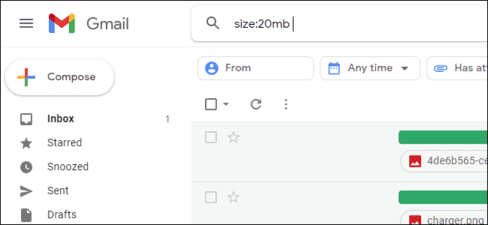
To do this, search using the “size:” operator in Gmail. For example, to search for emails over 20MB in size, enter the following command in the search bar and press Enter:
size:20mbIf you delete the five emails listed, you’ll free up at least 100MB. Now you know which emails to delete to free up space as quickly as possible.
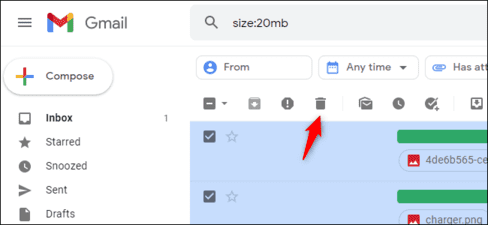
To delete an email, select the box next to it and click the “Delete” icon that looks like a trash can icon on the toolbar. To delete multiple emails, select them using the checkboxes and click the trash icon to delete them all at once.
You can also delete unread emails by entering the following command in the search bar: in:unread.
Work your way to reducing Gmail space—for example: “size: 10mb” will display all emails that are 10MB or larger in size. You just need to select all of those emails and delete them permanently to free up storage space.
These emails will use a lot of space because they have large files attached. Unfortunately, there’s no way to delete attachments while retaining the email. If the email is important to you, you can forward it to yourself (and remove the attachment while sending), then delete the original. You can also print an email to PDF and then delete it. Or, if the attachments are important, you can download and store them elsewhere before deleting the email.
How to quickly delete large numbers of emails to free up Gmail space
Chances are you have a large amount of useless emails, wasting space in your inbox. So what you need to do is quickly find and delete that large number of useless emails. I will make a specific article on how to delete useless emails as quickly as possible.
But first you should delete the emails in your Spam / Junk folder.
How to sort email messages by size
If you want to do more, I recommend using IMAP applications like Mozilla Thunderbird. Thunderbird will tell you the exact size of each email in your Gmail account. You can even sort them by size.
Frequently asked questions
How to find and delete the largest emails in Gmail?
You can use the “size:” search operator in Gmail. For example, “size:20mb” will find emails larger than 20MB. Select these emails and press the “Delete” button to free up space.
Can I quickly delete large amounts of email?
Maybe. Start by deleting emails in your Spam/Junk folder. To delete large numbers of other emails, use a search operator like “size:10mb” or “in:unread” combined with selecting multiple emails at once and deleting them.
Does Gmail display the size of each email?
Not directly. However, you can use the search operator “size:” to find large emails. To know the exact size of each email, use an IMAP application like Mozilla Thunderbird.