After updating to the latest version of Windows 10, I noticed that my computer’s RAM usage increased to 80% after nearly 30 minutes of use. I looked at some technology forums and saw that many people were facing the problem of RAM consumption error in Windows 10, causing useless memory loss.
📢 Join the channel Telegram belong to AnonyViet
Update new articles, cool tools and IT tips fastest
After trying many solutions, I finally reduced RAM usage to normal levels. If you want to know how to do it, please continue reading the article.
What is RAM consumption error?
Basically, a RAM drain is a portion of RAM that is marked as “in use” but is actually not in use.
This happens when the program does not notify the Windows RAM manager that it has stopped using RAM and that this RAM can be used for something else. Therefore, Windows will not use that part of RAM even though it is allowed to be used for something else.
This issue causes RAM usage to increase, even though no programs are actually using RAM. This error can occur with any program, including Windows services, native applications, background processes, hardware drivers, and third-party applications.
Tip: A quick fix for any RAM-consuming problem is to restart your PC. Because RAM is temporary memory, RAM will be lost when the computer is restarted. Therefore, any free RAM will be returned to Windows. However, this won’t help in the long run because the program will probably end up consuming RAM again.
Determine the cause of RAM consumption
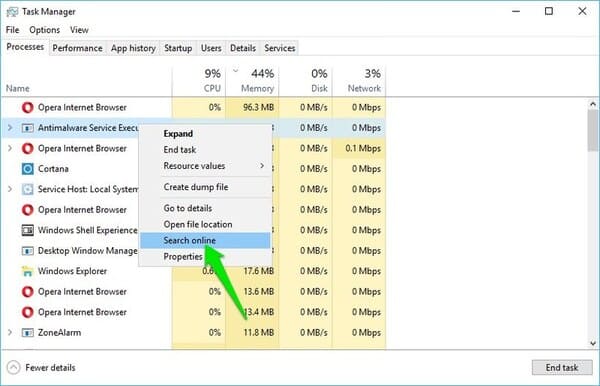
Windows Task Manager displays all currently running processes along with their resource usage. For most programs, Task Manager will be able to find the culprit that’s causing you to consume RAM.
Press Ctrl + Shift + Esc to open Task Manager and go to tab Processes. Here, you will see all the active processes with their CPU and RAM usage details.
Click the top of the tab Memory to sort processes in descending order of RAM usage.
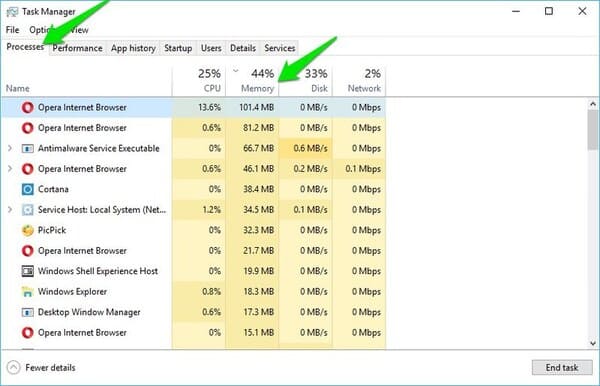
You need to find the process that is using more RAM than usual. Most likely the culprit will use over 50% of the total RAM memory.
However, keep in mind that heavy programs like Photoshop or even your browser (opening multiple tabs at once) can also use many GB of RAM.
Once you find the culprit, there are a few things you can do which I have listed below:
- If it’s a third-party app, reinstall or reset it (if possible). If not, you will have to delete it and find a software to replace that application.
- If it’s not a third-party app, right-click on it and select “Search online“If it’s a Windows process, then search further to see if you can find a solution to stop it consuming RAM or take the next step.
- Most of the other solutions we mentioned in this article can fix problems with native Windows apps and services that cause RAM consumption. If nothing works, continue applying the solutions below.
Fix faulty Driver
After upgrading to versions of Windows 10, there is a possibility that required drivers may not work properly on your PC.
Therefore, you need to update outdated drivers to fix them. You can do it manually or automatically, I will show you both ways.
Update Drivers manually
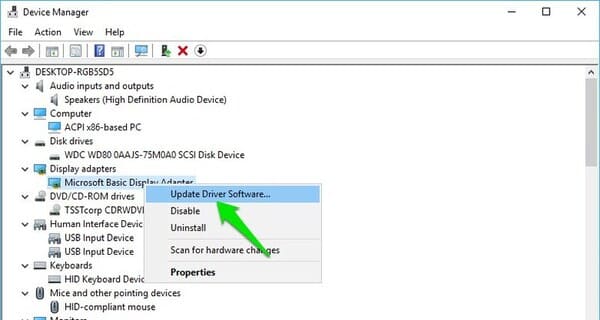
Press Windows + R and type devmgmt.msc to open Device Manager. Here, select all items with yellow triangles.
That icon indicates that the driver is outdated or corrupted. If you find it, right click on it and select Update driver software.
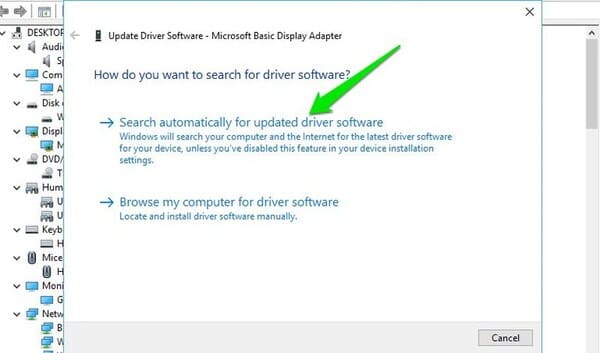
Click here Search automatically for updated driver software to update drivers.
Update Driver automatically
I personally recommend using third-party driver update tools because it can find faulty drivers that even Windows can ignore.
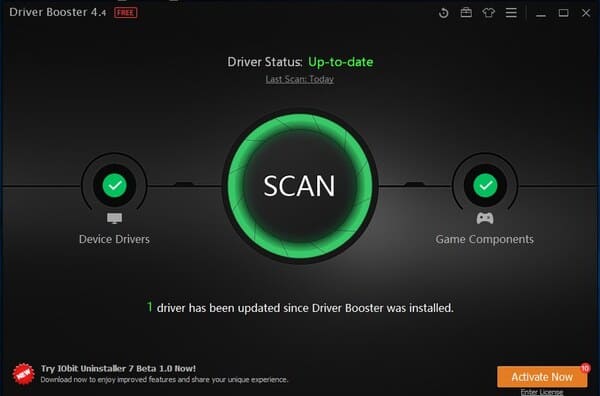
The automatic driver update tool I am using is IObit Driver Booster. Because this software supports more than 400,000 drivers for Windows 10, and the second reason is that this software has a PRO key on anonyviet, article link here okay.
Clean Boot Windows 10
Clean Boot is the process of disabling all third-party startup applications and background services to resolve the problem. Since most background processes are stopped, it is likely that the failed process will not be activated either. Microsoft has a great article about this How to clean boot Windows 10 and even other versions of Windows.
If a clean boot solves the problem, then you can try enabling each service to see which one is causing the problem and disabling it.
Remove malware
Viruses or malware can also increase RAM usage. Malware is created to damage your system by putting pressure on RAM to halt PC usage. The best way is to scan for malware with a good antivirus program. I recommend using Avast because it is lightweight and very powerful. If possible, use Kaspersky.
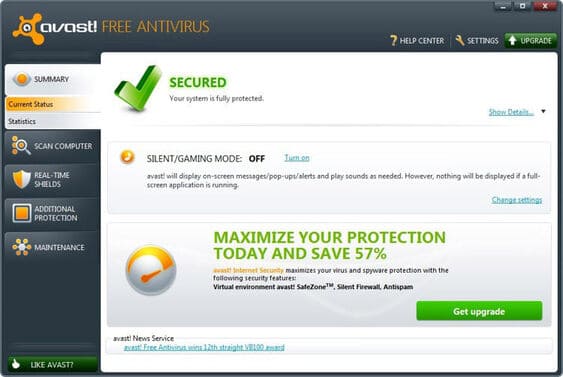
Install Avast and run a full system scan. It can find and remove all types of malware. In case it fails, you can also create an Avast Rescue Disk and run the scan while Windows is not started.
Because Windows is not running, viruses will not be able to hide or prevent antivirus programs from scanning.
Remove adware
Similar to malware, adware can also use loads of RAM in the background. Adware displays ads when you use programs, because to download and then set up these ads, it uses system and network resources, including RAM. Regular malware removal tools like Avast are not the best choice, you need a specialized adware cleaning program.
Adwcleaner is one of the best adware cleaners, cleans your PC of all adware and even unwanted programs that may be using RAM. Just scan your PC with Adwcleaner, it will find and remove all kinds of unnecessary programs.
Conclude
Consuming RAM in Windows 10 is often caused by faulty drivers, especially network drivers. You should make sure all drivers are up to date and make sure there are no third-party applications consuming RAM.
Frequently asked questions
How to know what causes RAM consumption?
You can use Task Manager (Ctrl + Shift + Esc) to see which processes are using RAM. Sort by the “Memory” column to easily determine which programs or services are consuming the most RAM.
If restarting the computer doesn’t solve the RAM consumption problem, what should I do?
Restarting is only a temporary solution. Try updating drivers, performing Clean Boot, scanning for viruses/malware and removing adware to find and fix the root cause.
What software can I use to automatically update drivers?
You can use third-party driver update tools like IObit Driver Booster to automatically find and update outdated or corrupted drivers.